
How to Use Stage Manager on Mac and iPad
A crowded desktop makes even a simple task feel harder than it should. If you regularly move between Mail, Safari, Notes, and other apps, learning how to use Stage Manager can give your work a clearer structure. Rather than leaving every open window competing for attention, Stage Manager keeps your current task front and center while placing other recent app groups within easy reach.
Stage Manager is available on compatible Macs running macOS Ventura or later and supported iPads running iPadOS 16 or later. The exact controls can vary slightly by software version, but the working idea is the same: create a focused workspace for what you are doing now, then switch to another workspace when your task changes.
What Stage Manager does
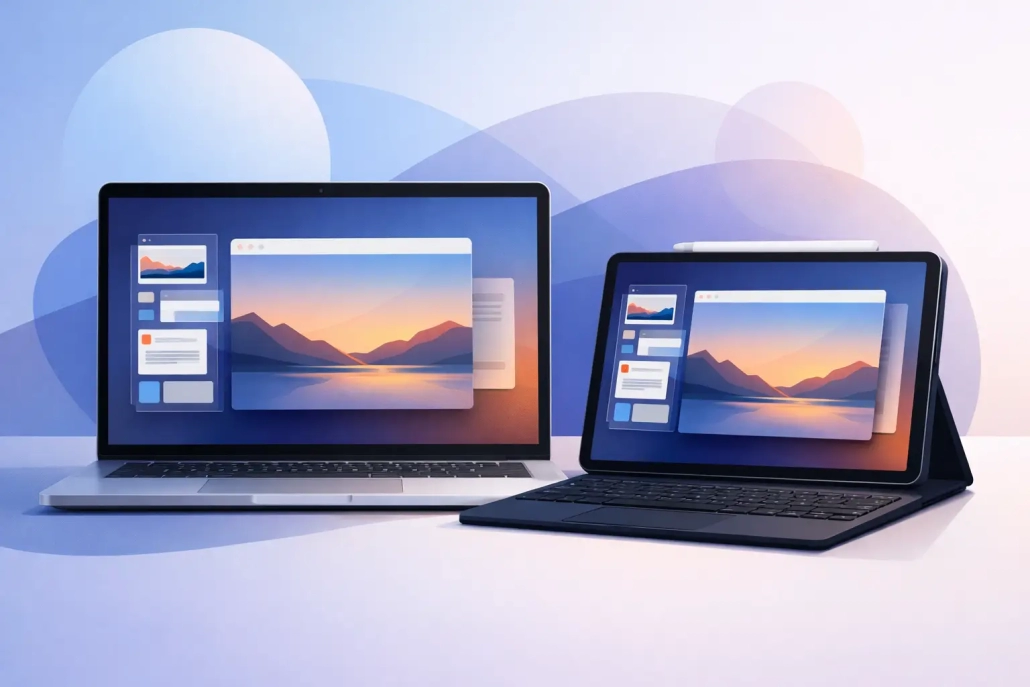
When Stage Manager is turned on, the app or apps you are actively using appear in the center of the screen. Recent apps and app groups appear as smaller thumbnails along the left side. Click or tap a thumbnail to bring that group forward.
This is different from simply minimizing windows. A minimized window is put away until you retrieve it from the Dock. Stage Manager keeps your recent work visible as a set of organized groups, making it useful when you need to move quickly between related tasks.
For example, you might keep Safari, Notes, and Reminders together while planning a trip. A separate group could hold Mail and Calendar for scheduling, while another contains Photos and Messages for sharing pictures with family. You decide which apps belong together based on the task, not the app category.
Stage Manager is especially helpful on a Mac desktop with many open windows. On iPad, it can make multitasking feel more like working with a traditional computer, particularly when you use a keyboard, trackpad, or external display. It is not necessary for every workflow, though. If you usually work in one app at a time, the feature may add more movement than value.
How to turn on Stage Manager
On a Mac
The fastest way to turn on Stage Manager is through Control Center. Click Control Center in the menu bar, select Stage Manager, and turn it on. Your open windows will immediately reorganize, with the current window in the center and recent apps displayed on the left.
You can also adjust its behavior in System Settings. Open System Settings, choose Desktop & Dock, then find the Stage Manager section. Here, you can decide whether recent applications remain visible on the left side of the screen.
If you prefer a cleaner screen, set recent applications to hide. Move your pointer to the left edge of the display whenever you want to reveal them. This option works well for smaller Mac displays where the thumbnails may otherwise take up useful space.
On an iPad
On a compatible iPad, swipe down from the top-right corner to open Control Center. Tap the Stage Manager control to turn it on. Depending on your iPadOS version and Control Center layout, you may need to add the control first by customizing Control Center.
You can also look in Settings under Multitasking & Gestures for Stage Manager options. Once enabled, your active app appears in the center, and recent apps or groups appear at the left edge of the screen.
On iPad, you can resize a window by dragging its curved corner. You can also move a window by dragging from the top. The controls are designed for touch, but a trackpad or mouse gives you more precision when arranging several windows.
Build app groups around a task
The most useful part of Stage Manager is grouping apps that belong to the same activity. Start by opening the first app you need. Then bring another app into the same workspace.
On a Mac, click an app in the Dock or open it from Launchpad. Drag its window from the left-side thumbnail area into the center workspace, or open the app while you are already working in the current group. You can also drag files, images, or web links between the windows in that group, which is often faster than switching back and forth between separate full-screen apps.
On iPad, open the first app, then use the Dock to open another app. You can drag an app from the Dock into the current workspace. If the Dock is not visible, swipe up gently from the bottom edge of the display until it appears. Avoid swiping too far, which returns you to the Home Screen.
Think in terms of projects rather than permanent setups. A group for paying bills might include Safari, Numbers, and Files. When you finish, you do not need to dismantle the group immediately. Stage Manager can keep it available until you return, but it is wise to close windows you no longer need so old tasks do not accumulate.
Switch between tasks without losing your place
To change tasks, click or tap one of the thumbnails on the left. That app group moves to the center, and your previous group shifts to the side. Your windows generally remain in the same arrangement, so you can pick up where you left off.
If an app is open but not visible among the recent thumbnails, use the Dock, Spotlight, or the App Switcher to bring it forward. On a Mac, you can press Command-Tab to switch apps. On iPad, swipe up and pause to open the App Switcher, then select the app you want.
This is where Stage Manager differs from a folder or filing system. It is designed for active work, not long-term organization. It helps you preserve context while moving from one live task to another.
Manage windows without creating confusion
Stage Manager works best when you give each group a clear purpose. It can become cluttered if you add every open app to one central workspace. A single large group may save clicks, but it also recreates the very window clutter the feature is meant to reduce.
Keep two or three apps together when they support one job. For instance, a writing group could include Pages, Safari, and Notes. If you add Messages only briefly to answer a question, remove it from the group afterward by closing its window or switching Messages into its own workspace.
On a Mac, you can still use standard window controls while Stage Manager is active. Minimize, maximize, resize, or close windows as needed. You can also use Mission Control if you work with multiple desktops. Stage Manager and multiple desktops can complement each other: use desktops for broad areas of work, such as personal and business, and use Stage Manager for the active projects within each area.
On iPad, window size matters more because the screen is smaller. Two apps can be practical side by side, but three small windows may be difficult to read. If you find yourself constantly resizing, simplify the group or use one app at a time.
Customize Stage Manager for your screen
The right setup depends on how much screen space you have and how you work. On a large external monitor, keeping recent apps visible is usually convenient. On a MacBook or iPad screen, hiding recent apps until you move to the left edge can give your active window more room.
You can also choose whether desktop items show while using Stage Manager on a Mac. Hiding them reduces visual distractions, while showing them can be useful if you often drag files from the desktop into an app. Neither choice is universally better. Try each setting for a day or two and notice whether it makes common tasks faster.
If you use an external display with iPad, Stage Manager becomes more flexible because windows have more room to spread out. Still, the best approach is restraint. A clean workspace with a few purposeful windows is easier to manage than a screen full of tiny app panels.
When to use Stage Manager and when to skip it
Use Stage Manager when you have several active projects, regularly refer to information across apps, or want a more controlled alternative to a crowded desktop. It is well suited to planning travel, researching a purchase, organizing photos, managing email, or working on documents.
You may prefer to leave it off when you are presenting your screen, focusing on one full-screen app, or working with a workflow that already depends heavily on multiple desktops and Mission Control. Some people also find the left-side thumbnails distracting. Turning the feature off is not a failure to use your device well. It simply means another window-management method fits your habits better.
The best way to learn Stage Manager is to try it with one real task you already do. Create a small group, switch away, then come back to it. Once you see your apps return in the arrangement you left them, the feature becomes less like another setting to manage and more like a practical way to keep your attention where it belongs.


