
We’ve updated our Safari for iOS Tutorial with 15 all-new lessons on how to use the web browser that is built into every iPhone & iPad! Learn to use all the main features of Safari, how to organize bookmarks, utilize tabs, manage profiles and much more!
View more details, and free lessons Here… Read more
Tag Archive for: iPhone
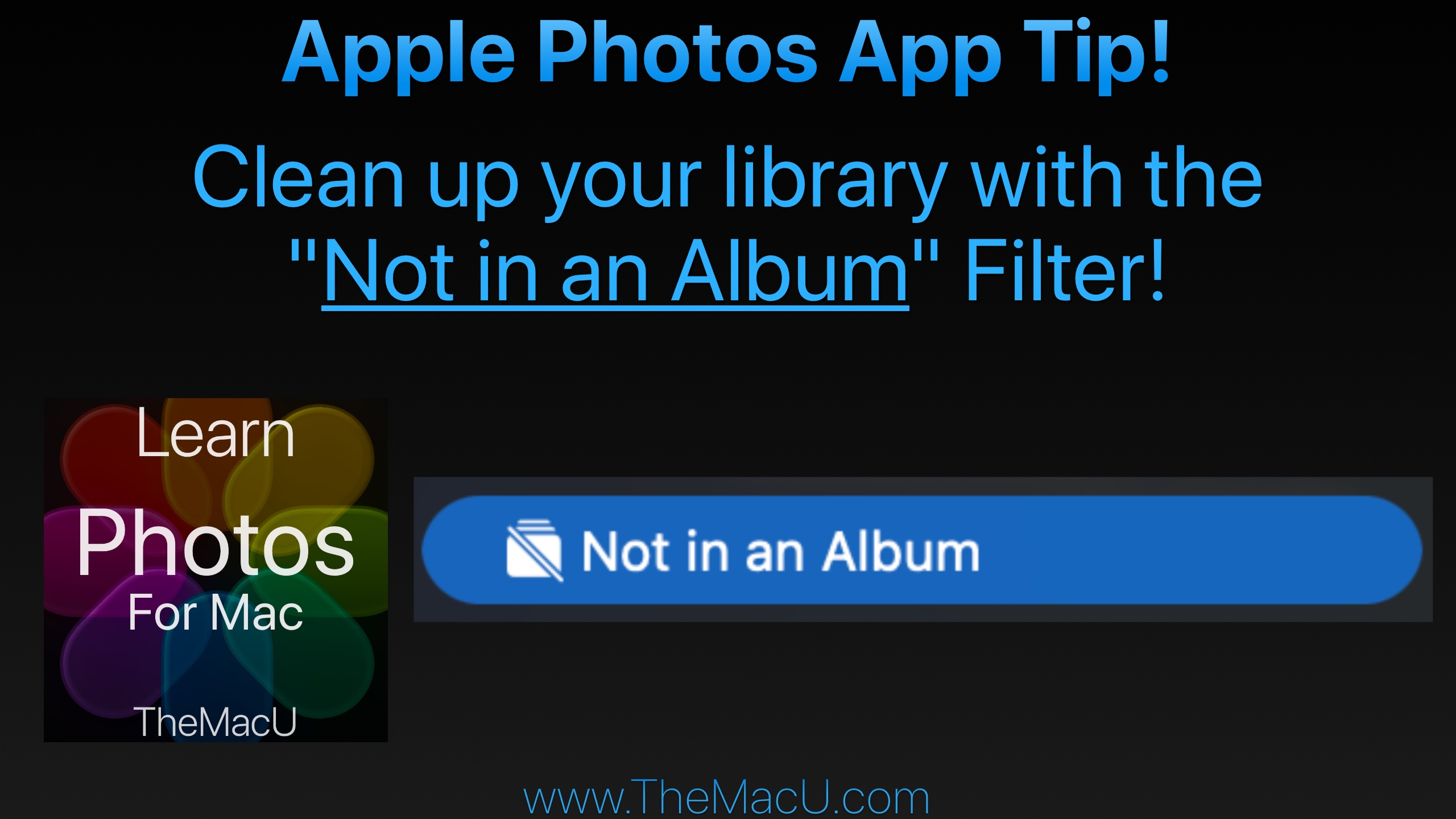
In this lesson from TheMacU.com learn to use the “Not in an Album” filter in your Photos library. This will prevent images or videos that you have organized into an album from continuing being shown in the main library view as well. This seems to be a cause of frustration for many Photos App users! Learn much more about the Apple Photos App at TheMacU.com!
Get the most out of the Photos App built into your Mac! This Photos for Mac video tutorial provides a comprehensive guide to viewing, organizing, editing, and sharing your photo library. In the “View & Organize” section, the lessons cover everything from the basics of navigating the Photos interface—such as the toolbar, sidebar, and info panel—to importing images from cameras, disks, other apps, and AirDrop. It also explores iCloud Photos, working with metadata and keywords, managing favorites, adjusting dates and times, and organizing by people, pets, and places. The tutorial includes guidance on creating and managing both standard and smart albums, handling hidden or deleted items, identifying duplicates, and using features like media types, utilities, and shared or multiple libraries, including iCloud Shared Photo Library. The “Editing Tools” section (coming early 2026) demonstrates how to enhance and refine your photos and videos. Viewers will learn to use the edit mode interface with tools like Auto Enhance, Crop & Straighten, Filters, and an in-depth set of adjustment options such as Light, Color, Black & White, White Balance, Levels, Curves, and Noise Reduction. Additional lessons explain retouching, correcting red-eye, sharpening, and applying vignettes or selective color adjustments. The tutorial also covers editing Live Photos, portrait shots, and videos, as well as working with extensions and other apps. Finally, the course explores creating slideshows, using the Share menu, exporting media, and how to wrap up your projects for sharing. Together, these lessons provide a step-by-step approach for managing, editing, and sharing photos on Mac, making it ideal for both beginners and those looking to expand their skills.
Our tutorial on how to use the Apple Reminders App for iPhone & iPad has been re-recorded and updated with 15 lessons! Learn how to create and manage reminders with ease, from scheduling urgent tasks and setting location alerts to adding notes, images, and subtasks. Discover how to organize your lists with sections, groups, and tags, share and assign reminders, and even add items from other apps or with Siri. Plus, explore the handy Reminders widget for quick access to your tasks—everything you need to stay organized and productive!
Current All Access Members can view the full tutorial Here…

What are Live Activities in iPhone Settings — and Why It Matters
What are Live Activities in iPhone Settings is one of those features that, once you understand it, you’ll wonder how you ever lived without it. Here’s the short answer:
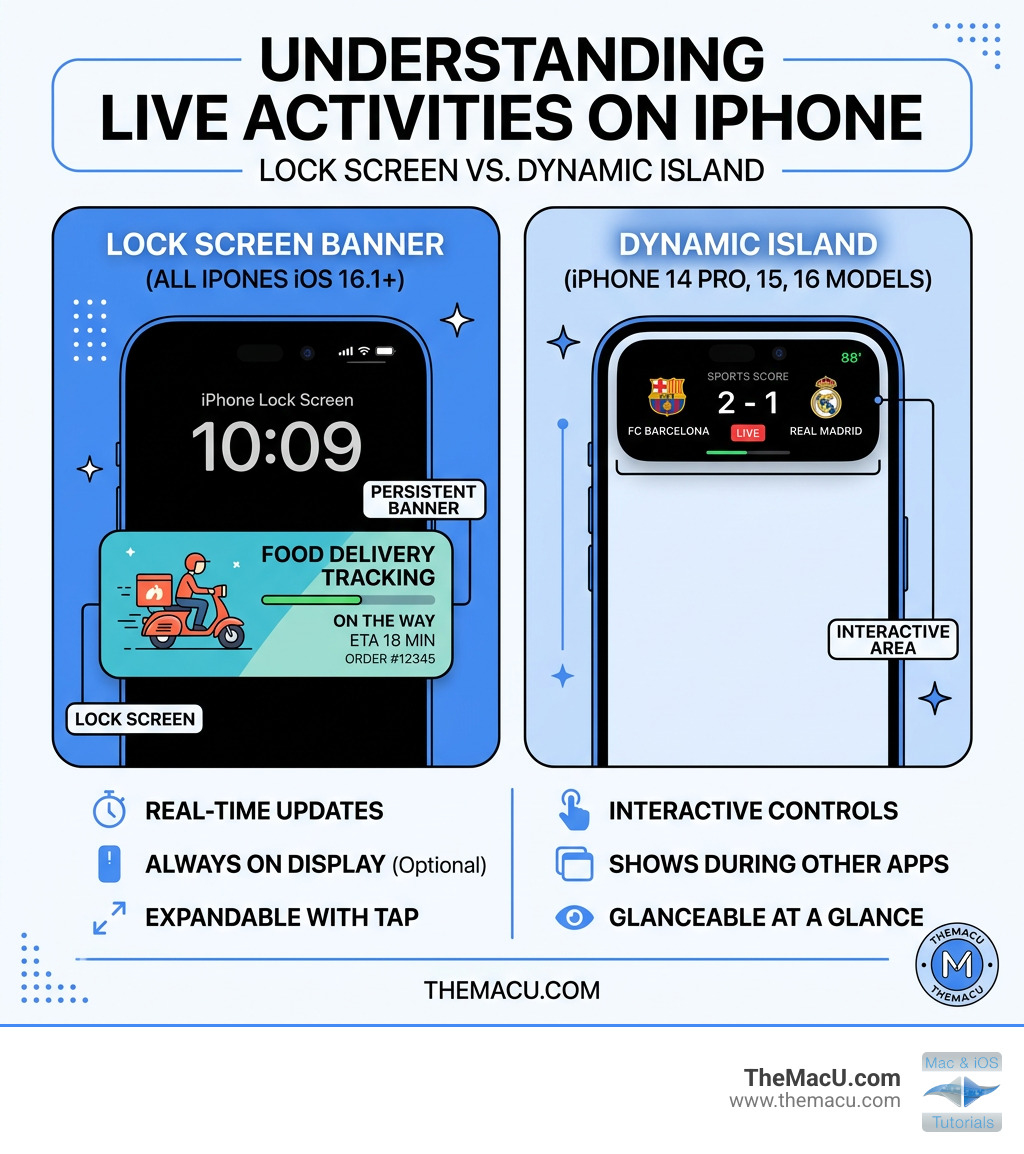
Live Activities are an iPhone feature (available on iOS 16.1 and later) that shows real-time updates from supported apps — like sports scores, food delivery status, or ride-sharing ETAs — directly on your Lock Screen or in the Dynamic Island, without you ever needing to unlock your phone.
How Live Activities work with iPhone & iPad using the lock screen and within Dynamic Island!

Quick summary of what you need to know:
- What it is: Real-time, interactive updates from apps shown on your Lock Screen or Dynamic Island
- Where to find it: Settings > Face ID & Passcode > scroll to “Allow Access When Locked” > Live Activities
- Who can use it: Any iPhone running iOS 16.1 or later
- Dynamic Island bonus: iPhone 14 Pro, 14 Pro Max, and all iPhone 15 models get an enhanced, animated display around the front camera
- On by default: Yes — but you can turn it off system-wide or per app
Think of it this way: instead of picking up your phone every five minutes to check if your pizza has arrived, a glance at your Lock Screen tells you everything.
I’m Drew Swanson, founder of TheMacU.com and an Apple educator with years of experience helping everyday users get comfortable with features exactly like what is Live Activities in iPhone Settings. Let’s walk through everything you need to know to use it with confidence.
What are Live Activities and How Do They Work?
Live Activities are essentially “super-charged” notifications. While a standard push notification is a static message that disappears or sits in your history, a Live Activity is a persistent, interactive window that stays on your screen for the duration of an event.
According to Apple’s Displaying live data with Live Activities documentation, these are designed to help users track tasks or events that have a clear beginning and end. When you start a timer, order an Uber, or follow a football match, the app creates a Live Activity that updates its data in real-time.
The Three Presentation Formats
Depending on which iPhone you have and whether your phone is locked, Live Activities show up in different ways:
- Compact Format: On devices with a Dynamic Island (iPhone 14 Pro and later), this is the small pill-shaped icon that sits next to your camera. It shows the most vital piece of info, like a score or a timer countdown.
- Minimal View: If you have two Live Activities running at once, the Dynamic Island splits into two small circles to show both.
- Expanded Presentation: If you long-press on the Dynamic Island or look at the bottom of your Lock Screen, you see the full, rich view with buttons, progress bars, and detailed stats.
Live Activities vs. Widgets vs. Push Notifications
It is easy to get these confused, so let’s look at the differences:
| Feature | Purpose | Location | Interactivity |
|---|---|---|---|
| Live Activities | Real-time tracking of active events | Lock Screen / Dynamic Island | High (buttons/live bars) |
| Widgets | Glanceable info (weather, calendar) | Home Screen / Lock Screen | Low (mostly static) |
| Push Notifications | One-time alerts or messages | Notification Center | Low (swipe to open) |
How to Enable and Manage What is Live Activities in iPhone Settings
If you find that your favorite sports app isn’t showing scores on your Lock Screen, the first place we need to look is the system-wide toggle. By default, this feature is usually on, but it requires a specific security setting to work while your phone is locked.
To find what is live activities in iphone settings, follow these steps:
- Open the Settings app on your iPhone.
- Scroll down and tap on Face ID & Passcode (or Touch ID & Passcode).
- Enter your device passcode when prompted.
- Scroll down to the section titled Allow Access When Locked.
- Find Live Activities and ensure the toggle is green (On).
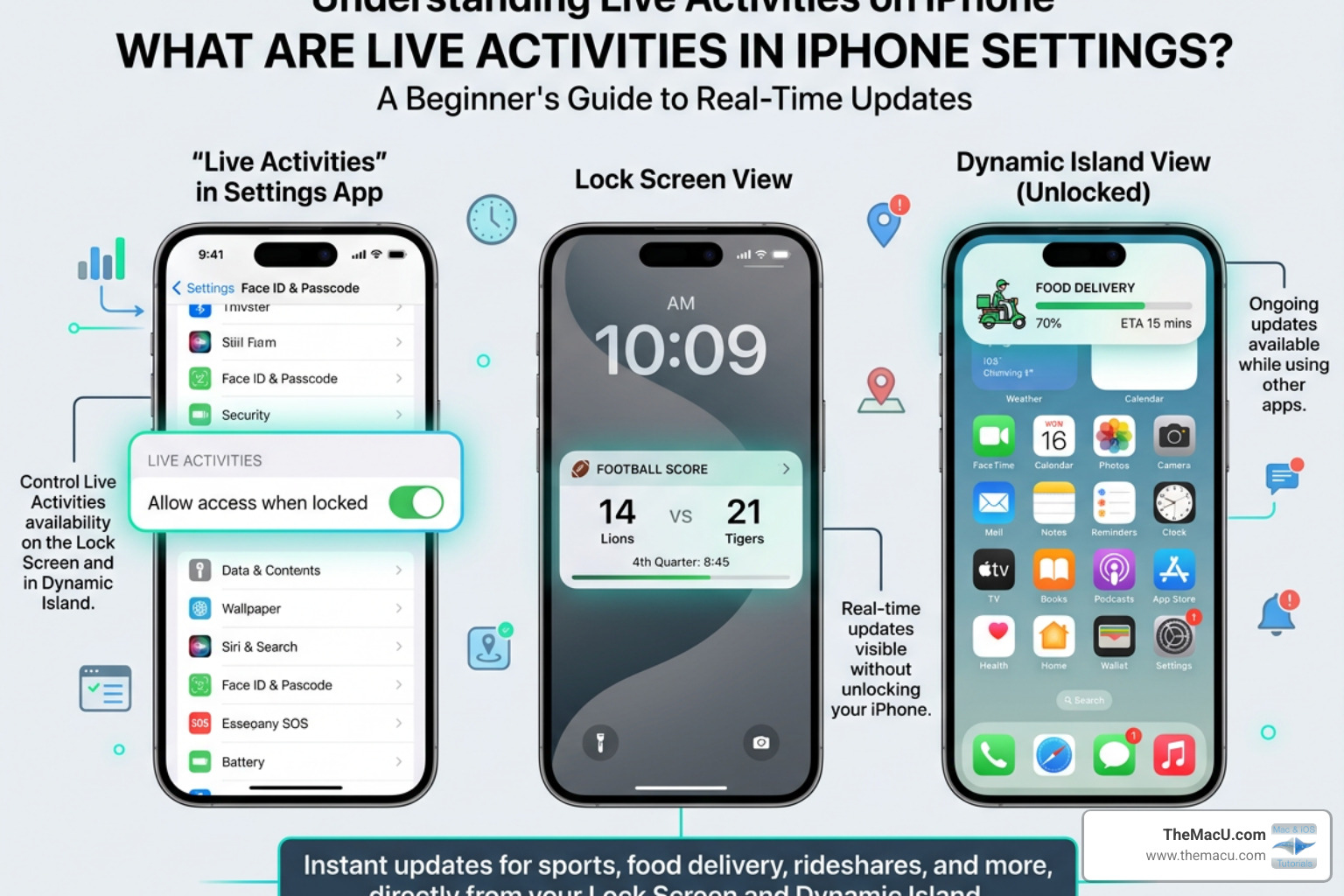
This is a “master switch.” If this is off, no app on your phone will be able to show a Live Activity on the Lock Screen. This is a security feature; Apple wants to make sure you’ve explicitly allowed live data to be visible even when your phone is sitting on a table, potentially visible to others. You can find more detail on this process in this guide on How to Enable Live Activities on iPhone.
Customizing Individual Apps and What is Live Activities in iPhone Settings
Just because you want to see your Uber’s progress doesn’t mean you want every single app cluttering up your Lock Screen. We have the power to curate this experience app-by-app.
Managing App-Specific Permissions
If you want to turn off Live Activities for a specific app, you don’t use the Face ID & Passcode menu. Instead, you go to the app’s own settings.
- Open Settings.
- Scroll down to the very bottom where all your installed apps are listed.
- Tap on the specific app (e.g., Uber or Starbucks).
- Look for the Live Activities menu item and tap it.
- Toggle Allow Live Activities on or off.
For a deeper dive into how these settings look across different devices, check out our guide on How live activities work with iPhone iPad using the lock screen and within Dynamic Island.
Enabling More Frequent Updates
Some apps, particularly sports and navigation apps, offer an additional toggle called More Frequent Updates. Because Live Activities fetch data in the background, updating every few seconds can impact your battery. By default, iOS balances this, but if you need second-by-second precision for a race or a delivery, you can enable this in the app’s settings menu.
As noted by iMore, this is particularly useful for the Apple TV app when following live sports, ensuring you don’t hear your neighbor cheer for a goal before it shows up on your screen!
Popular Apps and Real-World Use Cases
The magic of Live Activities is seeing them in action. Here are some of the most popular ways we use them every day:
- Sports Scores: Apps like FotMob, NBA, and MLB show live scoreboards. You can even check real-time election results via Apple News during major voting events.
- Food Delivery: Uber Eats, DoorDash, and Grubhub show a progress bar: “Preparing,” “Picked up,” and “Arriving in 2 mins.”
- Ride-Sharing: Uber and Lyft show the driver’s name, car model, and a live countdown to their arrival.
- Travel: Flighty is a fan favorite that shows your flight’s gate number, departure time, and even a live progress bar of the plane in the air.
- Fitness: SmartGym or Slopes show your current workout duration, heart rate, or distance traveled.
- Productivity: The Clock app shows your active timers, and Structured helps you track your daily tasks in real-time.
Troubleshooting and Battery Management
Is your Live Activity missing in action? Don’t panic. There are a few common reasons why it might not be showing up.
Why Live Activities Might Not Be Working
- iOS Version: Ensure you are on iOS 16.1 or later. Go to Settings > General > Software Update.
- Notification Permissions: Live Activities often require “Allow Notifications” to be enabled for that specific app.
- Focus Modes: If you have a Focus mode (like Do Not Disturb or Work) active, it might be hiding your Lock Screen alerts. Check your Focus settings.
- App State: Most apps require you to have opened the app and started the activity (like starting a timer or ordering the food) before the Live Activity appears. It won’t just show up randomly.
Managing Battery Drain and Time Limits
Since Live Activities run in the background, they do consume a small amount of extra power. If you are on a long day with low battery, it might be wise to dismiss them.
Pro Tip: To dismiss a Live Activity from the Lock Screen, simply swipe left on it and tap Clear. On the Dynamic Island, you can swipe across the island to “hide” the activity without ending it.
Apple has built-in limits to protect your device:
- 8-Hour Limit: A Live Activity can only stay “active” (updating) for a maximum of 8 hours.
- 12-Hour Visibility: After the 8 hours end, the activity can stay on your Lock Screen for 4 more hours in a “stale” state so you can see the final result, then it is automatically removed.
Frequently Asked Questions about What is Live Activities in iPhone Settings
Can I use Live Activities on Apple Watch, iPad, or Mac?
- Apple Watch: If you have watchOS 11, your iPhone’s Live Activities will automatically mirror to the Smart Stack on your watch.
- iPad: Currently, Live Activities are not supported on the iPad Lock Screen.
- Mac: With the new “iPhone Mirroring” feature on macOS Sequoia, your iPhone’s Live Activities can actually appear in your Mac’s menu bar or as notifications on your computer screen.
How do I follow sports scores using the TV app?
Open the Apple TV app, find a live game (like an MLB or MLS match), and look for the Follow button. Once you tap it, the score will automatically pin itself to your Lock Screen as a Live Activity. This is one of the coolest hidden features of the TV app!
Does using Live Activities significantly drain my battery?
While it does use more battery than a static screen, the impact is generally minimal. iOS is very smart about “throttling” updates to save power. However, if you enable “More Frequent Updates” for five different apps at once, you will likely see a noticeable dip in battery life. Use that setting sparingly!
Conclusion
Understanding what is live activities in iphone settings is the key to a more efficient, less cluttered digital life. By letting the information come to you on the Lock Screen, you spend less time unlocking your phone and getting distracted by social media or emails.
At TheMacU.com, we specialize in making these features easy to understand through our structured, self-paced video tutorials. Whether you are a beginner or a power user, our professionally edited lessons provide hands-on guidance to help you master every corner of your Apple devices.
Master your device with our all-access tutorials and get the most out of your iPhone, Mac, and iPad today!
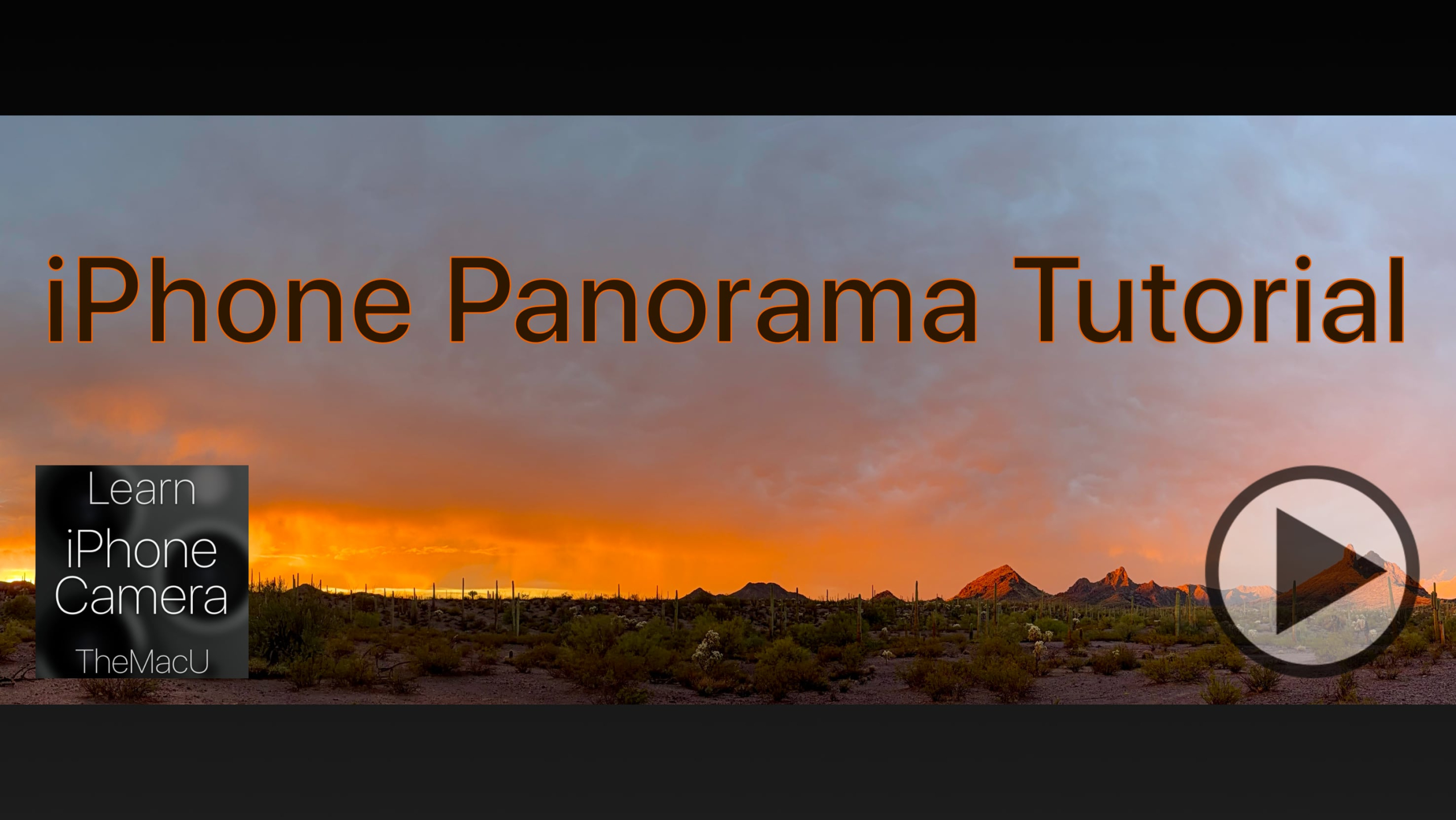
In this free lesson from our full “iPhone Camera” tutorial see how to shoot both horizontal and vertical panorama photos with iPhone! View all 23 iPhone Camera lessons in the full tutorial here…
Our tutorials on how to use the Apple Calendar App for both Mac & iOS have been re-recorded and updated! These Apple Calendar tutorials provide a comprehensive guide to using the app on both Mac and iOS (iPhone & iPad). They cover the basics of the interface, adding events and reminders, and managing different calendars. Lessons explain how to view and edit event details, send and respond to invitations, and work with shared or public calendars. Additional topics include using the Calendar widget, leveraging Siri for scheduling, setting up notifications, enabling time zone support on Mac, and printing calendars. Together, they offer everything you need to efficiently organize your schedule across all your Apple devices. Learn More…
Current All Access Members can view the full tutorial Here…

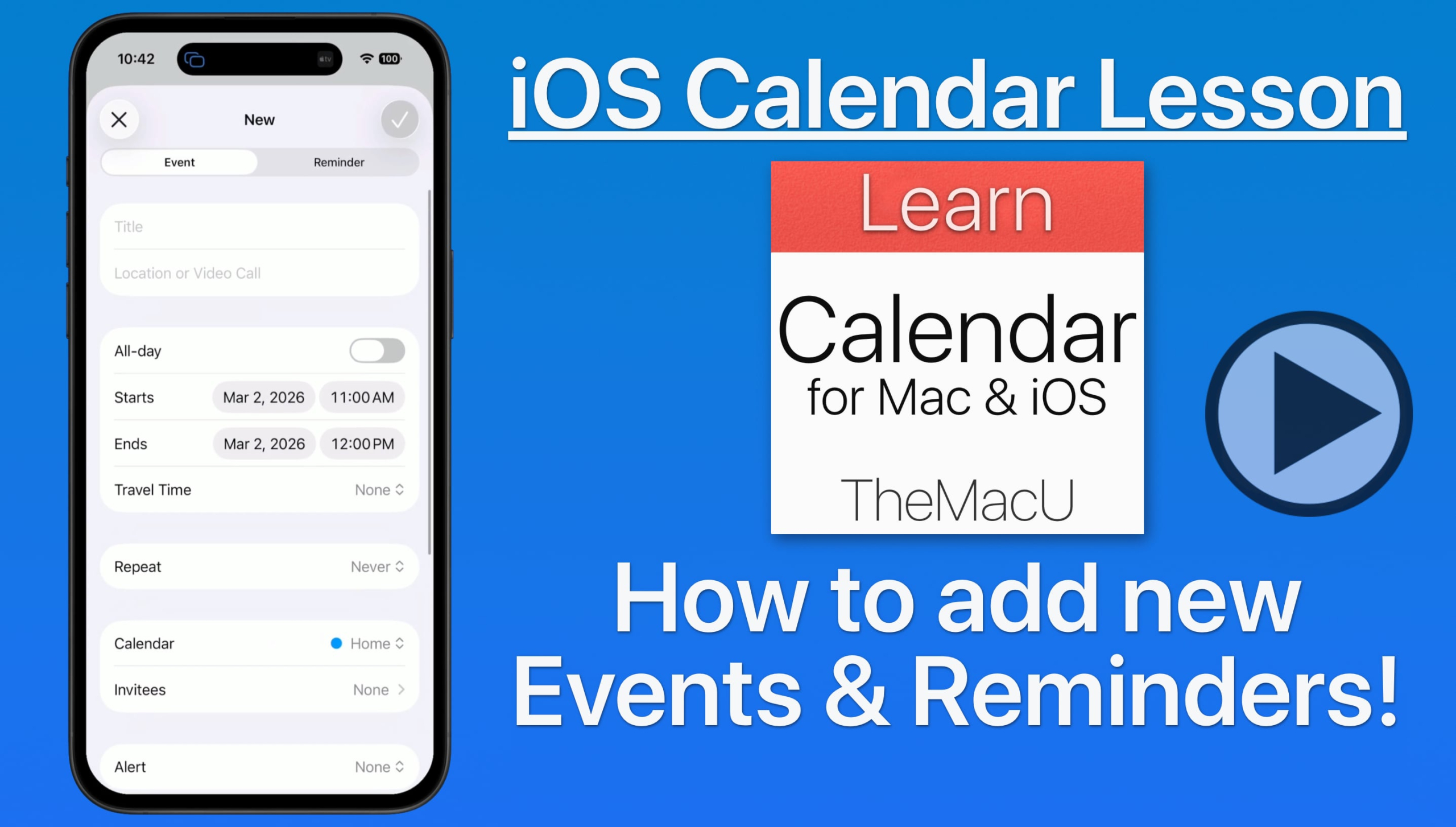
In this lesson from our full tutorial on the Calendar App for iPhone & iPad see how to add new events or reminders to the Calendar App.

In this free lesson from our full “iPhone Camera” tutorial learn how to use the flash. We look at how to use the Flash in Auto mode, when to keep the Flash turned off in favor of Night Mode, and how to force the flash to fire in order to light up a certain subject or scene. View all 23 iPhone Camera lessons in the full tutorial here…
In this newly recorded tutorial learn how to use the Maps app that comes installed on every iPhone, iPad, and Mac. This Apple Maps app tutorial for iOS (iPhone & iPad) covers all the key features. We begin with an introduction to the basic interface and explore the various map modes, including 3D views. Learn to find locations, get directions, and navigate using the app. The tutorial also highlights the ability to discover places, access guides, and use the Look Around feature. Search functionality is detailed, along with options to download maps for offline use. Learn More…
Current All Access Members can view the full tutorial Here…
