
Video tutorial · Essentials
Learn Pixelmator Pro
This Pixelmator Pro tutorial has 32 clear video lessons on the essentials: the interface, layers, selections, painting, retouching with Repair and Clone, color adjustments, ML Enhance, effects, shapes, type, cropping and exporting. Edit and create images like a pro.
- 32 video lessons
- Over 2 hours total
- Beginner friendly
- Watch on Mac, iPhone & iPad
Already a member? Watch the full tutorial now →
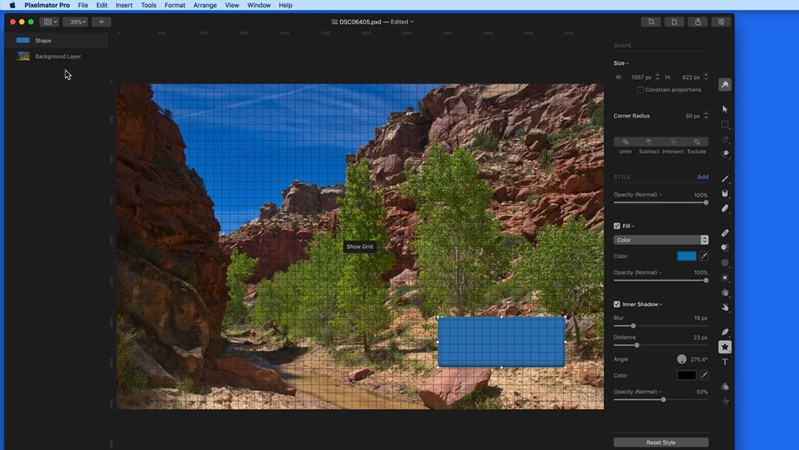 Lesson 2 · The InterfaceFree preview
- 90+Mac, iPhone & iPad tutorials
- 6,600+All Access members
- 7-dayfree trial on yearly & lifetime
What you'll learn
Everything in Pixelmator Pro, one short lesson at a time
Watch them in order or jump straight to the feature you want. Two lessons are free to watch right now.
 011:03
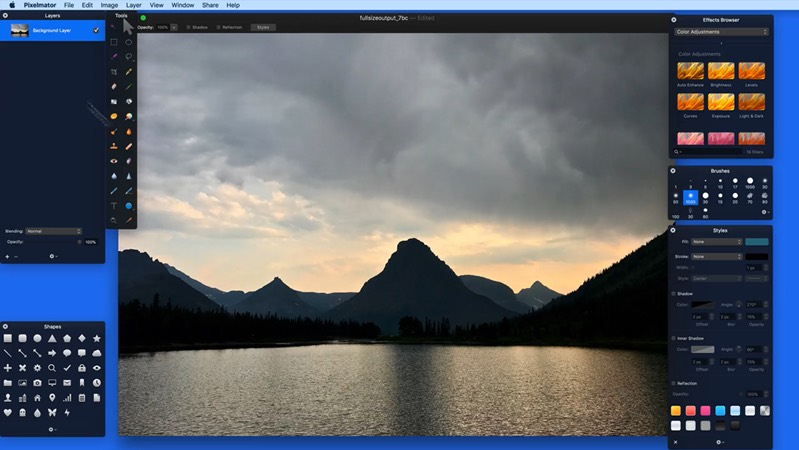
Introduction to Pixelmator Pro
What Pixelmator Pro can do and what this tutorial covers.
025:31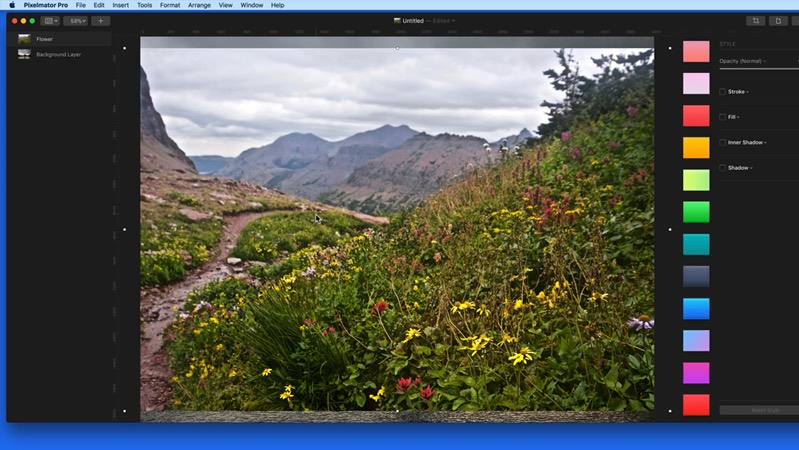 034:23
Open, Insert & Import
Open images, start new documents and add images as layers.
 042:34
Edit With from Photos
Send photos from your Photos library to Pixelmator Pro and back.
 053:09
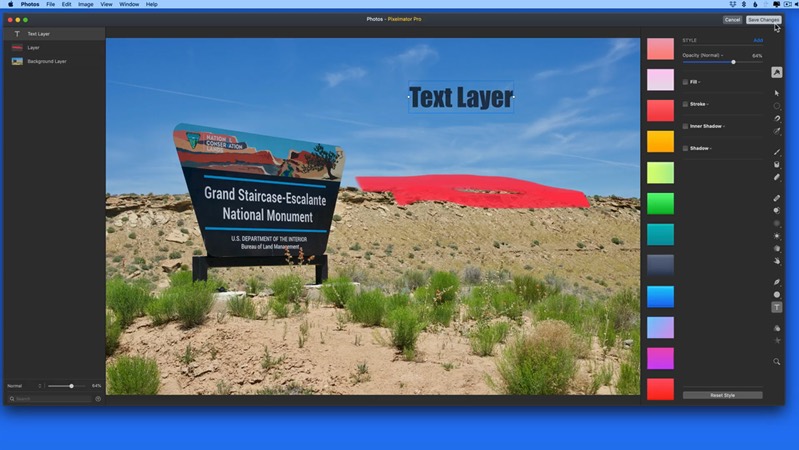
Photos Extension
Use Pixelmator Pro tools right inside the Photos app.
 064:50
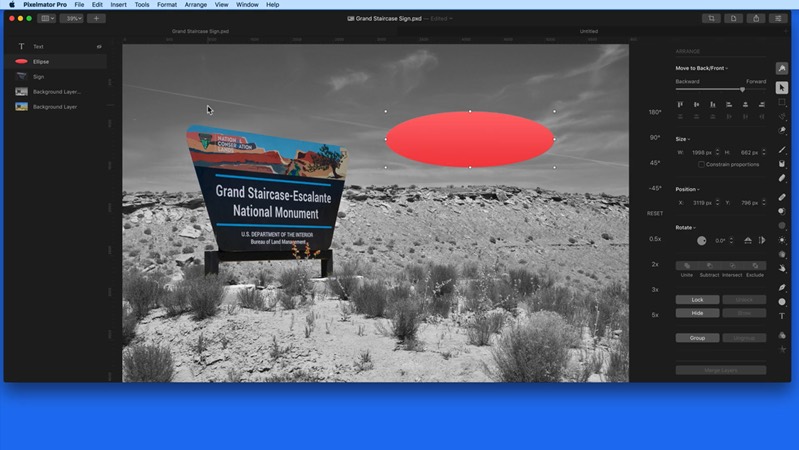
Layers
Add, arrange, group and blend layers.
 073:09
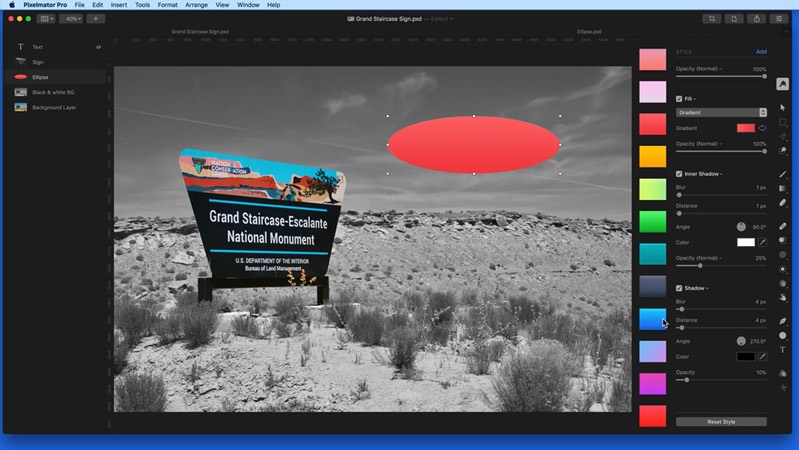
Tools Introduction
A quick tour of the tools and how to customize them.
 086:08
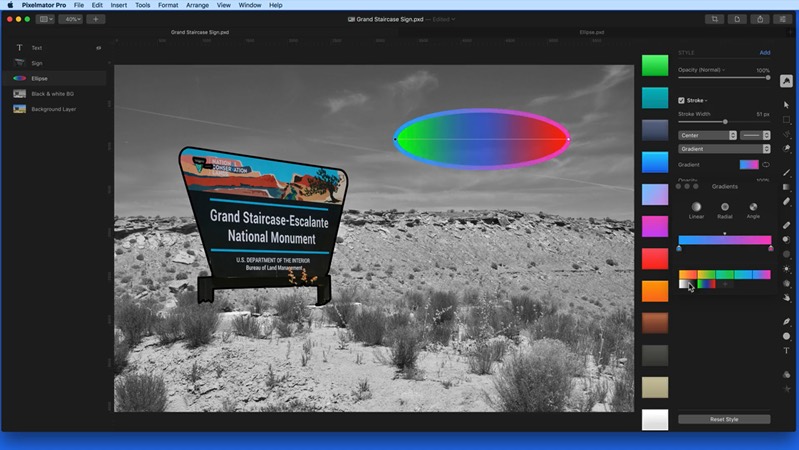
Style
Add fills, strokes, shadows and other styles to layers.
 096:54
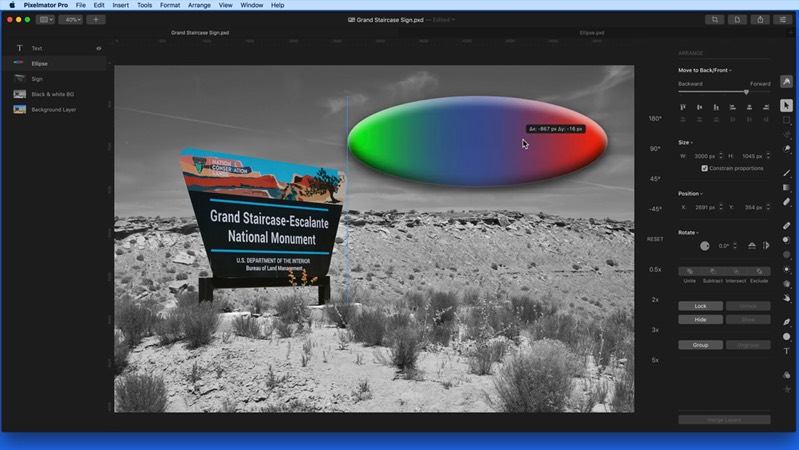
Arrange
Move, resize, rotate and align layers precisely.
 103:45
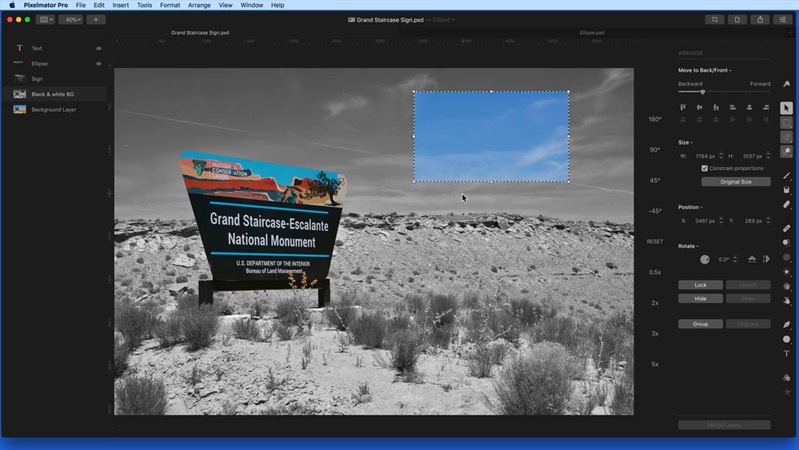
Select
Select areas with the rectangle and ellipse tools.
 112:55
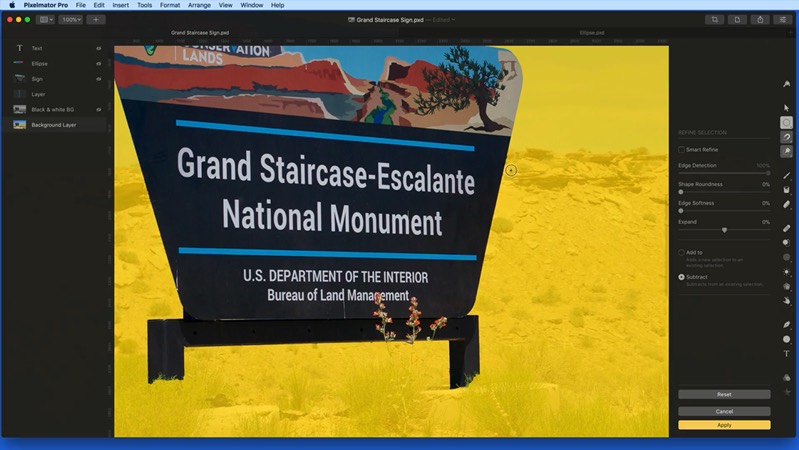
Free Select
Draw freehand and polygon selections around any shape.
 123:50
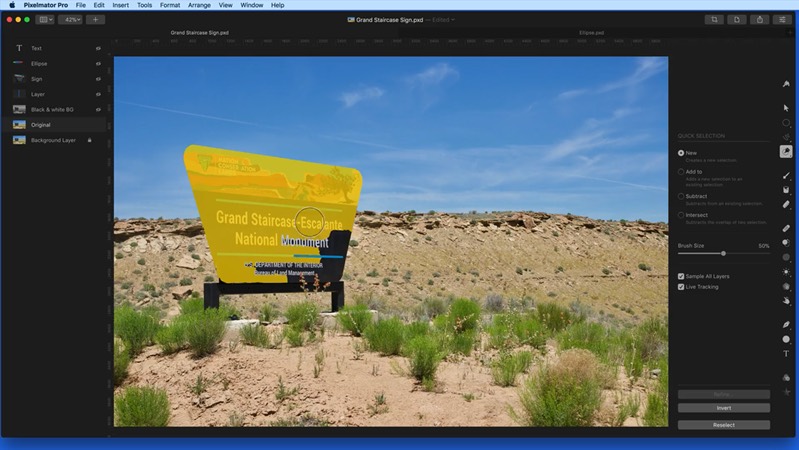
Quick Select
Select objects in a click or two with smart selection tools.
 135:10
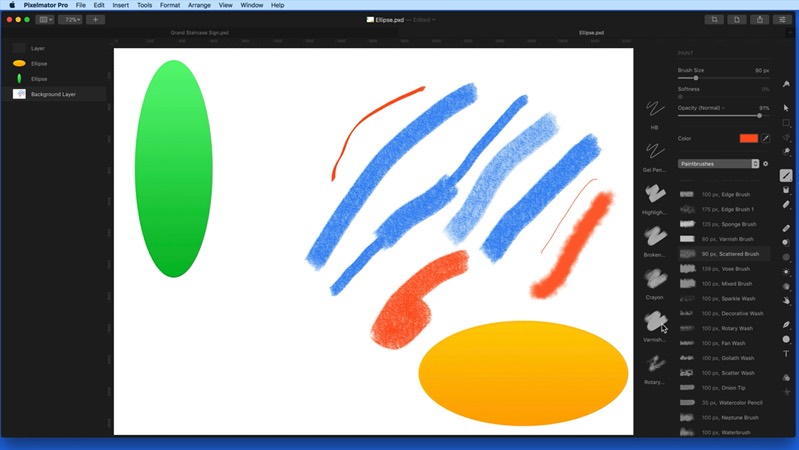
Paint
Paint with brushes and choose their size, color and texture.
 143:34
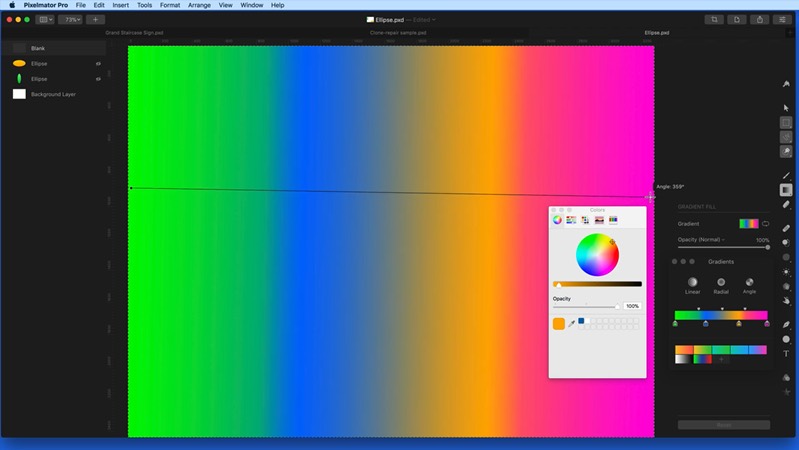
Fill & Gradient
Fill areas with color and create smooth gradients.
 151:45
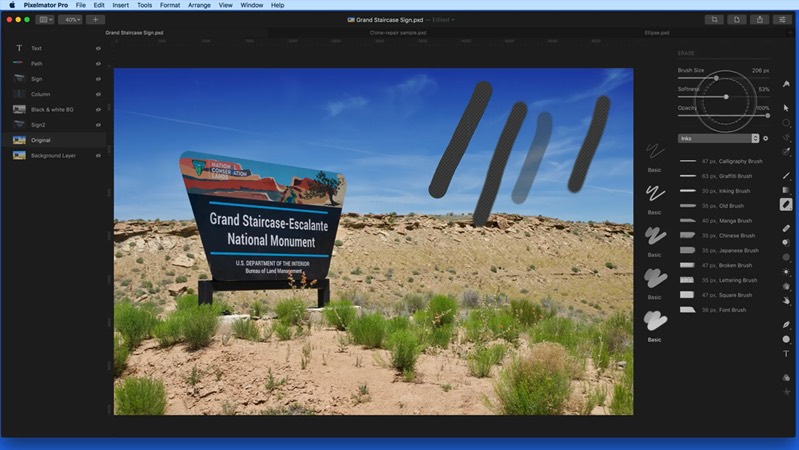
Erase
Erase parts of layers and remove backgrounds.
 163:07
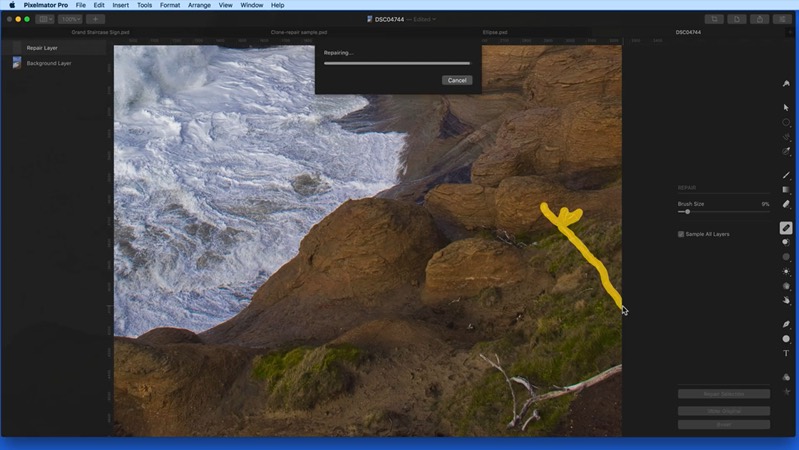
Repair
Remove unwanted objects and blemishes from photos.
 173:04
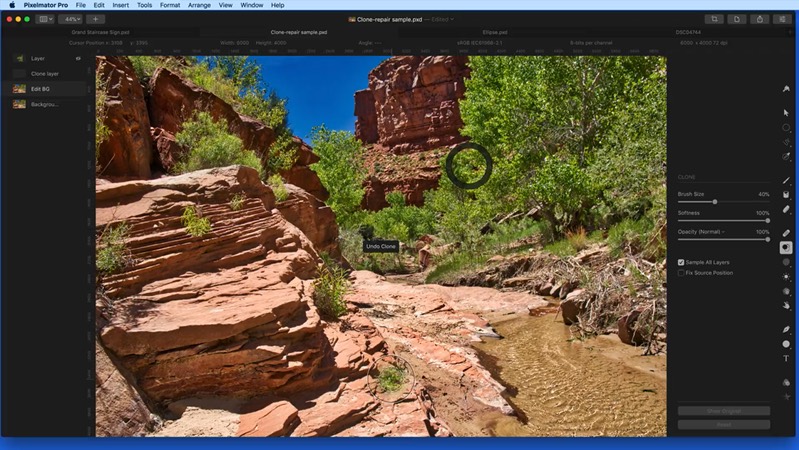
Clone
Copy one part of an image onto another.
 182:19
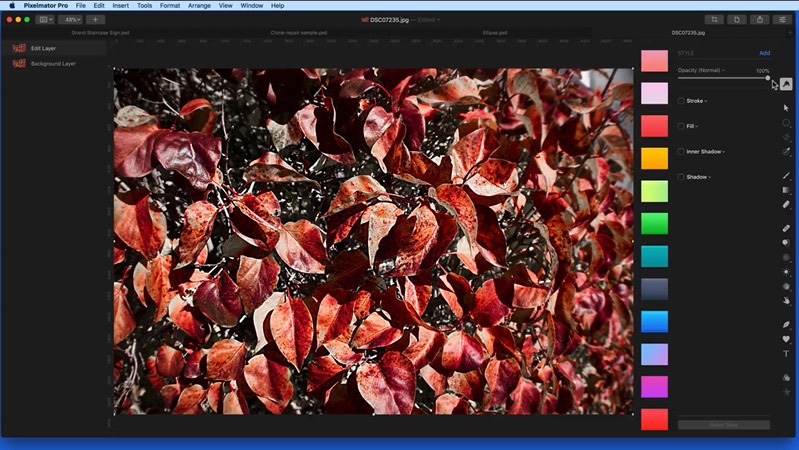
Sharpen, Soften & Smudge
Sharpen details, soften areas and smudge colors with a brush.
 191:56
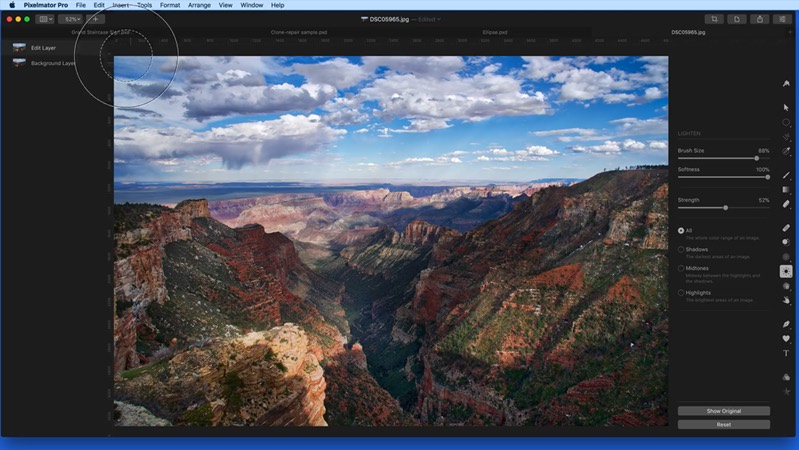
Lighten & Darken
Brighten or darken just the areas you brush over.
 202:19
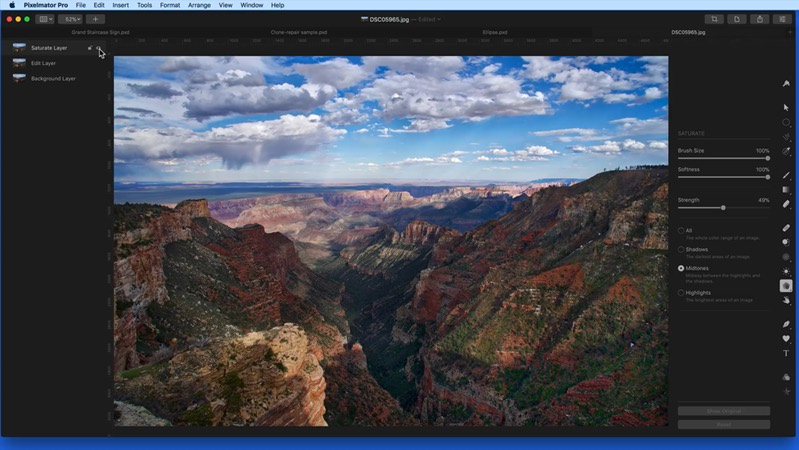
Saturate & Desaturate
Boost or tone down color in specific areas.
 212:12
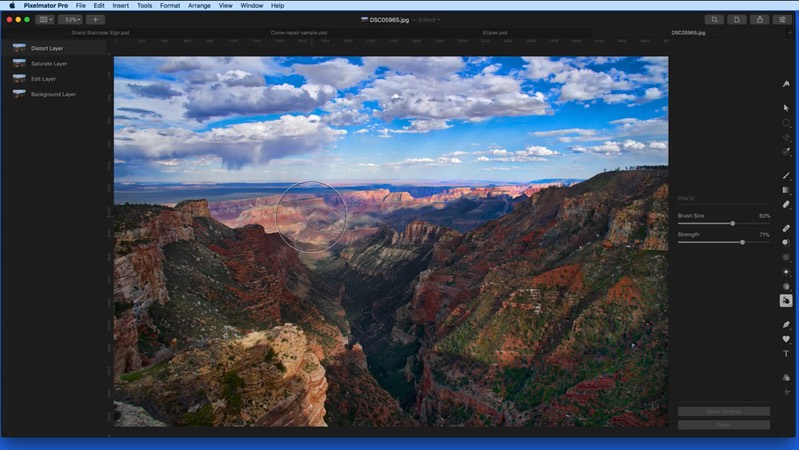
Warp
Push, bulge and pinch parts of an image.
 225:40
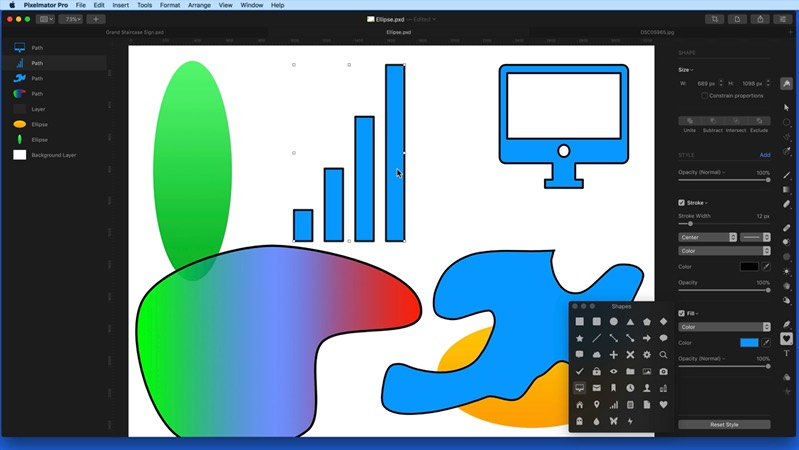
Draw & Draw Shape
Draw paths and add ready-made shapes.
 234:54
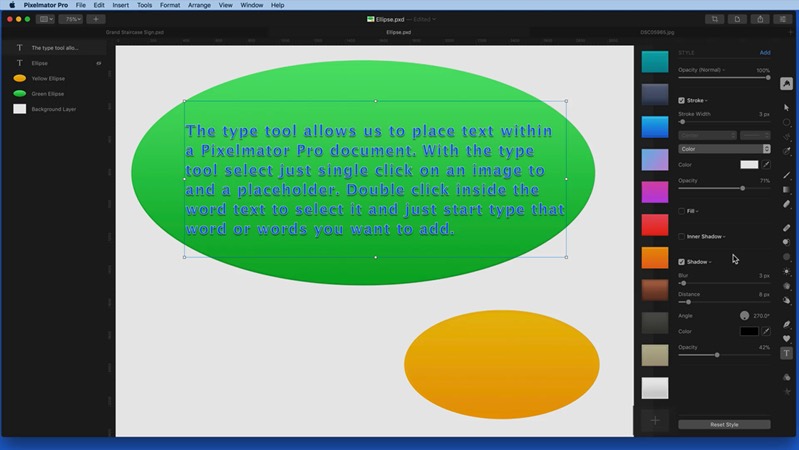
Type
Add text, style it and place it inside shapes or along paths.
 244:21
 252:34
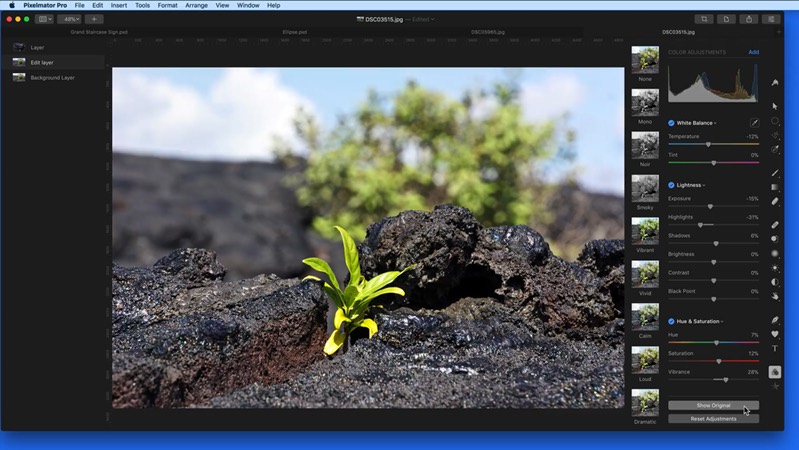
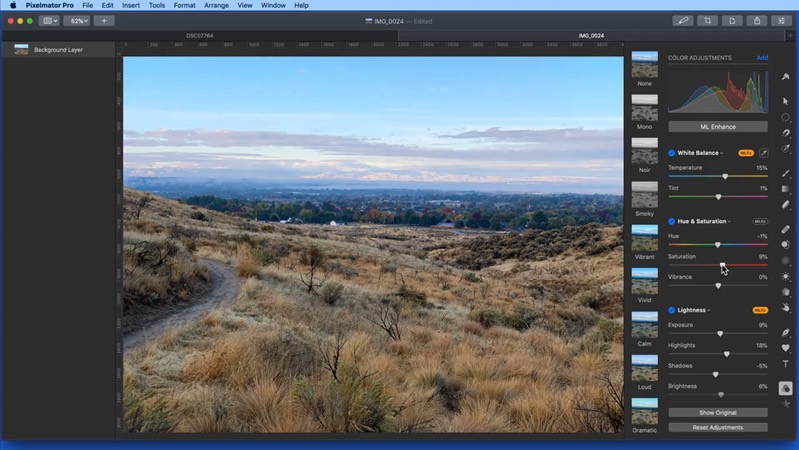
ML Enhance
Improve photos in one click with machine learning.
 263:48
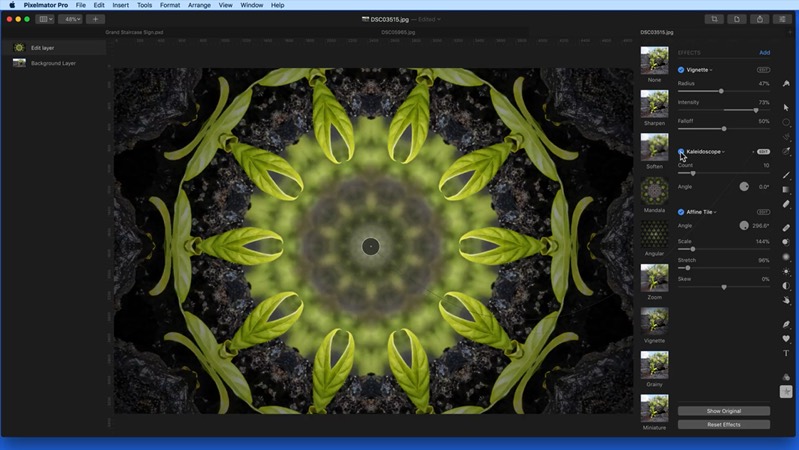
Effects
Apply blurs, distortions, stylize effects and more.
 271:56
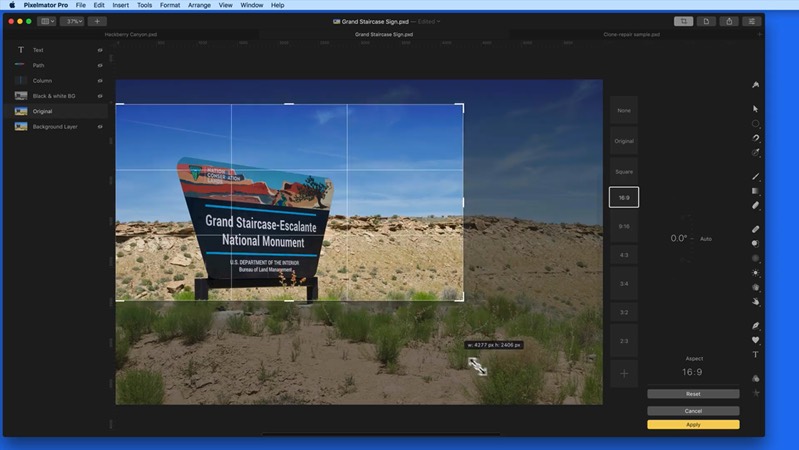
Crop & Straighten
Crop, straighten and fix perspective.
 284:51
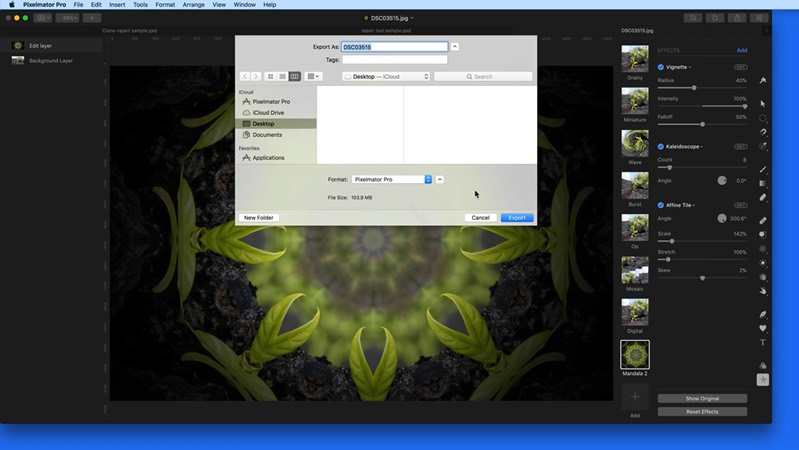
Share & Export
Save, share and export images in the right format.
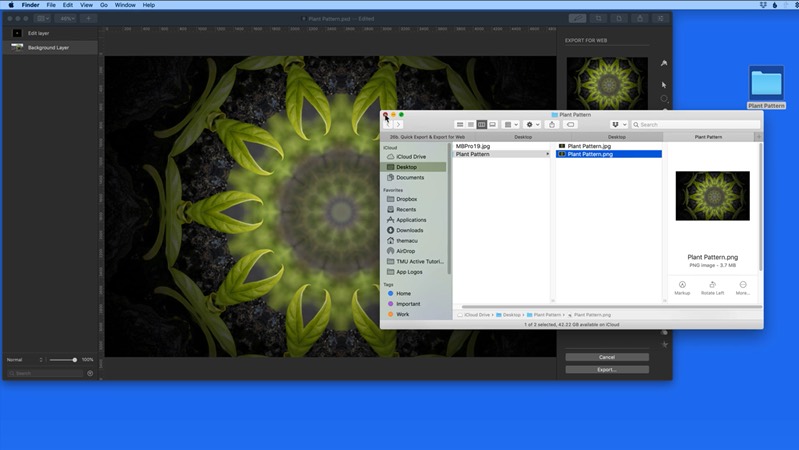 294:12
Quick Export & Export for Web
Export images in a click and make them small for the web.
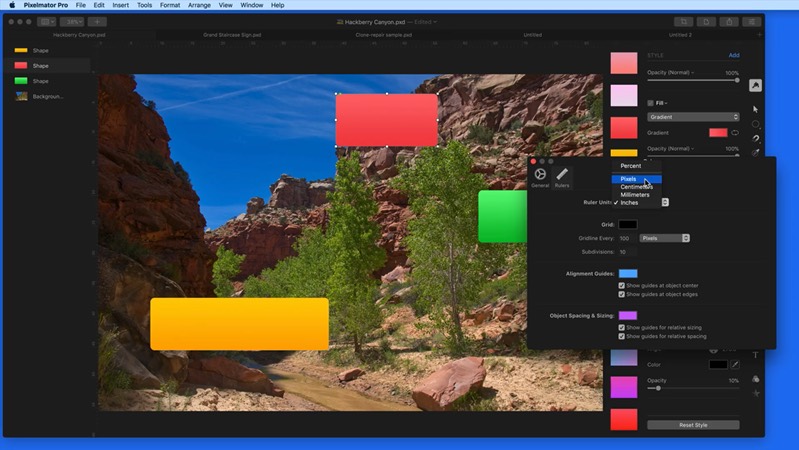 304:34
Preferences
Set up Pixelmator Pro the way you like to work.
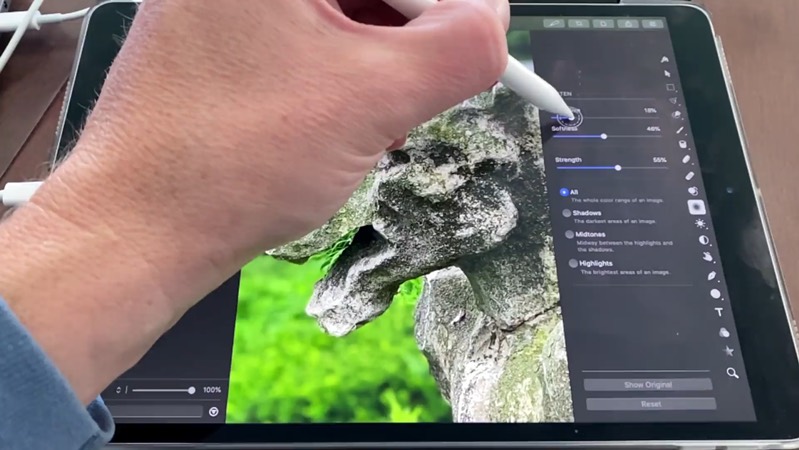 313:24
Sidecar with an iPad
Use your iPad and Apple Pencil as a drawing tablet for Pixelmator Pro.
 321:09
Wrap Up
A quick recap of the most useful tools in Pixelmator Pro.
Included with every All Access membership, along with every other tutorial on TheMacU.
Why TheMacU
Tutorials that respect your time
Shown on a real Mac
Every click is shown on screen using real photos, so you can follow along with your own images.
Short and to the point
Most lessons run 2 to 6 minutes. Learn one feature over a coffee and come back for the next whenever you like.
One membership, everything
All Access unlocks this tutorial and every Mac, iPhone and iPad course on the site, including new ones as Apple releases updates.
From our members and viewers
Clear, patient and easy to follow
These tutorials are an exceptional resource for anyone looking to get the most out of their Mac. It's well worth the investment for the wealth of knowledge and practical tips.
You don't go a hundred miles an hour. I can easily keep up, being in my eighties. Thank you from the bottom of my heart.
Superb! Thank you for all the effort and expertise you put into these videos. They have helped me enormously.
All Access membership
Watch this tutorial and every other course on TheMacU
Every plan starts with a free trial. Cancel any time during the trial and you won't be charged.
Monthly
Auto recurring5-day free trial
- Every Mac, iPhone & iPad tutorial
- New tutorials as they're released
- Watch on any device
- No ads
- Email support
Yearly
Auto recurring7-day free trial · just $2.50 a month
- Every Mac, iPhone & iPad tutorial
- New tutorials as they're released
- Watch on any device
- No ads
- Email support
Lifetime
Single payment7-day free trial · pay once, keep it for good
- Everything in Yearly
- Every future macOS & iOS update tutorial
- Never pay again
Secure checkout. Log in on any Mac, iPhone or iPad with the same account.
Questions
About this Pixelmator Pro tutorial
Do I need to buy Pixelmator Pro?
Yes, Pixelmator Pro is a separate app you get from the Mac App Store. The tutorial is included with your TheMacU membership.
Can I use it with the Photos app?
Yes. Lessons 4 and 5 show how to open photos from your Photos library in Pixelmator Pro and use its editing extension right inside Photos. The Photos for Mac tutorial covers Photos itself.
How does the free trial work?
Choose a plan and you can watch everything right away. Monthly includes a 5-day trial; Yearly and Lifetime include 7 days. Cancel before the trial ends and you won't be charged.
Do I get more than this one tutorial?
Yes. Every All Access plan includes all 90+ tutorials on TheMacU, covering macOS, iPhone, iPad, Photos, Safari, productivity apps and more, plus new tutorials as Apple releases updates.
Can I watch on my iPhone or iPad?
Yes. Log in on any device with a web browser and the videos play right on the page.
I'm new to the Mac. Is this too advanced?
No. Each lesson shows every click on screen at a comfortable pace. If you want the basics first, the macOS Core Concepts tutorial is included in your membership too.
Edit images like a pro
Start your free trial and watch all 32 lessons today, plus every other tutorial on TheMacU.
