How to Change App Icons on iPhone
Your iPhone Doesn’t Have to Look Like Everyone Else’s
Change app icon iPhone style is something almost any iPhone user can do — no technical skills required. Here’s a quick overview of your main options:
| Method | iOS Required | What You Can Change |
|---|---|---|
| Built-in iOS settings | iOS 18 / iOS 26 | Color, tint, size, dark/light mode |
| Shortcuts app | iOS 14+ | Swap icons for any custom image |
| Third-party apps | iOS 14+ | Icon packs, themes, widgets |
When iOS 14 launched, the aesthetic home screen trend exploded on TikTok and Twitter — millions of people were suddenly redesigning their iPhones to match a personal vibe. Since then, Apple has made icon customization much easier, especially with the options introduced in iOS 18.
Whether you want a sleek dark look, a color-matched theme, or completely custom images for every app — it’s all possible right on your iPhone.
I’m Drew Swanson, founder of TheMacU.com, and I’ve spent years helping Apple users of all skill levels get confident with their devices — including showing people exactly how to change app icons on iPhone without the frustration of trial and error. Let’s walk through everything you need to know, step by step.
Native Customization: How to Change App Icon iPhone Styles in iOS 18
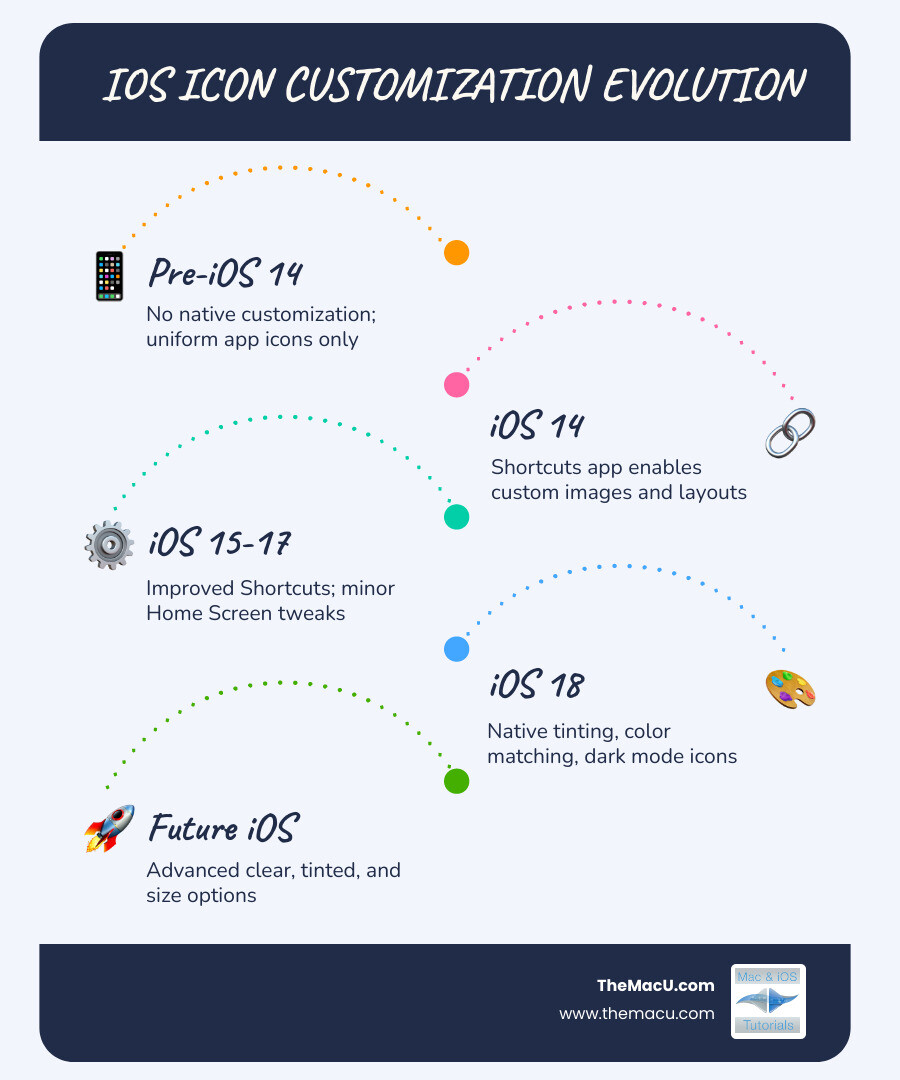
For years, we had to rely on workarounds to change how our Home Screens looked. But with the release of iOS 18 (and looking forward to the advanced features in iOS 26), Apple has finally given us native tools to change app icon iphone appearances without needing extra apps.
To access these settings, go to your Home Screen and touch and hold any empty area until the icons begin to jiggle. Tap the Edit button in the top-left corner, and then select Customize. A menu will slide up from the bottom, offering several distinct styles:
| Mode | What it Does |
|---|---|
| Light | The standard, bright look we’ve known for years. |
| Dark | Automatically switches app backgrounds to black or dark grey. Great for night use! |
| Automatic | Switches between Light and Dark based on your system schedule or sunrise/sunset. |
| Tinted | Applies a single-color “wash” over all your icons and widgets for a monochromatic look. |
This native method is the fastest way to achieve a cohesive aesthetic. If you’ve ever felt that the bright white background of the Google app or the “dusty old Mail app” didn’t match your moody wallpaper, these settings are your new best friend. You can find more details on these specific styles in this official Apple guide to Home Screen customization.
Adjusting Icon Size and Removing Labels
One of our favorite “hidden” features in the new customization menu is the ability to change the size of your icons. In the customization tray, you’ll see two icons representing “Small” and “Large.”
When we select the Large option, something interesting happens: the names of the apps disappear entirely. This creates a stunningly minimalist aesthetic where your icons take center stage. It’s perfect for those of us who have used our iPhones so long that we have muscle memory for where every app lives—we don’t need the “Instagram” label to know which purple-pink square to tap!
Using the Tinted Feature to Change App Icon iPhone Colors
The Tinted option is where you can truly get creative. When you tap Tinted, iOS applies a color filter to every icon on your screen. You aren’t just limited to a few presets, either.
We can use the two sliders at the bottom to adjust the hue and intensity. If you want a perfectly coordinated look, use the Eyedropper tool. Tap it, then drag the circle over a color in your wallpaper. Your app icons will instantly match that exact shade, creating a unified visual identity for your device.
Note for Widget Users: That “Tinted” mode can occasionally make text on certain widgets harder to read. For example, some banking app widgets or complex calendars might lose their visual contrast when everything is turned the same shade of blue or red.
Creating Custom Icons with the Shortcuts App
While native tinting is great, sometimes you want to go further. Maybe you want your Safari icon to be a picture of a compass you found online, or you want all your icons to be hand-drawn doodles. For this, we use the Shortcuts app.
This method has been available since iOS 14 and remains the gold standard for total creative control. It works by creating a “bookmark” on your Home Screen that tells your iPhone: “When I tap this custom picture, open the real app.”
Step-by-Step Guide to Change App Icon iPhone Images
If you’re ready to build a truly custom look, follow these steps. Before you start, make sure you have the images you want to use saved in your Photos app.
- Open the Shortcuts App: If you can’t find it, swipe down on your Home Screen and search for “Shortcuts.”
- Create a New Shortcut: Tap the + icon in the top-right corner.
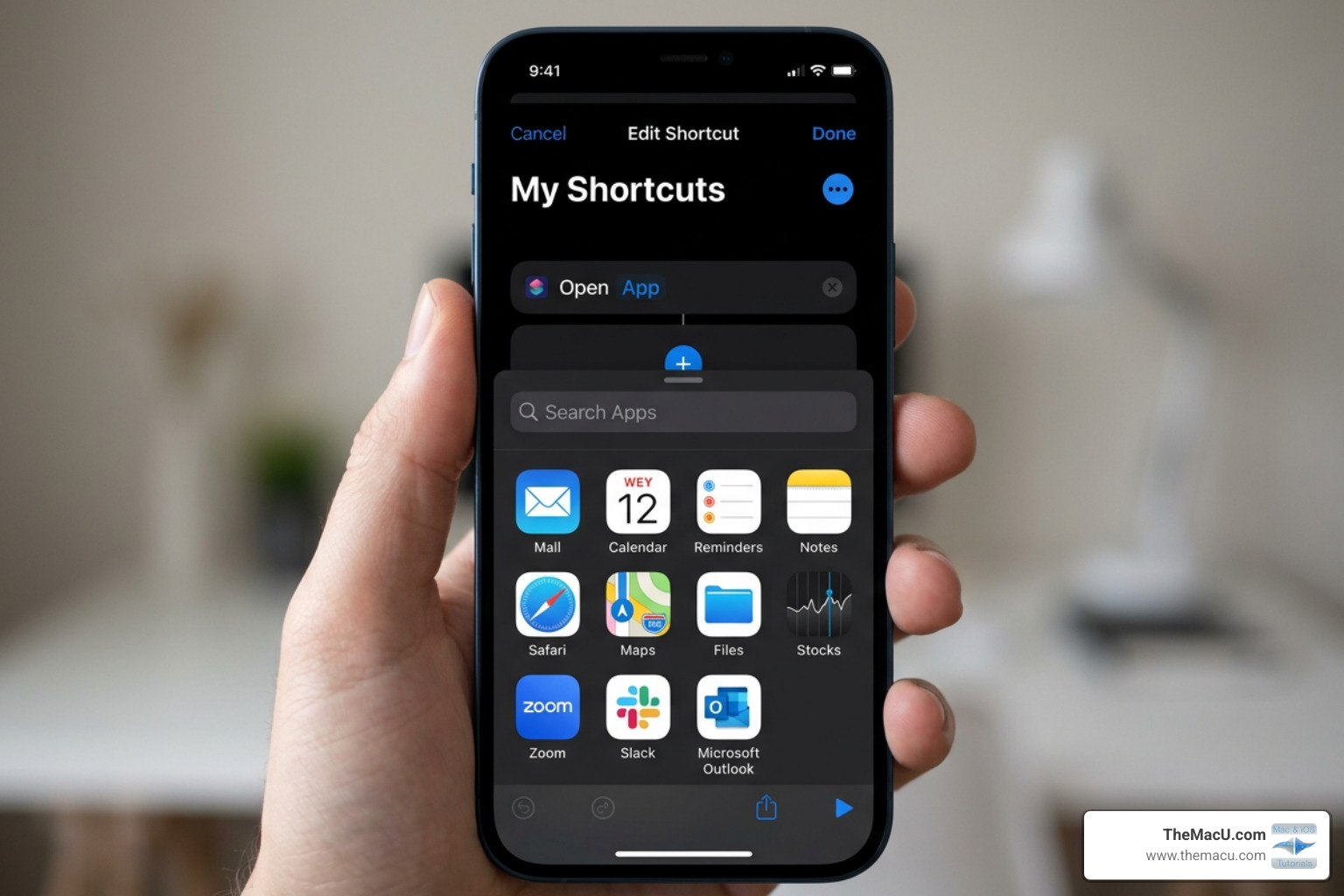
- Add the Action: Tap Add Action. In the search bar, type “Open App” and select the action that appears under the “Scripting” category.
- Choose Your App: Tap the blue word “App” and scroll through the list to find the app you want to customize (e.g., Spotify or TikTok).
- Add to Home Screen: Tap the small downward arrow next to the shortcut name at the top (or the three-dot menu on older iOS versions) and select Add to Home Screen.
- Customize the Name and Icon: This is the fun part! Under “Home Screen Name and Icon,” tap the placeholder icon. You can choose to “Take Photo,” “Choose Photo,” or “Choose File.”
- Select Your Image: Pick your custom image from your library. You can also rename the shortcut here—or leave it blank if you want that ultra-clean, no-label look.
- Finalize: Tap Add in the top-right corner. Your new icon is now on your Home Screen!
Where do you find these cool icons? We recommend checking out aesthetic kits from iosicons.com for professional themes, or you can use the customizable templates on Canva to design your own from scratch.
Managing the Original App Icons
After you’ve created your beautiful new shortcut icon, you’ll notice a problem: the original app icon is still sitting there. You don’t want two icons for the same app!
Do not delete the original app. If you delete the app, your shortcut will have nothing to open. Instead, follow these steps to hide it:
- Long-press the original app icon.
- Select Remove App.
- Choose Remove from Home Screen (or “Move to App Library”).
The app will stay safely in your App Library (accessible by swiping all the way to the right), but it won’t clutter up your custom Home Screen. One thing to note is that custom shortcut icons do not show notification badges (those little red numbers). If you rely on seeing how many unread emails you have at a glance, you might want to keep the original icon for your Mail app or use a widget instead.
Advanced Customization: Third-Party Apps and Widgets
If the thought of manually creating a shortcut for every single one of your 50 apps sounds exhausting, you aren’t alone. This is where third-party icon changer apps come in. Apps like Themify, Color Widgets, or X Icon Changer offer “theme kits” that can install multiple icons at once.
These apps generally work by using “Configuration Profiles” or by automating the Shortcuts process for you. While they save time, we always suggest being cautious—only download highly-rated apps from the App Store and be aware that many require a subscription after a short free trial.
For those who want to match their icons with beautiful custom widgets, Widgetsmith is a staple in the community. It allows you to create time, date, or photo widgets that use the same hex codes and fonts as your custom icons.
Technical Requirements and Limitations
When you change app icon iphone graphics using the Shortcuts method, there are a few technical “quirks” to keep in mind:
- Launch Delay: Because a shortcut is a tiny script, there is a very brief delay (usually 0.3 to 0.7 seconds) when opening an app. In older versions of iOS, the Shortcuts app would actually pop open first; now, you just see a small banner notification at the top of the screen.
- Image Resolution: For the sharpest look, use square images that are 1024×1024 pixels.
- File Format: PNG is the preferred format, especially if you want to maintain high quality.
- Human Interface Guidelines: Apple suggests that professional icons should be designed on a square canvas, and the system will automatically apply the “squircle” mask. You can read more about the technical side in Apple’s Human Interface Guidelines for app icons.
Troubleshooting and Reverting Icon Changes
Sometimes we get halfway through a redesign and realize we miss the original look. Or perhaps a shortcut stops working after an iOS update. Don’t worry—reverting your changes is simple.
To restore a single app: Simply delete the custom shortcut icon from your Home Screen (long-press and tap “Delete Bookmark”). Then, go to your App Library, find the original app, and drag it back onto your Home Screen.
To reset everything: If your Home Screen is a total mess and you want to go back to the factory default layout, go to Settings > General > Transfer or Reset iPhone > Reset > Reset Home Screen Layout. This will remove all custom shortcuts and put your original apps back in their default positions.
A Word on Jailbreaking: In the early days of iPhone, “jailbreaking” was the only way to change icons. While some users still use this method (and you can find old guides on Reddit), we generally advise against it. Jailbreaking voids your warranty and can expose your device to security vulnerabilities. With the native features in iOS 18 and the power of the Shortcuts app, jailbreaking is no longer necessary for a beautiful phone.
Frequently Asked Questions about iPhone Icons
Do custom app icons drain the battery?
This is a common concern, but the answer is: No, not significantly. Custom icons created via Shortcuts are just static images. They don’t run in the background or use extra processing power while your phone is sitting in your pocket. The only “extra” work your phone does is running the tiny script to open the app, which has a negligible impact on daily battery life.
Can I change system app icons like Settings or Phone?
Yes! The Shortcuts method works for almost every app on your phone, including system apps like Settings, Phone, Messages, and Camera. However, native iOS 18 tinting is often the better choice for these, as it ensures a uniform appearance across the entire system without the need for individual shortcuts.
Why is there a delay when opening custom icons?
As we mentioned earlier, the delay is because you aren’t technically tapping the app; you’re tapping a command that says “Go find this app and open it.” While Apple improved the speed of this in iOS 15 and later, it will never be quite as instantaneous as the original icon. Most users find that they stop noticing the 0.5-second difference after a day or two of use.
Conclusion
Personalizing your iPhone is a fantastic way to make your most-used device feel like an extension of your personality. Whether you choose the quick and easy native tinting of iOS 18 or the deep customization of the Shortcuts app, the power to change app icon iphone layouts is now firmly in your hands.
If you found this guide helpful and want to dive deeper into mastering your Apple devices, we’re here to help. At TheMacU.com, we provide professionally scripted and edited video lessons that take the guesswork out of technology. From hidden iOS features to advanced Mac workflows, our tutorials offer hands-on guidance for all skill levels.
Ready to become an iPhone expert? Explore more Apple video tutorials and hands-on lessons and start getting the most out of your tech today!
 TheMacU.com 2025