
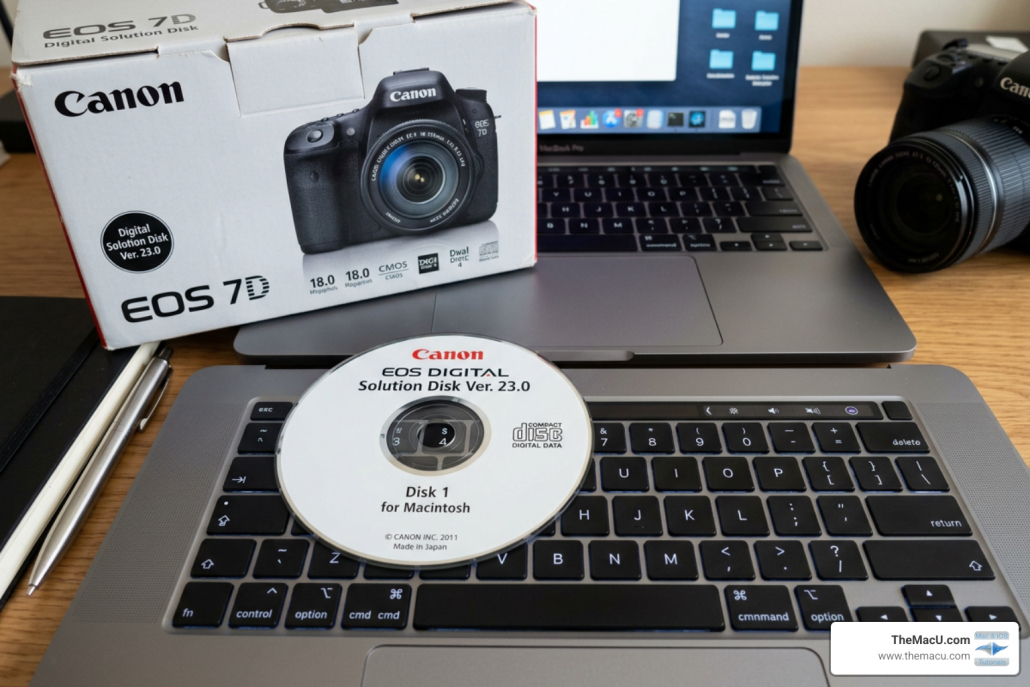
How to install Canon Solutions Disk software without CD
Why Mac Users Need a Digital Solution for the Canon Solution Disk
Canon digital camera solution disk mac users often hit a frustrating wall: their new MacBook has no CD drive, but the software that came in the camera box is on a disc.
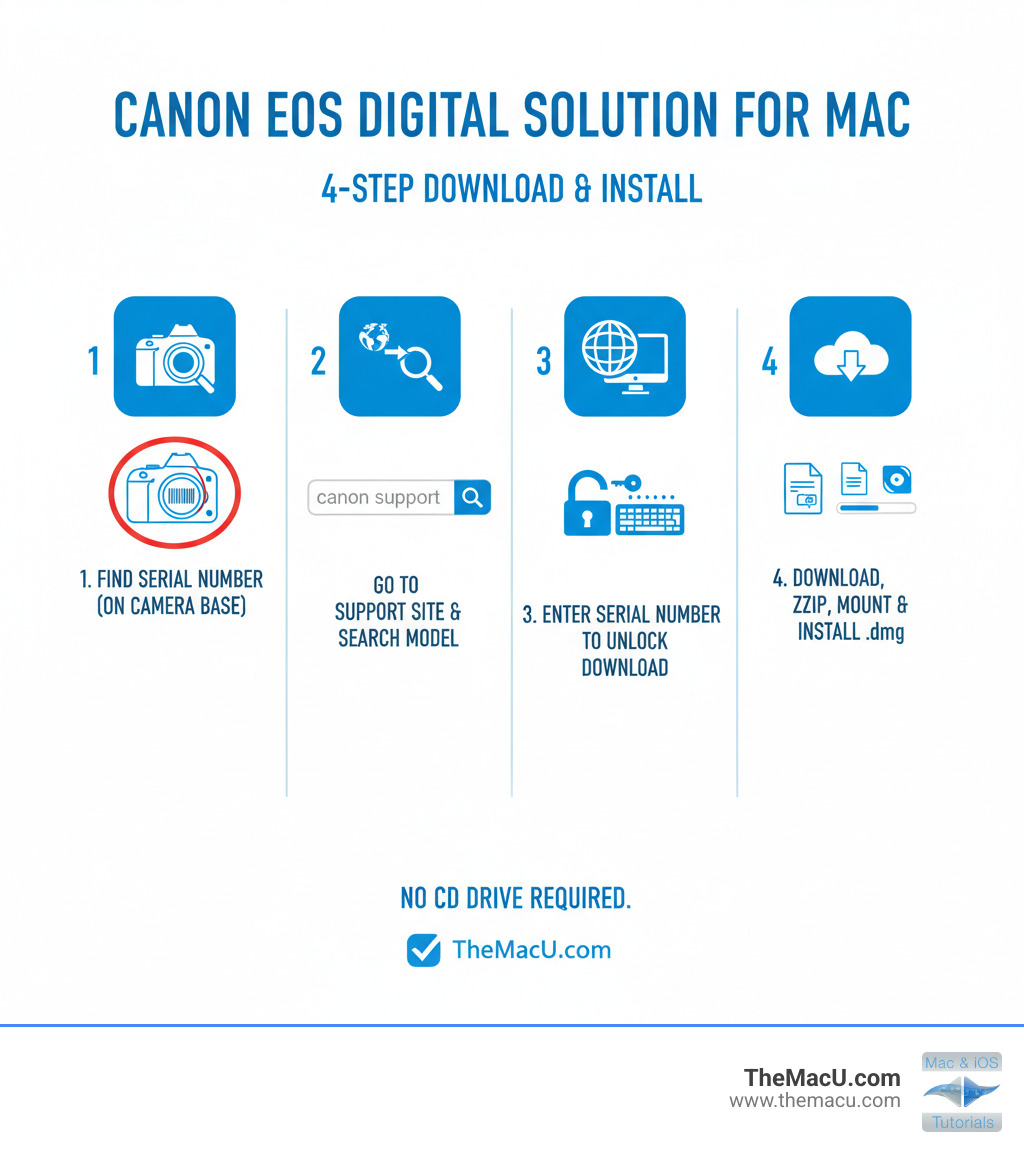
Here’s the quick answer — you can download Canon’s EOS Digital Solution Disk software directly from Canon’s official support site, no disc required:
- Find your Canon camera’s serial number (printed on the label on the bottom of your camera body)
- Go to Canon’s support site and search for your camera model
- Enter your serial number to unlock the download
- Download the
.dmg.zipfile, unzip it, mount the disk image, and run the installer
That’s it. No CD drive needed.
The Canon EOS Digital Solution Disk is a software bundle that includes several powerful apps for managing, editing, and transferring photos from your Canon EOS camera to your Mac. Versions like 33.3A (217.70 MB) support macOS up to 10.13, while older versions like 30.2A.1 (142.50 MB) cover OS X 10.8 and 10.9. Canon even labels the download page “for users who cannot use the bundled CD” — so this is an officially supported path.
I’m Drew Swanson, founder of TheMacU.com and a longtime Apple educator who has helped hundreds of Mac users work through exactly this kind of setup challenge — including getting canon digital camera solution disk mac software running smoothly without a disc drive. Let’s walk through everything you need to know, step by step.
What is the Canon EOS Digital Solution Disk?
When you buy a Canon EOS camera, it typically comes with a physical disc. This disc isn’t just filler; it contains a specialized suite of applications designed to help you get the most out of your RAW files and camera hardware. For those of us using a canon digital camera solution disk mac setup, these tools bridge the gap between the camera’s sensor and our Mac’s storage.
The primary goal of this software is to provide a seamless workflow. Whether you are looking for advanced Photography Tutorials or just want to learn how to better use Photos for Mac, having the official Canon utilities installed can significantly improve your results, especially when handling proprietary .CR2 or .CR3 RAW files.
Included Apps in the canon digital camera solution disk mac
Depending on the version you download (such as version 33.3A or 31.4A), the “Solution Disk” is actually a container for several distinct programs. Here is what you will typically find inside:
- Digital Photo Professional (DPP): This is Canon’s high-end RAW image processing software. Version 4.9.0, for example, allows for incredible control over exposure, white balance, and color grading before you ever export to a JPEG.
- EOS Utility: This is the “brain” of the connection. It handles the communication between your camera and Mac. Version 3.9.0 supports remote “tethered” shooting, where you can trigger the shutter from your MacBook and see the preview instantly on your screen.
- EOS Lens Registration Tool: This utility allows you to register lens aberration correction data to your camera, ensuring your shots are as sharp as possible.
- EOS Web Service Registration Tool: Used for setting up CANON iMAGE GATEWAY and other cloud services.
- Picture Style Editor: A niche but powerful tool for creating your own custom “looks” or color profiles that can be loaded directly onto the camera.
- Sample Music: Often included for use in EOS movie slideshows.
If you are curious about the official documentation for these tools, you can check out How to install the Digital Camera Solutions Disk software in Macintosh. for more background.
System Requirements for canon digital camera solution disk mac
Before you go through the effort of downloading a 200MB+ file, we need to make sure your Mac can actually run it. While Canon software is generally robust, it does have specific hardware and software thresholds.
To run the more recent versions (like 33.3A), your Mac should meet these minimums:
- Processor: Intel Processor (specifically Core 2 Duo 2.0 GHz or higher is required; Core i-series is recommended).
- RAM: 2.0 GB minimum, though we strongly recommend 4.0 GB for smooth RAW processing.
- Disk Space: You need at least 300 MB for the installation itself, but keep at least 600 MB free for operation space (temporary files created during use).
- Display: A minimum resolution of XGA (1024×768), though 1600×1200 is recommended for photo editing.
Detailed specs can be found on the EOS Digital Solution Disk Software 33.3A for Mac OS X support page.
Supported macOS Versions and File Sizes
Compatibility is where things get a bit tricky. Canon releases different versions of the “Solution Disk” for different eras of macOS. If you try to install a version meant for 2014 on a Mac from 2024, you’re going to have a bad time.
- Version 33.3A: This is one of the most comprehensive later releases. It supports macOS 10.13 (High Sierra), 10.12 (Sierra), and OS X 10.11 (El Capitan). It clocks in at 217.70 MB.
- Version 33.2A: Supports OS X 10.10 through macOS 10.13 and is slightly larger at 245.97 MB.
- Version 30.2A.1: This is the “legacy” savior. It officially supports OS X 10.8 and 10.9, but users have found it usable up to macOS 10.12. It is a leaner 142.50 MB. You can find this specific version here: EOS Digital Solution Disk Software 30.2A.1 for Mac OS X (For users who cannot use the bundled CD).
Step-by-Step: How to Download and Install Without a CD
Since we’ve established that the physical CD is a relic of the past, let’s get into the modern workflow. You will need your camera handy for this part because Canon uses your serial number as a “key” to allow the download.
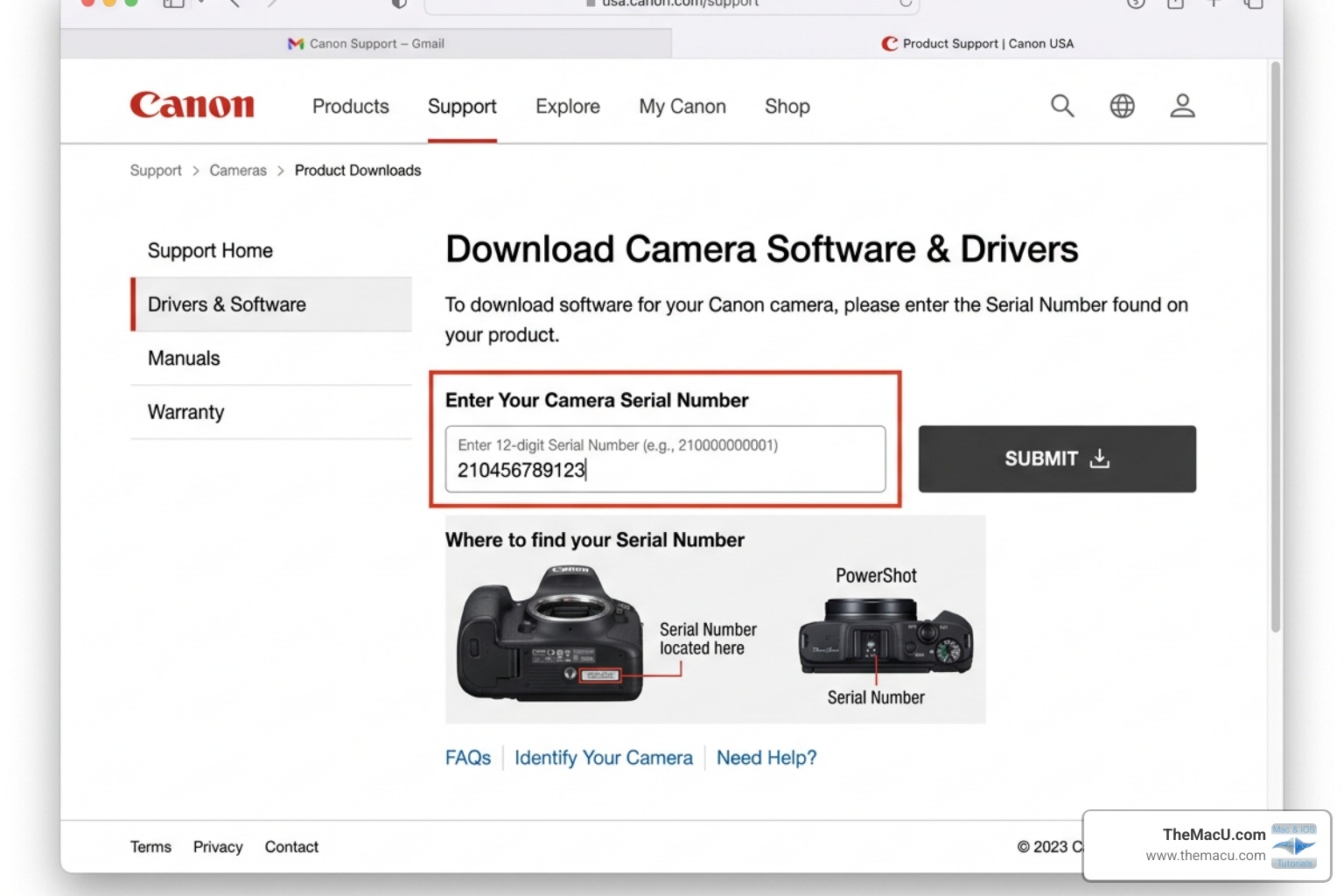
Downloading the canon digital camera solution disk mac Installer
- Visit the Official Site: Navigate to your regional Canon support page (e.g., Canon USA, Canon Europe, or Canon Asia).
- Search Your Model: Type in your camera model (e.g., “EOS 5D Mark IV” or “EOS Rebel T7”).
- Select Software: Look for the “Software & Drivers” section.
- Find the Solution Disk: Look for the entry titled EOS Digital Solution Disk Software.
- Enter the Serial Number: You will see a prompt asking for the serial number. This is usually a string of numbers found on the bottom of your camera. Entering this confirms you own the hardware.
- Download: Once validated, download the
.dmg.zipfile.
If you’re still confused about the download path, this community discussion on How to download Canon software ‘EOS Digital Solution’ disk onto a … offers some great user-to-user perspective.
Running the Installation Package
Once the file is on your Mac, you need to handle it correctly. macOS handles .zip and .dmg files natively, so you won’t need extra software.
- Unzip: Double-click the downloaded
.zipfile. This will extract a.dmg(Disk Image) file. - Mount: Double-click the
.dmgfile. A new “virtual drive” will appear on your desktop and in your Finder sidebar. For more help with navigation, see our macOS Finder Tips: Apple Mac guide. - Launch Installer: Inside that virtual drive, double-click the
ksdm-installer(or similar name). - Security Prompt: macOS Gatekeeper might ask if you’re sure you want to open it. Click “Open.” You will likely need to enter your Mac’s administrator password.
- Follow Prompts: The installer will ask which apps you want to install. We recommend a “Standard Installation” unless you are short on space.
- Close Background Apps: It is a best practice to close other apps like Photoshop or Lightroom during this process to avoid conflicts.
If you ever lose track of where the installer went, remember you can always Use Spotlight Search in macOS to Find Files, Launch Apps, View Forecasts, and Much More to find it instantly.
Troubleshooting Common Installation Issues
Sometimes, things don’t go according to plan. You might see a spinning “beachball of death” or an installer that freezes at 99%. In our experience at TheMacU, these issues are rarely about the Canon software itself and more about the health of your Mac’s file system.
Repairing Disk Permissions and Directory Errors
If the canon digital camera solution disk mac installer freezes—specifically at the “Preparing to install ImageBrowser” stage—it often indicates a directory corruption on your hard drive.
- Disk Utility: Open Disk Utility (found in Applications > Utilities). Select your hard drive and click First Aid. This can often fix “Keys out of order” errors that prevent installers from writing new files. You can learn more about this in our guide on how to Use Disk Utility to Erase or Reformat a Disk.
- The “fsck” Command: For advanced users, booting into Single User Mode and running
/sbin/fsck -fycan repair deeper catalog B-tree errors that Disk Utility might miss. - Wi-Fi Limitations: On older OS versions (like 10.8.0 to 10.8.1), EOS Utility might refuse to connect via Wi-Fi/LAN. Updating to at least 10.8.2 usually solves this.
For a deeper dive into these fixes, see our tutorial on Mastering Mac and iOS Troubleshooting Tips for Common Issues.
Modern Alternatives for Newer macOS Versions
If you are running a very modern version of macOS (like Sonoma or Sequoia), you might find that the older canon digital camera solution disk mac installers simply won’t run. Apple has moved away from 32-bit app support and changed how drivers work.
But don’t worry! You can still get your photos off your camera:
- Image Capture: This is a free app built into every Mac. Connect your camera via USB, and Image Capture will let you drag and drop photos directly to a folder. See our Mac Tutorial: Scan with Image Capture for a look at how this utility works.
- macOS Photos: The default Photos app is surprisingly good at handling Canon RAW files. It can import them directly and even perform basic edits. We have a full guide on How to Organize Photos Using Keywords in the Mac Photos App to help you stay tidy.
- USB Card Readers: Often the fastest method. Take the SD or CF card out of the camera, plug it into a reader, and your Mac will treat it like a standard thumb drive. No software required!
Frequently Asked Questions
Where do I find my Canon camera serial number?
It is almost always on a silver or black sticker on the bottom of the camera body. It is usually 12 digits long. If the sticker is rubbed off, you can often find the serial number in the “Exif” data of a photo you’ve already taken.
Can I install this on macOS Sonoma or Sequoia?
The older “Solution Disk” packages (like 33.3A) are generally not compatible with the latest macOS versions. For modern Macs, you should download the individual, updated versions of Digital Photo Professional 4 and EOS Utility 3 directly from the Canon website rather than looking for a “Solution Disk” bundle.
Why does the installer say my OS is not supported?
Canon software checks your “System Version.” If you have a brand-new Mac, the old installer doesn’t recognize the version number and quits. In this case, your best bet is to use a card reader or download the standalone modern versions of the apps.
Conclusion
Getting your canon digital camera solution disk mac software installed without a CD drive is entirely possible and, in many ways, preferable. By downloading the digital version, you ensure you’re getting the most up-to-date drivers and bug fixes available for your specific macOS version.
While the “Solution Disk” is a great starting point for beginners, as your photography skills grow, so will your software needs. Whether you’re mastering RAW processing in DPP or organizing a massive library in the Photos app, we’re here to help.
Ready to take your Mac skills to the next level? At TheMacU.com, we provide professionally scripted video tutorials that take the guesswork out of technology. Learn Mac Utilities and Creative Workflows with us today and start creating more with your Canon EOS camera.


