
The Easiest Way to Manage Your Schedule: How to Add Events to Mac Calendar
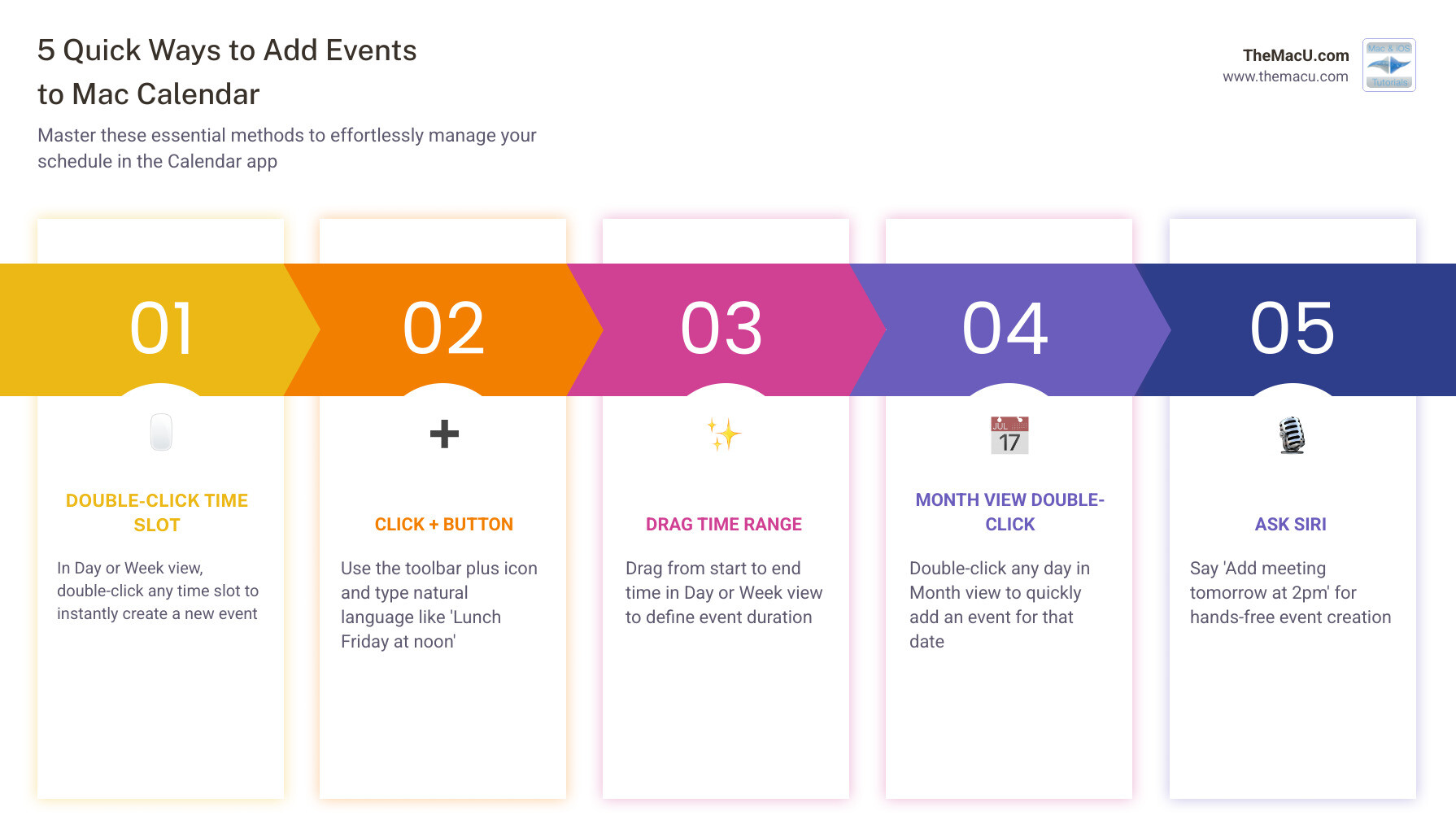
Knowing how to add events to mac calendar can save you a lot of time and frustration — and there are actually several ways to do it. Here’s the quickest overview:
Quick ways to add an event to Mac Calendar:
- Double-click any time slot in Day or Week view to create an event instantly
- Click the + button in the toolbar and type a description in plain English (like “Lunch Friday at noon”)
- Drag from a start time to an end time in Day or Week view
- Double-click any day in Month view to add an event to that date
- Ask Siri — say something like “Add a meeting tomorrow at 2pm”
Each method has its own strengths, and the best one depends on how you prefer to work. The Calendar app on your Mac is more powerful than most people realize — it handles everything from quick one-time events to complex repeating schedules, invitations, and attachments.
Whether you’re new to Mac or just haven’t explored Calendar fully, this guide walks you through every method clearly and simply.
I’m Drew, founder of TheMacU.com, and I’ve spent years teaching Apple users how to get the most out of apps like Calendar — including the fastest and most practical ways of how to add events to mac calendar. Let’s dig into everything you need to know.

How to Add Events to Mac Calendar: Manual and Quick Methods
When we open the Calendar app on our Mac, we’re greeted with a clean, organized interface designed to keep our lives on track. But before we can organize our lives, we need to get our events into the system. There are several manual ways to do this, ranging from the classic double-click to more fluid drag-and-drop actions.
One of the most common ways to start is by using the Create Quick Event button. This is the small “plus” (+) icon located in the top-left corner of the Calendar toolbar. When we click this, a small text box appears, allowing us to type in event details. If we want to be more specific about which calendar the event lands on (like “Work” instead of “Home”), we can click and hold the plus button to choose from our list of available calendars.
For those who prefer a visual approach, the calendar views themselves are interactive. In Day view or Week view, we can simply drag our cursor from the start time to the end time of our planned event. As we drag, a colored block appears, representing the new entry. Once we let go, a pop-up appears where we can name the event and add further details. If we realize we missed the mark by thirty minutes, we can just grab the top or bottom edge of the event block and drag it to adjust the duration.
In Month view, adding an event is as simple as double-clicking the specific date square. This opens up the event editor immediately. For those who want a deeper dive into these visual techniques, we highly recommend checking out our video on Creating Mac Calendar Events (#1411) – YouTube or exploring our comprehensive course to Learn Calendar for Mac & iOS.
Using Natural Language to Quickly Add Events to Mac Calendar
One of the coolest “hidden” features of macOS is its ability to understand how humans actually talk. We don’t have to manually click through date pickers and time sliders if we don’t want to. By using the Quick Event button or even Spotlight Search (Command + Space), we can type out our plans in plain English.
For example, if we type “Coffee with Sarah at Starbucks at 10am tomorrow,” Calendar is smart enough to:
- Set the title to “Coffee with Sarah”
- Set the location to “Starbucks”
- Set the date to tomorrow’s date
- Set the time to 10:00 AM
This natural language processing also works with Siri. We can simply say, “Hey Siri, add a dentist appointment for next Tuesday at 3pm,” and it’s done hands-free. Calendar will even offer event suggestions based on our previous entries. If we frequently have “Lunch with Mom,” the app will start to suggest that title and location as soon as we start typing “Lunch.” This integration is similar to what you’ll find on mobile devices, which we cover in our guide on How to Add Events & Reminders in the iOS Calendar App.
Creating All-Day and Multiday Events
Sometimes an event doesn’t fit into a specific one-hour slot. Maybe it’s a national holiday, a birthday, or a week-long vacation. For these, we use all-day or multiday settings.
To create an all-day event, we can double-click in the All-Day section located at the very top of the Day or Week view, just below the date headers. This places a banner across the top of that day. If we have an existing event that we want to turn into an all-day affair, we can double-click the event to open its details, click the date, and check the All-Day box.
For multiday events, like a conference or a trip, we have a few options:
- In Week or Month view: Click and drag across multiple days in the all-day section.
- For specific times: If an event spans multiple days but has a specific start and end time (like an overnight work shift starting at 10pm and ending at 6am), we drag from the start time on the first day across to the end time on the second day in Week view.
According to Apple Support, these multiday banners are the best way to visualize “complete, consecutive days” without cluttering our hourly schedule.
Customizing Event Details and Attachments
Once an event is on the calendar, it’s time to add the “meat” to the bones. Double-clicking any event opens the Event Inspector, a powerful window where we can fine-tune every detail. We’ve written a specific deep dive on How to Add/Edit Event Details in Mac Calendar that covers this in great detail.
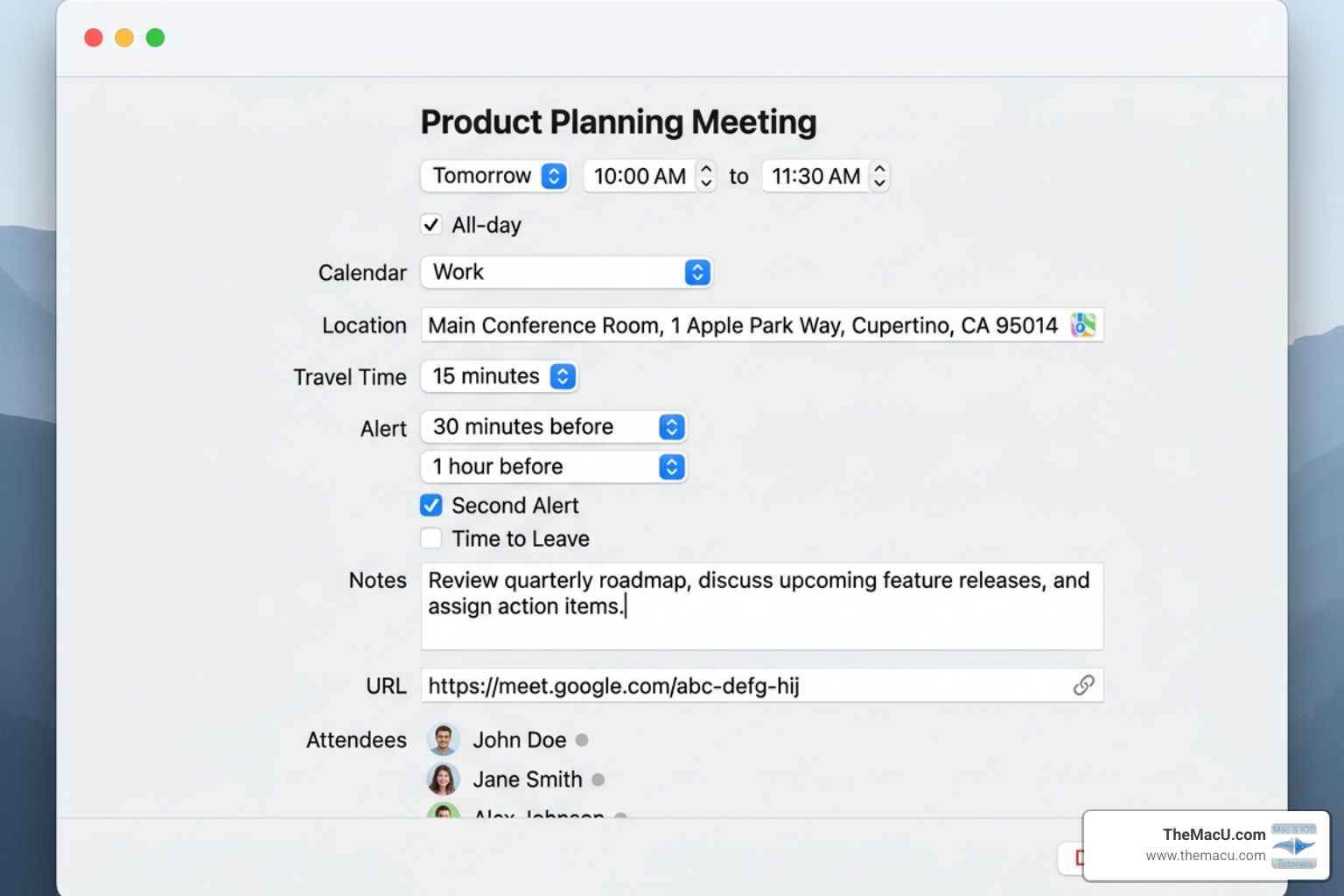
Here are the key fields we can customize:
- Location and Travel Time: If we add a specific address, Calendar integrates with Apple Maps to show us the location and even provide weather updates. More importantly, we can enable Travel Time. Based on current traffic conditions, Calendar will tell us exactly when we need to leave our current location to arrive on time.
- Alerts: We can set multiple alerts for a single event. For example, we might want a reminder one day before and another 15 minutes before the event starts.
- Notes and URLs: As noted in the Apple User Guide, we can use the notes field for agenda items or phone numbers. If a phone number is in the notes, we can click it to call directly from our Mac (if connected to an iPhone).
- Attachments: This is a lifesaver for meetings. We can drag PDFs, spreadsheets, or images directly into the event. To preview an attachment, we just select it and press the Space bar. To remove it, we hit Delete. This ensures all the documents we need for a meeting are right there when the notification pops up.
Setting Up Repeating Events and Custom Schedules
Many of our responsibilities are recurring. Whether it’s a weekly trash pickup, a monthly board meeting, or an annual anniversary, we don’t want to add these manually every time.
In the Event Inspector, we can click on the event’s time to reveal the Repeat menu. We can choose from standard options like Daily, Weekly, or Yearly, but the real power lies in the Custom option. This allows for complex schedules, such as:
- Every 2 weeks on Monday and Wednesday.
- The last Friday of every month.
- The 4th and 19th of every month.
When we need to change or delete a repeating event, macOS gives us three choices:
- Delete Only This Event: Useful if a holiday falls on your usual meeting day.
- Delete All Future Events: Perfect for when a project ends earlier than expected.
- Delete All: Removes every single instance, past and future.
For more on managing these complex schedules, see our update on New Calendar Tutorials Available for Mac & iOS.
Collaborating and Managing Multiple Calendars
The Mac Calendar isn’t just a personal diary; it’s a collaboration tool. We can invite others to our events by clicking the Add Invitees field in the Event Inspector. We can type in names from our Contacts app or enter email addresses directly.
One of the most useful features for professionals is the Check Availability tool. If we’re using a service like iCloud, Google, or Exchange, we can click “Check Availability” to see a “free/busy” view of our invitees’ schedules. This helps us find a time slot that works for everyone without the back-and-forth of ten different emails. We can even send an email or message to all participants by Control-clicking the event.
To keep our various life roles separate, we use multiple calendars. We might have a “Work” calendar in blue, a “Personal” one in green, and a “Family” one in red.
- To add a new calendar: Go to File > New Calendar.
- To group calendars: If we have several work-related calendars, we can go to File > New Calendar Group to keep them organized together.
- Color Coding: This provides an instant visual cue of how our day is balanced. If our whole week is “blue,” we know we’re working too much!
For a deeper look at how invitations work on the mobile side, check out iOS Calendar Invites.
Syncing Google Calendar and Other Accounts
Most of us don’t live entirely in the Apple ecosystem. We often have work calendars on Google or Outlook. Fortunately, Apple makes it easy to bring these into the Mac app.
To add a Google account:
- Open Calendar and go to Settings (or Preferences) > Accounts.
- Click the Plus (+) button and select Google.
- Follow the sign-in prompts.
Once added, we can set the Refresh Frequency to determine how often the Mac app checks for updates from Google’s servers. A word of caution: if we previously used the “Delegation” tool to see other people’s calendars, Google recommends unchecking those in the Delegation tab and using the official Calendar sync page to select which calendars should appear. This ensures a much smoother syncing experience.
Advanced Tips and Troubleshooting for Mac Calendar
Even the best apps can have hiccups. If we find that we can’t add events to Mac Calendar, the first thing we should check is our operating system version. Apple frequently updates the Calendar app alongside macOS. You can learn how to find your Apple computer’s operating system or update your computer’s operating system to ensure you have the latest bug fixes.
Another common issue is “Calendar Spam” — those annoying invites for cheap sunglasses or Ray-Bans that appear out of nowhere. Do not click “Accept” or “Decline,” as this tells the spammer your email is active. Instead, double-click the event and select Report Junk. This will delete the event and report the sender without notifying them.
We also love using Handoff. If we start creating an event on our Mac but need to leave, we can pick up exactly where we left off on our iPhone or iPad by clicking the Calendar icon in the mobile app switcher.
Frequently Asked Questions about Adding Events to Mac Calendar
Q: How do I delete a single instance of a repeating event? A: Select the specific occurrence, press the Delete key, and choose “Delete Only This Event” when the prompt appears.
Q: Can I see my Reminders in the Calendar app? A: Yes! In recent versions of macOS, scheduled reminders appear alongside your calendar events, allowing you to manage your to-do list and your schedule in one place.
Q: Why can’t I delete a specific calendar? A: You generally cannot delete the last remaining calendar in an account, nor can you delete “Delegated” calendars that someone else has shared with you without their permission.
Q: Is there a limit to how many attachments I can add? A: While there isn’t a hard “count” limit, attachments are synced via your calendar provider (like iCloud or Google), so they will count against your storage quota for those services.
For those looking to master the entire suite of organization tools, our members-only area offers a deep dive into how these apps work together: Learn Contacts, Calendar & Reminders for Mac.
Keyboard Shortcuts for Faster Event Management
If we want to be truly efficient, we need to get our hands off the mouse. Here are the most essential shortcuts for managing your schedule:
| Action | Keyboard Shortcut |
|---|---|
| New Event | Command + N |
| Go to Today | Command + T |
| Open Event Info (Inspector) | Command + I |
| Refresh All Calendars | Command + R |
| Delete Selected Event | Delete Key |
| Undo Last Action | Command + Z |
| Switch to Day View | Command + 1 |
| Switch to Week View | Command + 2 |
| Switch to Month View | Command + 3 |
Conclusion
Mastering how to add events to mac calendar is the cornerstone of a productive digital life. From the simplicity of a natural language command like “Lunch with Drew at noon” to the complexity of a custom-repeating work schedule with file attachments, the Mac Calendar app is built to scale with your needs.
At TheMacU.com, we believe that technology should work for you, not the other way around. Our structured, self-paced video tutorials are designed to give you hands-on guidance through every corner of the Apple ecosystem. If you found this guide helpful, you’ll love our full Calendar for Mac & iOS Tutorial, which features professionally scripted lessons that show you exactly where to click and how to integrate your devices seamlessly.
Don’t let your schedule manage you. Take control of your time, stay organized, and never miss an important moment again. Happy scheduling!


