How to Use the Info Panel in Apple Photos for Mac: View, Edit & Organize Your Photo Details
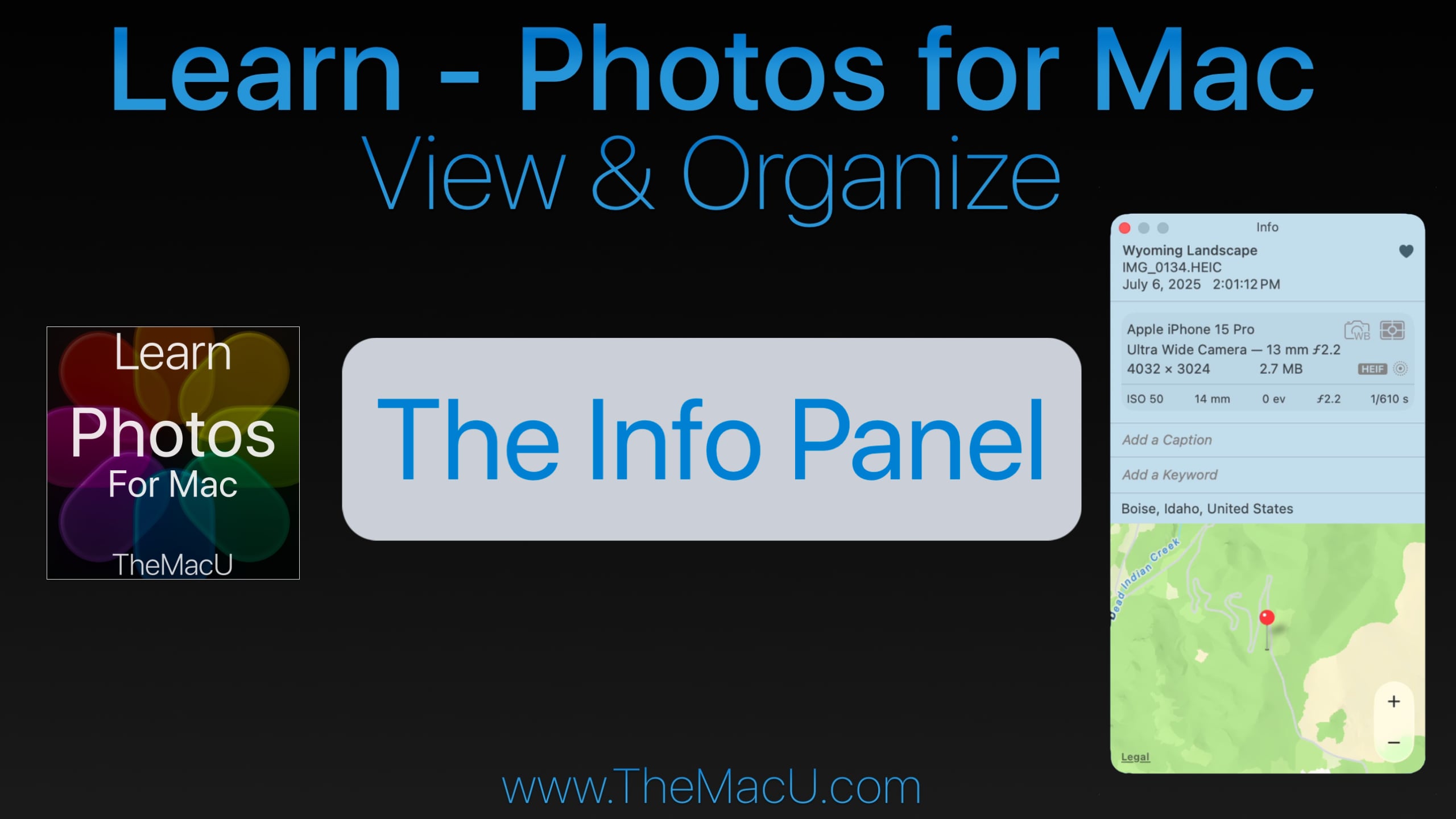
If you’ve ever wanted to dig deeper into your photo library, the Info Panel in Apple Photos for Mac is exactly where you need to start. Whether you’re looking to add custom titles, view technical capture data, or organize your images with keywords, the Info Panel puts everything at your fingertips.
What Is the Info Panel in Apple Photos?
The Info Panel is a built-in feature of the Apple Photos App for Mac that displays key details and metadata for any selected photo or video in your library. It can be opened instantly by clicking the Info button or using the keyboard shortcut Command + I.
What Can You Do With the Info Panel?
The Info Panel is packed with useful features that many Photos users overlook:
- Add Custom Titles — Replace the default filename displayed under your thumbnails with a meaningful, searchable title.
- Favorite Images — Quickly mark your best shots as favorites directly from the panel.
- View Camera & Capture Data — See exactly which camera or iPhone model was used, along with file type, resolution, shutter speed, aperture, and ISO.
- Add Captions — Include detailed notes and descriptions for any photo or video.
- Manage Keywords — Assign keywords to your images to improve library organization and make searching a breeze.
- View Location Data — See exactly where a photo was taken, with the option to add location data manually if it wasn’t captured automatically.
Why Mastering the Info Panel Matters
For anyone serious about organizing and managing a growing photo library on a Mac, the Info Panel is an essential starting point. It gives you complete visibility into your images — from the technical details captured by your camera to the personal context you add yourself. Understanding how to use it effectively will save you time and make your entire Photos library easier to navigate.
Learn More With Our Full Apple Photos for Mac Course
This tutorial is just one of over 40 in-depth video lessons included in our complete Apple Photos for Mac course at TheMacU.com. As an All Access Member, you’ll get step-by-step guidance on every feature — from basic organization to advanced editing tools.
🎓 This lesson is part of our full Apple Photos for Mac course — featuring over 40 in-depth videos!
👉 Become an All Access Member at TheMacU.com and start mastering Apple Photos today.
To begin watching every tutorial select an All Access Membership option below.