Remove photos from your Main Library when they are in an Album! Apple Photos Lesson for Mac & iOS!
Free video lesson · Mac
Remove photos from your Main Library when they are in an Album! Apple Photos Lesson for Mac & iOS!
In this lesson learn to use the "Not in an Album" filter in your Photos library. This will prevent images or videos that you have organized into an album from continuing being shown in the main library view as well.
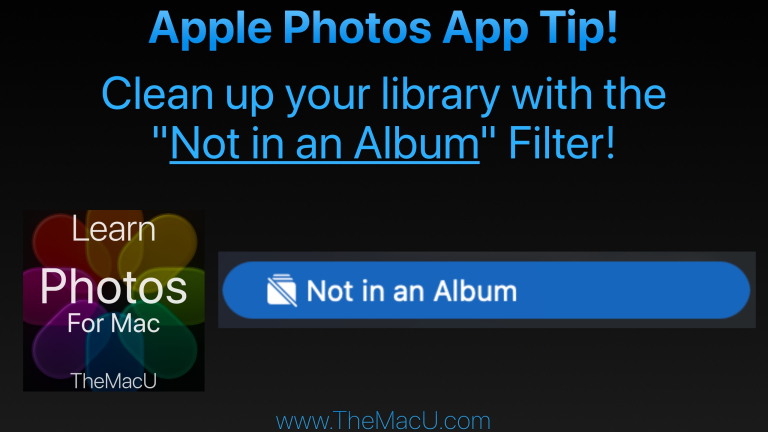
In this lesson from TheMacU.com learn to use the "Not in an Album" filter in your Photos library. This will prevent images or videos that you have organized into an album from continuing being shown in the main library view as well. This seems to be a cause of frustration for many Photos App users! Learn much more about the Apple Photos App at TheMacU.com!
Get the most out of the Photos App built into your Mac! This Photos for Mac video tutorial provides a comprehensive guide to viewing, organizing, editing, and sharing your photo library. In the “View & Organize” section, the lessons cover everything from the basics of navigating the Photos interface—such as the toolbar, sidebar, and info panel—to importing images from cameras, disks, other apps, and AirDrop. It also explores iCloud Photos, working with metadata and keywords, managing favorites, adjusting dates and times, and organizing by people, pets, and places. The tutorial includes guidance on creating and managing both standard and smart albums, handling hidden or deleted items, identifying duplicates, and using features like media types, utilities, and shared or multiple libraries, including iCloud Shared Photo Library. The “Editing Tools” section (coming early 2026) demonstrates how to enhance and refine your photos and videos. Viewers will learn to use the edit mode interface with tools like Auto Enhance, Crop & Straighten, Filters, and an in-depth set of adjustment options such as Light, Color, Black & White, White Balance, Levels, Curves, and Noise Reduction. Additional lessons explain retouching, correcting red-eye, sharpening, and applying vignettes or selective color adjustments. The tutorial also covers editing Live Photos, portrait shots, and videos, as well as working with extensions and other apps. Finally, the course explores creating slideshows, using the Share menu, exporting media, and how to wrap up your projects for sharing. Together, these lessons provide a step-by-step approach for managing, editing, and sharing photos on Mac, making it ideal for both beginners and those looking to expand their skills.
Keep watching
More free video lessons
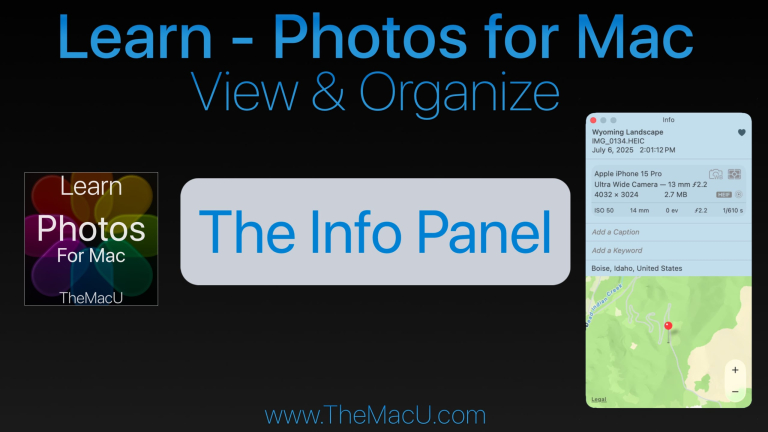 Free lessonHow to Use the Info Panel in Apple Photos for Mac: View, Edit & Organize Your Photo Details
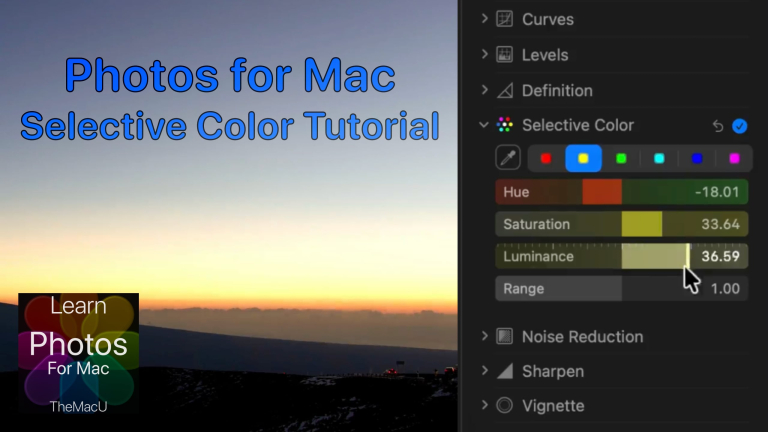 Free lessonHow to use the Selective Color Adjustment Tool to edit images in Photos for Mac!
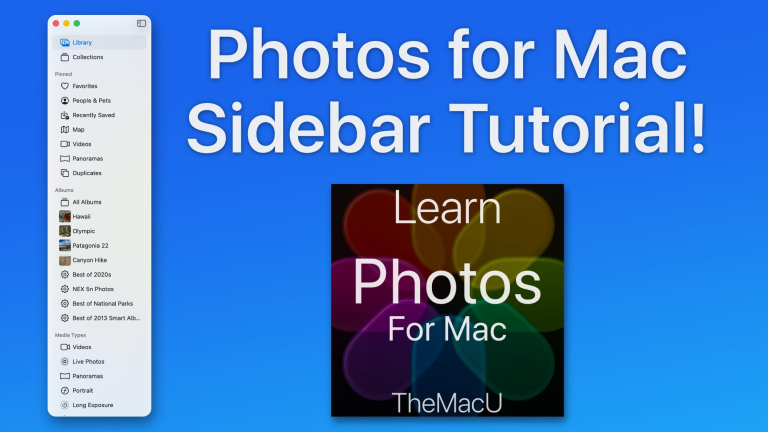 Free lessonPhotos for Mac Tutorial: How to use the sidebar for organization!291 free lessonsBrowse every free Mac, iPhone and iPad lessonSee all free lessons →
All Access membership
Watch every Photos for Mac lesson, plus every other tutorial
Every plan starts with a free trial. Cancel any time during the trial and you won't be charged.
Monthly
Auto recurring5-day free trial
- Every Mac, iPhone & iPad tutorial
- New tutorials as they're released
- Watch on any device
- No ads
- Email support
Yearly
Auto recurring7-day free trial · just $2.50 a month
- Every Mac, iPhone & iPad tutorial
- New tutorials as they're released
- Watch on any device
- No ads
- Email support
Lifetime
Single payment7-day free trial · pay once, keep it for good
- Everything in Yearly
- Every future macOS & iOS update tutorial
- Never pay again
Secure checkout. Log in on any Mac, iPhone or iPad with the same account.
Tips & guides