Mac, iPhone & iPad tips · iPhone & iPad
What’s New in iPadOS and Why It Matters
See what's new in iPadOS, from smarter multitasking to app updates and Apple Intelligence features that make your iPad easier to use daily.
If you’ve been wondering what’s new in iPadOS, the biggest story is not just a longer feature list. It’s that Apple keeps pushing the iPad toward two goals at once: making it simpler for everyday tasks while giving power users better control when work gets more demanding. That balance matters, because most people do not want their iPad to feel like a small Mac all the time. They want it to stay easy until they need more.
For many iPad owners, the real question is not whether the update includes enough new features. It’s whether those features make common tasks faster, clearer, and less frustrating. That is the standard worth using as we look at the latest changes.
Use and customize the iPad tab bar

Watch it free, then go deeper: the iPadOS tutorial has 16 step-by-step lessons. Start your free trial →
What’s new in iPadOS for everyday use
Some iPadOS updates are dramatic. Others are more valuable because they remove friction in small but frequent ways. Apple has continued improving core parts of the experience such as multitasking, working with windows, built-in apps, and system intelligence.
If you mostly use your iPad for email, web browsing, notes, reading, video calls, streaming, and light document work, the newer versions of iPadOS feel more polished than revolutionary. That is not a bad thing. In practice, polish is what saves time.
You’ll notice this in how apps open, how easier it is to move between tasks, and how system features are becoming more aware of context. Small improvements in Safari, Notes, Messages, Files, and PDF handling often have more impact than flashy additions because they show up in daily routines.
For users who rely on the iPad for school, work, or managing a household, this means less switching, less redoing, and fewer moments where you stop because the device is getting in your way.
Multitasking keeps getting more useful
One of the most meaningful answers to what’s new in iPadOS is that multitasking is becoming easier to understand. Apple has spent years trying to give iPad users more than one way to work with apps, and the results have been mixed. Some features were powerful but not obvious. Others were simple but limiting.
Recent iPadOS changes continue to make app switching and window management more approachable. Depending on your iPad model, you may have access to more flexible windowing tools that let you resize apps, place them more deliberately, and work with several apps in a way that feels closer to desktop computing.
That said, this is also where hardware matters. A newer iPad Pro or iPad Air can make advanced multitasking feel smooth and worthwhile. On older or entry-level models, you may still prefer a simpler full-screen workflow with Split View or quick app switching. The feature set may sound the same on paper, but your experience depends a lot on which iPad you own and how much memory it has.
If your workflow includes comparing documents, answering messages while researching, or dragging content between apps, these improvements are valuable. If you mostly read, browse, and watch content, they may matter far less.
Apple Intelligence changes the kind of help your iPad can offer
For compatible devices, Apple Intelligence is one of the clearest shifts in iPadOS. This is not just about adding AI for the sake of it. The more useful question is whether it helps you write, organize, communicate, and find information with less effort.
In practical use, the strongest benefits tend to center on writing tools, summarization, image-related features, and a more capable Siri experience. If you write emails, revise notes, or want help adjusting tone and clarity, built-in writing assistance can save time. If you receive long message threads or lengthy content, summarization can help you get the main point faster.
There are trade-offs. First, not every iPad supports these features. In many cases, you need a newer device with the right chip. Second, AI tools are best used as assistants, not decision-makers. They can speed up drafting and cleanup, but you still need to review results for accuracy and tone.
For many users, the real advantage is confidence. When your iPad can help rewrite a message, surface key details, or reduce the amount of manual cleanup, it lowers the barrier to getting started. That is especially helpful for people who know what they want to do but feel slowed down by the steps.
Built-in apps are getting better at real work
Apple’s first-party apps are a major reason people stay in the iPad ecosystem, and iPadOS updates often improve these apps in ways that are easy to overlook at first.
Notes continues to become more useful as a central place for typed notes, handwriting, checklists, sketches, scans, and attachments. For many users, it has moved from a simple note pad to a real information hub. If you’re organizing class material, project details, meeting notes, or home records, these changes matter because they reduce the need for separate apps.
Files is another area where steady improvement matters. The iPad is most frustrating when file management feels hidden or restrictive. As Files becomes more capable, the iPad becomes more practical for handling PDFs, folders, downloads, external storage, and cloud-based documents. This is not always exciting, but it is essential for anyone trying to use an iPad for serious work.
Safari also keeps narrowing the gap between tablet browsing and desktop browsing. Better PDF support, improved tab management, and stronger compatibility with complex websites help the iPad feel less like a secondary device. If you work in web apps, research online, or manage logins across many sites, these refinements add up quickly.
The iPad is better at handling documents and PDFs
This is one of the most useful shifts for practical users. iPadOS has improved the experience of opening, annotating, organizing, and working with PDFs. That matters more than it may sound.
A large share of iPad owners use their device for forms, manuals, invoices, class handouts, contracts, and marked-up reference materials. Better PDF handling turns the iPad into a more dependable document tool rather than just a screen for viewing files.
If you pair this with Apple Pencil, the experience becomes even stronger. Marking up a document, signing paperwork, circling edits, or adding handwritten notes feels natural in a way that a laptop often does not. For some users, this alone justifies using an iPad as their primary device for document review.
The trade-off is that advanced file workflows can still feel less direct than on a Mac. If your day involves constant downloads, batch renaming, detailed folder structures, or specialized desktop apps, the iPad may still be a companion rather than a complete replacement.
Customization is improving, but simplicity still comes first
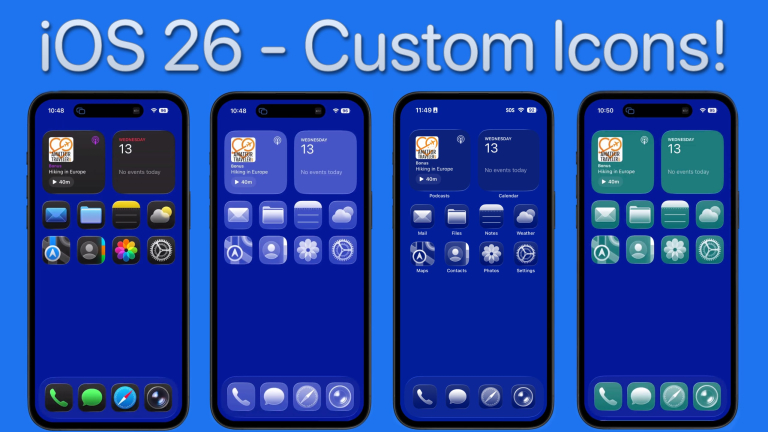
Apple has also continued giving users more control over the iPad experience. This can include Home Screen behavior, widgets, Lock Screen adjustments, default app preferences in some cases, and more flexible ways to personalize how the device looks and behaves.
What Apple generally avoids on the iPad is customization that creates confusion. That fits the platform well. Most users benefit more from a clear, predictable system than from endless options.
This approach will not satisfy everyone. If you want a tablet that behaves like a fully open desktop environment, iPadOS still has limits. But for many people, those limits are part of why the iPad stays approachable. You can hand it to a family member, use it on the couch, take it into a meeting, or set it up for focused work without feeling like you need to manage a complicated system.
Should you update right away?
For most users, updating to the latest stable version of iPadOS makes sense, especially if you want security updates, app compatibility, and access to Apple’s newest features. Still, the right timing depends on how you use your iPad.
If your iPad is central to your work, it can be smart to wait briefly after a major release and make sure your most important apps are running well. If you use your iPad more casually, updating sooner is usually fine.
Before updating, check your storage, make sure you have a recent backup, and confirm whether your iPad supports the features you care about most. This is especially important with Apple Intelligence and advanced multitasking tools, since not all models get the same capabilities.
That detail is easy to miss. People often read about new iPadOS features and assume the entire experience will change on every supported device. In reality, some of the most impressive additions depend on newer hardware.
What matters most about the newest iPadOS changes
The best way to think about what’s new in iPadOS is this: Apple is making the iPad better at staying out of your way. The platform is improving at simple tasks, more capable with serious work, and smarter about helping when you need support.
Not every feature will matter to every user. Some people will care most about windowing. Others will notice Apple Intelligence, PDF tools, Notes improvements, or better file handling. The right update is not the one with the longest changelog. It’s the one that makes your own routine feel easier.
If you approach iPadOS that way, you’re much more likely to use the features that actually improve your day instead of chasing every new option just because it exists. And when the software feels easier to understand, the iPad becomes what it works best as: a device you can pick up and trust to help you get something done.
Keep watching
More free video lessons on this topic

All Access membership
Watch every iPadOS lesson, plus every other tutorial
Every plan starts with a free trial. Cancel any time during the trial and you won't be charged.
Monthly
Auto recurring5-day free trial
- Every Mac, iPhone & iPad tutorial
- New tutorials as they're released
- Watch on any device
- No ads
- Email support
Yearly
Auto recurring7-day free trial · just $2.50 a month
- Every Mac, iPhone & iPad tutorial
- New tutorials as they're released
- Watch on any device
- No ads
- Email support
Lifetime
Single payment7-day free trial · pay once, keep it for good
- Everything in Yearly
- Every future macOS & iOS update tutorial
- Never pay again
Secure checkout. Log in on any Mac, iPhone or iPad with the same account.