
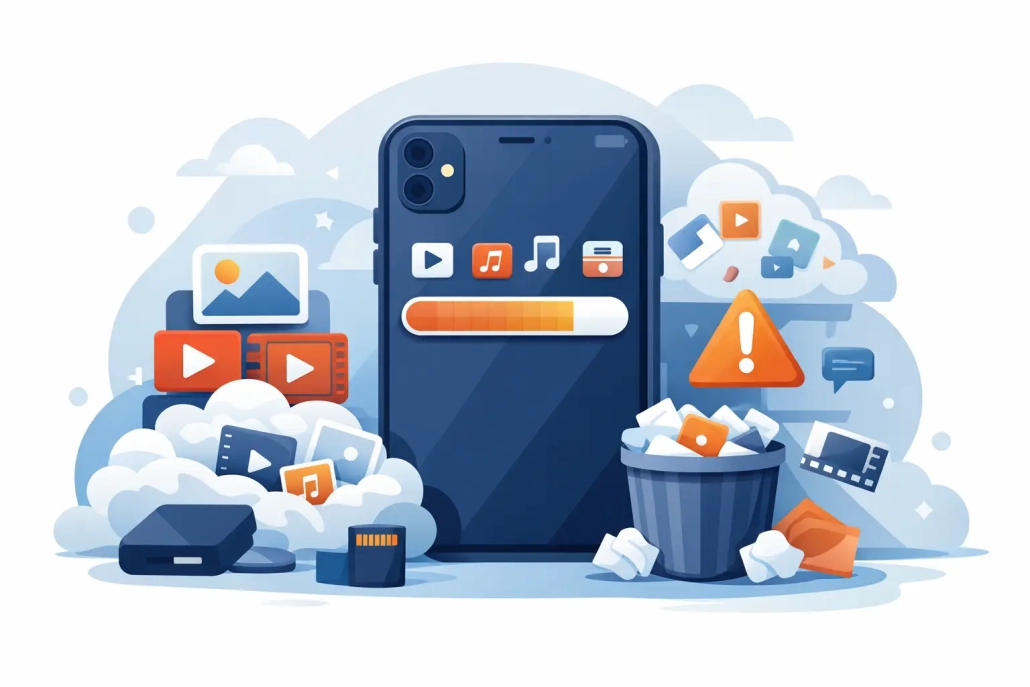
Why Is iPhone Storage Full So Fast?
You delete a few photos, remove an app or two, and expect your iPhone to breathe again. Then you check Storage and see the same warning staring back at you. If you have been wondering why is iPhone storage full even when you are trying to manage it, the short answer is that storage fills from more than just the obvious things on your Home Screen.
The confusing part is that iPhone storage is not only about photos, videos, and apps. It also includes hidden app data, message attachments, downloaded media, browser files, cached content, and system-managed space that can expand and shrink over time. Once you know where that space is actually going, the problem becomes much easier to fix.
Why is iPhone storage full when you hardly added anything?
For many users, the biggest surprise is that storage can grow quietly in the background. You may not have installed any large new apps, but your iPhone may still be collecting data every day. Messages keep photo and video attachments. Streaming apps store downloads. Safari saves website data. Social apps hold onto cache files so they can load faster later.
This is why your storage can feel out of sync with your habits. You may think, “I did not add much,” but your iPhone has been building up temporary and semi-permanent files in dozens of small places.
Another reason is that deleting something does not always remove it immediately. Photos stay in Recently Deleted for 30 days unless you remove them there too. Some apps leave documents and data behind until the app is fully deleted. Cloud services can also create confusion because an item may be stored in iCloud but still keep a local copy on your device.
The biggest reasons iPhone storage fills up
Photos and videos are still the most common cause, especially if you record in 4K, use Cinematic mode, save edited versions, or keep large screenshots. A short video clip can take more space than people expect, and Live Photos add extra data compared with standard still images.
Messages can be another major factor. If you text with family members who share videos, memes, voice notes, and photo attachments, the Messages app can quietly become one of the largest storage categories on the phone.
Apps themselves are often smaller than their data. A social media app may not look especially large at first, but over time the documents and data attached to it can become much bigger than the app download. The same applies to podcast apps, music apps, map apps, and any app that saves content for offline use.
Then there is system data. On iPhone, this category may appear as System Data or iOS, and it can include caches, logs, voices, fonts, updates, and temporary files. This space is not always a problem, but when storage is tight, it can become more noticeable.
How to check what is actually using space
The best place to start is Settings > General > iPhone Storage. This screen gives you a category overview and a list of apps sorted by size. It is one of the most useful built-in tools on the iPhone because it shows you what is taking up real space rather than what you assume is taking up space.
Pay attention to two details here. First, look at the colored bar near the top for categories like Apps, Photos, Messages, iOS, and System Data. Second, tap individual apps and compare App Size to Documents & Data. If Documents & Data is much larger, that app is storing a lot more than its original download.
This is also where Apple offers recommendations, such as reviewing large attachments or offloading unused apps. Those suggestions are worth checking because they often point you to the fastest wins.
Photos, videos, and iCloud can help – but only if settings are right
A common misunderstanding is that turning on iCloud Photos automatically clears local storage. That is not always true. If your iPhone is set to Download and Keep Originals, full-resolution versions stay on the device. If you want iCloud to reduce local usage, the key setting is Optimize iPhone Storage.
With that option enabled, the iPhone keeps smaller device-sized versions locally and moves full-resolution originals to iCloud when space is needed. This can make a dramatic difference, especially for users with large photo libraries.
There is a trade-off, though. You are relying more on iCloud and an internet connection to access some originals quickly. For most users, that trade-off is worthwhile. For others, especially those with limited internet access, keeping originals on the device may still make sense.
Also check Recently Deleted in Photos. If you removed a large batch of videos but did not permanently delete them there, you have not actually reclaimed that storage yet.
Messages and attachments are often the hidden culprit
If your iPhone storage feels full for no clear reason, Messages is worth a close look. Text conversations can hold years of attachments, and those files add up fast. A single group thread with shared videos can consume several gigabytes.
In iPhone Storage, tap Messages and review categories like Photos, Videos, GIFs and Stickers, and Other. This gives you a more useful picture than simply scrolling through the app and guessing.
You can also change how long messages are kept by going to Settings > Apps > Messages > Keep Messages. Many users leave this on Forever without realizing how much that choice costs in storage. Switching to one year or even 30 days can make sense if your priority is freeing space.
Why apps keep growing after you install them
Apps are designed to save time, and part of that convenience comes from stored data. Streaming services keep downloaded content. Browsers store website information. Social apps cache images and videos so they load more quickly. Navigation apps may keep offline maps. Over time, that convenience becomes storage use.
This is why reinstalling an app sometimes frees more space than simply stopping use of it. In some cases, deleting and reinstalling clears the accumulated data that the app built over months or years. It is not the right move for every app, because you may lose offline files or local settings, but it can be effective.
Offloading is another option. Offload App removes the app itself while keeping its documents and data. That is useful when you want to reclaim some space temporarily without losing your information. Full deletion is better when the stored data is the real problem.
What about System Data?
System Data is one of the least intuitive parts of iPhone storage because it is not a single thing you can open and clean out manually. It includes temporary files, caches, logs, update files, and other background items iOS uses to function.
A moderate amount of System Data is normal. The problem is when it becomes unusually large and stays that way. Restarting the iPhone can sometimes help clear temporary items. Keeping iOS updated can help too, since Apple regularly improves storage management. If System Data remains excessive, backing up the iPhone and restoring it can reset storage behavior, though that is a bigger step and usually not the first one to try.
A practical way to free space without making a mess
Start with the highest-impact categories, not random cleanup. Check iPhone Storage first. Then review Photos, especially large videos and Recently Deleted. After that, review Messages attachments, then look at large apps with bloated documents and data.
If you use iCloud Photos, confirm that Optimize iPhone Storage is enabled. If you download media for travel or offline use, remove anything you no longer need. In Safari, clearing website data can help if browser storage has piled up. For apps you rarely use, offload or delete them based on whether you need the saved data.
Try to avoid aggressive cleanup habits that create more work later. Deleting important apps, wiping conversations you still need, or removing photos before confirming they are backed up can turn a storage problem into a bigger one. Methodical cleanup is slower, but it is safer.
How to keep iPhone storage from filling up again
Once your iPhone has some breathing room, a few small habits make a big difference. Review iPhone Storage every so often instead of waiting for a warning. Be selective with video quality if you record often. Clear old downloads after trips. Check large message attachments from time to time.
It also helps to decide what belongs on the device and what belongs in the cloud. Some users want everything local, which is fine if they bought enough storage. Others would rather keep the phone lean and let iCloud handle the library. The right approach depends on your storage size, internet access, and how you use your iPhone day to day.
If this all feels more complicated than it should, that reaction is reasonable. iPhone storage is manageable, but it gets easier when you understand the logic behind what iOS is storing and why. Once you know where the space is going, you can make better decisions and spend less time fighting warnings instead of using your iPhone the way you want.


