
Focus Modes iPhone Setup Made Simple
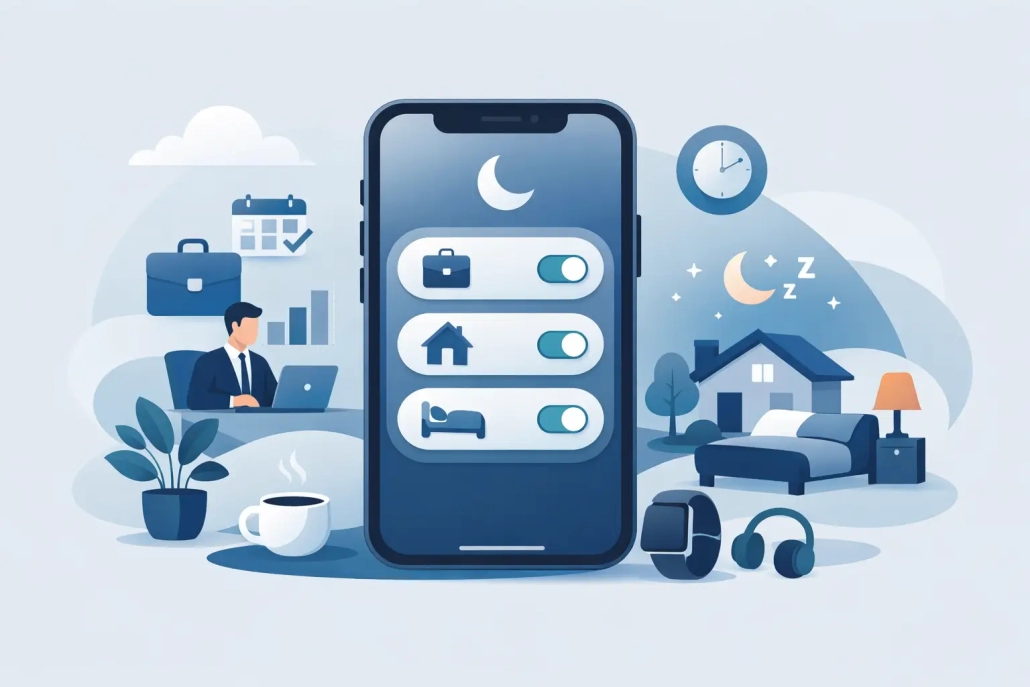
If your iPhone feels noisy at the wrong moments, a better focus modes iPhone setup can change that quickly. Focus modes are not just a fancier Do Not Disturb switch. When they are set up well, they can control who reaches you, which apps interrupt you, what your Home Screen looks like, and even how your Lock Screen behaves.
The reason many people give up on Focus is simple: Apple gives you a lot of options at once. That flexibility is useful, but it can also make the feature feel harder than it really is. The easiest way to approach it is to build one mode at a time around a real situation, such as work, sleep, or personal time.
What Focus actually changes on iPhone
A Focus mode sits between you and your notifications. Instead of muting everything all the time, it lets you decide which people and apps are allowed to break through in a specific context. That means you can let family contact you during Work, silence coworkers during Personal, or keep nearly everything quiet overnight.
It can also do more than notifications. A good focus modes iPhone setup may include a custom Home Screen, a matching Lock Screen, filters for apps like Calendar or Mail, and an automatic schedule. This is what makes Focus useful for daily routines instead of occasional silence.
The trade-off is that more customization means more decisions. If you try to build five modes in one sitting, it usually becomes harder to remember what each one does. Start with one mode you know you need.
Before you start your focus modes iPhone setup
Open the Settings app, then tap Focus. You will see Apple’s built-in options such as Do Not Disturb, Personal, Sleep, and Work, along with the option to create your own.
Before changing anything, think through two questions. First, when do you want fewer interruptions? Second, who or what still needs to get through? Those answers shape the setup more effectively than tapping through settings at random.
For most people, Work is the best starting point because the rules are easy to define. You usually know which contacts matter, which apps should be quiet, and which Home Screen apps you want visible.
How to set up a Focus mode on iPhone
Tap one of the suggested modes, or tap the plus button to create a custom one. Apple walks you through the main choices in a sequence, which helps keep the setup manageable.
Choose allowed or silenced people
Your iPhone may ask whether you want to allow notifications from selected people or silence notifications from selected people. Either approach can work. If only a few contacts should reach you, allowing selected people is usually simpler. If most people can contact you except a few, silencing selected people may make more sense.
This choice matters because it changes how you maintain the mode later. A small allow list is easier to control, but it can be too restrictive if you forget someone important. A silence list is more flexible, but it takes more attention if your contact needs change often.
You can also adjust phone call behavior. For example, you might allow calls from favorites or repeated callers. Repeated callers can be useful for emergencies, but it also means a determined spam caller could get through if they call again right away. That is one of those settings worth thinking about rather than accepting automatically.
Choose allowed or silenced apps
Next, decide which apps can send notifications while that Focus is active. During Work, you might allow Calendar, Reminders, Messages, and perhaps a work communication app. During Personal, you may want the opposite and keep work apps quiet.
Be selective here. If you allow too many apps, the Focus mode will feel ineffective. If you allow too few, you may miss something genuinely useful. A good rule is to allow only the apps that support the purpose of that mode.
Set Lock Screen and Home Screen behavior
This is where Focus becomes much more practical. You can choose a custom Lock Screen and a custom Home Screen for a specific mode.
For example, a Work Focus might show a Home Screen page with Calendar, Mail, Notes, Reminders, and Files. A Personal Focus might show Photos, Music, Messages, and a few leisure apps. Hiding unrelated pages reduces temptation and clutter. It does not remove apps from your iPhone, but it changes what is front and center.
This step often has the biggest day-to-day impact because it changes what you see before you even open anything. If your iPhone usually pulls your attention in too many directions, this part is worth setting up carefully.
Add Focus Filters if they help
Focus Filters let certain Apple apps behave differently based on the active mode. You might tie a specific Calendar set to Work or show only certain mail accounts while working.
This is useful, but not everyone needs it. If you are new to Focus, you can skip filters at first and come back later. The core setup works well without them.
Best first setups for everyday use
Most people do best with three modes: Work, Personal, and Sleep. That is enough to cover the biggest changes in attention without making the system complicated.
Work
Use Work when you want only essential communication and task-related apps. Allow key contacts, allow a small set of work apps, and create a Home Screen that supports getting things done. If you use separate calendars or email accounts, filters can help keep work items visible and personal items out of the way.
Personal
Personal is useful for evenings, weekends, or downtime. Silence work-related contacts and apps, then build a simpler Home Screen around communication, media, or household tasks. This mode is less about total silence and more about protecting your off-hours.
Sleep
Sleep should usually be the strictest mode. Limit interruptions to the people who truly need emergency access. Keep the screen experience calm and avoid allowing apps that create unnecessary late-night alerts.
How to automate Focus modes
A manual setup is fine, but automation is what makes the feature stick. Inside each Focus mode, look for options to add a schedule or automation.
You can trigger a Focus by time, location, or app. Time is the most reliable for routines such as work hours or bedtime. Location can work well if your schedule is anchored to a consistent place, such as an office. App-based automation is useful when you want a Focus to activate as soon as you open a specific app.
There is no single best method. If your days are predictable, use time. If they vary but depend on where you are, use location. If your workflow starts with one specific app, app-based automation may be the cleanest choice.
Common mistakes in focus modes iPhone setup
The most common mistake is making a mode too permissive. If nearly every app and contact is allowed, the mode will not feel different enough to matter.
The second mistake is making it too strict. If a Focus blocks messages you actually need, you will stop trusting it and turn it off. That is why a short testing period helps. Run one mode for a few days, notice what got through and what did not, then adjust.
Another common issue is forgetting the visual side. People often spend time on notification rules but skip the custom Home Screen. In practice, the Home Screen change can be just as valuable because it reduces distraction before a notification even arrives.
Finally, do not overlook sharing across devices if you use multiple Apple products. If Focus is shared across your iPhone, iPad, and Mac, the experience can feel much more consistent. If that sounds disruptive, you can turn off cross-device sharing and keep the setup limited to your iPhone.
When to use Do Not Disturb instead
Not every situation needs a fully customized Focus. Sometimes Do Not Disturb is still the right answer, especially when you want a temporary quiet period without managing different people, apps, and screens.
Think of Do Not Disturb as the quick option and custom Focus modes as the routine option. One is for temporary silence. The other is for repeatable patterns in your day.
A simple way to improve your setup over time
The best approach is not to build a perfect system on day one. Set up one Focus mode, use it in real life, and edit it after a few days. If you notice that one person should always reach you, change that. If a certain app keeps interrupting at the wrong time, remove it.
That gradual method is usually more effective than trying to predict every need in advance. It is also how many Apple users become comfortable with advanced features in general: learn the core workflow first, then refine it as your confidence grows. That practical, step-by-step approach is exactly what makes structured Apple training so helpful at TheMacU.
A good Focus setup should feel lighter after a week, not heavier. If it reduces friction, quiets the right interruptions, and makes your iPhone feel more intentional, you are on the right track.


