Mac, iPhone & iPad tips · iPhone & iPad
MacBook Air vs iPad Pro: Which Fits You?
MacBook Air vs iPad Pro: compare workflow, apps, multitasking, accessories, and value so you can choose the right Apple device for work.
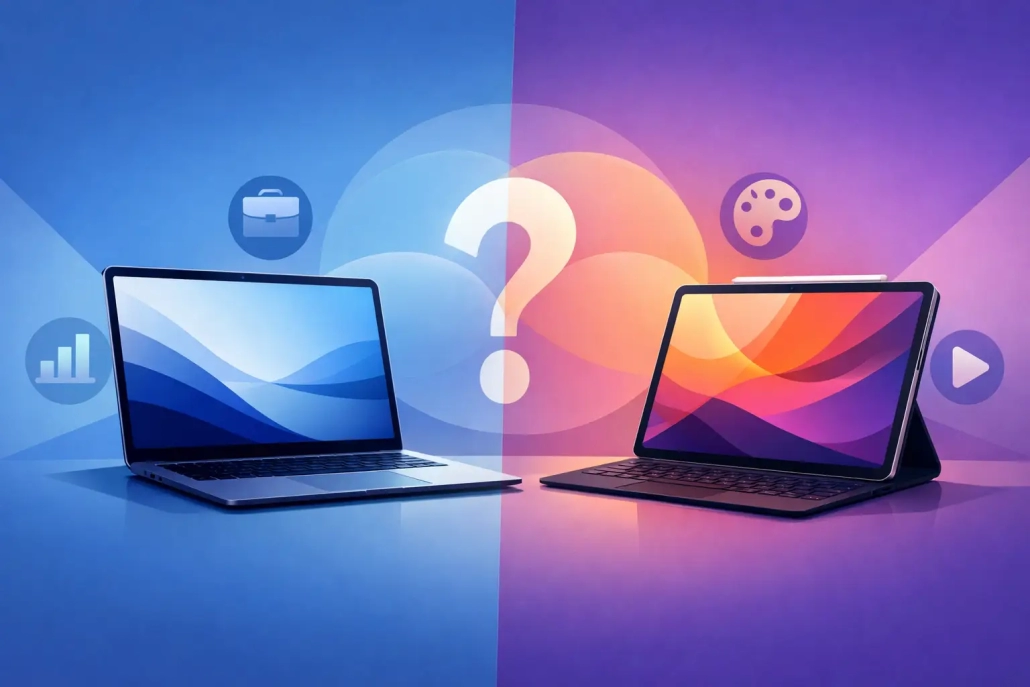
You can answer the MacBook Air vs iPad Pro question with one simple test: what frustrates you more – carrying a keyboard everywhere, or bumping into app and multitasking limits when you need to get work done? Both devices are excellent. The better choice usually comes down to how you work, not which product has the more impressive spec sheet.
For many Apple users, this comparison gets confusing because the overlap is real. An iPad Pro can attach to a keyboard, run powerful apps, and feel close to a laptop for stretches of the day. A MacBook Air is light, quiet, fast, and portable enough that it no longer feels like a compromise. That is exactly why the decision matters. If you choose based on the wrong priority, you can end up with a device that is technically great but awkward for your daily routine.
A dual-display mobile workstation with a Mac or iPad

Watch it free, then go deeper: the iPadOS tutorial has 16 step-by-step lessons. Start your free trial →
MacBook Air vs iPad Pro: Start with your workflow
If your day revolves around writing, email, spreadsheets, file management, research, and juggling multiple windows, the MacBook Air is usually the easier fit. macOS is still better at traditional computer tasks because it gives you more freedom to arrange windows, manage files, connect storage, and move quickly between apps without thinking about the interface.
If your day is built around touch, handwriting, drawing, reading, video calls, media review, or working from a couch, plane seat, or conference room table, the iPad Pro starts to make more sense. It is more flexible physically. You can hold it, prop it up, use it with Apple Pencil, and switch between tablet and keyboard modes in a way a laptop simply cannot.
That difference sounds obvious, but it affects almost everything. A MacBook Air asks you to work like a computer user. An iPad Pro lets you work more like a device-switching, touch-first user. Neither approach is better in every case. One is just more natural depending on your habits.
Where the MacBook Air is clearly better
The MacBook Air wins when your work depends on consistency and fewer interruptions. The keyboard and trackpad are always there. App behavior is more predictable. Browser-based tools tend to work as expected. If you rely on Google Docs, Microsoft 365, web dashboards, cloud storage services, or a lot of copy-and-paste between windows, macOS usually feels simpler.
File management is another major advantage. The Finder, desktop-style folders, external drive support, and drag-and-drop workflow still make the MacBook Air the more capable machine for organizing large amounts of information. That matters if you deal with PDFs, photos, downloads, client files, or long-term document storage.
Multitasking is also more straightforward. Even with iPad improvements, the Mac is better at keeping several things visible and usable at once. If you are the kind of person who wants a notes app open beside a browser, alongside Mail and Messages, with a PDF nearby, the MacBook Air creates less friction.
For many people, that friction is the whole story. The best device is often the one that gets out of your way.
MacBook Air is usually the better choice for:
People who write a lot, manage files regularly, use desktop-class browser tools, or want a reliable primary computer tend to do better with a MacBook Air. It is also the safer pick for users who are not interested in adapting their workflow around a device.
Where the iPad Pro is clearly better
The iPad Pro is better when the screen itself is part of the experience. If you annotate documents, sketch ideas, mark up screenshots, sign forms, edit photos with touch, or take handwritten notes, the iPad offers something the MacBook Air does not. Apple Pencil support is not a small bonus. For the right user, it changes the device completely.
It is also stronger for focused, single-task use. Reading, presenting, watching lessons, reviewing photos, joining a FaceTime call, or using one app at a time can feel more direct and less cluttered on iPad. There is less visual noise, and for many users that makes the device less intimidating.
The cameras matter more on iPad than on MacBook Air as well. If you regularly scan documents, capture whiteboards, join calls from different angles, or use the rear camera in your workflow, the iPad Pro is much more versatile.
Portability can be a win for iPad too, but this is where context matters. The iPad Pro by itself is lighter and more flexible than a laptop. Once you add a keyboard case, that advantage shrinks. If you expect to use it mostly as a laptop replacement, make sure you are comparing the real setup you would carry, not the tablet on its own.
Apps, accessories, and the hidden cost of the choice
A lot of MacBook Air vs iPad Pro decisions turn on what happens after the purchase. On paper, the base device price may look close enough. In practice, the total setup can be very different.
With a MacBook Air, you already have the built-in keyboard and trackpad. You open it and start working. With an iPad Pro, many users end up adding a keyboard case and Apple Pencil. Those accessories may be worthwhile, but they can significantly change the value equation.
There is also an app question. On iPad, some apps are excellent and feel purpose-built. Others are trimmed-down versions of desktop software or ask you to work differently. That is not always bad, but it does mean you should check your must-have apps before deciding. If your work depends on a very specific application or a browser feature that behaves best on desktop, the MacBook Air is the safer route.
This is especially true for people who want one main device for the next several years. A MacBook Air generally asks for fewer compromises over time.
The learning curve is different
The MacBook Air tends to feel familiar if you have used any computer regularly. The concepts are established: files, folders, windows, menus, external storage, keyboard shortcuts. Even if you are new to Mac, the structure is still closer to what most people expect from a computer.
The iPad Pro can feel simpler at first and more limiting later. Basic tasks are easy to grasp. Advanced workflows sometimes require more adaptation, especially around multitasking, file handling, and accessories. Some users enjoy that shift. Others find it frustrating because the device feels powerful but not always flexible in the ways they need.
That is why it helps to be honest about whether you want to learn a new way of working. If you enjoy touch interaction and like the idea of a modular device, the iPad Pro can be rewarding. If you want the shortest path between sitting down and getting things done, the MacBook Air usually wins.
Which one is better for students, professionals, and everyday users?
Students often fall into the middle. An iPad Pro is excellent for handwritten notes, reading textbooks, annotating PDFs, and attending class with a very portable setup. But if the workload includes long papers, research across multiple windows, spreadsheets, and file-heavy assignments, the MacBook Air is often the more dependable school machine.
Professionals who live in email, calendars, documents, presentations, and browser-based tools will usually be more efficient on a MacBook Air. It is better suited to sustained office-style work. Professionals in creative, presentation, design, or field-based roles may benefit more from an iPad Pro, especially if Apple Pencil, mobility, or camera use is central to the job.
Everyday users should focus less on performance and more on habits. If you mostly browse, watch videos, send messages, shop, read, and handle light personal tasks, the iPad Pro may feel more comfortable and approachable. If you also manage family files, print often, compare documents, or want a traditional computer experience, the MacBook Air is easier to recommend.
So which should you buy?
Buy the MacBook Air if you want the least complicated path to productivity. It is the better primary computer for most people because it handles everyday work, multitasking, file management, and long sessions more naturally.
Buy the iPad Pro if you specifically want the benefits of a tablet and know you will use them. That means touch matters, Apple Pencil matters, portability in tablet form matters, and your apps fit comfortably within iPadOS.
If you are still undecided, this practical rule helps: choose the MacBook Air unless you already have a clear reason you need the iPad Pro. The iPad can do a surprising amount, but the Mac usually asks you to work around fewer limitations.
The best Apple device is not the one with the most possibilities. It is the one that makes your daily tasks feel straightforward, repeatable, and under control. If that is the outcome you want, choose the device that matches how you already work, then learn it well enough to get your money’s worth.


All Access membership
Watch every iPadOS lesson, plus every other tutorial
Every plan starts with a free trial. Cancel any time during the trial and you won't be charged.
Monthly
Auto recurring5-day free trial
- Every Mac, iPhone & iPad tutorial
- New tutorials as they're released
- Watch on any device
- No ads
- Email support
Yearly
Auto recurring7-day free trial · just $2.50 a month
- Every Mac, iPhone & iPad tutorial
- New tutorials as they're released
- Watch on any device
- No ads
- Email support
Lifetime
Single payment7-day free trial · pay once, keep it for good
- Everything in Yearly
- Every future macOS & iOS update tutorial
- Never pay again
Secure checkout. Log in on any Mac, iPhone or iPad with the same account.