Mac, iPhone & iPad tips · iPhone & iPad
How to Stop Spam Calls on iPhone: Every Built-In Fix
Stop spam calls on iPhone with Call Screening, Silence Unknown Callers, call filtering and blocking, plus a simple setup that works for most people.
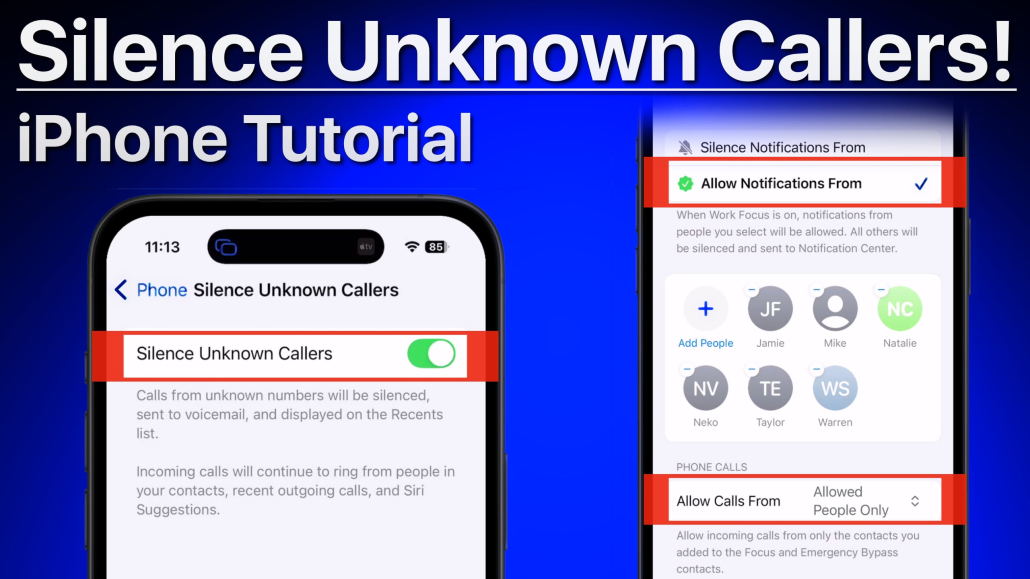
Spam calls are one of the most common iPhone frustrations, and the good news is that your iPhone already has strong tools built in to stop them. You don’t need a paid app to get started. A few settings in the Phone app can silence unknown numbers, ask callers why they’re calling before your phone ever rings, and move spam into its own list.
The fastest fix is to open Settings > Apps > Phone and choose how your iPhone handles unknown callers. From there you can add call filtering, block repeat offenders, and do the same for spam texts in Messages.
This guide walks through each option in plain English, explains what each one actually does, and helps you pick the right mix so you stop spam without missing the calls that matter.
Silence unknown callers on iPhone
Watch it free, then go deeper: the iOS 26 What’s New tutorial has 18 step-by-step lessons. Start your free trial →
Why Spam Calls Keep Getting Through
Most robocallers don’t call from one number. They rotate through huge batches of numbers, often “spoofed” to look local, so blocking a single number rarely solves the problem for long. That’s why the most effective iPhone settings don’t rely on a list of bad numbers. Instead, they treat any number that isn’t in your contacts differently from the people you know.
That approach works well, but it has one important side effect: if a real person or business you need to hear from isn’t saved in Contacts, their call can be treated as unknown too. Keep that in mind as you choose your settings, and we’ll cover how to avoid missing those calls later on.
Option 1: Silence Unknown Callers
Silence Unknown Callers is the simplest and most aggressive option. When it’s on, calls from numbers you don’t know don’t ring at all. They go straight to voicemail and still show up in your call list, so you can check them later.
Calls still ring through from people in your Contacts, numbers you’ve recently called, and numbers Siri suggests based on things like your email and messages. If you call emergency services, Apple temporarily turns the silencing off so emergency responders can call you back.
How to turn it on
- Open the Settings app.
- Scroll down and tap Apps, then tap Phone.
- Find the Screen Unknown Callers section.
- Choose Silence.
On older iPhone software, the same feature appears as a simple Silence Unknown Callers switch in the Phone settings. If you’d like to watch the whole process, our free video lesson on silencing unknown callers on iPhone shows exactly where to tap and what happens when a silenced call comes in.
This option is great if you almost never get legitimate calls from new numbers. It’s less ideal if you’re waiting on a doctor’s office, a delivery driver or a job interview call.
Option 2: Call Screening (Ask Reason for Calling)
Call Screening, which arrived with iOS 26, is the middle ground many people prefer. Instead of silencing unknown numbers, your iPhone answers them quietly in the background and asks the caller for their name and why they’re calling. You then see their answer on screen and decide whether to pick up.
Robocalls usually hang up or fail to respond, so most spam never bothers you. Real people, like a pharmacy or a new client, simply say who they are and your iPhone rings with that information.
How to turn on Call Screening
- Open Settings and tap Apps.
- Tap Phone.
- Under Screen Unknown Callers, choose Ask Reason for Calling.
That’s it. Once you leave Settings, the feature is active. Call Screening works on iPhone models that can run iOS 26, which includes iPhone 11 and later. Language and regional support has been expanding over time, so if you don’t see the option, make sure your iPhone is fully updated.
Comparing the three settings
| Setting | What happens with unknown numbers | Best for |
|---|---|---|
| Never | They ring normally, just like any other call | People who get lots of calls from new numbers |
| Ask Reason for Calling | Your iPhone asks who’s calling and why before it rings | Most people who want fewer spam calls without missing real ones |
| Silence | No ring; calls go to voicemail and appear in your list | People who rarely need to hear from unknown numbers |
Option 3: Filter Spam and Unknown Callers Into Their Own Lists
The Phone app can also sort your call history so spam doesn’t clutter your recent calls. Your iPhone uses information from your carrier and other sources to identify likely spam, and it can keep those calls separate from the calls you care about.
- Go to Settings > Apps > Phone.
- Look for the Call Filtering section.
- Turn on Unknown Callers and Spam.
To see those calls later, open the Phone app and tap the filter button near the top right of the screen, then choose Unknown Callers or Spam. If a call from someone you actually know lands in the Unknown Callers list, you can mark it as known so future calls from that number aren’t filtered.
FaceTime has its own separate Call Filtering settings, so if you get unwanted FaceTime calls, check Settings > Apps > FaceTime too.
Option 4: Block Specific Numbers
Blocking is still useful for a persistent caller who keeps using the same number, like a pushy sales line or someone you simply don’t want to hear from.
- Open the Phone app and find the call in your recent calls.
- Tap the info button (the small “i”) next to the number.
- Scroll to the bottom and tap the block option, then confirm.
Once a number is blocked, you won’t get calls, messages or FaceTime calls from it. The caller isn’t told they’ve been blocked. They can still leave a voicemail, but you won’t be notified about it. Apple’s support article on blocking phone numbers and contacts covers how to review or remove numbers from your blocked list later.
Just remember that blocking works number by number. For robocallers that change numbers constantly, Call Screening or Silence will do far more.
Don’t Forget Spam Texts
Spam texts often arrive alongside spam calls, and they can be more dangerous because they usually include a link. Messages has a similar filtering feature:
- Open Settings > Apps > Messages.
- Scroll down to the Unknown Senders area.
- Turn on Screen Unknown Senders.
With this on, texts from people who aren’t in your contacts move to a separate Unknown Senders list instead of your main conversation list, and their notifications are kept quiet. Time-sensitive messages, like verification codes, can still notify you. As a general rule, never tap a link in an unexpected text that claims to be from your bank, a delivery service or a toll agency. Go to the company’s app or website directly instead.
Make Sure Important Calls Still Reach You
Because these filters treat “unknown” numbers differently, the single best thing you can do is keep your Contacts up to date. Save the numbers for your doctor, pharmacy, kids’ school, workplace and any service you rely on. Once a number is in Contacts, it rings normally no matter which setting you choose.
Contacts is connected to almost everything on your iPhone, including Phone, Messages and Mail, so a few minutes spent here pays off across the board. Our free lesson on using Contacts with other apps on iPhone and iPad shows how those connections work.
It’s also worth taking a moment to set up your emergency contacts and Medical ID, so the people who matter most are easy to reach and are recognized by your iPhone. You can follow along with our free lesson on setting up emergency contacts and Medical ID.
If you want to learn all the new Phone, Messages and Lock Screen features in one place, our iOS 26 What’s New tutorial walks through them step by step with short, easy-to-follow videos.
A Simple Setup That Works for Most People
If you’re not sure where to start, this combination works well for most everyday iPhone users:
- Screen Unknown Callers: set to Ask Reason for Calling.
- Call Filtering: turn on Unknown Callers and Spam.
- Messages: turn on Screen Unknown Senders.
- Contacts: save every number you actually want to hear from.
- Blocking: use it for the occasional caller who keeps using the same number.
Give it a week and check your Unknown Callers and Spam lists now and then. If something important ended up there, mark it as known or save it to Contacts, and your iPhone will learn from it.
Frequently Asked Questions
Will I miss important calls if I silence unknown callers?
You might, if the caller isn’t in your contacts and you haven’t called them recently. Silenced calls still go to voicemail and appear in your call list, so you can call back. If you often hear from new numbers, Ask Reason for Calling is usually a safer choice.
Does Call Screening work on older iPhones?
Call Screening needs iOS 26 or later, which runs on iPhone 11 and newer models. If your iPhone can’t run iOS 26, you can still use Silence Unknown Callers, blocking and your carrier’s spam tools.
Can a blocked number still leave a voicemail?
Yes. A blocked caller can still leave a voicemail, but you won’t get a notification for it. The caller also isn’t told that you’ve blocked them.
Do I need a third-party app to stop spam calls?
For most people, no. The built-in Call Screening, filtering and blocking features handle the majority of spam calls. Some carriers also offer free spam-blocking services, which you can check with your provider if you still get a lot of unwanted calls.
Keep watching
More free video lessons on this topic
All Access membership
Watch every iOS 26 What’s New lesson, plus every other tutorial
Every plan starts with a free trial. Cancel any time during the trial and you won't be charged.
Monthly
Auto recurring5-day free trial
- Every Mac, iPhone & iPad tutorial
- New tutorials as they're released
- Watch on any device
- No ads
- Email support
Yearly
Auto recurring7-day free trial · just $2.50 a month
- Every Mac, iPhone & iPad tutorial
- New tutorials as they're released
- Watch on any device
- No ads
- Email support
Lifetime
Single payment7-day free trial · pay once, keep it for good
- Everything in Yearly
- Every future macOS & iOS update tutorial
- Never pay again
Secure checkout. Log in on any Mac, iPhone or iPad with the same account.