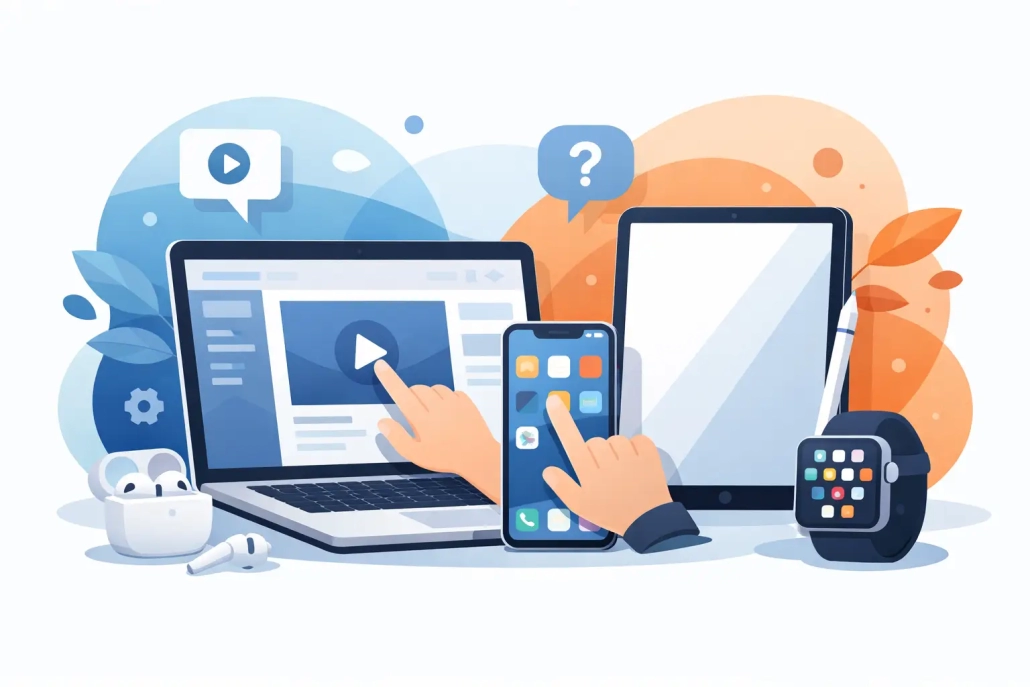
Apple Device Tutorials for Beginners

Most people do not need more Apple features. They need a clear starting point.

That is why apple device tutorials for beginners work best when they follow the way real people learn: one device at a time, one task at a time, in the order that removes the most frustration first. If you are new to Mac, iPhone, or iPad, or you have owned them for years but still feel like you are only using the basics, the goal is not to learn everything. The goal is to become comfortable enough that your devices feel useful instead of confusing.

What beginners actually need from Apple device tutorials

A lot of beginner content misses the mark because it tries to impress instead of teach. It piles on tips, hidden features, and shortcuts before a person has learned how to manage settings, organize apps, or understand where things live. That creates the exact problem beginners are already dealing with: too much information and no clear sequence.

Good apple device tutorials for beginners should do three things well. They should show exactly where to tap or click, explain why a setting matters, and build skills in a logical order. If a lesson teaches AirDrop before it explains Wi-Fi, Bluetooth, and sharing basics, many users will get stuck. If it teaches Photos editing before it covers how to find, organize, and delete photos, the result is more confusion, not more confidence.

The most useful instruction is practical. You should be able to finish a lesson and immediately do something better on your own, whether that means sending cleaner emails, finding files faster, backing up your data, or managing notifications so your phone feels less chaotic.

Start with the tasks you repeat every day

Beginners often assume they should begin by learning the entire device. That usually backfires. Apple devices are broad systems, and trying to understand every app and setting at once can feel like studying a map without knowing your destination.

A better approach is to start with the tasks you repeat most often. On iPhone, that may be texting, taking photos, answering calls, using Maps, and adjusting notifications. On iPad, it may be browsing the web, using email, reading, note-taking, or video calls. On Mac, it may be managing files, using Safari, working in Mail, and understanding the desktop, Finder, and System Settings.

This matters because repetition builds memory. When you learn a feature connected to a real habit, you retain it faster. A beginner who learns how to scan documents with an iPhone because they need to send forms will remember that process. Someone who watches ten random tips probably will not.

The best beginner path for iPhone users

For most people, the iPhone is the Apple device they use most often and the one that causes the most daily friction when something is unclear. That makes it a strong place to begin.

Start with navigation. Learn the Home Screen, Control Center, Notification Center, app switching, Search, and basic gestures. These are small skills, but they shape everything else. If you are uncomfortable moving around the phone, every new lesson feels harder than it should.

Then move into settings that affect everyday use. Focus on Wi-Fi, Bluetooth, Apple ID, passwords, Face ID or Touch ID, notifications, display settings, and privacy controls. These are not exciting topics, but they prevent a lot of beginner frustration. Many device problems are really settings problems.

After that, learn the core built-in apps you actually use: Phone, Messages, Mail, Photos, Calendar, Notes, Maps, and Safari. Apple includes strong first-party apps, and beginners often get more value by learning those well before adding a lot of third-party tools. There is a trade-off here. Some outside apps are better for specific jobs, but built-in apps are usually easier to learn because they are already integrated across the Apple ecosystem.

A practical starting point for iPad beginners

The iPad can be simple or surprisingly layered depending on how you use it. For some people it is mainly a larger iPhone. For others it becomes a laptop replacement for certain tasks. The right tutorial path depends on which role it plays in your life.

If you use iPad casually, begin with basics such as multitouch gestures, Home Screen organization, typing, split view, and common apps like Safari, Photos, and Notes. Learn how to open two apps side by side only if that matches how you actually work. Multitasking is useful, but it is not essential for every beginner.

If you want to be productive on iPad, spend time on file management, document editing, external keyboard basics, and how apps interact with iCloud. This is often where beginners get stuck. They are comfortable opening apps but unsure where documents are saved, how to rename files, or how to move items between folders and services.

That confusion is normal. The iPad is approachable, but file handling can feel less obvious than it does on a traditional computer until someone shows you the logic behind it.

Mac tutorials for beginners should focus on confidence first

Mac beginners are often dealing with two challenges at once: learning a new system and unlearning habits from another one. That is especially true for people coming from Windows, but it also applies to long-time Apple users who have mostly stayed on iPhone and only use a Mac occasionally.

The first goal on Mac is orientation. Learn the desktop, menu bar, Dock, Finder, Spotlight, System Settings, and how windows behave. Those basics sound simple, yet they create the foundation for everything else. A person who understands Finder and Spotlight can solve a surprising number of problems on their own.

Next, focus on files and folders. This is one of the biggest dividing lines between feeling lost and feeling capable. Learn how to save files intentionally, rename them, move them, create folders, search effectively, and understand downloads. Many beginners think they have an app problem when they really have a file organization problem.

Then move into the apps that support everyday work: Safari, Mail, Calendar, Notes, Photos, Preview, and Messages. Preview, in particular, is often underused by beginners even though it handles common tasks such as viewing PDFs, signing documents, combining pages, and making quick annotations.

Why the Apple ecosystem is easier once it is taught as a system

One reason beginners feel behind is that they are trying to learn each device in isolation. In practice, Apple products make more sense when you understand how they connect.

Once iCloud is set up correctly, your photos, notes, calendars, reminders, files, passwords, and messages can appear across your devices. That reduces duplication and saves time, but only if you understand what is syncing and where that information lives. Without that clarity, syncing can feel mysterious.

This is where structured instruction makes a real difference. Instead of treating Mac, iPhone, and iPad as separate lessons, a better approach shows how one action on one device affects the others. If you create a note on iPhone, edit it on iPad, and access it again on Mac, the system begins to feel coherent. That is when confidence starts to build.

What to avoid when learning as a beginner

Not every tutorial is helpful just because it is accurate. Some lessons move too fast, assume prior knowledge, or skip the small decisions that trip up beginners. That can leave you pausing every few seconds just to figure out what the instructor clicked.

It also helps to avoid random learning. Watching isolated tips can be entertaining, but it rarely creates lasting skill. If you learn screenshots today, Focus modes tomorrow, and spreadsheet formatting the next day, you may gain fragments of knowledge without a usable foundation.

A more effective method is to learn in short sequences. For example, start with iPhone basics, then messages and calls, then photos and sharing, then passwords and security. On Mac, start with navigation, then files and folders, then Safari and downloads, then email and calendars. The order matters because each lesson should make the next one easier.

The value of guided, visual instruction

Apple devices are visual tools. That means beginners usually learn faster when they can see the exact path through a task instead of trying to decode written steps alone.

A well-made lesson does more than tell you what to do. It shows where to click, what to expect on screen, and how to tell if you are on the right track. Small visual cues matter. If an instructor points out the icon location, the menu name, and the result of the action, the learner spends less energy guessing.

That is one reason video-based learning works so well for Apple training when it is done carefully. The strongest lessons are paced well, edited clearly, and organized around real outcomes rather than broad theory. TheMacU follows that model by teaching Apple tasks in a structured, step-by-step format designed to reduce trial and error.

If you are getting started, be patient with the process. You do not need to become advanced to feel more in control. Learn the tasks you use every day, build from one successful step to the next, and let familiarity do the heavy lifting.