Mac, iPhone & iPad tips · Mac, iPhone & iPad
How to Use iCloud Drive on Mac
Learn how to use iCloud Drive on Mac to store, sync, organize, and access files across Apple devices with clear setup and everyday tips.
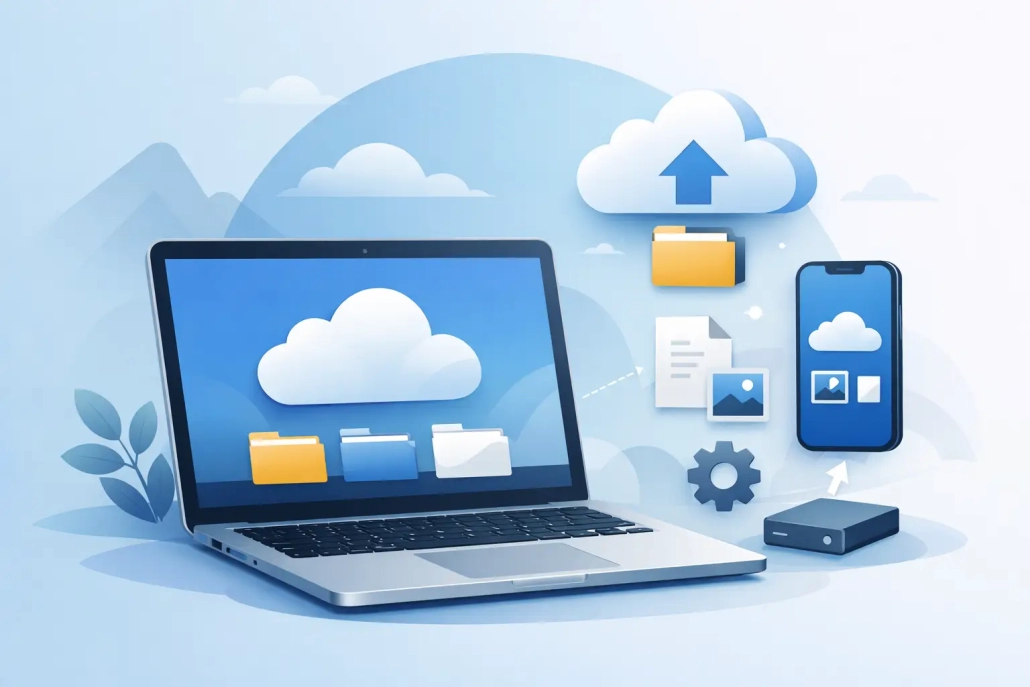
If your Desktop feels different on one Mac than another, or a file you saved on your Mac never shows up on your iPhone, iCloud Drive is usually the missing piece. Once you understand how to use iCloud Drive on Mac, it becomes much easier to keep files in sync, reduce duplicates, and know where your documents actually live.
For many Mac users, the confusion starts because iCloud Drive is not just another folder. It is a syncing system built into macOS. That means you can save files to it like any other folder, but those files can also appear on your other Apple devices, update automatically, and in some cases move between local storage and the cloud depending on your settings.
Share a Folder between Mac user accounts with iCloud Drive

Watch it free, then go deeper: the iCloud for Mac, iPad & iPhone tutorial has 21 step-by-step lessons. Start your free trial →
How to use iCloud Drive on Mac from the start
The first step is turning it on and confirming that your Mac is signed in with the Apple Account you want to use. Open System Settings, click your name at the top, choose iCloud, then make sure iCloud Drive is enabled. If it is off, your Mac will not sync files through iCloud Drive at all.
Once it is enabled, open Finder and look at the sidebar. You should see iCloud Drive listed there. That is the main place you will work with it on a Mac. If you do not see it, open Finder settings and make sure iCloud Drive is selected to appear in the sidebar.
At this point, you can think of iCloud Drive as a special storage location inside Finder. Any file you place there can sync to your other Apple devices that use the same Apple Account, assuming those devices also have iCloud Drive turned on.
What belongs in iCloud Drive and what does not
This is where a little planning helps. iCloud Drive works best for documents, PDFs, presentations, spreadsheets, folders of active projects, and files you want available across devices. It is especially helpful if you move between a Mac, iPhone, and iPad during the day.
It is less ideal if you are treating it like a long-term archive for very large files that you rarely open, especially on a Mac with limited storage. It can still do that, but your experience depends on your available iCloud storage plan and whether optimized storage is enabled on the Mac.
A practical way to use it is to keep current work in iCloud Drive and keep large, older files organized somewhere else if you do not need constant syncing. That approach gives you the convenience of cloud access without turning your file system into a catch-all.
Saving files to iCloud Drive on Mac
There are two common ways to add files. The simplest is to drag files or folders into iCloud Drive in Finder. You can also save directly into iCloud Drive from many apps by choosing File, then Save, and selecting iCloud Drive as the location.
If you create a folder structure early, iCloud Drive becomes much easier to manage. For example, you might create folders for Personal, Work, Finances, Home, and Scans. The exact names do not matter. What matters is that you can quickly tell where something should go.
It also helps to avoid dumping everything at the top level of iCloud Drive. A small amount of organization up front saves time later, especially when the same files start appearing on your iPhone and iPad too.
Understanding Desktop and Documents syncing
One setting that often surprises people is Desktop & Documents Folders. When enabled, macOS syncs the files in your Desktop and Documents folders to iCloud. That can be extremely useful because your everyday files become available across devices and on another Mac signed into the same Apple Account.
But there is a trade-off. Some users expect Desktop and Documents to stay only on the Mac. When syncing is turned on, those folders become part of your iCloud storage system. That is not a problem, but it does change how your files are managed.
If you like working from the Desktop and Documents folder already, this feature can make iCloud Drive feel almost automatic. If you prefer tighter control, you may choose to leave that setting off and only place selected folders inside iCloud Drive manually.
How syncing works in everyday use
When you add, edit, rename, or delete a file in iCloud Drive on your Mac, those changes usually sync to your other Apple devices. If you edit a Pages document on your Mac, you should see the updated version on your iPad once syncing completes.
That does not always mean instant. Sync speed depends on internet access, file size, and whether the device is awake and connected. Small documents usually sync quickly. Larger folders, videos, or files moved in bulk may take longer.
If something seems stuck, the first things to check are Wi-Fi, available iCloud storage, and whether the device is signed in to the correct Apple Account. In many cases, sync issues come down to one of those three items.
How to use iCloud Drive on Mac without losing local control
A common concern is whether files are really on the Mac or only in the cloud. The answer is that it depends on storage settings. macOS can keep files downloaded locally, or it can remove local copies of less-used files and leave them available to download when needed.
This behavior is often tied to Optimize Mac Storage. When that setting is active, your Mac may keep smaller or recently used files on the computer while moving less-used content to iCloud if space is needed. You still see the files in Finder, but some may need to download before opening.
For most people, that is helpful. It saves space without forcing you to manage every file manually. Still, if you work offline often or need guaranteed access to important documents during travel, open those files in advance and confirm they are available on the Mac.
Working with iCloud Drive folders in Finder
Finder is the best place to stay organized. You can create folders, subfolders, tags, and use search just as you would with local files. This is one reason iCloud Drive feels familiar once you start using it. You are not learning a separate app. You are using normal Mac file management with cloud syncing built in.
You can also move files between local folders and iCloud Drive at any time. If a file starts as local-only and later needs to be accessible on your iPhone, drag it into iCloud Drive. If a file no longer needs syncing, you can move it back out to another folder on your Mac.
That flexibility is useful, but be intentional. Moving a file out of iCloud Drive removes it from iCloud syncing. It does not just create a shortcut. The file has changed location.
Sharing and collaboration
iCloud Drive can also be used for sharing files and folders with other people. This works well for simple collaboration, especially with Apple users, but it is best for straightforward sharing rather than highly structured team workflows.
If you share a folder, pay attention to permissions. You can allow others to view only or make changes depending on the file type and sharing options. For family use or light collaboration, this is often enough. For more complex business needs, some users still prefer separate tools built around versioning and team administration.
Common mistakes to avoid
The biggest mistake is assuming every file on your Mac is automatically in iCloud Drive. It is not. Only files saved to iCloud Drive, or included through settings like Desktop & Documents syncing, are part of that system.
Another common mistake is running out of iCloud storage and not realizing syncing has slowed or stopped. If your storage is full, new files may not sync properly. It is worth checking your storage usage from time to time, especially if you store a lot of photos, backups, or large documents in iCloud.
It is also easy to confuse iCloud Drive with Time Machine. They serve different purposes. iCloud Drive syncs files across devices. Time Machine backs up your Mac. If a file matters, you should think about both sync and backup, not one or the other.
A simple way to get started
If you are new to this, do not try to reorganize your entire Mac in one afternoon. Turn on iCloud Drive, create two or three clear folders, and start by saving active files there. Then decide whether Desktop & Documents syncing fits how you work.
That slower approach tends to be better than moving everything at once. You will see how syncing behaves, how much storage you use, and whether your files are showing up where you expect on your other devices.
For Apple users who want a clearer, more methodical way to build confidence with features like this, TheMacU focuses on exactly that kind of practical instruction. And once iCloud Drive clicks, your Mac starts feeling much more connected to the rest of your Apple setup.
The best setup is the one that makes your files easy to find, easy to trust, and easy to use wherever you are.
Keep watching
More free video lessons on this topic


All Access membership
Watch every iCloud for Mac, iPad & iPhone lesson, plus every other tutorial
Every plan starts with a free trial. Cancel any time during the trial and you won't be charged.
Monthly
Auto recurring5-day free trial
- Every Mac, iPhone & iPad tutorial
- New tutorials as they're released
- Watch on any device
- No ads
- Email support
Yearly
Auto recurring7-day free trial · just $2.50 a month
- Every Mac, iPhone & iPad tutorial
- New tutorials as they're released
- Watch on any device
- No ads
- Email support
Lifetime
Single payment7-day free trial · pay once, keep it for good
- Everything in Yearly
- Every future macOS & iOS update tutorial
- Never pay again
Secure checkout. Log in on any Mac, iPhone or iPad with the same account.