
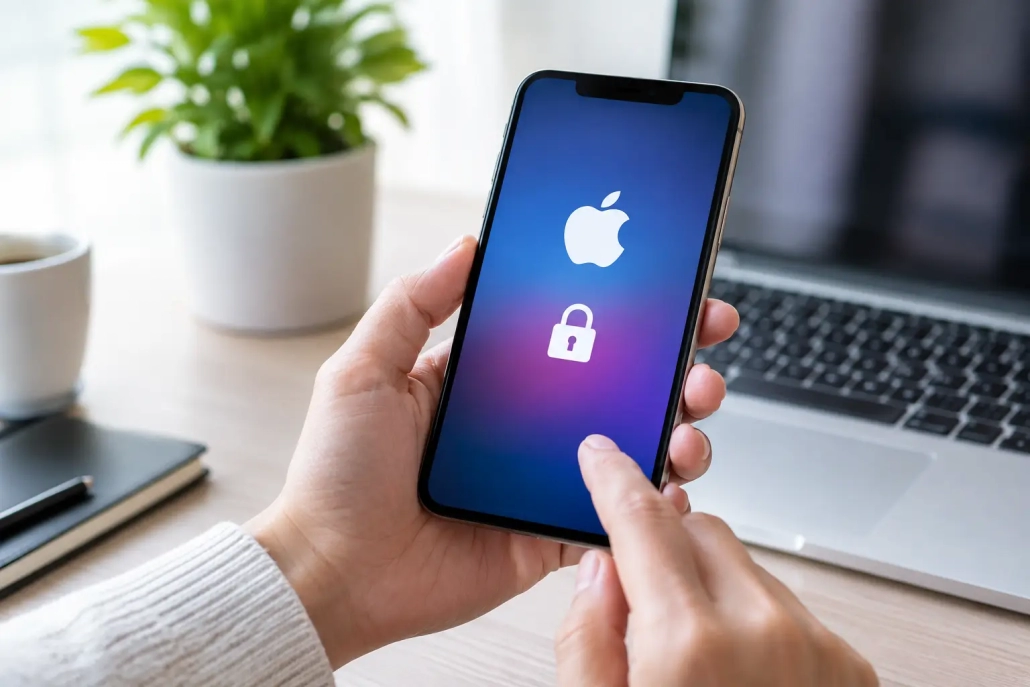
Apple ID Locked? Restore Access Safely
A message saying your Apple ID locked can stop a simple task in its tracks. You may be unable to download an app, sign in to iCloud, view photos, or make a purchase. The reassuring part is that this message usually protects your account. The key is to identify exactly what Apple is asking for before changing passwords, erasing a device, or trying repeated sign-in attempts.
Apple has begun using the name Apple Account in many places, but you may still see Apple ID in alerts, settings, and familiar instructions. In either case, it is the account that connects your Apple devices, iCloud information, subscriptions, purchases, and security settings.
First, identify what “Apple ID locked” means
Several different alerts can sound similar, but they require different actions. Reading the full message carefully will save time and prevent unnecessary steps.
If the message says your account has been locked for security reasons, disabled, or is not active, Apple may have detected unusual sign-in activity or too many unsuccessful password attempts. This is an account security issue. You will generally need to verify your identity and reset your password.
If an iPhone, iPad, or Mac asks for the Apple Account belonging to its previous owner during setup, that is Activation Lock. It is tied to the device’s Find My security feature, not simply to a forgotten password. Only the account owner can remove that device from their account, or Apple may be able to help when valid proof of purchase meets its requirements.
A message asking you to enter a password again in Settings may be much simpler. A recent password change, an updated Terms and Conditions notice, or a temporary connection issue can trigger a request to sign in again. In that case, your account may not be locked at all.
Why Apple locks an account
Apple treats your account as the key to a large amount of personal information. It can hold your photos, messages, contacts, device backups, payment methods, and location tools. A temporary restriction is designed to keep someone else from gaining control if Apple sees activity that does not look like you.
Common causes include entering an incorrect password several times, attempting to sign in from an unfamiliar device or location, or responding to a suspicious sign-in prompt. Sometimes the cause is innocent: an old iPad still has an outdated password saved, or a family member is trying to download an app using your account.
Do not keep guessing passwords. Repeated attempts can extend the problem and make it harder to tell whether you are dealing with a password issue or an account review. Pause, confirm the email address or phone number associated with your account, and use Apple’s official account recovery and password-reset process.
How to restore access to a locked Apple ID
Start with a device you regularly use and that is already signed in to your Apple Account, if possible. A familiar device gives Apple more signals that you are the rightful account holder.
Reset your password from a trusted Apple device
On an iPhone or iPad, open Settings, tap your name at the top, then choose Sign-In & Security. Select Change Password and follow the prompts. You will usually be asked to enter the device passcode before creating a new password.
On a Mac, choose the Apple menu, select System Settings, click your name, and open Sign-In & Security. Choose Change Password and follow the instructions. On older versions of macOS, the wording may appear under Apple ID settings instead.
Choose a new password that you have not used for this account. Avoid using personal details that are easy to guess. Once the password has changed, you may need to sign in again on some devices and services. That is normal.
Use Apple’s account recovery process when you cannot sign in
If you do not have access to a trusted device, you can begin Apple’s official password-reset process from a web browser or use the Apple Support app on a borrowed Apple device. Follow the on-screen verification steps precisely.
Depending on your security settings, Apple may send a verification code to a trusted phone number or display it on a trusted device. If you cannot access either one, you may need to start account recovery. This can take time because Apple must verify that the request is legitimate.
The waiting period can feel inconvenient, especially when you need your account immediately. It is also one of the protections that prevents another person from taking over your information. During recovery, avoid starting multiple requests or changing key account details unless Apple directs you to do so. Conflicting requests can delay the process.
Check for a device causing repeated password errors
After changing your password, look at every device that uses the account. An older iPhone, iPad, Mac, Apple TV, or even a Windows computer using iCloud may continue trying an old password in the background.
Update the password when prompted on your active devices. If you no longer own a device, remove it from your account’s device list once you have regained access. This reduces confusion and helps keep your account organized.
When Activation Lock is the real issue
Activation Lock is commonly encountered after erasing a device, setting up a used iPhone or iPad, or reinstalling macOS on a Mac. The screen may say that the device is linked to an Apple Account and request the email address or phone number and password previously used with it.
If the device is yours, sign in with the Apple Account that had Find My enabled on that device. If you forgot the password, restore access to the account first, then return to setup.
If you bought the device used, contact the seller. They need to remove the device from their Apple Account remotely or enter their credentials on the device. A receipt from a resale marketplace, a handwritten bill of sale, or a seller’s assurance is not necessarily enough for Apple to remove Activation Lock. This is why it is best to confirm that setup reaches the Home Screen before purchasing a used Apple device.
Do not rely on services that promise to remove Activation Lock or restore a locked account for a fee. These claims can expose you to fraud, malware, lost money, or a device that will stop working properly after a future update. Account and device security protections exist for a reason, and legitimate resolution goes through the owner or Apple’s approved support process.
Protect your Apple Account after you regain access
Once you are signed in again, take a few minutes to make the next security check easier. Open Settings on an iPhone or iPad, or System Settings on a Mac, and review Sign-In & Security. Confirm that your trusted phone number is current and that you still have access to the email address associated with the account.
Review the list of devices signed in to your account. Remove devices you no longer recognize or no longer own. If you see a device that concerns you, change your password and follow Apple’s security prompts right away.
Two-factor authentication should remain enabled for most people. It adds one small step during sign-in, but it is a meaningful safeguard for photos, backups, purchases, and personal information. Keep at least one trusted phone number current, particularly if you are changing phone carriers or giving an old phone to a family member.
It also helps to understand the difference between a device passcode and your Apple Account password. Your passcode opens a specific iPhone or iPad. Your account password manages the broader services connected across your devices. They can be different, and they should not be casually shared.
Build confidence before the next alert
An account security message is stressful because it interrupts tools you use every day. But a careful response is more effective than a fast one: identify the exact alert, use a trusted device when available, follow Apple’s verification process, and give account recovery the time it needs.
Learning where these settings live on your iPhone, iPad, and Mac makes a future problem far less intimidating. With a clear process and current recovery information, you can respond calmly and keep control of the Apple devices and information that matter to you.


