
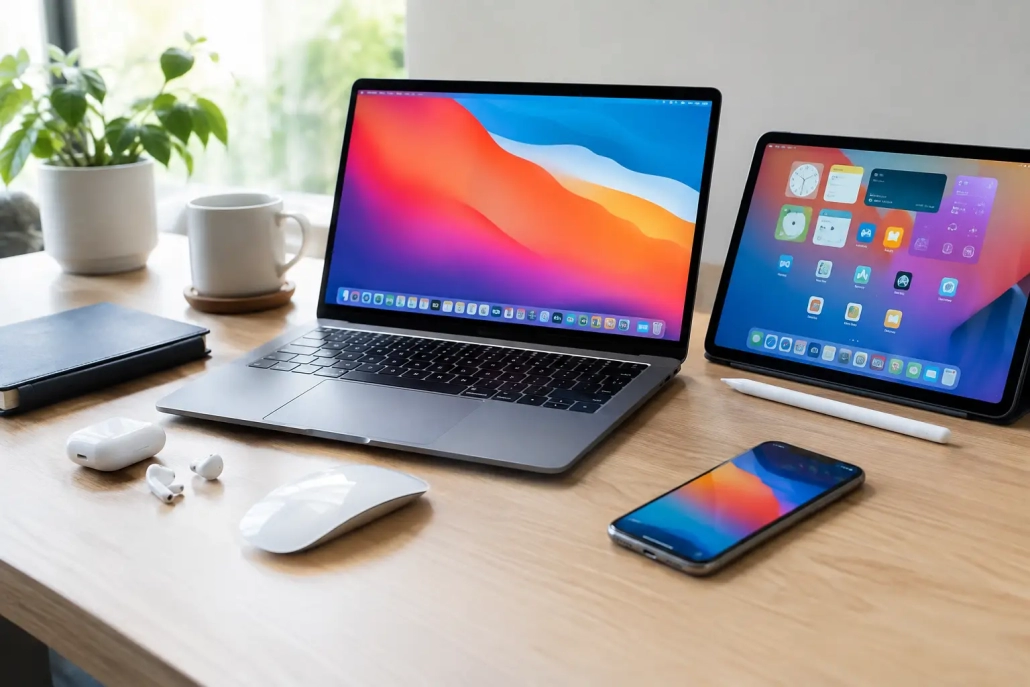
7 Best Apple Productivity Workflows to Use
Your Mac has a document open, your iPhone has a reminder you meant to handle, and your iPad is nearby with meeting notes somewhere inside it. The issue is rarely a lack of Apple devices or apps. It is having a simple system that tells each device what job to do. The best Apple productivity workflows reduce those small moments of searching, retyping, and trying to remember what comes next.
The goal is not to use every feature in every Apple app. It is to create a few repeatable routines that move information from capture to action to completion. Start with the workflow that solves the most frequent source of friction in your day, then add another once the first feels natural.
1. Capture tasks the moment they appear
A task is easiest to manage when it reaches Reminders before it becomes something you have to remember. Use Siri on your iPhone, Apple Watch, Mac, or iPad to add a reminder when your hands are busy or you are moving between activities. A simple request such as “Remind me to call the dentist tomorrow at 10 a.m.” creates a task with a date and time without opening an app.
For tasks you see on screen, share them directly into Reminders. An email, webpage, note, or document can often be sent to a reminder list with a link back to the original item. This is especially useful for follow-up work because the reminder is not just a vague instruction. It contains the context you need to finish it.
Keep your list structure modest. A personal list, a work list, and a shared household list are enough for many people. If every task goes into one long list, use tags such as `#calls`, `#errands`, or `#waiting` to find related work without creating a complicated system.
2. Turn your calendar into a realistic work plan
Reminders tell you what needs attention. Calendar helps you decide when you will give it that attention. This distinction matters. A task due Friday is not automatically a task you will complete unless you make room for it.
At the start of each week, review dated reminders alongside your calendar. Block time for work that requires concentration, such as preparing a presentation, paying bills, or organizing photos. On a Mac, Calendar gives you a comfortable view of the week; on iPhone, you can adjust plans quickly when an appointment changes.
Avoid assigning a calendar block to every small task. That creates a schedule that looks organized but is difficult to maintain. Reserve time blocks for important work, recurring routines, and tasks that need more than a few minutes. Keep smaller actions in Reminders and complete them during naturally available gaps.
Use travel time and alerts carefully
For appointments away from home or the office, add the location to the calendar event. Calendar can account for travel time and alert you when it is time to leave. This is more dependable than mentally estimating the drive while you are finishing another task.
Alerts should be helpful, not constant. One alert the day before and another shortly before an important appointment may be enough. If you dismiss notifications without reading them, reduce the number rather than adding more.
3. Build a focused-work setup with Focus modes
Notifications are not all equally urgent, but they often arrive with the same visual and audible demand for attention. Focus modes let you decide which people and apps can reach you during a particular kind of work.
Create a Work Focus that allows messages from key colleagues or family members while limiting social and promotional notifications. Add a separate Personal Focus for evenings if work alerts tend to follow you after the day ends. You can schedule a Focus by time, location, or app, so it activates when you arrive at work or open a program that requires concentration.
The useful part is consistency across devices. When you enable a Focus on your iPhone, your Mac and iPad can reflect that choice as well. You are not rebuilding the same boundary three times.
A Focus is not a promise to ignore everyone. It is a filter. If your role requires immediate responses, allow the people and apps that truly need access. The right setup depends on your responsibilities, but almost everyone benefits from separating urgent communication from routine interruptions.
4. Use Notes as your working desk
Notes works best when it holds information you are actively using: meeting notes, checklists, reference details, scanned documents, and ideas that are not yet tasks. It is not necessary to organize every note perfectly. The important step is making new information easy to find again.
Create folders for a few durable areas of life or work, then use tags for details that cross those categories. For example, a note about a home project might live in a Home folder while also using `#receipts` and `#weekend`. Smart Folders can collect tagged notes automatically, saving you from making duplicate copies.
On iPhone and iPad, scan paperwork directly into a note. On Mac, use the larger screen to refine a project plan, combine notes, and search through older material. Apple’s search can find typed text, scanned text, attachments, and even handwriting in many cases, which makes Notes particularly valuable when you need a document but cannot recall its exact title.
When an item needs action, do not let it remain buried in a note. Highlight the next step and create a reminder from it. Notes should support your work, while Reminders should keep the commitment visible.
5. Create one dependable file home in iCloud Drive
Scattered files create unnecessary work. A document saved only in Downloads on one Mac is difficult to retrieve on an iPad or share when you are away from your desk. iCloud Drive provides a practical central location for files you need on multiple Apple devices.
Start with a clear folder structure based on how you retrieve information. Many users do well with folders such as Personal, Work, Financial, and Projects. Inside Projects, create a folder for each active project rather than saving everything on the desktop.
Use consistent names that include useful details. “2026 Tax Documents” is easier to locate than “Important files.” For recurring documents, begin names with a date in year-month-day format, such as “2026-09-16 Client Meeting Notes.” Files then sort in chronological order without extra effort.
The trade-off is that iCloud Drive needs enough available storage and an internet connection to keep files current. For very large media libraries or files you rarely need away from home, local or external storage may make more sense. Keep active documents in iCloud Drive, where the benefit of access across Mac, iPhone, and iPad is greatest.
6. Move information between devices with continuity tools
The best Apple productivity workflows should not require emailing yourself a link or copying text into several apps. Handoff lets you begin an email, webpage, note, or document on one Apple device and continue it on another. Universal Clipboard lets you copy on your iPhone and paste on your Mac, or the other way around.
A practical example: use your iPhone to scan a paper document into Notes, then open that note on your Mac to rename it, add details, and attach it to an email. Another: copy an address from a website on your Mac and paste it into Maps on your iPhone before leaving.
These features work best when your devices use the same Apple Account and have Bluetooth, Wi-Fi, and Handoff enabled. If they do not work reliably, check those basics first. A workflow only saves time when it is dependable enough to become a habit.
7. End the day with a short review
Productivity systems fail when they collect information but never get reviewed. Spend five to ten minutes near the end of the day looking at Reminders, Calendar, and any active project notes. Mark completed tasks, reschedule unfinished work honestly, and identify the first meaningful task for tomorrow.
This is not a time to reorganize every folder or rewrite every list. It is a reset that prevents open loops from multiplying. If a task has been postponed several times, decide whether it needs a smaller next step, a different date, delegation, or removal.
A weekly review can be slightly broader. Look ahead for appointments, confirm deadlines, clear outdated reminders, and make sure project notes contain the information you will need. Structured guidance, such as the step-by-step Apple lessons at TheMacU, can make it easier to configure these tools with confidence rather than relying on trial and error.
Choose the workflow that removes the most friction
You do not need a complicated productivity system to get more from your Apple devices. If you regularly forget follow-ups, begin with Reminders. If interruptions break your concentration, set up a Work Focus. If documents disappear between devices, organize active files in iCloud Drive.
Choose one workflow, practice it for a week, and adjust it to fit your actual routine. The best system is the one that makes the next useful action clear, whether you are sitting at your Mac, holding your iPhone, or working from your iPad.


