Mac, iPhone & iPad tips · Mac
Mac Tutorials That Build Everyday Confidence
Mac tutorials can turn everyday tasks into reliable habits. Learn what to practice first, how guided lessons help, and which skills save time each day.
You bought a Mac to make work, communication, and creative projects easier. Yet a simple task can still turn into ten minutes of clicking through menus, searching for a setting, or worrying that one wrong choice will change something you cannot undo. The right mac tutorials replace that uncertainty with a clear next step.
A good lesson does more than point out a feature. It shows where the feature lives, why you might use it, what happens after you choose it, and how it fits into a real task. That difference matters whether you are moving from a Windows computer, using a Mac for work, or ready to do more with the Apple devices you already own.
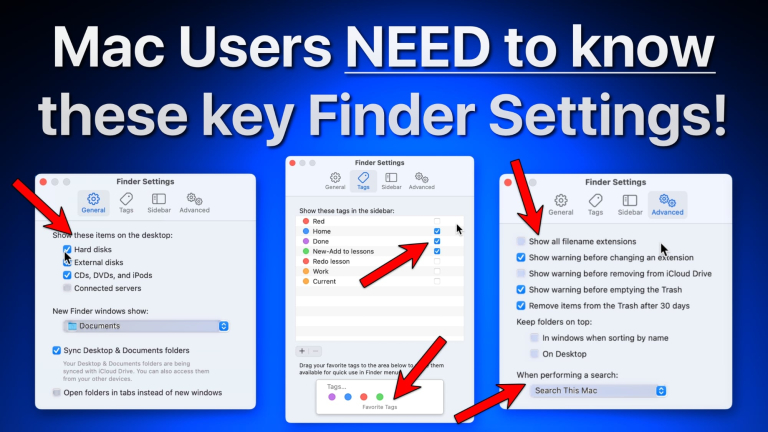
10 Finder tips for your Mac
Watch it free, then go deeper: the macOS Core Concepts tutorial has 65 step-by-step lessons. Start your free trial →
Why scattered Mac tips rarely solve the problem
Many Mac users learn one tip at a time. They search for help when an attachment will not send, when files have disappeared into Downloads, or when a photo library needs attention. That can solve the immediate issue, but it often leaves the larger workflow unclear.
For example, knowing how to create a folder is useful. Knowing how Finder, tags, Smart Folders, iCloud Drive, and Spotlight can work together is much more useful. The first answer gets one document put away. The second gives you a reliable way to find any document later.
Random tips also make it harder to remember what you learned. A feature demonstrated without context can feel obvious while you are watching, then vanish from memory when you need it next week. Structured instruction gives features a place in a sequence, making them easier to practice and repeat.

Start with the tasks that create daily friction
You do not need to learn every Mac feature before you can feel more capable. Begin with the tasks you perform often or the ones that repeatedly slow you down. This creates quick progress and helps you build confidence before moving into more advanced tools.
For many people, the best starting point is Finder. Finder is where you open, organize, rename, move, copy, and share files. A few small habits can prevent a great deal of frustration: use List View when file details matter, create folders with clear names, add useful tags, and learn the difference between moving a file and copying it.
Next, focus on the everyday tools that affect nearly every session on your Mac. Learn how to use Spotlight to locate files and launch apps, how to manage windows without losing your place, and how to adjust System Settings with purpose. These are not flashy skills, but they make everything else feel faster and less confusing.
Then choose the built-in apps that match your life. If your inbox is busy, spend time with Mail. If appointments and reminders run your week, learn Calendar and Reminders together. If you handle documents, explore Notes, Preview, and Pages. Apple includes powerful tools with macOS, but their value comes from knowing a practical workflow rather than simply knowing they exist.
What effective Mac tutorials should show
When choosing Mac tutorials, look for instruction that is visual, deliberate, and based on realistic tasks. A presenter who says to click a button is helpful. A presenter who highlights the exact button, explains the available choices, and demonstrates the result helps you learn with less guesswork.
The best lessons keep each action connected to a goal. If you are learning Preview, you should see how to annotate a PDF for a colleague, combine pages, sign a document, and save the finished copy. If you are learning Photos, you should see how to find images, make edits that preserve the original, create albums, and share selected pictures without sending your entire library.
Professional pacing is valuable, especially for newer users. Fast demonstrations may suit someone who already knows the basics, but they can leave others trying to pause, rewind, and catch up. Clear visuals, callouts, and a logical order let you follow along on your own Mac without feeling rushed.
It also helps when lessons distinguish between similar options. For instance, iCloud Drive, iCloud Photos, and device backup are related, but they do different jobs. Understanding those differences helps you choose settings confidently instead of assuming that all of your information is protected in the same way.
Build skills in a sequence that makes sense
A Mac is easiest to learn when each new skill supports the next one. Start with navigation and organization, then move into communication and productivity. After that, explore media, sharing, privacy, and the ways your Mac works with your iPhone and iPad.
Establish a solid Mac foundation
Learn the Desktop, Dock, menu bar, Finder sidebar, and keyboard shortcuts you will use repeatedly. Practice opening and quitting apps, switching between windows, taking screenshots, and using the Trash correctly. These basics may seem small, but they eliminate hesitation during every task that follows.
Pay particular attention to saving. Learn where a file is being saved before you click Save, how to rename it, and how to locate it later. If you use iCloud Drive, understand which folders sync across your Apple devices and which files stay only on your Mac. That knowledge can prevent accidental duplicates and missing-file anxiety.
Make communication and planning easier
Once you are comfortable moving around macOS, use Mail, Messages, Calendar, and Reminders as a connected set of tools. Create a calendar event from an email. Add an address to Contacts. Turn an email request into a reminder with a due date. These small connections reduce the need to copy information manually between apps.
Notifications deserve attention, too. Useful alerts can keep you on track, while too many interruptions can break concentration. Take time to decide which apps truly need to notify you and when. The best setting is not the most restrictive one. It is the one that supports how you work.
Use your Mac and iPhone as one system
The Apple ecosystem can save time when it is set up thoughtfully. AirDrop can move files without emailing them to yourself. Handoff can let you continue a task across devices. Continuity Camera can use your iPhone as a camera for your Mac. Universal Clipboard can copy text on one device and paste it on another.
These features depend on compatible devices, the right settings, and often the same Apple Account. A guided lesson is especially helpful here because it can show what to check when a feature does not appear to work. The goal is not to turn on every option. It is to use the ones that remove a real inconvenience from your routine.
Practice while you learn, not after
Watching a tutorial is a useful first step, but the learning becomes durable when you perform the task yourself. Keep your Mac nearby and pause after each important action. Create a test folder, annotate a sample PDF, or make a practice reminder. You can safely repeat most actions until the steps begin to feel familiar.
Use real materials when possible. Organize a group of documents you actually need, clean up a photo album from a recent trip, or create a Notes checklist for an upcoming appointment. Real-world practice makes the lesson easier to remember because the result has a purpose.
Do not try to absorb an hour of new material in one sitting unless you need to. A focused 10-minute lesson followed by a few minutes of practice is often more effective. Return to the skill later in the week and repeat it without following every step. That is how a procedure becomes a habit.
Learn security features before you need them
Security is one area where waiting for a problem is rarely a good strategy. Learn how to use strong passwords, Face ID or Touch ID where available, and password management through Apple Passwords. Review your software update settings and understand why macOS updates matter.
Backups require the same practical attention. iCloud can synchronize selected information, but synchronization is not always the same as a separate backup. Time Machine creates backups of your Mac, while iCloud can keep files, photos, contacts, and other data available across devices. Many users benefit from using both, depending on what they keep on their Mac and how much protection they need.
You should also know how to recognize a suspicious message or unexpected pop-up. Legitimate warnings do occur, but urgent language, requests for passwords, and prompts to install unknown software deserve caution. A calm, step-by-step understanding of security settings is more useful than fear.
Let your learning follow your goals
There is no single correct order for every Mac user. A photographer may need Photos and external drive organization first. A small-business owner may prioritize Mail, PDFs, Calendar, and video calls. Someone new to computers may spend more time on Finder, windows, and basic settings before moving further.
What matters is having a reliable path rather than collecting disconnected tricks. TheMacU’s professionally guided lessons are designed around that need: clear demonstrations, practical tasks, and a progression that lets you return to a topic whenever you need a refresher.
Choose one task that has been bothering you this week, learn it carefully, and practice it until it feels routine. That one small improvement can make your Mac feel less like a device you have to manage and more like a tool that supports what you want to do.
Keep watching
More free video lessons on this topic
All Access membership
Watch every macOS Core Concepts lesson, plus every other tutorial
Every plan starts with a free trial. Cancel any time during the trial and you won't be charged.
Monthly
Auto recurring5-day free trial
- Every Mac, iPhone & iPad tutorial
- New tutorials as they're released
- Watch on any device
- No ads
- Email support
Yearly
Auto recurring7-day free trial · just $2.50 a month
- Every Mac, iPhone & iPad tutorial
- New tutorials as they're released
- Watch on any device
- No ads
- Email support
Lifetime
Single payment7-day free trial · pay once, keep it for good
- Everything in Yearly
- Every future macOS & iOS update tutorial
- Never pay again
Secure checkout. Log in on any Mac, iPhone or iPad with the same account.