
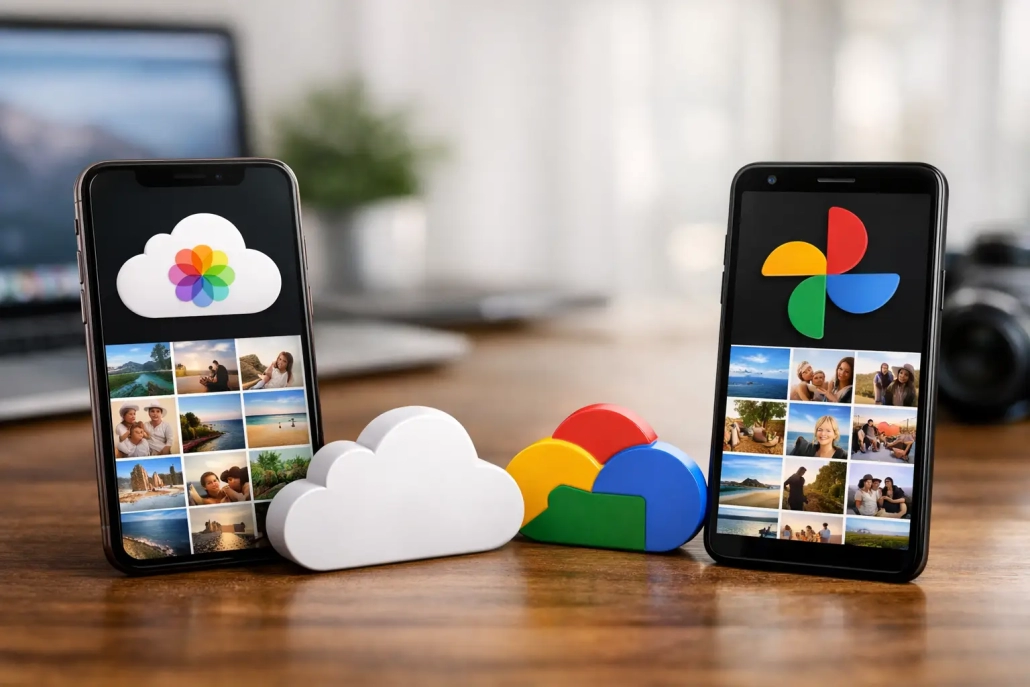
iCloud Photos vs Google Photos: Which Fits You?
Your photo library is more than a folder of images. It is where you find last summer’s vacation, a receipt you need for a return, your child’s first steps, and the screenshot that explains a problem on your Mac. When choosing between iCloud Photos vs Google Photos, the best service is usually the one that makes those moments easiest to save, find, edit, and share on the devices you actually use.
For Apple users, iCloud Photos often feels like part of the iPhone, iPad, and Mac itself. Google Photos can be equally useful, especially if you use a mix of Apple, Windows, Android, or web-based devices. The choice is not simply about which service offers more storage. It is about how you want your photo library to work every day.
iCloud Photos vs Google Photos: The Key Difference
iCloud Photos is Apple’s built-in photo syncing service. When it is enabled, your Photos library stays synchronized across your signed-in Apple devices. Take a picture on your iPhone, and it appears in the Photos app on your iPad and Mac. Edit it on your Mac, and the edit appears everywhere.
Google Photos is a cloud-based photo library from Google. It can automatically back up photos from an iPhone or iPad through the Google Photos app, then make them available through that app and on almost any web browser. It works especially well for households or workplaces where people use different types of devices.
The distinction matters: iCloud Photos is designed to keep Apple Photos libraries in sync, while Google Photos is designed as a broadly accessible photo backup and organization service. Both can protect and organize your images, but they create different workflows.
How iCloud Photos Works on Apple Devices
For someone who primarily uses an iPhone, iPad, and Mac, iCloud Photos is the more integrated option. Your library lives inside Apple’s Photos app, which means you can use albums, Memories, People and Pets, search, editing tools, and sharing features without installing another app.
A key setting is Optimize iPhone Storage or Optimize Mac Storage. With optimization enabled, Apple can keep smaller device-friendly versions of older photos and videos on your device while storing the full-resolution originals in iCloud. When you need an original, it downloads automatically as long as you have an internet connection.
This can save substantial space on an iPhone with a smaller capacity. However, it also means your entire library may not always be stored in full resolution locally. If you are traveling, working with large video files, or preparing a project without reliable internet, it is wise to download originals to your Mac beforehand.
It is also helpful to understand that iCloud Photos is a syncing service, not a separate, permanent archive. If you delete a photo from one device, it is deleted from iCloud and your other synced devices too. Recently Deleted gives you time to recover an accidental deletion, but a separate backup remains valuable for photos you cannot replace.

Where iCloud Photos is strongest
iCloud Photos is particularly effective when you want one Apple Photos library across all your devices. It preserves the familiar Apple experience, including Live Photos, edits, albums, favorites, and shared library features. For a family using Apple devices, iCloud Shared Photo Library can also make it easier to keep a common collection of household photos without manually sending copies back and forth.
It is also the simpler choice if you enjoy editing on a Mac. The same photo you capture on an iPhone can be adjusted in Photos on your Mac, then viewed immediately on your iPad with those changes included.
How Google Photos Works on an iPhone and Mac
Google Photos starts with its own app on your iPhone or iPad. After you install it and turn on backup, it uploads selected photos and videos to your Google account. You can then browse them in the Google Photos app, use the website from a Mac or PC, or view them on an Android device.
This independence from a single device ecosystem is Google Photos’ major advantage. If you switch from iPhone to Android later, share pictures with Android-using relatives, or regularly use a Windows computer, your library remains easy to access.
Google Photos also has strong search and organizational tools. You can often locate an image by searching for a subject, location, or general event, even when you never created an album. Its automated collections, suggested creations, and sharing tools can be useful for large, growing libraries.
There is one practical point to keep in mind on an iPhone: Google Photos can back up your camera roll, but it does not replace the system-wide role of Apple’s Photos app. Photos you take still appear in Apple Photos first. If you keep both iCloud Photos and Google Photos backup active, you may be storing the same library in two cloud services and using storage in both places.
That is not necessarily a problem. Some people deliberately do this for added redundancy or easier sharing with non-Apple users. But it is worth making that choice intentionally rather than discovering later why storage is filling up in two accounts.
Storage Costs and Photo Quality
Both services include a limited amount of free cloud storage, and both offer paid storage plans when your library outgrows that allowance. The better value depends on what else you already store in each ecosystem.
Apple’s iCloud storage is shared among device backups, iCloud Drive files, Mail, Messages attachments, and iCloud Photos. If you back up several Apple devices, photo storage is only one part of the calculation. A larger iCloud plan may be necessary simply because your iPhone backups and family devices need room.
Google account storage is typically shared among Google Photos, Gmail, and Google Drive. If your inbox contains years of large attachments or you work heavily in Google Drive, those files affect the storage you have available for photos.
For image quality, iCloud Photos is straightforward: it stores your original photos and videos in iCloud. Google Photos gives you upload choices, including original quality and a storage-saving option that reduces file size for more efficient storage. The storage-saving option can be sensible for casual snapshots, but photographers, videographers, and anyone who wants the most flexibility for future editing should review the setting carefully before uploading a large library.
Editing, Organization, and Sharing
Apple’s Photos app is usually the more comfortable place to edit if you are already invested in Apple devices. Its tools are closely connected to the camera roll and work consistently on iPhone, iPad, and Mac. You can make everyday adjustments, crop, apply filters, remove distractions with supported Apple Intelligence features, and organize images into albums without moving between services.
Google Photos is often more compelling for finding and sharing. Its search can reduce the need for meticulous album organization, and it makes it simple to share a link or collaborative album with people who do not use Apple devices. That can remove friction when coordinating a reunion, school event, or group vacation.
Apple also offers shared albums, shared libraries, and ways to share selected photos with other Apple users. These work well within an Apple-focused family. The experience becomes less direct when recipients use Android phones or do not have Apple accounts.
Neither approach is universally better. If you carefully organize albums and do most edits in Apple Photos, iCloud will feel more natural. If your priority is getting photos to a wide group of people on many platforms, Google Photos may save time.
Privacy and Account Considerations
Both Apple and Google protect data in transit and on their servers, but their privacy approaches are not identical. Apple offers Advanced Data Protection, an optional setting that extends end-to-end encryption to additional iCloud data categories, including Photos. Enabling it requires you to set up account recovery methods carefully, because Apple cannot recover certain data if you lose access.
Google Photos is protected through your Google account security, so a strong password and two-step verification are essential. Its strength is convenience across platforms and close connection with other Google services. For many users, that is a benefit. For others, keeping personal photos within Apple’s ecosystem feels more comfortable.
Whichever service you choose, take a few minutes to review its sharing permissions, backup settings, and account recovery options. Those settings matter more than most people realize until a phone is lost or an account becomes inaccessible.
Which Photo Service Should You Choose?
Choose iCloud Photos if your daily devices are an iPhone, iPad, and Mac, and you want your photo library to behave like one connected Apple library. It is the best fit when simple synchronization, original-quality storage, and Apple Photos editing are your priorities.
Choose Google Photos if you need reliable access from many kinds of devices, frequently share with Android or Windows users, or prefer Google’s search and collaborative sharing tools. It is also a practical option if your photos are already part of a broader Google workflow.
You can use both, but start with a clear purpose. For example, iCloud Photos can be your primary Apple library while Google Photos is a secondary backup or a sharing library for people outside the Apple ecosystem. Avoid treating either service as something you never need to manage. Check storage usage, confirm your most important photos are syncing, and understand what happens when you delete an image.
The best photo system is the one you can trust without having to think about it every time you take a picture. Set it up carefully once, then let it give you more time to enjoy the memories instead of searching for them.


