
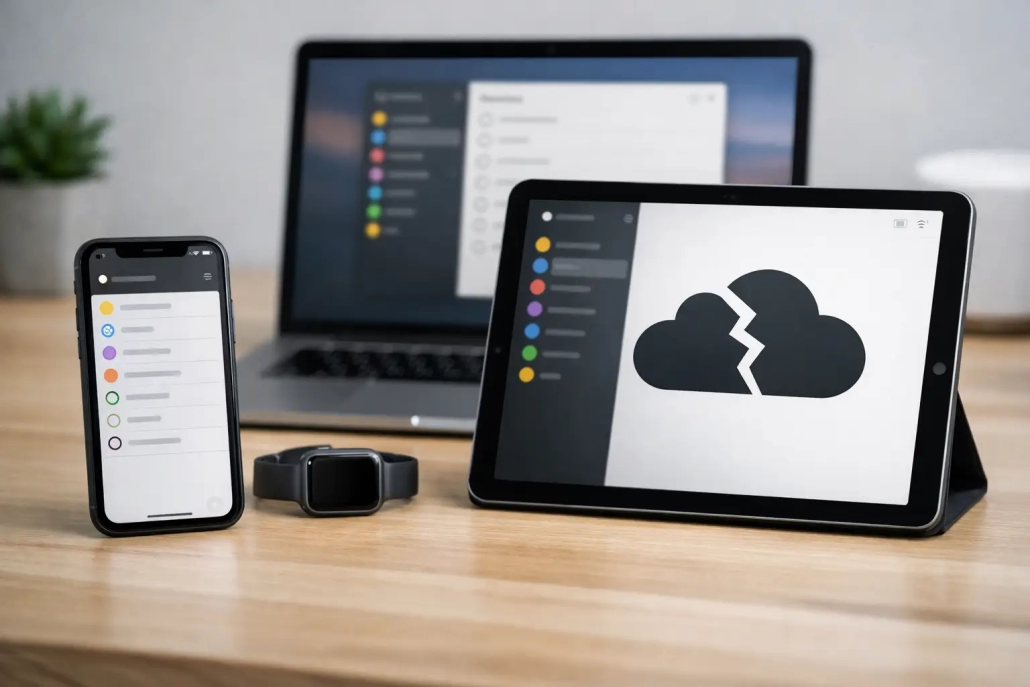
Why Are Reminders Not Syncing on Apple Devices?
A reminder added on your iPhone should appear on your Mac and iPad without any extra work. When it does not, the problem can feel surprisingly disruptive, especially when you depend on Reminders for errands, projects, medications, or recurring tasks. If you are asking, why are reminders not syncing, the answer is usually not that the app is broken. Most often, one device is using a different account, iCloud syncing is turned off, or the reminder belongs to a list that is not stored in iCloud.
The safest approach is to identify where the reminder is stored before changing settings. That prevents a quick fix from becoming an accidental deletion.
Why Are Reminders Not Syncing Between Apple Devices?
Apple Reminders can display tasks from more than one account. Along with iCloud, you may have lists connected to Google, Microsoft Exchange, Yahoo, or another work account. Those accounts have their own sync rules. A reminder in a Gmail list, for example, will not automatically appear through iCloud Reminders on another device unless that Gmail account is also added there and Reminders is enabled for it.
First, open the Reminders app on the device where the missing item was created. Go back to the main Lists screen and look at the account heading above the list. If the list sits under iCloud, it should sync through your Apple Account. If it appears under Gmail, Outlook, or another heading, check that same account on the other device.
This simple check explains many apparent syncing failures. The reminders are often syncing correctly, just not through the account you expected.
Start With the Apple Account
For iCloud Reminders to stay aligned, every device must be signed in to the same Apple Account. On an iPhone or iPad, open Settings and look at the name at the top of the screen. On a Mac, open System Settings and select your name in the sidebar.
Compare the email address associated with the Apple Account on each device. It is common for a personal iPhone to use one account while an older Mac, iPad, or family device still uses another. This can also happen when a device was originally set up by a spouse, employer, or family member.
Do not sign out immediately if the accounts do not match. Signing out can remove synced data from the device until it is downloaded again, and it may affect Photos, Notes, passwords, and other iCloud services. Instead, first confirm which Apple Account contains the reminders you need. You can check by signing in to iCloud on the web and opening Reminders. Once you know where the lists live, you can plan any account change carefully.
Make Sure Reminders Is Enabled in iCloud
A device can be signed in to the correct Apple Account while iCloud syncing for Reminders is disabled. Check this next.
On iPhone or iPad, go to Settings, select your name, choose iCloud, then look for Reminders in the list of apps using iCloud. Depending on your system version, you may need to choose See All first. Turn on Reminders if it is off.
On Mac, go to System Settings, select your name, choose iCloud, and review the apps using iCloud. Turn on Reminders there as well.
After enabling it, leave the device connected to the internet for a few minutes and reopen Reminders. A large collection of lists, attachments, or completed items can take longer to refresh than a single new task.
If Reminders was already enabled, turn your attention to the list itself. A list under the iCloud heading should sync through iCloud. A list listed under another account must be enabled in Internet Accounts on the Mac or in the account settings on iPhone and iPad.
Check the Connection Before Assuming a Sync Problem
Reminders does not need a fast connection, but it does need a working one. A device that is offline, connected to unreliable public Wi-Fi, or using a network with sign-in restrictions may show old reminders until it reconnects.
Try creating a clearly named test reminder, such as “Sync test – Tuesday,” on one device. Keep the Reminders app open for a moment, then check another device using a dependable Wi-Fi or cellular connection. A test item makes it easier to tell whether the issue affects all lists or only one particular list.
If the test reminder appears but an older reminder does not, syncing may be working normally. The missing item could be in a different list, completed, filtered from view, or assigned to another account.
Look for Filters, Completed Tasks, and Smart Lists
Sometimes the reminder exists on every device but is hidden by the way Reminders is being viewed. This is particularly common with Smart Lists, which gather tasks based on tags, dates, flags, locations, or other criteria.
Open the original list rather than relying only on a Smart List. Then check whether the reminder was marked complete. On iPhone and iPad, use the options menu in the list to show completed items. On Mac, use the View menu to show completed reminders. If it appears there, the task was not lost. It was simply removed from the active view.
Also look for date-based views. A task with a future date may appear in Scheduled but not Today. A reminder without a date may remain in its original list and not show in either view. The same is true for reminders using tags: a tagged Smart List may exclude a task if one tag is missing or was changed.
Review Shared Lists Carefully
A shared iCloud list adds another layer to syncing. The owner of the list and every invited participant need to be using iCloud Reminders, and participants must accept the invitation before the list appears in their app.
If one person can see updates but another cannot, verify that the person is viewing the correct Apple Account and that the shared list is still present under iCloud. If an invitation was sent to an old email address or an account that is no longer active, remove that participant and invite them again using the correct Apple Account contact information.
Shared lists are useful for household shopping, travel planning, and team tasks, but they are not ideal when someone regularly switches between personal and work Apple Accounts. In that situation, create a clear naming convention for lists so everyone knows which account owns each one.
Update Devices That Are Far Apart in Software Version
Apple updates Reminders over time, including support for newer list features, tags, templates, and shared-list behavior. Devices that have not been updated for a long time may not handle newer features as reliably as devices running current software.
Check for available software updates on each Mac, iPhone, and iPad. Updating is especially worthwhile if one device is several years behind the others or if the problem started after setting up a new device.
There is a trade-off to consider. Update at a convenient time, with a backup and enough free storage, rather than in the middle of a busy workday. For most people, keeping all devices reasonably current is the best way to avoid feature mismatches across Apple apps.
Use a Safe Troubleshooting Order
When reminders still do not appear, work through these actions one at a time. Check after each action instead of changing several settings at once.
- Confirm the missing reminder’s list and account.
- Verify the same Apple Account is signed in on every device.
- Confirm Reminders is enabled in iCloud on each device.
- Test with one new reminder while both devices are online.
- Check the original list, completed items, and Smart List filters.
- Restart the affected device, then reopen Reminders.
Restarting can clear a temporary connection or app-refresh issue without changing your data. It is a sensible final basic step, not the first one. Avoid deleting a list or signing out of iCloud until you have checked whether the reminders are visible on another device or in iCloud on the web.
When the Problem Is Limited to One Device
If reminders are correct on your iPhone and iPad but missing on your Mac, focus on the Mac’s Apple Account, iCloud Reminders setting, internet connection, and software version. If the Mac is correct but the iPhone is not, apply the same checks to the iPhone.
This comparison is valuable because it identifies a source of truth. When at least one device shows the right information, your reminders are likely still stored safely in the cloud. The task is to restore access on the device that is out of date, not rebuild your entire system from memory.
A well-organized Reminders setup becomes much easier to trust once you know where each list is stored and how it reaches your devices. Give your test reminder a few minutes, verify the account heading, and make changes in a deliberate order. That small habit can save the frustration of chasing a reminder that was there all along.


