
How to Use Reminders on iPad Without Missing Tasks
A task written on a sticky note can disappear under a stack of papers. A task added to the Reminders app on iPad can appear at the right time, in the right list, on the Apple devices you use every day. Learning how to use reminders on iPad gives you a simple, dependable place for appointments, errands, household tasks, and work follow-ups.
The key is to begin with a system that is simple enough to maintain. You do not need to use every Reminders feature on day one. Start by capturing tasks reliably, then add dates, priorities, and organization as your needs grow.

Start with the Reminders app on iPad
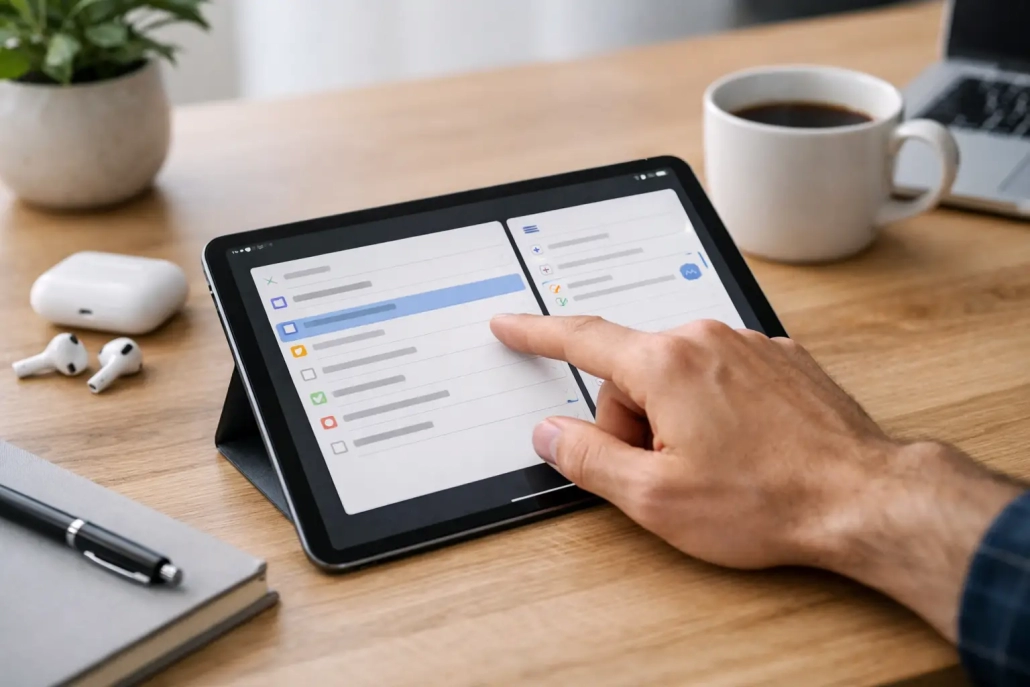
Open the Reminders app from the Home Screen or App Library. On the left side of the screen, you will see your reminder lists and, depending on your setup, Smart Lists such as Today, Scheduled, Flagged, and Completed. The larger area on the right displays the reminders in the list you select.
Before adding anything, make sure Reminders is connected to iCloud. Open Settings, tap your name, tap iCloud, then confirm that Reminders is turned on. This allows your lists to stay current across your iPhone, Mac, Apple Watch, and other signed-in Apple devices. If a reminder is only stored locally on one device, it is much easier to miss when you are away from your iPad.
To create a first task, choose a list and tap New Reminder. Type a clear action, such as “Call the dentist” rather than “Dentist.” Specific wording makes a task easier to act on when the notification appears later.
Tap the empty circle beside a reminder when it is complete. Completed items remain available if you need to review them, but they no longer clutter your active list.
Create lists that match your real life
Lists give separate areas of your life a clear home. Tap Add List in the sidebar, give the list a name, choose a color and icon if desired, then tap Done. The color and icon are optional, but they can make it quicker to recognize a list at a glance.
Most people do well with a small number of practical lists. You might create lists for Personal, Work, Groceries, and Home. A family may prefer Household, School, Errands, and Travel. The best labels are the ones you will understand immediately six months from now.
Avoid making a different list for every small project unless that project has enough tasks to justify it. Too many lists can turn organization into another task. For a short-term project, a section within a broader list may be the better choice.
Add sections for larger lists
Sections help you group related reminders inside one list. For example, a “Home” list could have sections for This Week, Repairs, and Someday. A packing list could be divided into Clothing, Toiletries, and Documents.
Open a list, tap the More button, and choose New Section. Name the section, then drag reminders into it if needed. Sections are especially useful on iPad because the larger screen makes it easier to see a complete project without opening multiple lists.
Set dates and times for the reminders that need them
A reminder without a date stays in its list until you complete it. That is useful for tasks you want to remember but do not need to do on a particular day. For anything time-sensitive, add a date or time.
When creating or editing a reminder, tap the Date and Time button. Select a date, and turn on Time if you want an alert at a particular hour. A reminder to “Pay credit card bill” may only need a due date. A reminder to “Join project call” should include both the date and time.
Be thoughtful about notifications. If every task has an alert, you may begin dismissing notifications without reading them. Reserve timed alerts for commitments, deadlines, and tasks where timing genuinely matters. For less urgent work, a date alone lets the item appear in your Scheduled and Today views without constantly interrupting you.
You can also set a reminder to repeat. This works well for recurring responsibilities such as changing an air filter, submitting a monthly report, or taking medication. After adding a date, select Repeat and choose a pattern such as daily, weekly, monthly, or custom. Check the first repeated alert carefully. A recurring reminder with the wrong time or interval can become a persistent annoyance.
Use details to make each reminder more useful
Tap a reminder to reveal its Details button. This is where Reminders becomes more than a basic checklist. You can add notes, a URL, tags, a priority, an image, or subtasks.
Notes are ideal for information you will need when completing the task. For example, a reminder to call a service provider could include an account number, question list, or preferred callback time. You can also attach a photo or scanned document when a visual reference will help.
Priorities help identify what deserves attention first. Reminders offers low, medium, and high priority. Use priority sparingly. If everything is marked high, the label loses its purpose. A good rule is to mark only the items with meaningful consequences if they are delayed.
Subtasks are useful when one reminder represents a small sequence. A reminder named “Prepare for presentation” might include subtasks for reviewing slides, printing handouts, and charging your iPad. Keep the main reminder action-oriented, then use subtasks for the supporting steps.
Use tags and Smart Lists to find the right work
Tags add another layer of organization without forcing you to create more lists. Add a tag by typing a number sign followed by a word in the reminder title or notes, such as #calls, #errands, or #waiting. You can use the same tag in different lists.
For example, a call to a contractor may live in your Home list, while a call to a client lives in Work. Tag both with #calls, and you can view them together when you have time to make phone calls.
Smart Lists automatically collect reminders based on rules you choose. Tap Add List, then select Smart List. You can filter reminders by tags, dates, times, priorities, flags, or lists. A Smart List named “Errands” could show all reminders tagged #errands, no matter where they were originally stored.
This feature is helpful once you have several active lists. It is not necessary for everyone. If your current system is working with a few straightforward lists, keep it simple. Add Smart Lists when you find yourself repeatedly searching across lists for the same type of task.
Share lists for household and team planning
A shared list lets multiple people add, edit, and complete reminders. It is particularly useful for grocery shopping, family chores, trip planning, and small work projects.
Open the list you want to share, tap the Share button, then choose how to invite people. Everyone you invite needs an Apple Account and access to iCloud Reminders. Once they accept, changes appear for everyone.
A shared grocery list is one of the most practical examples. Anyone in the household can add an item when it runs out. When one person buys it and checks it off, the list updates for the others. This reduces duplicate purchases and the need for separate text messages.
For shared lists to work well, agree on a few basic habits. Add specific items, check off completed tasks promptly, and avoid deleting a reminder that someone else may still need to see. If you want to preserve context, add a note instead.
Set location reminders with care
Reminders can alert you when arriving at or leaving a location. In the reminder details, choose Location, then select a suggested location or search for an address. This is useful for tasks such as “Buy batteries” when you arrive at a store or “Send report” when you leave the office.
Location reminders depend on Location Services, an internet connection, and your device setup. An iPad that stays at home is not usually the best device for an errand alert. Because iCloud syncs reminders, creating the location reminder on iPad can still be useful if you carry an iPhone that is signed in to the same Apple Account and has location access enabled.
Build a quick daily review habit
The most effective reminder system includes a brief review. Open the Today Smart List each morning and look at what is due. Decide which items are realistic for the day, complete what you can, and reschedule tasks that truly need another day.
Do not let overdue reminders accumulate without attention. A long list of old tasks creates stress instead of clarity. If an item is no longer relevant, delete it. If it matters but is not urgent, assign a realistic date or move it to a later section of your list.
Reminders works best when it becomes a trusted capture tool rather than a place where tasks go to be forgotten. Add the task when you think of it, give it enough detail to act on later, and review your list consistently. With that simple routine, your iPad can help turn scattered intentions into clear next steps.


