Mac, iPhone & iPad tips · iPhone & iPad
Apple Photos Shared Library Explained
Learn how apple photos shared library works, who should use it, how to set it up, and the trade-offs to know before moving family photos.
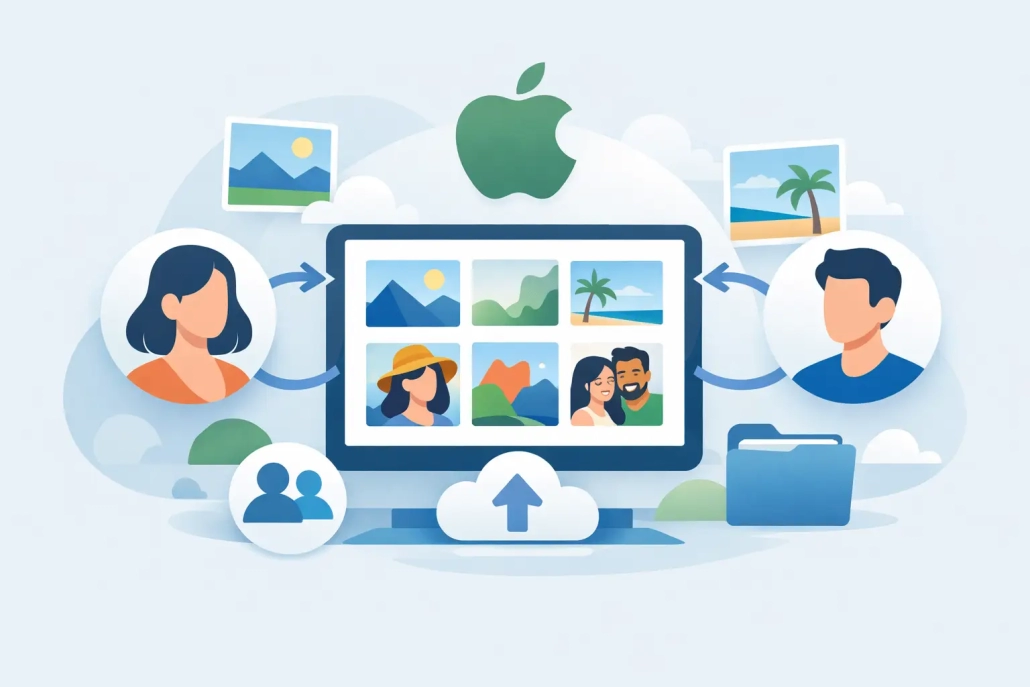
The first time you try to combine family photos, the problem usually shows up fast. One person has the vacation pictures, someone else has the kids’ birthday videos, and a third device has the best candid shots. Apple Photos Shared Library was designed to fix that, but it works best when you understand what it changes before you turn it on.
The customizable views in the Photos app for iPhone & iPad

Watch it free, then go deeper: the Photos for iPhone tutorial has 26 step-by-step lessons. Start your free trial →
What Apple Photos Shared Library actually does
Apple Photos Shared Library creates a second library inside Photos that multiple people can contribute to and manage together. Instead of constantly sending images back and forth, participants can place photos and videos into a shared space where everyone has equal access.
That last part matters. This is not the same as sharing an album. In a shared album, you are mostly collecting copies or lower-resolution versions for casual viewing. In a shared library, the photos become part of a collaborative photo collection. Everyone invited can add, edit, favorite, caption, and delete items in that shared space.
For many households, that is exactly what makes it useful. If a couple wants one complete family photo history, or parents want one place for everyday pictures of their children, the feature can remove a lot of duplicate storage, texting, and manual sorting.
It can also create confusion if you expect private ownership rules to stay the same. Once an item is moved into the shared library, it is no longer just yours in practice. It becomes part of a jointly managed collection.
Apple Photos Shared Library vs shared albums
This is the comparison most people need before making any changes. Shared albums are lighter, simpler, and better for occasional sharing. They work well when you want grandparents to see recent photos or friends to view event pictures without handing over editing control.
Apple Photos Shared Library is different. It is meant for close collaboration, usually with a spouse or immediate family. The point is not just to view the same photos. The point is to maintain one combined library for a shared part of life.
That makes the decision fairly straightforward. If you want casual distribution, use shared albums. If you want one household photo collection that several people actively manage, shared library is the better fit.
There is a trade-off, though. Shared albums feel safer because they are more limited. Shared library is more powerful, but it requires more trust and more clarity about what belongs there.
Who should use it
The best candidates are people with a clear overlap in the photos they take. Spouses, partners, and parents usually benefit the most because they are often photographing the same people, places, and events. Instead of keeping parallel collections, they can build one organized history together.
It is also helpful for people who want less friction in their workflow. If you regularly AirDrop pictures to each other, create duplicate albums, or ask, “Can you send me the photos from yesterday?” shared library can remove those repeated steps.
But it is not ideal for every relationship or household. If each person wants strong separation between personal and shared photos, or if one person is very cautious about deletion and editing, the feature may feel too open-ended. In that case, shared albums may be the better choice.
What you need before setup
Before you set up Apple Photos Shared Library, it helps to make two decisions. First, decide who the shared library is really for. Apple allows a small group, but the feature works best when the participants have a clear reason to pool their images rather than simply wanting access to each other’s libraries.
Second, decide what kinds of photos belong in the shared library. This sounds simple, but it prevents the most common frustration later. Some people use the shared library only for family events and child photos. Others include travel, holidays, and household records. The exact rule does not matter as much as agreeing on one.
You should also be comfortable with iCloud Photos, because this feature depends on it. If your photo syncing is inconsistent or you are already low on iCloud storage, resolve that first. Shared features are much easier to trust when the basics are working properly.
How to set up Apple Photos Shared Library
On iPhone, iPad, or Mac, you begin in Photos or the system settings where Apple walks you through the setup. During that process, you invite participants and choose whether to move specific photos into the shared library.
Apple gives you a few ways to start. You can move photos based on people, by date, or manually select them yourself. For many users, starting with a narrower range is the safer approach. It gives you a chance to see how the library feels before you commit too much at once.
If you have years of photos, resist the urge to move everything immediately. A smaller initial selection is easier to review. Once the shared library is in use and everyone understands the boundaries, expanding it becomes much less stressful.
Another useful option is sharing directly from the Camera app. This allows you to send new photos straight into the shared library as you take them. For family outings or vacations, that can be very convenient. But it also requires attention, because it is easy to forget which library you are currently using.
How to keep it organized without extra work
The shared library works best when you treat it as a long-term system, not just a one-time feature. That means a little consistency goes a long way.
Start by using albums for events, trips, or recurring categories. The shared library itself can hold everything, but albums make it easier to find what matters later. Titles, captions, and favorites become more useful when several people are contributing over time.
It also helps to keep personal photos personal. Not every image needs to go into the shared library just because it could. Screenshots, one-off reference photos, private notes, and personal documents usually belong in your personal library. The shared library stays more useful when it is reserved for genuinely shared memories or shared needs.
If your household includes one person who likes organizing more than the others, that is normal. One participant often becomes the main curator. The key is making sure everyone understands the shared nature of the library even if only one person handles most of the cleanup.
Important trade-offs to understand
The biggest trade-off is control. In a shared library, participants can delete photos and videos. Deleted items can usually be recovered for a period of time, but the broader point remains: this is a collaborative environment, not a read-only archive.
The second trade-off is privacy. Even if your intention is to share only family images, sorting mistakes happen. A quick batch move or automatic sharing setting can send more than you intended into the shared library. That is why a slower setup and a clear rule about what belongs there are worth the extra few minutes.
There is also the emotional side of shared photo management. Photos are personal, and people often have different standards for what should be kept, edited, or removed. One person may want every blurry candid preserved. Another may prefer a cleaner library. Apple provides the tool, but the workflow still depends on communication.
Common problems and how to avoid them
Most issues come from expectations, not technology. Someone assumes shared library means backup, while someone else assumes it means active collaboration. Those are different things.
Another common issue is over-sharing at the beginning. Users import too much too soon, then spend time separating photos that were never meant to be shared. Starting smaller solves most of that.
Confusion can also happen when switching between the personal and shared library while taking photos. If you plan to use camera-based sharing, check the setting before important events. A quick look upfront is easier than reorganizing later.
If the library begins to feel cluttered, that usually means the rules are too loose. Tightening the purpose helps. For example, you might decide the shared library is only for family members, trips, and milestone events. That one decision can make the feature easier to maintain.
Is Apple Photos Shared Library worth using?
For the right group, yes. Apple Photos Shared Library is one of the most practical photo features Apple has added for families because it solves a real everyday problem. It reduces duplicate collections, makes memories easier to find, and gives multiple people a shared place to contribute.
But it is only worth using if the people involved want the same outcome. If you want one combined story of your household, it can work very well. If you mainly want occasional sharing with minimal risk, shared albums are still the better tool.
That is often the best way to think about it: not as a feature you should use, but as a feature you should match to the right relationship and workflow. When the fit is right, Photos becomes much easier to manage. And when you set it up with intention, you spend less time sorting pictures and more time enjoying the moments you wanted to keep in the first place.

All Access membership
Watch every Photos for iPhone lesson, plus every other tutorial
Every plan starts with a free trial. Cancel any time during the trial and you won't be charged.
Monthly
Auto recurring5-day free trial
- Every Mac, iPhone & iPad tutorial
- New tutorials as they're released
- Watch on any device
- No ads
- Email support
Yearly
Auto recurring7-day free trial · just $2.50 a month
- Every Mac, iPhone & iPad tutorial
- New tutorials as they're released
- Watch on any device
- No ads
- Email support
Lifetime
Single payment7-day free trial · pay once, keep it for good
- Everything in Yearly
- Every future macOS & iOS update tutorial
- Never pay again
Secure checkout. Log in on any Mac, iPhone or iPad with the same account.