
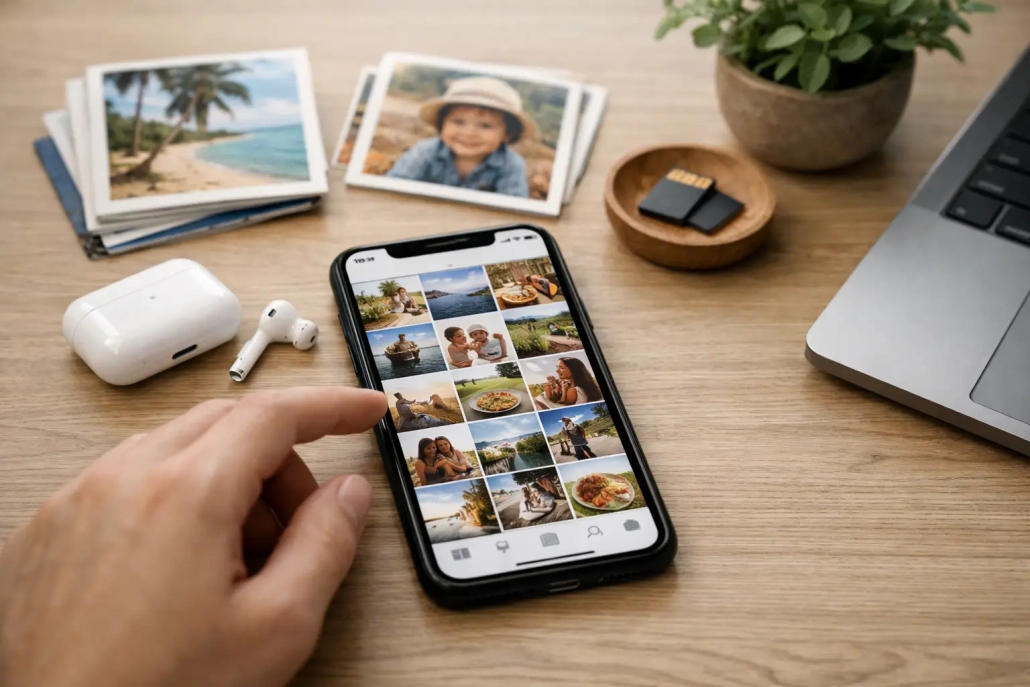
iPhone Photos Organization Guide
A photo library can become overwhelming long before it becomes truly unmanageable. A few screenshots, duplicate shots, receipts, and saved images each day quickly turn into thousands of items that are difficult to find when you need them. This iPhone photos organization guide gives you a practical system for reducing clutter without risking the pictures you want to keep.
The goal is not to create a perfect library in one afternoon. It is to build a simple structure that makes finding, enjoying, and protecting your photos easier over time.
Start by Understanding How Photos Organizes Your Library
The Photos app keeps every photo and video in one main library. When you create an album, you are not moving copies of those pictures into a separate location. You are simply grouping the originals from your library so they are easier to find.
This distinction matters. If you delete a photo from your main library, it is deleted from every album that contains it. If you remove a photo from an album, however, the original remains in your library. Albums are organizational tools, not storage folders.
Folders add another level of organization, but they hold albums rather than individual photos. For example, you might create a folder called “Family” and place albums for each child, holiday, or reunion inside it. You do not need folders for a small collection of albums. They become useful when your Albums view starts to feel crowded.
Before creating anything new, spend a few minutes looking at the sections already available in Photos. You will see your main library, pinned collections, albums, people and pets, places, and utilities such as Duplicates, Screenshots, Recently Deleted, and Hidden. Apple has already done part of the sorting for you.

Clear the Easy Clutter First
Trying to review every photo chronologically is slow and tiring. Start with the categories that usually contain the most disposable items.
Open Photos, scroll to Utilities, and review Duplicates. This section identifies exact duplicates and very similar images. When you merge a pair, Photos keeps the highest-quality version and combines relevant information, such as captions, keywords, and favorites. Review each group before merging, especially if one image has edits you want to preserve.
Next, check Screenshots. Screenshots often include temporary directions, order confirmations, social media posts, or reference material you no longer need. Delete what has served its purpose, and save important information elsewhere when appropriate. A boarding pass belongs in your airline app or Wallet, for instance, not in your permanent photo library.
Also review your screen recordings, bursts, and videos. Videos consume more storage than still photos, and long accidental recordings are easy to overlook. In a burst, choose the strongest images, mark your selections, and remove the rest.
When you delete items, they remain in Recently Deleted for 30 days unless you remove them permanently. This safety net is helpful, but remember that deleted photos may continue using storage until that period ends. If you are making room on your device immediately, review Recently Deleted carefully and permanently erase only the items you are certain you do not need.
Use Favorites for Pictures You Want to See Often
Favorites are one of the most useful and underused tools in the Photos app. A favorite is not necessarily your best photograph. It can be any image you want to find quickly: a child’s school photo, a passport scan, a recipe, a parking location, or a picture that simply makes you happy.
To favorite an image, open it and tap the heart button. Favorites appear together in a dedicated collection, which makes them much faster to locate than scrolling through years of photos.
Be selective. If you favorite hundreds of images without a purpose, the collection becomes another large library. A useful rule is to favorite photos that are personally meaningful or frequently needed, while using albums for groups of photos connected to a specific event or project.

Create Albums Around Real-Life Needs
A good album name answers one question: “What will I be looking for later?” The most effective albums match the way you remember your life and responsibilities.
For many people, a small set of albums is enough. You may create albums for yearly vacations, home projects, important documents, family milestones, or a hobby such as gardening or woodworking. A professional might maintain albums for reference images, client work, and receipts that need to be submitted for expenses.
Keep names clear and consistent. “2026 Florida Trip” is easier to scan than “Vacation Pics.” If you create annual albums, use the same format each time. Consistent names make it easier to sort and recognize albums later.
Avoid making an album for every small occasion. An album for a major trip or ongoing project is useful. An album for a single dinner out may not be. When an event is brief and unimportant, search by date, location, or the people pictured instead.
To add existing photos to an album, select the images, tap the more options button, choose Add to Album, then select an existing album or create a new one. Remember that this does not create duplicate files or take additional iCloud storage.
Organize Albums With Folders When Needed
Once you have several related albums, group them in a folder. A “Travel” folder might include albums for each trip. A “Home” folder could contain renovation, appliance, paint color, and garden albums.
Folders are most helpful when they reduce decisions. If you find yourself scrolling past 30 unrelated album names, folders can restore order. If you have only a dozen albums, keep the setup simple and use the time to enjoy your photos instead.
Make Search Do More of the Work
You do not need to place every photo in an album to find it again. Photos can search for people, pets, locations, dates, objects, text within images, and many common scenes.
Try searches based on how you naturally remember a photo. Search “beach,” “dog,” “Chicago,” “2024,” or “receipt.” You can also combine details, such as a person’s name and a location. If Photos has identified people or pets incorrectly, review the People & Pets collection and correct the label when possible. The more accurate those labels are, the more useful search becomes.
Captions are another powerful option for photos that need context. Add a caption to an image of a storage box, a business card, a product model number, or a family photograph whose story you want to preserve. A short caption can make a photo searchable by words that do not appear in the image itself.
For important records, captions are often better than relying on memory. A photo of a paint can becomes much more useful when its caption includes the room, color name, and finish.
Keep iCloud Photos in Mind Before You Delete
If iCloud Photos is turned on, your library syncs across your signed-in Apple devices. That means edits, favorites, albums, and deletions can appear on your iPhone, iPad, and Mac.
This is convenient, but it changes how you should clean up. Deleting a photo from your iPhone can also delete it from your other synced devices. Do not treat one device as a disposable copy unless you have confirmed your settings and backup plan.
If storage is your concern, check whether Optimize iPhone Storage is enabled in Photos settings. With this option, your iPhone can keep smaller versions of older items on the device while full-resolution originals remain in iCloud. It can save significant space, though you may need an internet connection to download an original when you want to edit or share it.
For irreplaceable photos, syncing is useful but should not be your only protection. Consider maintaining a separate backup strategy, particularly for family archives, major creative work, or records that would be difficult to replace.
Follow a Small Monthly Maintenance Routine
Organization works best when it becomes a short habit rather than a large cleanup project. Once a month, set aside 10 to 15 minutes to remove obvious clutter, merge duplicates, review screenshots, and add photos from major events to the appropriate albums.
After a vacation, birthday, or home project, organize those photos while the details are fresh. Choose favorites, add a clear album name, and caption any image that will matter later. This is much easier than trying to identify hundreds of pictures several years from now.
You do not need to archive every image perfectly. A useful photo library is one that helps you locate the moments, people, information, and projects that matter to you. With a few intentional albums, thoughtful favorites, and regular cleanup, your iPhone can become a place where your memories are easy to revisit instead of hard to recover.


