
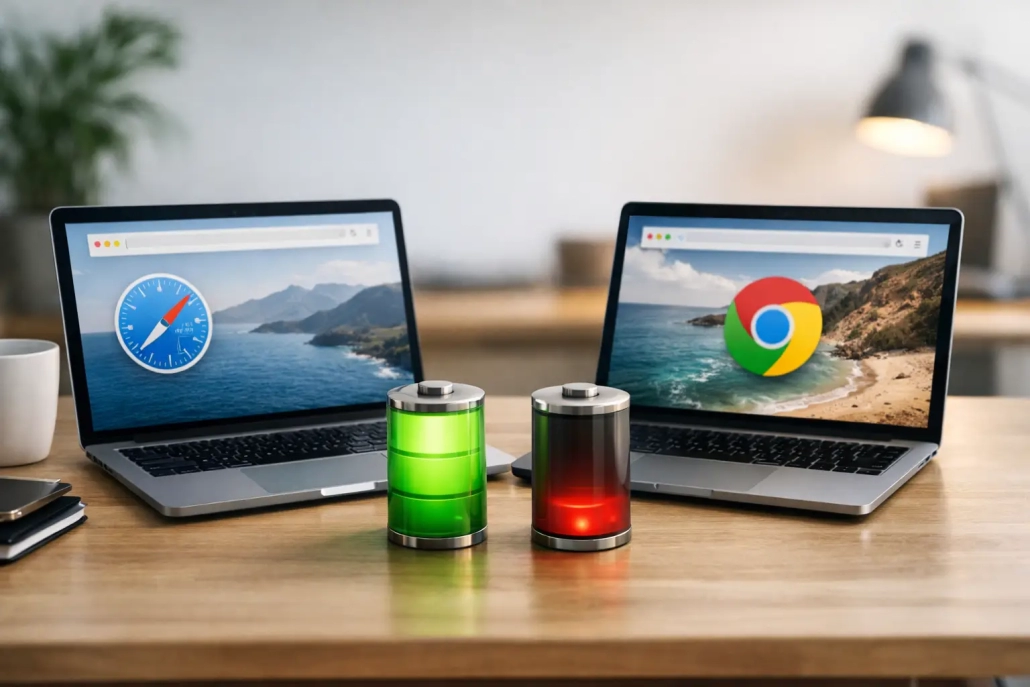
Safari vs Chrome Battery Life on MacBooks
A MacBook that usually lasts through the afternoon can lose several hours of battery time when a browser is handling video meetings, dozens of tabs, or a demanding web app. In the question of Safari vs Chrome battery life, Safari is often the more efficient choice on a Mac, but the browser alone does not tell the whole story. Your open websites, extensions, display brightness, and background activity can make a larger difference than many people expect.
For most Apple users, the practical goal is not to declare one browser the winner forever. It is to understand what is using power, choose the right browser for the task, and make a few simple adjustments that help your MacBook last longer.
Safari vs Chrome Battery Life: The Practical Difference
Safari is built by Apple specifically for macOS and Apple silicon. That close integration usually gives it an advantage in energy efficiency, especially on newer MacBook Air and MacBook Pro models. Safari is designed to work with macOS power-management features, efficiently use the Mac’s graphics hardware, and reduce unnecessary background activity.
Chrome is also a capable browser, and many people prefer it because their bookmarks, passwords, and settings sync easily across Windows, Android, and other devices. However, Chrome has historically used more memory and processor power than Safari during similar browsing sessions. More active memory and processor use can mean more battery drain, more heat, and louder fan activity on Intel-based Macs.
That said, comparing browsers with a single battery-life number can be misleading. A Chrome window with three simple articles may use less power than a Safari window streaming high-definition video, participating in a video call, and running several active web apps. The useful comparison is between the same tasks performed in each browser.
For everyday reading, shopping, email, and light work, Safari will commonly give Mac users better battery life. If Chrome is essential to your work, its power use can often be reduced enough that the convenience is worth the trade-off.
What Actually Drains Your MacBook Battery
Browsers do not consume energy evenly. A quiet web page with text and a few images needs very little power. A page that constantly refreshes ads, plays video, tracks your location, or runs a complex spreadsheet in the background is very different.
Streaming video is one of the most noticeable examples. Watching a video can use considerable energy because your Mac is keeping the display active, receiving data over Wi-Fi, processing video, and playing audio. Video meetings add even more work because the camera, microphone, and network connection are all active at the same time.
Tabs matter too, but not simply because of the number shown at the top of the browser. Ten inactive tabs may have little effect, while one tab running a busy web app, a live dashboard, or an auto-playing video may use substantial power. This is why closing a single troublesome tab can sometimes help more than closing twenty ordinary ones.
Extensions deserve attention as well. An extension can be useful for password management, grammar checking, ad blocking, or saving articles. But each extension may inspect web pages, run background processes, or connect to online services. A large collection of extensions can make either browser work harder than necessary.
Your Mac’s settings also influence the result. A bright display, external monitor, poor Wi-Fi signal, connected accessories, and background apps can all reduce battery life. Before blaming Safari or Chrome, look at the complete picture.
Check Which Browser Is Using Energy
macOS includes a straightforward tool for identifying energy use: Activity Monitor. It can help you confirm whether Chrome, Safari, or a particular process is affecting your battery.
Open Activity Monitor from the Applications folder, then open the Utilities folder. You can also use Spotlight Search by pressing Command-Space and typing “Activity Monitor.” Select the Energy tab to see the apps currently using power.
Look first at the Energy Impact column. A higher number means the app is using more energy at that moment. This number changes as you work, so give it a few minutes. A browser may briefly rise while loading a page, then settle down once the page is finished.
Also review the 12 hr Power column when it is available. This gives you a broader view of which apps have used the most energy over time. If one browser consistently appears near the top, it is worth investigating your tabs and extensions before assuming the browser itself is the only cause.
When Safari or Chrome appears unusually high, close tabs one at a time and watch for a change. Video sites, web-based meetings, social media feeds, and large cloud-document pages are common sources of higher energy use. This method is more reliable than guessing.
Make Safari More Efficient
Safari is already a strong option when battery life is a priority, but a few habits can keep it running efficiently. Start by closing tabs you no longer need, particularly tabs that contain video, live chat, maps, or constantly updating information.
Review your extensions by opening Safari, choosing Safari from the menu bar, and selecting Settings. Open the Extensions section to see what is installed. Disable extensions you do not recognize or no longer use. You do not have to remove every extension – simply keep the ones that provide clear value.
Safari also lets you control website permissions. In Safari Settings, choose Websites to review which sites can use your camera, microphone, location, notifications, or automatic video playback. Limiting permissions for sites you do not trust or no longer visit can improve privacy and reduce unwanted activity.
If you stream video for long periods, lower the playback quality when a high-resolution image is not necessary. This is especially helpful when you are on battery power, traveling, or working away from an outlet. A smaller video window and a slightly lower resolution can make a meaningful difference over several hours.
Reduce Chrome’s Battery Use on a Mac
Chrome can be a practical necessity when a workplace, school, or web service works best in Google’s browser. The good news is that you can reduce its impact without abandoning it.
First, update Chrome regularly. Browser updates often include performance and efficiency improvements. In Chrome, select the three-dot menu, choose Help, then choose About Google Chrome to check for an available update.
Next, open Chrome Settings and look for the Performance section. On current versions of Chrome, Energy Saver can reduce background activity and visual effects when your battery reaches a chosen level or whenever your Mac is unplugged. The exact wording may change as Chrome updates, but the feature is worth enabling if battery time matters to you.
Chrome’s Memory Saver feature can also help when you keep many tabs open. It places inactive tabs in a lower-power state so the tabs you are actively using receive more of your Mac’s resources. When you return to an inactive tab, Chrome reloads it. That brief delay is usually a reasonable trade-off for a more responsive Mac and better battery life.
Finally, review Chrome extensions. Select the three-dot menu, choose Extensions, then Manage Extensions. Disable extensions you no longer need and pay close attention to extensions that claim to modify every webpage, block content, or provide shopping, coupon, and productivity features. Some are helpful, but a crowded extension list can create unnecessary background work.
When Chrome May Still Be the Better Choice
Battery life is not the only factor in choosing a browser. Chrome may be the better choice if you rely on a specific work platform, need exact compatibility with a browser-based tool, or regularly move between a Mac and non-Apple devices. The time saved by reliable syncing or a familiar workflow can outweigh a modest reduction in battery time.
A useful approach is to keep both browsers installed and use each intentionally. Safari can be your default for personal browsing, reading, banking, shopping, and streaming. Chrome can remain available for work sites, Google-centered workflows, or pages that do not behave correctly in Safari.
This approach also makes troubleshooting easier. If a website is slow or drains power in one browser, try the same site in the other. You may find that the issue is a particular page, extension, or service rather than the browser as a whole.
Simple Habits That Extend Battery Life
Browser choices work best alongside basic MacBook battery habits. Lower your display brightness to a comfortable level, disconnect accessories you are not using, and avoid running several video-heavy apps at the same time. If you are working in a place with weak Wi-Fi, remember that your Mac may use extra power trying to maintain a connection.
Keep macOS up to date as well. Apple’s updates can improve performance, compatibility, and power management. If your MacBook seems to drain unusually fast no matter which browser you use, restart it and check Activity Monitor before making major changes. A single stuck process or demanding background app may be the real problem.
The best browser for your battery is the one that supports your work without making your Mac do unnecessary work. Start with Safari when you want the longest possible battery life, keep Chrome ready when its compatibility is useful, and let Activity Monitor show you what is really happening. A few informed adjustments can turn a frustrating low-battery afternoon into a full, productive day on your Mac.


