Mac, iPhone & iPad tips · Mac
How to Use Safari Profiles on Mac
Learn how to use Safari Profiles on Mac to separate work, personal, and school browsing, organize tabs, and keep your browsing focused.

If your Safari window has turned into a mix of work tabs, shopping research, travel plans, and articles you meant to read later, Safari Profiles can fix that quickly. Once you understand how to use Safari Profiles, your Mac becomes much easier to manage because each part of your browsing life gets its own space.
Safari Profiles are designed to separate your browsing activity by purpose. Instead of keeping everything in one browser environment, you can create distinct profiles for work, personal use, school, or any other category that makes sense for you. Each profile can have its own start page, tab groups, history, cookies, and Favorites, which means less clutter and fewer distractions.
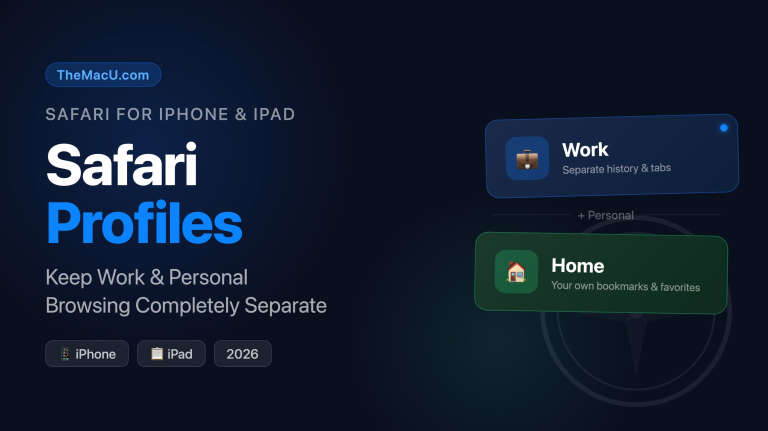
Safari Profiles on iPhone & iPad
Watch it free, then go deeper: the Safari for Mac tutorial has 17 step-by-step lessons. Start your free trial →
What Safari Profiles actually do
A Safari profile is more than a renamed window. It creates a separate browsing environment inside Safari. When you switch to a different profile, you are not just looking at a different set of tabs. You are also using a different history, different website data, different tab groups, and potentially a different set of extensions.
That separation matters in real use. If you keep one profile for work, you can stay signed in to work-related websites there while keeping personal browsing in another profile. If you use a school portal, client tools, or shared family accounts, profiles help keep those activities from overlapping.
This also makes Safari easier to understand day to day. Instead of asking, “Where did that tab go?” or “Why am I signed into the wrong account?” you can work in a more organized way from the start.
How to use Safari Profiles the first time
To set up Safari Profiles on a Mac, open Safari and choose Safari from the menu bar, then Settings. Click the Profiles tab. If this is your first time using the feature, Safari will walk you through creating a profile.
You will choose a name, symbol, and color for the profile. This sounds cosmetic, but it is surprisingly helpful. The color and icon make it much easier to tell at a glance whether you are in your Work profile, Personal profile, or another setup.
You can also decide whether the profile should use its own Favorites folder or share one that already exists. For most people, separate Favorites are the better choice. If you want your work bookmarks to stay separate from your personal bookmarks, this is where that happens.
Once you create the profile, Safari opens a new window in that profile. From there, you can start adding the tabs, bookmarks, and websites that belong in that space.
How to create and manage multiple Safari Profiles
After the first profile is set up, you can add more at any time. Go back to Safari > Settings > Profiles and click Start Using Profiles or the add button if you already have one or more profiles created. Then repeat the naming and setup process.
For most Mac users, three profiles are enough. A Personal profile, a Work profile, and maybe a Finance or Travel profile usually cover the major categories. You can create more, but too many profiles can become just another layer of clutter. The goal is simpler browsing, not a more complicated system.
A good test is this: if a category has different websites, different logins, and different habits, it probably deserves its own profile. If it is just a temporary project, a tab group might be the better tool.
How to switch between Safari Profiles
Once your profiles exist, switching between them is straightforward. In Safari, click the profile name or profile icon in the toolbar, then choose the profile you want to open. You can also open a new window in a specific profile.
This is where the feature starts to feel practical. You might begin the day in a Work profile with email, calendar tools, and project tabs open. Later, you can move to a Personal profile for shopping or news without carrying all those work tabs with you.
Because each profile uses its own browsing history and website data, you are less likely to cross over by accident. That can save time, especially if you manage multiple accounts on the same sites.
Use Safari Profiles with tab groups for better organization
Profiles and tab groups work well together, but they do different jobs. Profiles separate broad areas of your digital life. Tab groups organize projects or topics within each area.
For example, your Work profile might contain tab groups for weekly reporting, client research, and team meetings. Your Personal profile might contain tab groups for vacation planning, recipes, and home projects. This structure is often easier to maintain than trying to organize everything with tab groups alone.
If you are deciding between the two, think of profiles as separate rooms and tab groups as folders inside those rooms. That mental model helps many people use both features without confusion.
What stays separate in Safari Profiles
When learning how to use Safari Profiles, it helps to know what Safari is actually separating behind the scenes. Each profile can keep its own browsing history, cookies, website data, tab groups, and Favorites. That means your work websites stay in your work profile, and your personal browsing stays personal.
Extensions can also be managed by profile. That is useful if you want a specific extension available only in one context. For instance, you might want a productivity extension active in a work profile but not in your personal one.
There is one important trade-off, though. Profiles help with separation, but they do not replace broader account or device privacy settings. If multiple people use the same Mac account, Safari Profiles alone are not enough for true privacy. In that case, separate macOS user accounts are the better choice.
Best ways to set up your profiles
The most effective profile setup is usually based on roles, not moods. Personal and Work is a strong starting point because it reflects how most people already think about their tasks. If you also manage a side business, classes, or household administration, those may deserve separate profiles too.
Keep naming simple. Short labels such as Work, Personal, School, or Travel are easier to recognize than creative names. The same goes for colors. Pick colors that are visually distinct so you can tell where you are immediately.
It also helps to build each profile with intention. Add the most important websites first, clean up the Favorites bar, and open the tabs you use regularly. A little setup at the beginning makes the feature much more useful long term.
Common problems when using Safari Profiles
The most common issue is creating profiles but not changing habits. If you still open everything in your default profile, the benefit disappears. It helps to pause for a second before opening a new browsing task and ask which profile it belongs in.
Another issue is over-creating profiles. A profile for every minor topic sounds organized, but it usually becomes harder to manage. If you rarely return to a category, a tab group or bookmark folder may be enough.
Some users also expect complete isolation between every Safari setting. Profiles do a lot, but not every browser preference is profile-specific. If something seems shared, check Safari settings carefully before assuming it is tied to one profile.
Should you use Safari Profiles?
If your browsing feels messy, distracting, or constantly mixed between personal and professional tasks, Safari Profiles are worth using. They are especially helpful for people who work from a Mac, manage multiple web accounts, or simply want cleaner separation between different parts of life.
If your browsing is already minimal and you rarely juggle different roles online, you may not need them. In that case, tab groups alone may be enough. But for many users, profiles solve a very specific frustration: Safari finally feels organized without requiring a new browser or a complicated system.
This is one of those Apple features that becomes more useful the longer you use it. Set up two profiles, keep the structure simple, and give yourself a few days to build the habit. Once you do, Safari starts feeling less like a pile of tabs and more like a workspace that fits the way you actually use your Mac.
Keep watching
More free video lessons on this topic

All Access membership
Watch every Safari for Mac lesson, plus every other tutorial
Every plan starts with a free trial. Cancel any time during the trial and you won't be charged.
Monthly
Auto recurring5-day free trial
- Every Mac, iPhone & iPad tutorial
- New tutorials as they're released
- Watch on any device
- No ads
- Email support
Yearly
Auto recurring7-day free trial · just $2.50 a month
- Every Mac, iPhone & iPad tutorial
- New tutorials as they're released
- Watch on any device
- No ads
- Email support
Lifetime
Single payment7-day free trial · pay once, keep it for good
- Everything in Yearly
- Every future macOS & iOS update tutorial
- Never pay again
Secure checkout. Log in on any Mac, iPhone or iPad with the same account.