
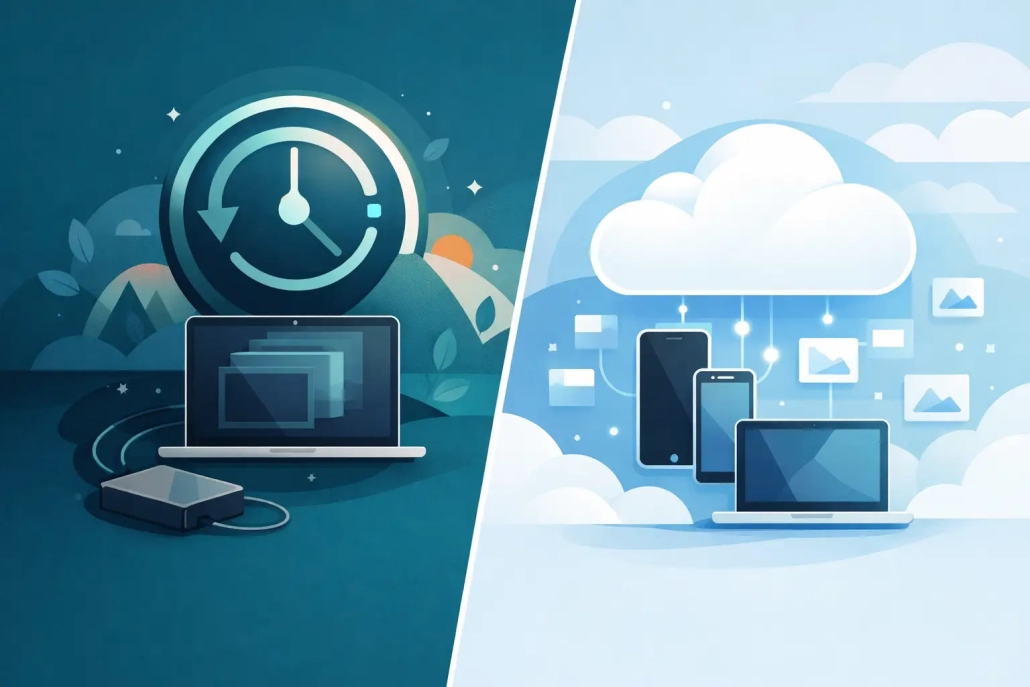
Time Machine vs iCloud: Which Should You Use?
If you have ever lost a file, replaced a Mac, or watched your storage fill up without quite knowing why, the question of time machine vs iCloud gets practical very quickly. These two Apple tools can both protect your data, but they do very different jobs. If you treat them as interchangeable, you can end up with gaps in your backup plan.
The short version is this: Time Machine is a true backup system for your Mac. iCloud is primarily a syncing and cloud storage service, with some protective features built in. For most Apple users, this is not really an either-or decision. It is a matter of knowing what each one does well, where each one falls short, and how they work together.

Time Machine vs iCloud: the core difference
Time Machine creates backups of your Mac over time. That means it can save versions of your files, your apps, your settings, and much of your system state to an external drive or supported network location. If your Mac fails, you delete something important, or you want to restore an earlier version of a file, Time Machine is designed for that.
iCloud, by contrast, keeps selected data available across your Apple devices and in the cloud. It syncs things like Photos, Contacts, Calendars, Notes, iCloud Drive files, Messages, and more. It helps you access the same content on your Mac, iPhone, and iPad, and it can make setup easier when you get a new device. But syncing is not the same as maintaining a complete historical backup.
That distinction matters. If you delete a file from iCloud Drive on one device, that deletion can sync to your other devices. If you make an unwanted change to a note or document, the newer version may replace the older one everywhere. Some apps and services offer recovery windows or version history, but iCloud itself should not be treated as a full backup of your Mac.
What Time Machine is best at
Time Machine is strongest when you need recovery. It backs up your Mac automatically and keeps snapshots over time, so you can go back to yesterday, last week, or last month depending on available space. That is especially helpful if you accidentally overwrite a document, remove a folder, or need to restore after hardware trouble.
It is also the better choice if your goal is to recover an entire Mac. When you set up a new Mac, you can restore from a Time Machine backup and bring over apps, accounts, settings, and files in a way that feels much closer to getting your old Mac back. For many users, that alone makes it essential.
There is another advantage people often overlook: Time Machine works locally. A backup to an external drive is usually much faster to create and much faster to restore than pulling large amounts of data down from the internet. If you have hundreds of gigabytes of files, photos, and apps, that speed can make a stressful situation much easier.
The trade-off is that Time Machine requires hardware. You need an external drive or another supported backup destination, and that drive needs to be connected regularly or available over your network. If you never plug it in, Time Machine cannot help you.
What iCloud is best at
iCloud shines when your priority is continuity across devices. If you start a document on your Mac and want it ready on your iPad, iCloud Drive is useful. If you take a photo on your iPhone and want it in Photos on your Mac, iCloud Photos does that well. If you replace a device and sign in with your Apple Account, much of your data can reappear with very little effort.
For everyday convenience, that is hard to beat. iCloud also protects certain kinds of information from being tied to one physical device. If your Mac is lost or damaged, your synced data may still be available from another Apple device or from the web. That is real value.
But convenience can hide the limits. iCloud is selective. It does not create a full image of your Mac in the way many people imagine. It also depends on your storage plan, internet connection, and which services you have actually turned on. It is possible to assume something is safely in iCloud when it is only stored locally, or to think something is backed up when it is merely syncing.

The biggest misunderstanding: sync is not backup
This is where many Apple users get tripped up. A synced file exists in multiple places, but that does not guarantee protection from deletion, corruption, or unwanted changes. If a file is removed intentionally or by mistake, that action can sync too.
A backup gives you a separate recovery point. That is what makes Time Machine different. It preserves previous states of your data. In practical terms, that means Time Machine is what you want when you say, “I need to get back what I had before.” iCloud is what you want when you say, “I need this available on all my devices.”
Those are related goals, but they are not the same goal.
Should you choose Time Machine, iCloud, or both?
For most Mac users, both is the right answer.
Use Time Machine if you want dependable recovery for your Mac. Use iCloud if you want your important data synced and available across your Apple devices. Together, they cover different risks. Time Machine helps when a Mac fails, a file is changed by mistake, or you want to restore older versions. iCloud helps when you move between devices, replace hardware, or want access to your files away from your desk.
If you only choose one, the better choice depends on what you are trying to solve.
If your main concern is backing up your Mac, choose Time Machine.
If your main concern is keeping current files, photos, and personal data accessible across devices, choose iCloud.
If your budget is limited, start with Time Machine for backup protection and add iCloud where syncing matters most. An external drive is often a lower long-term cost than paying for a large cloud storage plan, especially if your main need is backup rather than ongoing sync.

Time Machine vs iCloud for common situations
If you are setting up a new Mac, iCloud makes the experience easier because your contacts, calendars, notes, photos, passwords, and iCloud Drive files can reappear quickly once you sign in. But if you want the new Mac to feel like the old one, with apps, preferences, and more complete restoration, Time Machine is far more useful.
If you accidentally delete a document, Time Machine is usually the safer option because it is designed around historical backups. iCloud may help if the file is still in a recently deleted area or if the app supports version recovery, but that is less comprehensive and more situational.
If your Mac’s internal drive fails completely, Time Machine is the better recovery tool. iCloud can give you synced data back, but reinstalling apps, rebuilding settings, and waiting for large libraries to download can take much longer.
If you work across a Mac, iPhone, and iPad every day, iCloud adds convenience that Time Machine does not try to provide. Time Machine will not sync your in-progress file to your iPad. That is outside its job.
A simple setup that works well
For many users, the most practical approach is straightforward. Keep Time Machine turned on with a dedicated external drive. Make sure that drive is connected regularly so backups happen automatically. Then use iCloud for the categories of data you want available across devices, such as iCloud Drive, Photos, Contacts, Calendars, Notes, and Passwords.
It also helps to verify what is actually being stored where. On a Mac, look at your iCloud settings and your app settings so you know what is syncing. Then check that Time Machine is completing backups successfully. Confidence comes from knowing, not assuming.
If you are helping a parent, spouse, or less experienced user, this matters even more. People often feel reassured by seeing files on multiple devices and assume they are backed up. A small amount of setup and explanation can prevent a much larger problem later.
The better question to ask
Instead of asking which one is better, ask what kind of protection you need. Do you need to restore an older version of a file, recover after a failed Mac, and bring back your setup with minimal stress? That points to Time Machine. Do you need your current information available on every Apple device you use? That points to iCloud.
Apple gives you both because they solve different problems. Once that clicks, the confusion usually disappears.
If you want the safest and least frustrating setup, do not force time machine vs iCloud into a single winner. Let Time Machine handle backup, let iCloud handle sync, and give each tool the job it was built to do.


