
Best iPhone Productivity Features for Daily Work
A productive iPhone setup is not about filling your Home Screen with more apps. It is about reducing the number of steps between a thought and an action. The best iPhone productivity features are often already built into iOS, but they work best when you give each one a clear job: capture, organize, focus, communicate, or automate.
Start with the features that solve the small interruptions in your day. A reminder you can trust, a note you can find later, and fewer unnecessary notifications can make a bigger difference than a complicated new system.
Best iPhone Productivity Features to Set Up First
Reminders turns intentions into next steps
The Reminders app is one of the most useful places to begin because it handles both simple tasks and recurring responsibilities. Rather than keeping a mental list of calls, errands, follow-ups, and deadlines, add them as soon as they occur to you.
Use natural language when creating a reminder. Typing “Call Susan Friday at 10 AM” can set the date and time automatically. You can also ask Siri to add a reminder without stopping what you are doing. This is especially helpful when you are driving, walking, or moving between meetings.
For tasks that depend on a place, add a location alert. For example, create a reminder to return an item when you arrive at a store, or to call a family member when you leave work. If you regularly forget something before leaving home, a reminder that appears when you depart can be more effective than one scheduled for a particular time.
Lists keep different areas of life separate. A grocery list, a work list, and a list for household projects are easier to review than one long collection of unrelated tasks. Shared lists are useful for families or teams, although they work best when everyone agrees on what belongs there. If every passing idea goes into a shared list, it can quickly become noise.
Notes gives information a reliable home
Many people use Notes as a temporary scratchpad, then wonder why they cannot find anything later. A small amount of structure makes it a practical reference system for everything from meeting notes to travel details.
Create folders for a few broad categories that match your real life, such as Personal, Work, Home, and Travel. Avoid making dozens of folders at the start. If a folder is difficult to choose, the system is too complicated. Use tags for information that belongs in more than one category, such as #receipts, #ideas, or #waiting.
Notes is particularly effective for collecting different kinds of material in one place. You can scan a document, add a photo, record an audio attachment, check off a list, or attach a file to a note. A note for an upcoming trip, for example, can hold confirmation numbers, a packing checklist, screenshots of directions, and a list of places to visit.
Pin the few notes you return to often. A pinned note for weekly priorities or frequently used account information saves repeated searching. For sensitive details, use the lock feature and protect the note with your device passcode, Face ID, or Touch ID.
Focus reduces interruptions without making you unreachable
Notifications can quietly take control of a day. Focus lets you decide which people and apps can reach you during different parts of your schedule. The key is not to block everything. It is to allow what is genuinely important while silencing what can wait.
A Work Focus might allow calls and messages from coworkers and family while holding back social media alerts. A Personal Focus can keep work notifications out of dinner or weekend time. You can schedule a Focus by time, location, or app. For example, your Work Focus can begin when you arrive at the office, while a Reading Focus can turn on when you open a book app.
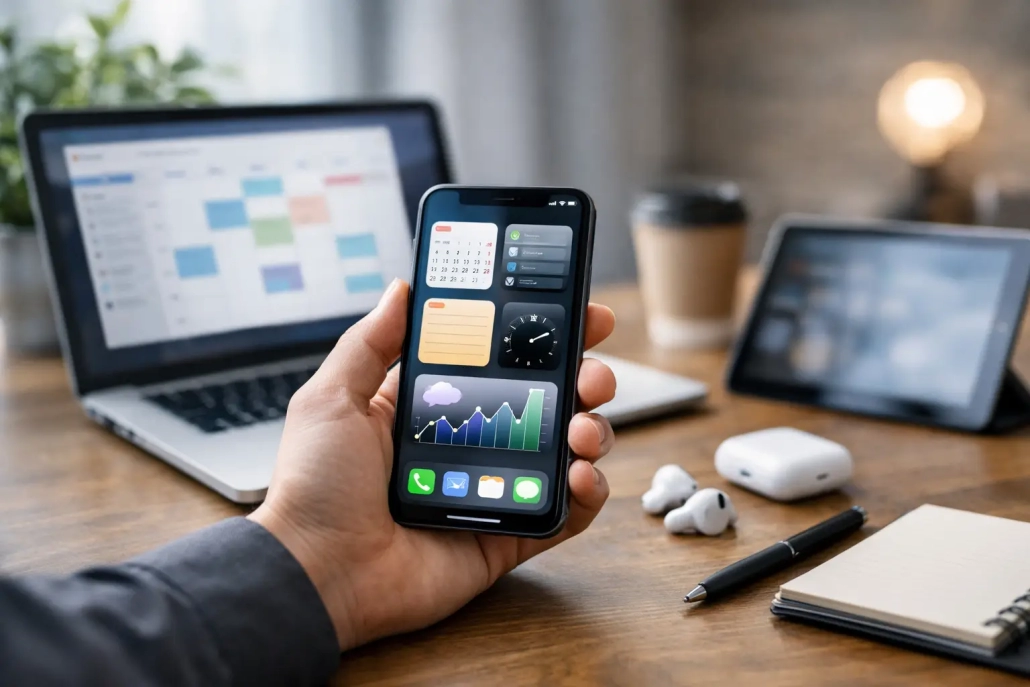
Take a few minutes to customize Home Screen pages for each Focus. During work hours, you may want Calendar, Reminders, Notes, Mail, and Files in view. At other times, you may prefer a simpler screen with personal apps. This changes what is in front of you without deleting or hiding anything permanently.
Be careful with overly restrictive settings. If you miss urgent calls or cannot access an app you need, you may stop using Focus altogether. Begin with one Focus mode, test it for a week, and adjust the allowed people and apps based on what actually interrupts you.
Organize Your Day Without Switching Devices
Calendar makes time visible
A task list tells you what needs attention. Calendar shows when you realistically have time to do it. Use both together. When a task requires a focused block of time, add it to your calendar instead of assuming an open afternoon will take care of it.
Create separate calendars for work, personal commitments, and family events if that makes your schedule easier to read. You can show or hide calendars when you need a less crowded view. Add travel time to appointments when appropriate, and use alerts that give you enough time to prepare rather than simply notifying you at the event start time.
If you use a Mac or iPad, iCloud keeps calendars current across devices. The benefit is not just synchronization. It means you can add an appointment from the device closest to you and trust that it will be available everywhere else.
Mail tools help you act on messages deliberately
Email becomes distracting when every new message demands an immediate decision. Mail includes simple tools that let you handle messages on your terms. Use Remind Me to bring an email back at a time when you can respond properly. Use Follow Up when you are waiting for a reply or need to revisit a conversation.
You can also use Mail’s search tools to locate a message by sender, subject, attachment, or a word in the message. For recurring messages such as newsletters or automated notices, consider notifications carefully. A message can be useful without deserving an interruption.
For users who receive a high volume of email, the goal is not necessarily Inbox Zero. A better goal is an inbox where the remaining messages have a clear reason to be there: they need action, they are waiting on someone else, or they require reference soon.
Files keeps documents available when you need them
The Files app provides one place to manage documents stored in iCloud Drive and other supported storage services. Create a folder structure that reflects how you look for documents, not how you think you should organize them. A straightforward arrangement such as Work, Personal, Financial, and Projects is usually enough.
Use tags for documents that cross categories. A tax document may belong in Financial but also carry a tax tag. The Recents view is valuable for files you have recently edited, while Favorites can keep essential folders close at hand.
If you work between an iPhone, iPad, and Mac, save active documents in iCloud Drive rather than leaving them only in an app’s local storage. This does require a dependable internet connection for the smoothest experience, and it is wise to understand where an important file is stored before you need it urgently.
Capture Information Before It Disappears
Quick Note and screenshots preserve context
Ideas rarely arrive when you are sitting at a desk with a perfect system open. Use Quick Note to capture a thought while working in another app, then return to it later. The feature is most useful when you make a habit of reviewing those notes, perhaps at the end of the day or during weekly planning.
Screenshots are also more productive when treated as temporary reference material rather than permanent clutter. After taking one, tap the preview to crop it, mark it up, share it, or save it to Notes. If it no longer serves a purpose, delete it immediately. Your Photos library should not become an accidental task manager.
Live Text saves retyping
Live Text can recognize text in photos and through the camera. Point your iPhone at a printed phone number, address, email address, or meeting detail, then copy it, call it, create a contact, or add it to a note. It is a small feature with a real payoff when you are dealing with forms, signs, business cards, or paperwork.
Always review important information before relying on it. Text recognition is very good, but a blurred image, unusual font, or handwritten note can produce an error. For addresses, account numbers, and medical or financial details, a quick check is worth the extra few seconds.
Let Shortcuts Handle Repeated Actions
Shortcuts is most valuable when it removes a repetitive sequence you already perform. You do not need to build an elaborate automation to benefit from it. Start with one routine that has several taps, such as creating a daily journal entry, opening your morning news and calendar, sending an arrival message, or logging a work expense.
A shortcut can be launched from the Shortcuts app, a Home Screen icon, a widget, Siri, or the Action button on compatible iPhone models. Automations can also run when you arrive somewhere, connect to a charger, open an app, or reach a certain time of day.
Begin simply and test each shortcut before making it part of your routine. Automation is helpful only when it is predictable. A shortcut that sends the wrong message or runs at the wrong time creates more work than it saves.
The most useful iPhone setup is the one you will continue using after the first week. Choose one area that causes daily friction, set up one feature to address it, and practice it until it feels automatic. Clear, repeatable habits are where an iPhone becomes more than a phone – it becomes a dependable part of how you get things done.


