Mac, iPhone & iPad tips · iPhone & iPad
iPhone Shortcuts Automation Examples That Save Time
Try practical iPhone Shortcuts automation examples for work, home, travel, and focus. Learn how to build reliable routines that save time every day well.

Your iPhone can already send messages, control settings, organize information, and open the apps you use most. With a few well-chosen iPhone Shortcuts automation examples, those separate actions can become a routine that happens with one tap or at the right moment automatically.
The goal is not to automate every part of your day. The most useful shortcuts remove small, repetitive steps that create friction: preparing for a meeting, arriving home, saving a receipt, or getting ready for bed. Start with one routine you perform often, then make it dependable before building another.
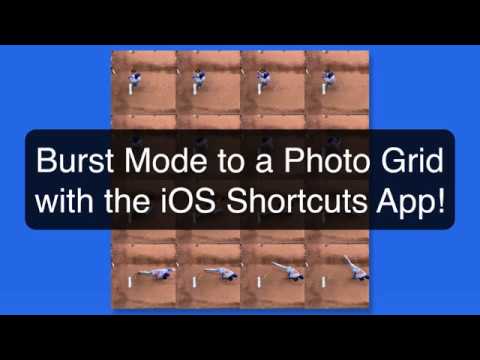
Take iPhone photos by voice with the Say Cheese shortcut

Watch it free, then go deeper: the iOS Core Concepts tutorial has 34 step-by-step lessons. Start your free trial →
Start with a Shortcut, Then Add Automation
In the Shortcuts app, a shortcut is a series of actions that runs when you choose it. You might tap a button, ask Siri, use a Home Screen widget, or run it from the Action button on supported iPhone models. An automation runs a shortcut because of a trigger, such as the time of day, your location, a calendar event, or connecting to a charger.
That distinction matters. A one-tap shortcut is often better when you want control over the timing. An automation is better when the trigger is predictable and the action has little risk. For example, turning on Low Power Mode at 30 percent battery is a sensible automation. Sending a message to a client may be better as a shortcut that asks for confirmation first.
Before creating anything, open Shortcuts and think through the task in plain language. What starts it? What should happen next? What information changes each time? This planning keeps a shortcut simple and makes it easier to troubleshoot later.
iPhone Shortcuts Automation Examples for Everyday Routines
1. Create a meeting-prep shortcut
A meeting shortcut can reduce the scramble that happens just before a call. Build a shortcut that turns on a Focus mode, opens your calendar, opens your preferred video meeting app, and sets your volume to a comfortable level.
If you use Apple Notes for agendas, add an action that opens a specific note or prompts you to choose one from a folder. If every meeting is different, avoid building a shortcut that assumes too much. A short menu with options such as “Team Meeting,” “Client Call,” and “Personal Planning” can be more useful than one complicated routine.
Place this shortcut on your Home Screen or assign it to the Action button. The value comes from using the same preparation sequence every time, not from adding every possible action.
2. Start a focused work session
Focus modes and Shortcuts work particularly well together. Create a shortcut named “Start Work” that turns on your Work Focus, opens Reminders or Notes, and starts a timer for 25, 45, or 60 minutes.
You can also have it set a specific music playlist or ambient sound if that helps you concentrate. Keep in mind that opening an app does not guarantee you will begin the task. The shortcut removes setup steps, but your work plan still matters. Consider ending the shortcut by showing a prompt that asks, “What is the one task you will finish first?”
For a more automatic approach, create a time-based automation that turns on Work Focus at the start of your usual workday. Choose whether it should run immediately or ask before running. For a schedule that changes often, a manual shortcut may be less frustrating.
3. Log water, medications, or personal routines
The Shortcuts app can add data to the Health app, making it useful for routines that benefit from consistent tracking. For example, create a shortcut that logs a glass of water, records a medication, or starts a mindful minute.
The best version is usually very small. A “Log Water” shortcut can ask how many ounces you drank, add that amount to Health, and display a brief confirmation. You can place it in a widget or add it to the Lock Screen for quick access.
Use caution with health-related automations. Logging information automatically may sound convenient, but it can create inaccurate records if you did not actually complete the activity. For personal health data, a shortcut that requires your tap is often the more reliable choice.
4. Make arriving home more useful
A location-based automation can help your iPhone shift into home mode. When you arrive, it could turn off a driving Focus, turn on a personal Focus, adjust the volume, and open a shopping list if you are near a store.
If you use Apple Home, you can include actions for compatible lights, scenes, and accessories. For example, an “Arrive Home” shortcut might turn on an entryway light and set a Home scene. Test location-based triggers over several days before depending on them. Arrival can be less precise in an apartment building, underground parking garage, or neighborhood with weak cellular service.
For that reason, many people prefer a Home Screen shortcut for actions that must happen every time. Automation is helpful, but it should not become a source of uncertainty.
5. Build a travel check-in routine
Travel creates many small tasks: checking the weather, reviewing reservations, sharing your location, and making sure Low Power Mode is available. A travel shortcut can bring those details together.
Create a shortcut that asks for your destination, opens Maps directions, displays the forecast, and starts a packing checklist in Reminders. If you regularly send a family member a quick update, include a prewritten message that asks you to choose the recipient before sending.
For flights, you might make a separate shortcut that opens the airline app, your boarding pass in Wallet, and a note containing hotel information. Keep personal information protected. Avoid placing sensitive confirmation numbers in a shortcut that could be triggered from a visible widget or shared device.
6. Save receipts with less effort
Receipts often disappear before they are entered into an expense report or saved for a return. A simple receipt shortcut can prompt you to take a photo, ask for a category, rename the file with the date, and save it to a dedicated folder in Files.
You can make the process more organized by asking for the store name and adding it to the filename. For example, “2026-08-31 Grocery Store $42.18” is much easier to find than a generic image name.
If the shortcut becomes too detailed, you may stop using it. Begin with taking the photo and saving it to one reliable location. Add categories or tags only after the basic habit is working.
7. Create a bedtime routine that protects your attention
A bedtime automation is one of the most practical places to begin. At a set time, your iPhone can turn on Sleep Focus, lower the screen brightness, and start a calming playlist or white noise. You can also have it open a journaling note or a reminder to charge your Apple Watch.
Think carefully before making the routine fully automatic. If you sometimes stay up later, an automation that changes settings without warning can be inconvenient. A useful compromise is to have the automation run Sleep Focus automatically but show a notification before opening media or starting a timer.
How to Build Shortcuts You Will Keep Using
The strongest shortcuts are easy to understand six months after you make them. Give each one a plain, action-based name such as “Start Work,” “Save Receipt,” or “Call Home.” Avoid names that only make sense while you are building it.
Test every shortcut in the same conditions where you expect to use it. If it depends on Wi-Fi, location, a particular app, or a permission, test that part deliberately. When something fails, review each action one at a time rather than rebuilding the entire shortcut.
It also helps to leave room for confirmation when a shortcut sends a message, changes a calendar, shares a file, or controls something in your home. Automation should save time without taking away your confidence in what your iPhone is doing.
Shortcuts become far more valuable when they reflect your real routines instead of someone else’s idea of productivity. Choose one small task you repeat this week, build the simplest version, and use it until it feels natural. That is how your iPhone gradually becomes easier to use, not more complicated.
Keep watching
More free video lessons on this topic

All Access membership
Watch every iOS Core Concepts lesson, plus every other tutorial
Every plan starts with a free trial. Cancel any time during the trial and you won't be charged.
Monthly
Auto recurring5-day free trial
- Every Mac, iPhone & iPad tutorial
- New tutorials as they're released
- Watch on any device
- No ads
- Email support
Yearly
Auto recurring7-day free trial · just $2.50 a month
- Every Mac, iPhone & iPad tutorial
- New tutorials as they're released
- Watch on any device
- No ads
- Email support
Lifetime
Single payment7-day free trial · pay once, keep it for good
- Everything in Yearly
- Every future macOS & iOS update tutorial
- Never pay again
Secure checkout. Log in on any Mac, iPhone or iPad with the same account.