Mac, iPhone & iPad tips · Mac
Mail App Organization on Mac: A Practical System
Improve mail app organization mac users can maintain with smart mailboxes, rules, flags, and a simple daily routine that keeps messages easy to find later.

An overflowing inbox is rarely caused by receiving too much email. More often, it happens because every message is treated the same way: it stays in the Inbox until you have time to decide what it means. Mail app organization Mac users can maintain starts with a simpler goal. Your Inbox should show what still needs attention, while Mail handles the storage and sorting work in the background.
The built-in Mail app gives you the tools to create that system without turning email into a complicated project. A few well-chosen mailboxes, Smart Mailboxes, rules, and flags can make messages easier to act on, retrieve, and ignore when they do not matter.
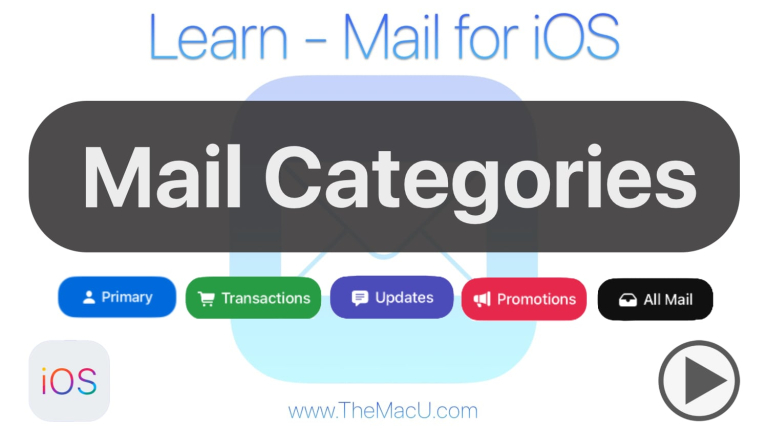
How to use Mail Categories on iPhone & iPad
Watch it free, then go deeper: the Mail for Mac tutorial has 12 step-by-step lessons. Start your free trial →
Start With a Clear Job for Your Inbox
Before creating folders or rules, decide what belongs in your Inbox. A useful standard is this: messages remain in the Inbox only while they need a decision, a reply, or an action from you.
Once you have read an email, choose its next home. If it requires follow-up, flag it or move it to an action mailbox. If it is reference material, archive it or move it to a relevant folder. If it has no future value, delete it. This approach prevents the Inbox from becoming a permanent storage area where urgent requests sit beside old receipts and marketing messages.
You do not need to empty the Inbox constantly. A realistic goal is to leave it with messages that are genuinely active. Even if that means 15 messages rather than zero, you can see what needs your attention without searching through hundreds of older emails.
Create a Small Mailbox Structure
Mailboxes are useful when they answer a clear question: where would I look for this later? The mistake is creating a long list of folders for every person, company, or small category. That system takes too much maintenance, and searching can often find a specific sender or subject faster.
Instead, begin with a few broad mailboxes that reflect the areas of your life or work. You might use one for personal records, one for financial information, one for travel, and one for work or volunteer activity. If you manage several projects, a separate mailbox for each active project can also be helpful.
In Mail on your Mac, select Mailbox from the menu bar and choose New Mailbox. Give it a name that makes sense at a glance. When prompted, choose where to create it. For most people, creating the mailbox within an email account is the best choice because it can sync across other devices that use the same account.
This is especially helpful if you read email on an iPhone or iPad as well as your Mac. A mailbox created under iCloud, Gmail, or another provider can usually appear everywhere that account is configured. A mailbox created only On My Mac stays on that Mac. Local mailboxes are appropriate for information you deliberately want to keep on one computer, but they are not ideal for messages you need when away from your desk.
Use Smart Mailboxes for Mail App Organization on Mac
A Smart Mailbox does not move or duplicate messages. It creates a saved view based on conditions you choose. This makes it one of the most useful organization tools in Mail because one message can appear in several useful views without being filed in several locations.
For example, you can create a Smart Mailbox that shows all flagged messages, unread messages from a particular account, or emails received in the past 30 days that contain attachments. The original messages remain in their existing mailboxes, but the Smart Mailbox gives you a focused place to review them.
To create one, choose Mailbox > New Smart Mailbox. Then set the conditions. If you want a simple follow-up view, choose a condition for messages that are flagged. Name it something direct, such as “Follow Up.” Each time you flag a message, it will appear there automatically.
Smart Mailboxes work best when they support a habit you already have. A Smart Mailbox for unread newsletters will not help if you never intend to read newsletters. A Smart Mailbox for flagged follow-ups, messages with attachments, or receipts from the current month can save real time because it gathers information you will actually use.
Let Rules Sort Repetitive Messages
Rules automate routine decisions. They are most valuable for email you receive repeatedly and do not need to review immediately, such as statements, confirmations, newsletters, or messages from a shared group.
Open Mail settings, select Rules, and choose Add Rule. You can tell Mail what to look for, such as a sender, subject line, or words in the message. Then choose what should happen. A rule can move the message to a mailbox, mark it as read, add a color, or flag it.
Use automation with care. If a rule moves an important message before you see it, it can create more frustration than it saves. Start with low-risk senders: a store that sends shipping confirmations, a monthly statement, or a newsletter you read only when you have time. After you are confident the rule behaves as expected, you can expand it.
A practical setup might include rules for these recurring types of email:
- Receipts and order confirmations moved to a Purchases or Records mailbox
- Travel confirmations moved to a Travel mailbox
- Newsletters moved to a Read Later mailbox
- Automated reports moved to a dedicated work or project mailbox
Rules in Mail on Mac generally run when new messages arrive on that Mac. If you need sorting to occur consistently across all devices, check whether your email provider offers server-side filters as well. The right choice depends on where you read email most often and how quickly you need messages sorted.
Separate Actions From Reference Material
Flags are not folders. They are a quick way to mark a message that needs attention, regardless of where the message lives. This makes flags ideal for temporary priorities.
Use one flag color for messages that require a reply and another for items that need an action outside of email, such as paying a bill, scheduling an appointment, or reviewing a document. Mail can display Flagged mailboxes in the sidebar, allowing you to review each color as a separate group.
Avoid using every available color simply because they are there. A small, consistent flag system is easier to remember. If red means urgent today, it should always mean urgent today. If blue means waiting for someone else, keep that meaning consistent.
For people whose messages should always stand out, consider adding them as VIPs. Mail collects messages from VIPs in a dedicated VIP mailbox, and you can customize notifications for them. This is useful for a manager, family member, client, or caregiver. It is less useful if you add too many people. The point is to reduce noise, not create another crowded list.
Archive Confidently and Search When You Need It
Many people keep old messages in the Inbox because they worry they will need them later. Archiving solves that problem. An archived message remains in the account and can be found through search, but it no longer occupies your active workspace.
Before relying on Archive, test it with a nonessential message. Archive it, then use Mail’s search field to find it by sender, subject, or a distinctive word in the message. Once you see that the message is still available, it becomes much easier to clear old email from the Inbox.
Mail search can also reduce the need for an elaborate folder structure. Search for a person, company, date, attachment, or phrase. If you regularly need to locate a category of messages, that is a good candidate for a Smart Mailbox. If you only need it occasionally, search may be all you need.
Build a Short Daily Email Routine
Organization lasts only when it fits into your day. Set aside a brief time to process new messages rather than attempting to organize every email the moment it arrives. For each message, make one choice: reply, flag, file, archive, delete, or leave it in the Inbox because it is still active.
Then review your flagged messages at a predictable time. A Follow Up Smart Mailbox can become a useful daily checklist, especially if you tend to remember tasks only when you happen to see the original email again.
Once a month, take five minutes to review your rules and mailboxes. Remove folders you no longer use, update rules for outdated subscriptions, and unsubscribe from messages that no longer provide value. The goal is not a perfectly engineered Mail app. It is a system that helps you see the next important message clearly and find the rest without effort.

All Access membership
Watch every Mail for Mac lesson, plus every other tutorial
Every plan starts with a free trial. Cancel any time during the trial and you won't be charged.
Monthly
Auto recurring5-day free trial
- Every Mac, iPhone & iPad tutorial
- New tutorials as they're released
- Watch on any device
- No ads
- Email support
Yearly
Auto recurring7-day free trial · just $2.50 a month
- Every Mac, iPhone & iPad tutorial
- New tutorials as they're released
- Watch on any device
- No ads
- Email support
Lifetime
Single payment7-day free trial · pay once, keep it for good
- Everything in Yearly
- Every future macOS & iOS update tutorial
- Never pay again
Secure checkout. Log in on any Mac, iPhone or iPad with the same account.