
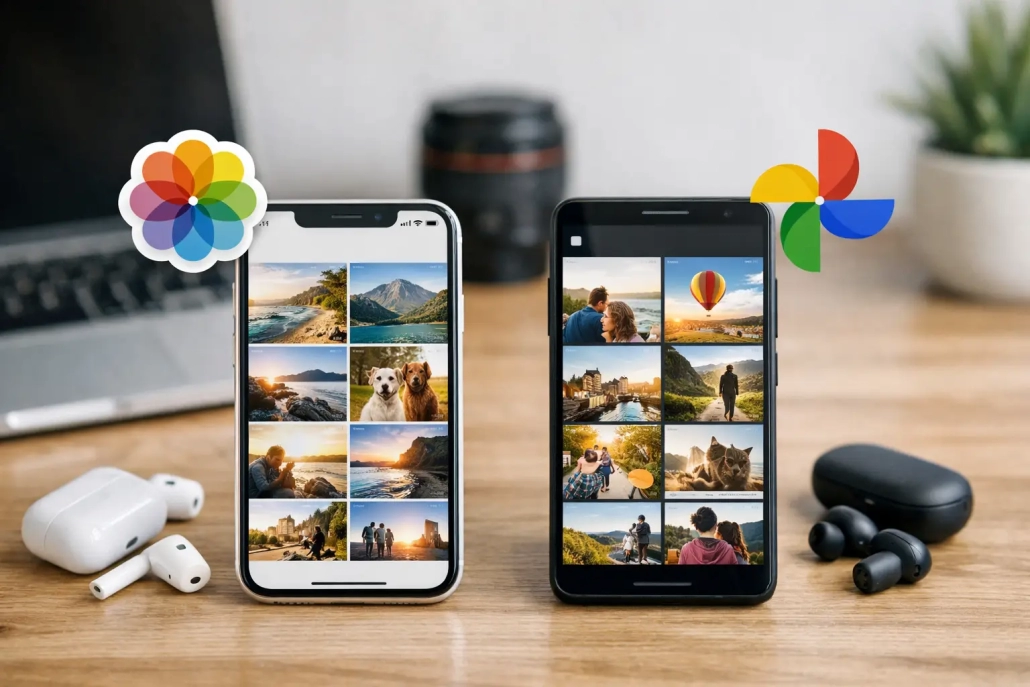
Apple Photos vs Google Photos: Which Fits You?
A photo library is more than a place to keep pictures. It holds family milestones, scanned documents, travel memories, and the screenshots you need later. In the Apple Photos vs Google Photos decision, the best choice is usually the one that makes those items easiest to find, protect, edit, and share from the devices you already use.
For someone who primarily uses an iPhone, iPad, and Mac, Apple Photos often feels like the natural starting point. Google Photos can still be an excellent option, especially when you share with Android users, want a browser-first library, or use Google services every day. The difference is not simply which app has more features. It is about how each service fits into your daily workflow.
Apple Photos vs Google Photos at a Glance
Apple Photos is built into Apple devices and works closely with iCloud. Take a photo on your iPhone and, with iCloud Photos enabled, it appears in Photos on your iPad and Mac. Edits, captions, favorites, albums, and deletions stay in sync across your Apple devices.
Google Photos is a cloud-based photo service that works on iPhone, iPad, Android, Mac, and Windows through its app or a web browser. It is particularly useful when one household uses a mix of Apple and non-Apple devices. Your library is centered on your Google account rather than on one device ecosystem.
Neither approach is automatically better. Apple Photos favors deep integration and a familiar Apple experience. Google Photos favors cross-platform access and flexible sharing with people who may not use Apple products.
Choose Apple Photos When Your Devices Are Mostly Apple
Apple Photos is designed to feel like part of the device, not a separate service you must manage. The Photos app is already on your iPhone, iPad, and Mac, and the controls are consistent across them. That matters when you want a simple, repeatable routine rather than another account and another app to learn.
Your edits and organization follow you
With iCloud Photos turned on, your full library can stay current on every signed-in Apple device. You can crop an image on your iPhone, then continue working with it on your Mac. Create an album on your Mac, and it appears on your iPad. Mark a picture as a favorite once, and it is marked everywhere.
Apple also lets you save space on an iPhone, iPad, or Mac by keeping smaller device-friendly versions locally while storing original files in iCloud. You can still browse your library normally, while full-resolution originals download when needed. This is especially helpful if your photo library is larger than the storage on one device.
The Mac experience is a major advantage
For Mac users, Apple Photos offers a particularly strong workflow. You can review images on a larger screen, sort through a recent vacation, add keywords and captions, create albums, and make more precise edits with a mouse or trackpad. The library is also close at hand when you want to use a photo in Pages, Keynote, Mail, or another Apple app.
The interface is built around the way many people naturally look for pictures: by date, person, place, trip, favorite, album, or search term. It can recognize people, pets, objects, scenes, and text within many images. Search is useful, but it becomes even more useful when you add clear captions and keep albums focused.
Privacy and sharing stay within the Apple ecosystem
Apple Photos is a good fit if you prefer to keep your photo workflow centered on Apple services. Shared Albums make it easy to share selected images with family and friends, and iCloud Shared Photo Library can help a household maintain one combined collection while keeping personal photos separate.
There is a practical limitation: the people you share with will have the smoothest experience when they use Apple devices. You can share individual images in other ways, but ongoing collaboration is generally simpler when everyone is comfortable with Apple’s tools.
Choose Google Photos When Cross-Platform Access Matters
Google Photos becomes compelling when your photos need to travel easily beyond Apple devices. Perhaps your spouse uses Android, you work on a Windows computer, or relatives prefer viewing photos in a browser. In those situations, Google Photos gives everyone a more consistent place to view and contribute to shared collections.
Browser access is straightforward
Apple users can access their iCloud photo library in a browser, but Google Photos has long been organized around a web-first experience. You can sign in from almost any computer and browse, search, download, upload, or organize images without installing a desktop app.
That convenience can be valuable for people who use several computers or who occasionally work away from their own devices. It also reduces the friction of helping a family member find a specific album when they are not using an iPhone, iPad, or Mac.
Sharing is often easier across mixed-device families
Google Photos supports shared albums and other sharing options that work well whether someone uses an iPhone or Android phone. If your priority is getting pictures of grandchildren, holidays, or group events to a wide range of people, that flexibility may outweigh the benefits of Apple’s deeper device integration.
Google Photos also has strong search tools. You can often search your library by a person, location, object, event, or text found in an image. As with any automated recognition feature, results are not perfect. Reviewing labels and using albums for your most important groups still makes your library easier to manage.
Consider the Google account connection
Google Photos storage is tied to your Google account. The included storage is shared with services such as Gmail and Google Drive, so a large mailbox or many files can affect the space available for photos. This is easy to overlook until uploads pause or you receive a storage warning.
If you already pay for additional Google storage and rely on Gmail and Drive, this may be perfectly sensible. If you prefer keeping your Apple backups, files, and photos in one Apple-centered setup, iCloud storage may be easier to understand and maintain.
Compare Storage Before You Commit
Both services offer limited free cloud storage, and both may require a paid plan as your library grows. Apple’s free iCloud storage is shared with device backups, files, messages, and photos. Google’s free storage is shared with Gmail, Drive, and Photos. The number that matters is not the free allowance alone. It is how quickly all of your other content uses it.
Before choosing, open your current storage settings and look at what is consuming space. A person with thousands of photos but no device backups may have different needs from someone with a smaller photo library and several iPhones backed up to iCloud.
Also consider whether you want original-quality photos and videos available everywhere. Video, especially high-resolution video, uses storage quickly. Do not wait until a device is full to decide how you will manage it. A clear storage plan prevents rushed deletions and missing memories.
Editing: Familiar Tools or Extra Options?
Apple Photos provides capable built-in editing for everyday work. You can straighten, crop, adjust light and color, apply filters, remove unwanted areas in supported situations, and edit video clips. Its biggest strength is that the tools are easy to reach and the edits are non-destructive, meaning you can revert to the original later.
Google Photos also offers editing tools, suggestions, and automated enhancements. Some advanced features can depend on your device, location, or subscription level, so it is wise to check what is available to you before making a decision based on one advertised tool.
For most people, the question is not which service has the most editing controls. It is whether you will actually use the controls. Apple Photos is usually easier for an Apple-focused household that wants quick corrections directly in the Photos app. Google Photos may be more appealing if you already manage and share your images through Google.
Avoid Running Two Full Libraries Unless You Have a Reason
It is possible to use Apple Photos and Google Photos together. For example, you might keep iCloud Photos as your main personal library while using Google Photos to share selected pictures with a mixed-device family. That can work well when you set clear expectations.
What creates confusion is allowing both services to become separate, automatic archives without a plan. You may end up with duplicate uploads, uncertain deletion behavior, and no clear answer to where your original files live. If you use both, choose one primary library and understand whether deleting a photo in one app affects the copy in the other.
Moving a large library later can take time and may not preserve every album, edit, caption, or organizational detail in the same way. Start with a simple structure: one primary photo service, a reliable backup plan, and albums for the people or events you revisit most often.
A Practical Choice for Apple Users
Choose Apple Photos if your iPhone, iPad, and Mac are the center of your digital life and you want the least complicated path from taking a photo to finding it later. It is especially well suited to people who want their edits, albums, and favorites to appear automatically across Apple devices.
Choose Google Photos if your household uses different platforms, browser access is essential, or sharing broadly matters more than Apple-specific integration. It can be a practical bridge between an iPhone user and the people who do not use Apple devices.
Whichever service you choose, spend a few minutes learning its storage settings, sharing controls, search features, and deletion behavior. A well-organized photo library is not created by the app alone. It comes from a simple system you understand well enough to use with confidence.


