
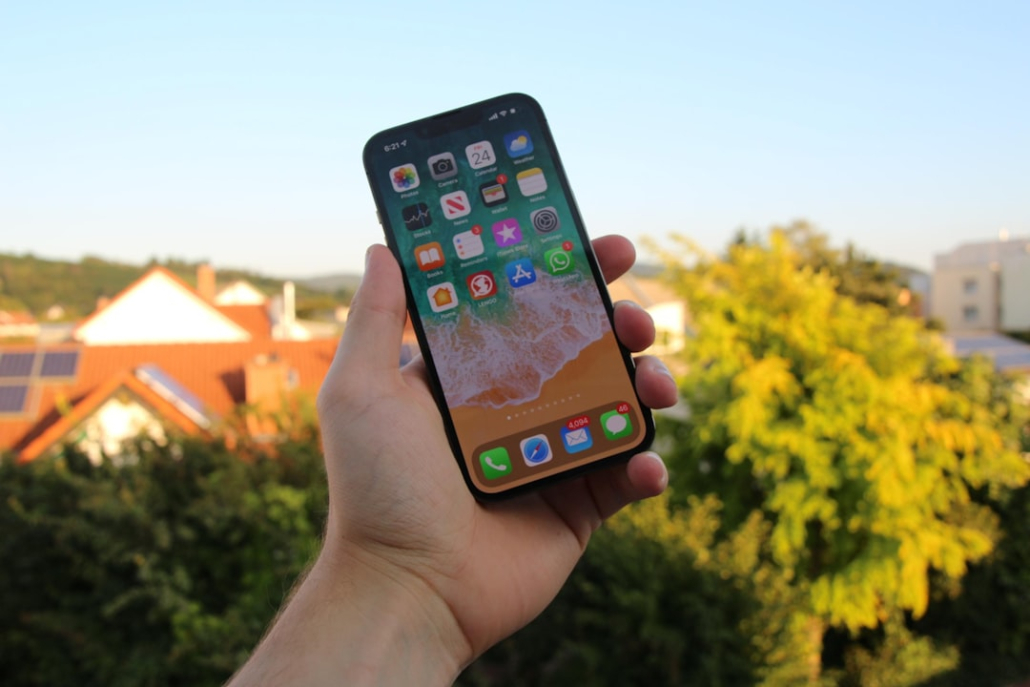
10 Fresh 2026 iPhone Icon Ideas for Your Home Screen
10 Fresh 2026 iPhone Icon Ideas for Your Home Screen
Why So Many People Want to Change Their iPhone Home Screen in 2026
Want to change iPhone home screen looks fast? Here’s a quick overview of what’s possible right now with iOS 26:
| What You Can Change | How to Do It |
|---|---|
| Icon size and labels | Long-press home screen > Edit > Customize > Large icons |
| Icon appearance | Customize menu > Default, Dark, Clear, or Tinted |
| Icon color tint | Tinted mode > use sliders or eyedropper tool |
| App arrangement | Long-press > drag icons to new grid positions |
| Wallpaper (home screen only) | Settings > Wallpaper > Customize home screen |
| Widgets | Long-press > Edit > tap + to add widgets |
| Hide apps or pages | Long-press > jiggle mode > remove or hide pages |
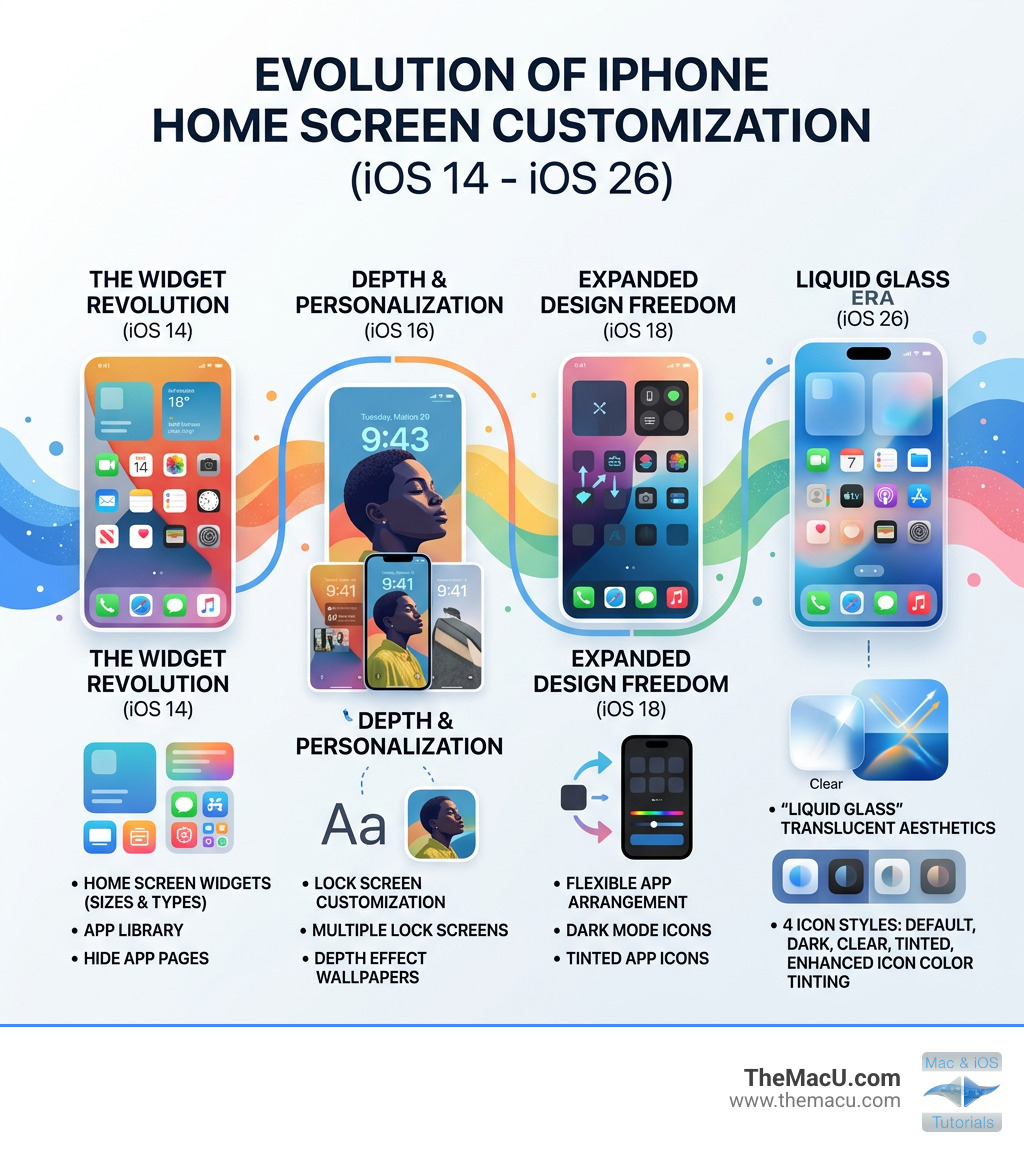
Apple has been steadily expanding what you can do with your home screen over the past few years. With iOS 26, that progress took a big leap forward. You now get four icon appearance styles – Default, Dark, Clear, and Tinted – plus a new visual design language called Liquid Glass that gives icons a translucent, frosted look.
Whether you want a clean, minimal layout or something bold and colorful, the tools are finally flexible enough to make your iPhone look and feel like yours.
I’m Drew Swanson, founder of TheMacU.com, where I’ve spent years helping Apple users at every skill level learn to change iPhone home screen settings and get more out of their devices with confidence. Let’s walk through 10 fresh icon ideas you can actually use right now.
The New Era of iOS 26: Liquid Glass and Translucent Aesthetics
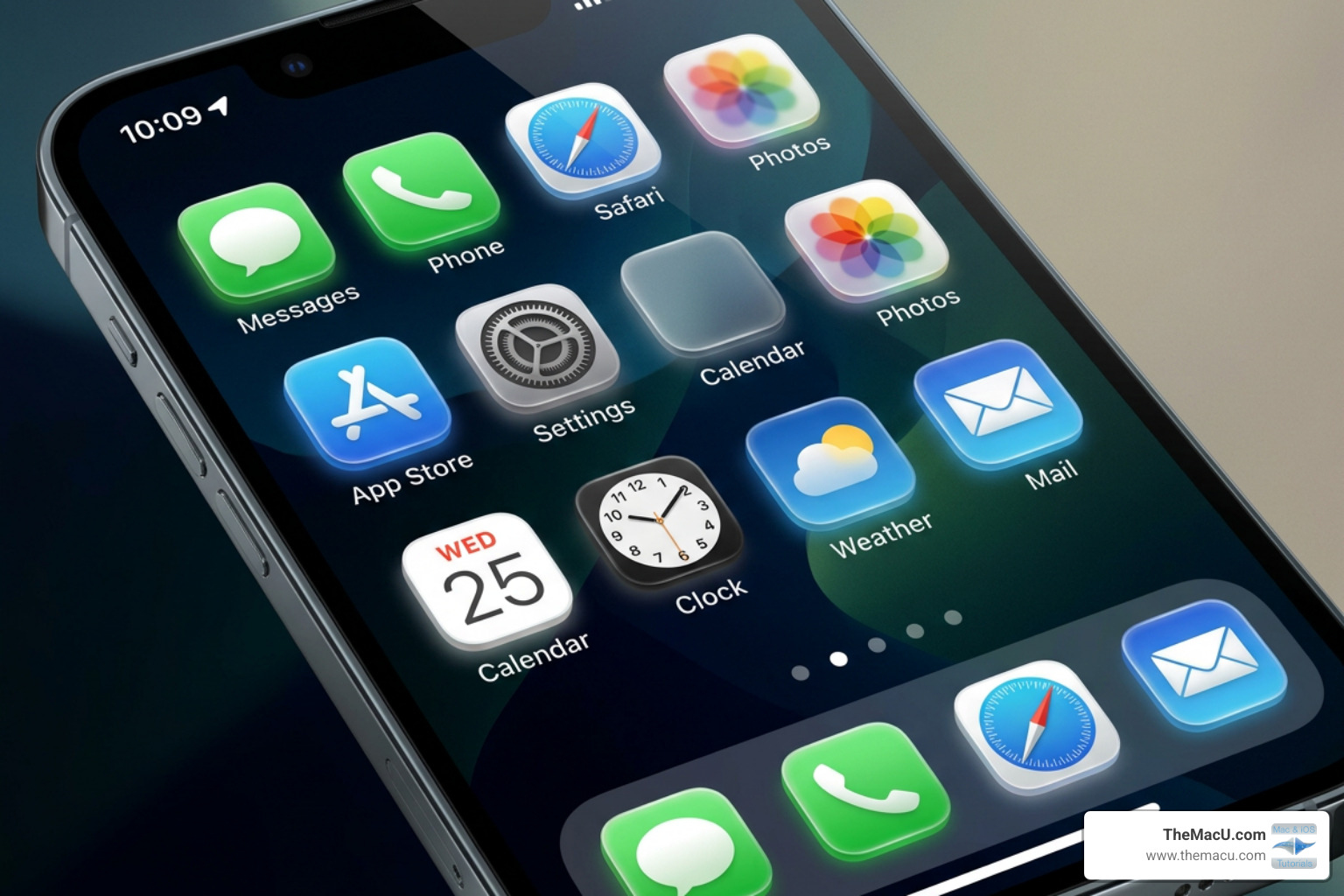
The release of iOS 26 introduced a sophisticated design language known as Liquid Glass. This isn’t just a minor tweak; it’s a fundamental shift in how we perceive the interface. Icons now possess a sense of depth and translucency, allowing the colors and shapes of your wallpaper to subtly bleed through the edges of your apps.
When you decide to change iPhone home screen settings in iOS 26, you are presented with four primary appearance modes:
- Default: The classic, vibrant look we’ve known for years.
- Dark: A sleek, battery-saving mode that applies a dark backdrop to first-party Apple apps and many popular third-party apps like YouTube or Bluesky.
- Clear: This is where the Liquid Glass effect shines. Icons become translucent, creating a “glassmorphism” effect that feels modern and airy.
- Tinted: This mode applies a monochromatic wash over all your icons, which you can customize to match any color in the rainbow.
Apple’s About our ads policies ensure that even as you customize your device, your data remains yours, but the visual “real estate” of your screen is now more flexible than ever. The “Auto” setting is a personal favorite of ours at TheMacU; it allows your icons to transition from Light to Dark mode automatically based on the time of day, reducing eye strain during late-night scrolling.
How to Change iPhone Home Screen Layouts with Large Icons
For years, the biggest complaint about the iPhone was the clutter of app labels. In 2026, we can finally say goodbye to them. By switching to Large Icons, Apple automatically removes the text labels underneath each app. This creates a significantly cleaner, more “gallery-like” appearance.
To access this, follow these steps:
- Touch and hold any empty area on your Home Screen until the apps begin to jiggle.
- Tap the Edit button in the top-left corner.
- Select Customize from the dropdown menu.
- Tap the icon that shows two different-sized squares.
This “Large” setting doesn’t just hide labels; it physically expands the icon size to fill the gap. While this creates a beautiful minimalist look, keep in mind that the underlying 6×4 grid remains. Even with larger icons, you cannot overlap apps or place them outside the fixed grid points. If you are looking for more tips on creating a distraction-free environment, check out our guide on How to Set Up a Clean iPad Desktop in iPadOS 15 and Later, as many of these design principles apply perfectly to the iPhone.
Change iPhone Home Screen Appearance with Tinted Mode
Tinted mode is perhaps the most powerful tool for those who want a truly “aesthetic” home screen. Instead of the “Skittles” look of many different colored icons, Tinted mode forces every app into a single color scheme.
Inside the Customize panel, selecting Tinted reveals a color slider and an eyedropper tool. We highly recommend using the eyedropper! You can tap it and drag the cursor over a specific color in your wallpaper. The system will then perfectly match your app icons to that exact hue.
| Feature | Tinted Mode | Clear Style |
|---|---|---|
| Primary Look | Monochromatic / Uniform | Translucent / Frosted |
| Best For | Color-themed aesthetics | Minimalist / Modern layouts |
| Customization | Full RGB slider + Eyedropper | Light, Dark, or Auto tints |
| Wallpaper Interaction | Overlays color on icons | Lets wallpaper show through icons |
Change iPhone Home Screen Wallpapers Independently
One common frustration is wanting a busy, beautiful photo on the Lock Screen but a simple, clean background on the Home Screen. You can change iPhone home screen wallpapers independently of your Lock Screen to solve this.
When you go to Settings > Wallpaper, you can tap “Customize” on the right-hand preview (the Home Screen). From here, you can choose to blur the background, use a solid color, or select a completely different photo. iOS 26 also supports Spatial Scenes and 3D effects for photos with clear depth data, making your wallpaper feel like it’s living behind your apps. For official troubleshooting on this, you can visit Change your iPhone wallpaper – Apple Support.
10 Aesthetic Icon Ideas for 2026
Ready to transform your device? Here are 10 curated themes to help you change iPhone home screen vibes today:
- Monochrome Slate: Use Tinted mode with a grey-blue hue. Pair it with a minimalist architectural wallpaper for a professional, “quiet luxury” look.
- Neon Glow: Select a pitch-black wallpaper and use the Tinted slider to choose a high-saturation neon green or pink. This looks incredible on OLED screens.
- Pastel Dream: Use the eyedropper tool on a sunset photo to turn your icons a soft lavender or peach.
- Glassmorphism (The iOS 26 Special): Set your icons to “Clear” and use a vibrant, abstract wallpaper. The Liquid Glass effect will make your apps look like floating crystals.
- Minimalist Black: Use Dark mode icons on a solid black background. This is the ultimate battery-saver for Pro models.
- Nature Tones: Match your icons to a forest or mountain photo using earthy greens and browns.
- Retro 8-bit: While you can’t change the icon shapes natively, using a pixel-art wallpaper with a bright yellow Tinted overlay gives a classic gaming vibe.
- Metallic Gold: Use the Tinted sliders to find a warm, mustard-gold hue. Pair it with a dark silk wallpaper.
- Cyberpunk: Combine high-contrast “Dark” icons with a wallpaper featuring city lights and deep purples.
- High Contrast: Use “Default” icons but toggle the “Darken Wallpaper” sun icon in the Customize menu to make the colorful apps pop.
Mastering Widgets and Freeform Arrangement
Widgets are the “functional” heart of the home screen. Since the introduction of widget stacks on iPhone, we’ve been able to save space by layering multiple widgets on top of each other.
In 2026, we suggest using Smart Rotate carefully. While it’s great for the system to show you your calendar in the morning, it can ruin a carefully crafted aesthetic if a bright, mismatched widget rotates into view. You can also now arrange apps more freely—leaving empty spaces at the top of the screen to “frame” the faces in your wallpaper photo. This is also great for ergonomics; by placing all your apps at the bottom of the screen, you make them much easier to reach with one hand.
Frequently Asked Questions about Customizing Your iPhone
How do I revert changes or reset my layout?
If you’ve gone a little too far with the customization and want to start over, Apple makes it easy to go back to the basics. Navigate to Settings > General > Transfer or Reset iPhone > Reset > Reset Home Screen Layout.
Warning: This will remove all your custom folders and return your apps to their original, alphabetical order (with Apple’s default apps first). It’s a “nuclear option,” but sometimes a fresh start is exactly what’s needed.
How do I hide apps or remove entire pages?
You don’t have to delete an app to get it off your screen. If you enter jiggle mode, you can tap the “minus” icon and select “Remove from Home Screen.” The app stays in your App Library but disappears from view.
Furthermore, you can hide entire pages of apps. If you want to hide apps or pages, simply tap the dots at the bottom of the screen while in jiggle mode. Deselect the pages you don’t want to see. This is incredibly useful for setting up a “Work” page that you only see during office hours via Focus mode integration.
What are the limitations when I change iPhone home screen settings?
Even with the advancements in iOS 26, there are a few things you still can’t do:
- Grid Snapping: You still can’t place an app exactly anywhere; it must snap to the 6×4 grid.
- Global Settings: Appearance changes (like Tinted or Large) apply to all home screen pages. You can’t have one page be Tinted and another be Default.
- Third-Party Icon Support: While many apps support Dark mode, some smaller third-party apps may still show their original white backgrounds in Dark mode, which can break a “clean” look.
Conclusion
Personalizing your device is no longer just about choosing a photo of your dog; it’s about creating a digital environment that reflects your style and improves your workflow. From the translucent beauty of Liquid Glass to the monochromatic simplicity of Tinted mode, the options to change iPhone home screen layouts are more powerful than they have ever been.
At TheMacU.com, we believe that technology should work for you, not the other way around. If you want to dive deeper into these features or master other parts of your Apple ecosystem, Explore our full library of iOS and macOS video tutorials. We provide the hands-on guidance you need to become a true iPhone expert. Happy customizing!


 TheMacU.com 2025

