
How to Use iPhone Better Every Day
If your iPhone feels more distracting than helpful, the problem usually is not the device. It is the default setup, the pile of unused features, and a handful of habits that make simple tasks take longer than they should. If you want to know how to use iPhone better, start by treating it less like a box of apps and more like a tool you can tune for the way you actually live and work.
Most people do not need more apps, more tips, or more clever tricks. They need a cleaner setup, a few smarter settings, and a better understanding of the built-in features already on the phone. That is where the biggest gains usually come from.
How to use iPhone better starts with your setup
A better iPhone experience begins on the Home Screen. If every page is crowded, notifications are constant, and widgets are showing information you never use, the phone creates friction all day long. A useful first step is to remove apps you rarely open from the Home Screen without deleting them entirely. The App Library keeps them available, but your main pages become much easier to navigate.
It also helps to group your most-used apps around real tasks instead of categories. For example, you might keep Messages, Phone, Mail, and Calendar together because they support communication. Photos, Camera, and Files might belong in another area because they support capturing and organizing information. This sounds simple, but thoughtful placement reduces the small delays that add up over time.
Widgets can help, but only when they earn their space. A Calendar widget, Weather widget, or Batteries widget often adds value because it answers a question at a glance. A widget that you rarely look at just adds visual noise. The trade-off is straightforward – more information on screen can mean fewer taps, but it can also make the phone feel busier than necessary.
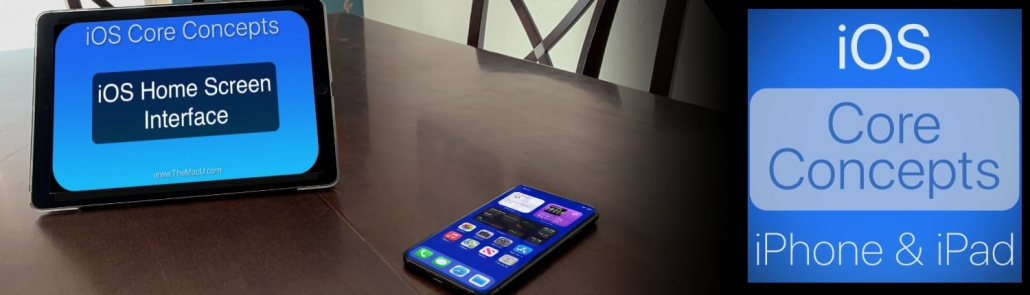
Get the most out of your iPhone or iPad with our Core Concepts video tutorial! Over 30 lessons!
Fix the settings that quietly slow you down
Many users never revisit their settings after initial setup. That leaves the iPhone working in a generic way instead of a personalized one.
Start with notifications. Open Settings and review which apps are allowed to interrupt you. News alerts, shopping apps, games, and many social apps tend to overreach. For most people, reducing notifications does more to improve daily iPhone use than any hidden feature ever will. Let the iPhone alert you to what matters, not everything that wants your attention.
Next, review Focus modes. Even a basic Personal and Work setup can make the phone feel more controlled. You can allow only certain people or apps during specific times, which is especially useful if you want to stay reachable without being constantly interrupted. The setup takes a few minutes, but the payoff is ongoing.
Then look at display and battery settings. Auto-Brightness, Dark Mode scheduling, and Low Power Mode all have their place. If battery life is a recurring frustration, check Battery settings to see which apps are using the most power. Sometimes the issue is not the battery itself. It is an app refreshing too often, tracking location unnecessarily, or running heavily in the background.
Use Apple apps more intentionally
One of the easiest ways to use iPhone better is to stop scattering important information across too many apps. Apple’s built-in apps are not perfect for every user, but they are often better integrated than people realize.
Notes is a good example. Many users treat it as a place for random scraps of text, but it can be much more organized. You can create folders, pin important notes, add checklists, scan documents, and use tags to find related material later. If you keep lists, reference information, travel details, or quick project notes, Notes can replace a surprising amount of app clutter.
Reminders has also become much more capable. Instead of keeping tasks in your head or spread across texts and sticky notes, you can create lists, set due dates, add locations, and build grocery or errand workflows that actually stay current. For everyday users, that is often enough task management without needing a separate system.
Calendar and Mail also work better when you simplify your approach. If your calendar is overloaded with too many colors and calendars you do not need to see, it becomes harder to read. If your Mail inbox is chaotic, use VIP settings, mailboxes, and simple filtering before assuming you need a new email app. Built-in tools usually perform best when they are configured with restraint.
Learn the gestures and shortcuts that save real time
A better iPhone user is often just someone who knows where the small efficiencies are.
Typing is one of the biggest areas for improvement. Text replacement can save time on email addresses, common replies, and frequently typed phrases. Dictation is also much better than many people expect, especially for short messages and quick notes. If you type everything manually, you may be spending more effort than necessary.
There are also simple editing gestures worth learning. You can tap and hold the space bar to move the cursor more precisely. In many apps, a long press reveals useful options that are not obvious at first glance. The share sheet is another underused area. Once you get comfortable with it, you can move photos, files, links, and documents between apps much faster.
Siri is another feature that depends on expectations. It may not be the best tool for every request, but it is very effective for hands-free basics like setting timers, creating reminders, placing calls, or starting a workout. Used selectively, it removes friction. Used for everything, it can feel inconsistent.
Organize photos and files before they become a mess
People often wait until storage is full or they cannot find anything before addressing organization. By that point, the task feels bigger than it is.
In Photos, use Favorites, albums, and search more actively. The search tools are stronger than many users realize. You can find people, places, objects, and dates without scrolling endlessly. If your photo library feels unmanageable, the answer is usually not deleting everything. It is creating a lighter structure so the important items are easier to retrieve.
Files deserves attention too, especially if you move documents between iPhone, iPad, and Mac. Saving items consistently to iCloud Drive folders makes them easier to locate across devices. This is one of the quiet strengths of the Apple ecosystem. When you organize once and the structure carries across devices, your workflow gets simpler.
There is a trade-off here. Some people prefer the flexibility of third-party storage services, and in some workplaces that may be required. But for personal use, keeping more of your content inside Apple’s built-in system often reduces complexity.
Get the most out of your iPhone or iPad with our Core Concepts video tutorial! Over 30 lessons!
Privacy and security are part of using iPhone better
A well-used iPhone is not just faster or more convenient. It is also more secure.
Face ID should be set up carefully, and your passcode should not be easy to guess. Beyond that, review app permissions with intention. Many apps request access to photos, contacts, microphone, location, or Bluetooth even when that access is not central to their function. You do not have to accept every request just because it appears.
Check Privacy & Security settings periodically. Look at which apps can access Location Services, Photos, and Contacts. If an app only needs your location while you are actively using it, choose that option instead of allowing constant access. Small adjustments like this improve both privacy and battery life.
You should also make sure iCloud backup is working properly. A phone becomes much less stressful when you know your data can be restored. This is especially important before iOS updates, device upgrades, or travel.
Build a better routine, not just a better phone
The most practical answer to how to use iPhone better is to create a few repeatable habits. Spend ten minutes once a month reviewing notifications, deleting unused apps, and checking storage. Use Notes or Reminders consistently instead of switching systems every few weeks. Organize new photos and files a little at a time rather than waiting for a cleanup project.
It also helps to learn in sequence. Random tips can be useful, but they rarely create lasting confidence. A structured approach works better because each skill supports the next one. That is why guided Apple-specific instruction tends to reduce frustration so effectively. When you understand not just what to tap, but why a feature fits into your workflow, the device starts to feel much easier to manage.
Your iPhone does not need to be used at an expert level to be used well. It just needs to be set up with intention, maintained with a little consistency, and understood well enough that the built-in tools work for you instead of against you. A few smart adjustments can change the way the phone feels every time you pick it up, and that is usually where the real value shows up.


