Mac, iPhone & iPad tips · Mac, iPhone & iPad
Apple Intelligence Features Guide
This apple intelligence features guide explains what Apple Intelligence does, which tools matter most, and how to use them with confidence.
If you have seen Apple Intelligence appear in settings, on Apple’s website, or in recent device announcements, the obvious question is not what it is called. It is what it actually helps you do. This apple intelligence features guide is built around that practical question so you can quickly understand which features are useful, which devices support them, and where they fit into everyday work on a Mac, iPhone, or iPad.
Apple Intelligence is Apple’s personal intelligence system. In plain terms, it brings writing tools, image creation, notification summaries, a more capable Siri experience, and context-aware assistance into the apps and tasks many people already use. The promise is simple: less manual cleanup, less repetitive typing, and less time spent hunting for information across your devices.
That sounds appealing, but the real value depends on how you use your Apple devices now. If you mostly email, message, organize notes, and manage photos, some features can save time right away. If you rarely use built-in apps or you keep AI features turned off by default, your experience may be much more limited. Apple Intelligence is helpful, but it is not magic, and it works best when you understand where to expect support.
Apple Intelligence Writing Tools: summarize, key points & rewrite
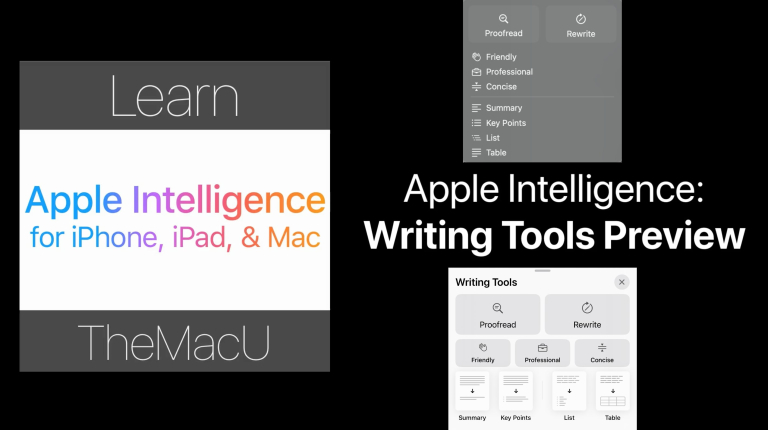
Watch it free, then go deeper: the Apple Intelligence tutorial has 13 step-by-step lessons. Start your free trial →
What Apple Intelligence actually includes
The easiest way to think about Apple Intelligence is as a collection of tools rather than one single feature. Some tools help you write or rewrite text. Some help you create or edit images. Others help Siri understand requests more naturally and work with what is on your screen. Apple also uses it to summarize certain kinds of information, such as notifications, emails, or recorded audio in supported situations.
The writing tools are among the most immediately useful. In supported apps, you can proofread text, change its tone, summarize it, or rewrite it. For someone who sends emails from an iPhone or edits notes on a Mac, this can remove a lot of small friction. You still need to review the output, especially for anything sensitive or professional, but it can give you a cleaner first draft much faster.
Image features are another major part of the experience. Depending on your device and software version, Apple Intelligence can help generate images, create playful visual content, and improve how you interact with photos. These features tend to be more situational than the writing tools. They are useful for quick creative tasks, but not everyone will rely on them every day.
Siri is also part of the story. Apple Intelligence is meant to make Siri more natural, more aware of your requests, and better at helping with tasks across apps and settings. This matters because many people have tried Siri before, found it inconsistent, and stopped using it. The newer direction is more conversational and more useful for device help, but expectations should stay realistic. Some requests will feel much better than before, while others may still require manual steps.
Apple intelligence features guide for daily use
For most people, the best way to approach Apple Intelligence is to start with the features tied to common tasks. That means writing, organizing, communicating, and finding information.
Writing Tools
If you write emails, notes, reminders, or messages, start here first. Writing Tools can proofread for errors, rewrite text for clarity, and adjust tone depending on what you are trying to say. This is especially helpful when a message feels too long, too abrupt, or simply unfinished.
A good example is email. You might draft a quick response on your iPhone, then use Writing Tools to make it more concise before sending. On a Mac, you might paste a rough paragraph into Notes and ask for a cleaner version. The time savings come from reducing the editing work, not from handing over the entire task.
The trade-off is accuracy and voice. AI-generated revisions can smooth out wording, but they can also make your writing sound less personal or less precise. For casual communication, that may be fine. For work, legal, financial, or medical topics, careful review is still necessary.
Notification and content summaries
One of the more practical uses of Apple Intelligence is summarization. If you receive long email threads, stacked notifications, or dense note content, summaries can help you scan faster and decide what deserves attention first.
This can be useful on busy days when you are sorting through multiple apps. Instead of reading every item in full, you can get a quicker sense of what matters. That said, summaries are a convenience feature, not a substitute for reading details. If timing, numbers, or context matter, always open the original content.
Siri improvements
Siri’s improvements matter most for people who want less friction using Apple devices. You may be able to speak more naturally, correct yourself mid-request, and ask questions about how to do something on your device. That last part is especially helpful for users who know what they want to accomplish but do not remember where the setting lives.
For example, instead of tapping through menus to find a setting, you may be able to ask Siri directly. This does not replace learning your device, but it can lower the barrier when you are stuck. It is a practical support layer, especially on iPhone and iPad where small screens make searching through settings slower.
Image-related tools
Image creation and editing features will appeal most to users who enjoy visual communication, custom graphics, or playful personal projects. Some people will use these often in Messages, notes, or creative planning. Others may try them once and move on.
That does not make them unimportant. It simply means they are more preference-based than task-based. If your priority is productivity, writing tools and summaries may matter more. If you like making invitations, visual concepts, or quick graphics, image tools may feel more valuable.
Device support and setup matter more than most people expect
A common point of confusion is that Apple Intelligence is not available on every Apple device. Support depends on specific hardware and software requirements. That means two people with iPhones running recent software may still have different access if their devices use different chips.
This matters because many users assume a software update alone will activate every feature. In practice, you need compatible devices, the correct operating system version, and the right settings enabled. You may also need to join a waitlist or confirm language and regional settings depending on the rollout stage.
If Apple Intelligence does not appear on your device, that is usually a compatibility issue or a setup issue, not something you did wrong. Before troubleshooting individual features, confirm device support first. That one step can save a lot of frustration.
Where Apple Intelligence helps most – and where it does not
Apple Intelligence is strongest when it removes repetitive effort. Cleaning up writing, shortening content, surfacing useful information, and helping with on-device tasks are all good fits. These are small but frequent moments, and that is where the time savings add up.
It is less compelling when you expect it to think for you. It will not replace your judgment, and it should not be trusted blindly for facts, tone, or context. If you need polished communication, accurate scheduling, or nuanced decision-making, treat its output as a starting point.
Privacy is another reason many Apple users are paying attention. Apple has emphasized private processing and a more guarded approach to personal data than many competing AI tools. For some users, that alone makes these features more appealing. Even so, it is still wise to be thoughtful about what you share in prompts or generated content.
How to start using Apple Intelligence without feeling overwhelmed
The best approach is not to try every feature at once. Start with one task you already do often. If you send emails daily, test Writing Tools there. If you miss alerts, pay attention to notification summaries. If you often forget where settings are, begin using Siri for device-related help.
This step-by-step approach matches how people actually learn Apple devices. You do not need a full theory of Apple Intelligence before it becomes useful. You need one clear use case, a little repetition, and enough confidence to build from there.
That is also where structured instruction can make a real difference. Watching a feature demonstrated in a logical sequence is often much faster than trying to piece it together through trial and error. For Apple users who want guided, repeatable learning, that kind of teaching removes much of the uncertainty.
A practical way to think about the future
Apple Intelligence is not one feature you turn on and master in a day. It is a new layer across the Apple experience, and its value grows as Apple expands what it can do. Some features already feel useful now, especially around writing and summarizing. Others are more promising than essential at the moment.
The smartest way to use it is to stay practical. Focus on the parts that save you time, ignore the parts that do not fit your workflow, and give yourself permission to learn it gradually. The goal is not to use every new feature. The goal is to make your Mac, iPhone, and iPad feel easier to use and more helpful for the work you already do every day.
Keep watching
More free video lessons on this topic


All Access membership
Watch every Apple Intelligence lesson, plus every other tutorial
Every plan starts with a free trial. Cancel any time during the trial and you won't be charged.
Monthly
Auto recurring5-day free trial
- Every Mac, iPhone & iPad tutorial
- New tutorials as they're released
- Watch on any device
- No ads
- Email support
Yearly
Auto recurring7-day free trial · just $2.50 a month
- Every Mac, iPhone & iPad tutorial
- New tutorials as they're released
- Watch on any device
- No ads
- Email support
Lifetime
Single payment7-day free trial · pay once, keep it for good
- Everything in Yearly
- Every future macOS & iOS update tutorial
- Never pay again
Secure checkout. Log in on any Mac, iPhone or iPad with the same account.