
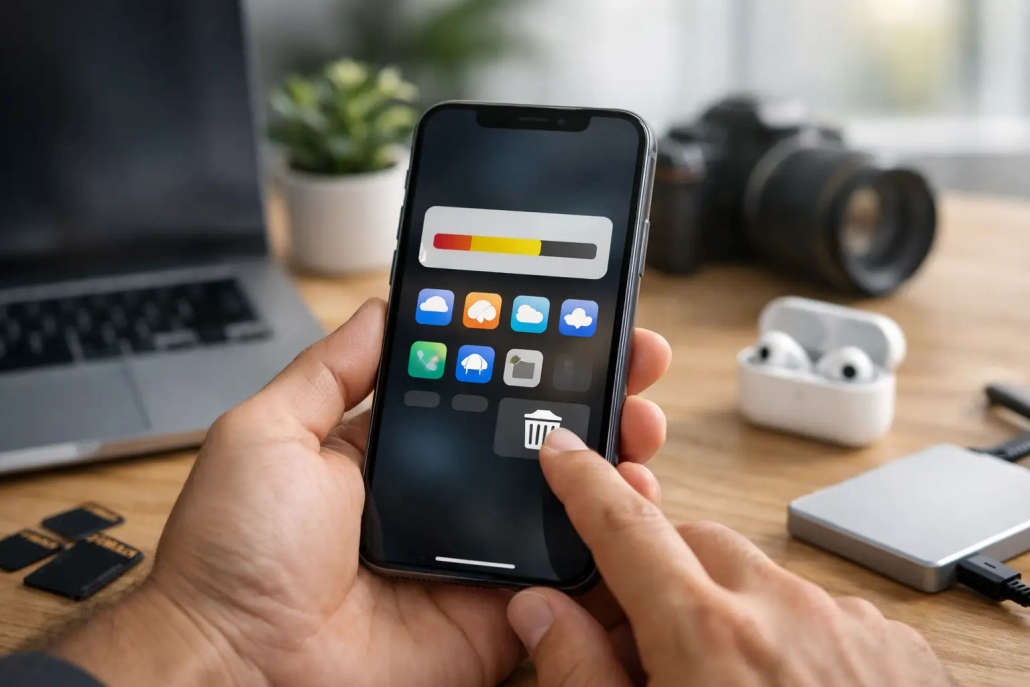
iPhone Storage Full? Clear Space Without Guesswork
That “Storage Almost Full” alert has a way of appearing at exactly the wrong time: just before you record a video, download a boarding pass, or install an iOS update. When your iPhone storage is full, the answer is not to delete things at random. A few minutes spent identifying what is actually using space can clear room without losing photos, messages, or information you need.
Start with a simple goal: remove items you can replace, review items you no longer need, and protect the information that matters. Your iPhone already provides the tools to do this safely.
See What Is Filling Your iPhone Storage
Open Settings, choose General, then select iPhone Storage. Give the screen a moment to calculate your usage. You will see a colored bar showing how storage is divided among categories such as Apps, Photos, Messages, Media, iOS, and System Data.
Below the bar, iPhone offers recommendations tailored to your device. You may see options such as Review Downloaded Videos, Review Large Attachments, or Offload Unused Apps. These recommendations are useful because they point to files that often take up significant space with minimal impact on your daily use.
Continue down the screen to see every installed app, arranged by the amount of storage it uses. Tap an app to view two important numbers: the app’s size and its Documents & Data. An app may be relatively small while its downloaded content, cache, projects, or attachments are very large.
This screen is your starting point. Do not assume the largest category should always be deleted. Photos may be your largest category because they are valuable. A streaming app may be large because it holds movies you watched on a trip and no longer need.
When iPhone Storage Is Full, Start With Downloads
Downloaded content is usually the safest place to begin. You can download it again later, and removing it does not normally affect the original content in your account.
Check the apps you use for music, podcasts, video, books, and offline maps. A few downloaded TV episodes or high-quality movies can consume several gigabytes. Open each app and look for its Downloads, Library, or Saved section. Remove finished episodes, old playlists, and content you do not expect to use offline.
Also check the Files app. Open Files, tap Browse, and select On My iPhone. Look inside folders created by apps, especially video editors, scanners, presentation apps, and messaging tools. Old PDF files, exported videos, ZIP archives, and duplicate downloads can build up quietly.
If you use Safari to download forms, manuals, or media files, open the Downloads folder in Files. Review it before deleting everything. Some downloads may be the only local copy of an important document.
Make the Most of Photos Without Losing Your Library
Photos and videos are often the largest part of an iPhone’s storage, and they deserve a more careful approach. Deleting a photo from the Photos app removes it from your library, including your other devices if iCloud Photos is turned on. That may be exactly what you want for blurry shots, duplicates, and accidental screenshots, but it is not a storage strategy to use hurriedly.
Begin in the Photos app by reviewing Videos, Screen Recordings, Screenshots, and Duplicates. Long videos and screen recordings frequently provide the fastest results. In the Duplicates album, Photos can merge matching images while preserving the highest-quality version and relevant metadata.
After deleting items, open Recently Deleted and remove the files there if you need the space immediately. Otherwise, they remain for up to 30 days and still count toward your storage.
Use Optimize iPhone Storage
If you subscribe to iCloud+ and have sufficient iCloud storage, Optimize iPhone Storage can make a meaningful difference. Go to Settings, tap your name, choose iCloud, then Photos. Turn on Sync this iPhone if it is not already enabled, then select Optimize iPhone Storage.
With this setting, full-resolution originals are stored in iCloud while your iPhone keeps smaller, space-saving versions when needed. You can still view your entire library, and the full-quality original downloads when you edit, share, or open it.
There is a trade-off: you will want a reliable internet connection when accessing older originals, and iCloud storage is separate from the storage built into your iPhone. It is best for people who want their whole photo library available across Apple devices without keeping every original file on the phone.
Review Messages and Their Attachments
Messages can occupy much more space than expected, particularly in group conversations full of photos, videos, voice messages, and GIFs. You do not need to delete every conversation to make progress.
Go to Settings > General > iPhone Storage > Messages. You can review categories such as Top Conversations, Photos, Videos, GIFs and Stickers, and Other. Start with large videos and old attachments you no longer need. This gives you control over what is removed while preserving the conversation itself.
You can also adjust how long your iPhone keeps messages. In Settings > Apps > Messages, find Keep Messages and choose 30 Days, 1 Year, or Forever. Keeping messages forever is appropriate for many people, especially if conversations contain family history or business details. Choosing 1 Year can reduce ongoing storage use, but understand that older messages will be deleted automatically.
Before changing this setting, consider whether important information is stored only in message threads. Save essential photos or documents to Photos or Files first.
Offload Apps You Rarely Use
An app you use once or twice a year does not always need to occupy space year-round. From the iPhone Storage screen, tap an app and choose Offload App. This removes the app itself but keeps its documents and data on your iPhone. If you reinstall the app later, your data should return with it.
This is different from Delete App, which removes the app and its local data. Offloading is a sensible choice for apps such as travel, event, seasonal shopping, or specialty editing apps. Deleting is better when you no longer use the app at all.
You can also let iPhone manage this automatically. In Settings > Apps > App Store, turn on Offload Unused Apps. This can be helpful on smaller-capacity iPhones, though some people prefer to decide app by app.
Be cautious with apps that store data locally, such as audio recorders, creative tools, or apps without a cloud account. Confirm that important work is backed up or exported before deleting an app.
Do Not Chase System Data First
The iPhone Storage screen may show a large amount of System Data. This category includes caches, logs, voices, fonts, temporary files, and resources iOS uses to operate efficiently. Its size can change as your iPhone manages itself, installs updates, streams media, and clears temporary files.
There is no single button that safely erases System Data, and third-party “cleaner” apps cannot access most of it. First, handle your downloads, large attachments, and unused apps. Then restart your iPhone and make sure iOS is updated. In many cases, the system recalculates storage and clears temporary space over time.
If storage remains unusually full after you have reviewed your content, confirm that your iPhone has a current backup. A backup, erase, and restore can sometimes reduce excessive temporary data, but it is a last step, not routine maintenance.
Build a Simple Storage Habit
You do not need to monitor storage every day. Check the iPhone Storage screen before a trip, before recording an important event, or whenever you are preparing for an iOS update. A monthly review of downloaded media, screenshots, and large message attachments is usually enough to prevent the next warning from becoming urgent.
TheMacU teaches this same practical approach across Apple devices: understand what a setting does before changing it, then make a choice that fits how you use your technology. A little organization now means your iPhone is ready when you need it most.


