
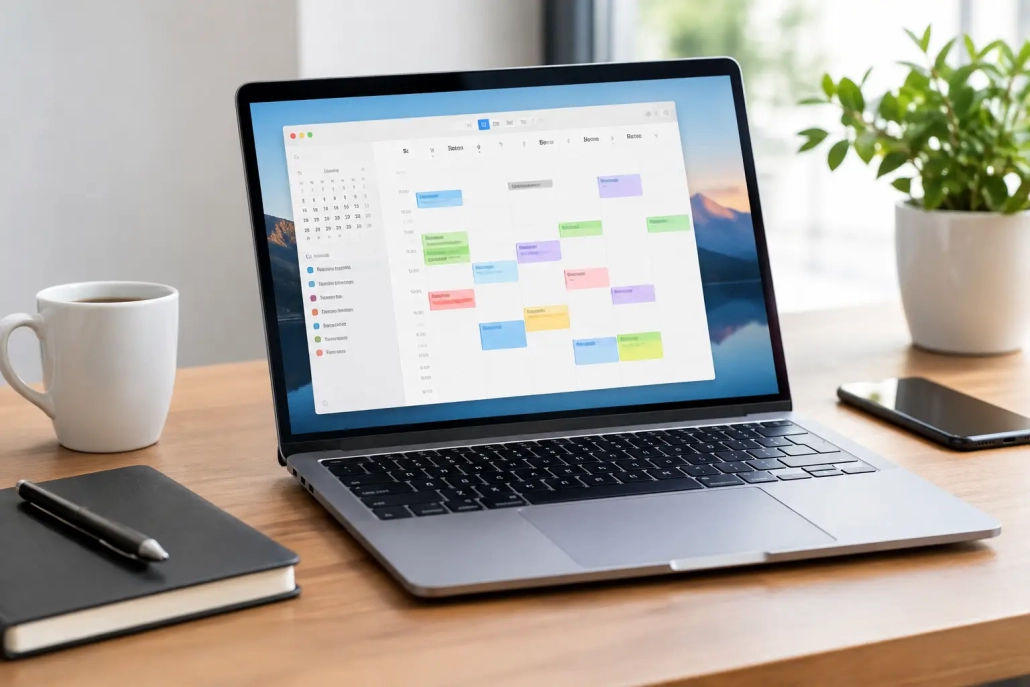
10 Apple Calendar Tips for Mac That Save Time
A calendar only helps when you trust it. If appointments are buried, alerts arrive at the wrong time, or your work and personal plans blur together, it becomes one more place to search. These Apple Calendar tips for Mac focus on the settings and habits that make Calendar a dependable daily tool – whether you manage a busy household, client meetings, or a simple personal schedule.
Start by organizing calendars, not individual events
Before adding more appointments, look at the calendar list in the sidebar. Apple Calendar can hold separate calendars for work, personal events, family commitments, subscriptions, birthdays, and more. Keeping these categories separate gives you more control than putting every event into one long list.
To create a calendar, choose File > New Calendar, then select the account where it should live. An iCloud calendar is usually the best choice for schedules you want on your iPhone, iPad, and Mac. If you use an employer-provided account, such as Google or Microsoft Exchange, placing work events in that account may be more appropriate.
Give each calendar a clear name and a distinct color. For example, use one color for appointments you must attend and another for events that are helpful reminders but not essential. The goal is not to create a rainbow. It is to recognize what matters at a glance.
You can temporarily hide any calendar by clearing its checkbox in the sidebar. This is especially useful when you need to focus on your workday without seeing every birthday, holiday, and shared family event.
Make event details do more of the work
A calendar entry should answer the questions you would otherwise have to ask later: When is it? Where is it? What do I need to do? Who is involved?
Double-click a time on the calendar to create an event, then add a meaningful title. Instead of entering “Meeting,” try “Quarterly budget review with Jordan.” Specific titles make a crowded week much easier to understand.
Add the location whenever it is useful. Calendar can recognize many addresses and offer travel-time information or quick directions. For virtual meetings, place the meeting link in the URL field or notes field so it is available when the event begins. Include an agenda, confirmation number, packing reminder, or anything else you would normally hunt for in email.
For appointments that require preparation, consider creating two events: the appointment itself and a shorter preparation block beforehand. A dentist appointment at 3:00 PM is not the same as the time you need to leave work at 2:30 PM. Calendar works best when it reflects the time a commitment actually occupies.
Use all-day events carefully
All-day events are useful for birthdays, travel days, deadlines, and reminders that do not belong at a precise hour. They appear at the top of Day and Week view rather than blocking time on your schedule.
The trade-off is that too many all-day entries can become visual clutter. Use them for true all-day commitments, not for tasks you hope to complete sometime during the day. A task manager or Reminders is often a better home for flexible to-dos.
Set alerts based on the consequences of being late
A single 10-minute alert is not right for every event. Calendar lets you choose one or more alerts, and the best timing depends on what the event requires.
For an online meeting, an alert five or 10 minutes ahead may be enough. For an in-person appointment, you may need an alert an hour ahead to finish what you are doing, plus a second alert when it is time to leave. For birthdays or payment deadlines, a notification one day or one week earlier gives you time to act.
Open an event and use the Alert menu to choose a preset option or create a custom alert. You can also add a second alert. This small adjustment prevents a common problem: receiving a reminder at the exact moment when it is already too late to prepare.
If Calendar alerts are missing entirely, check your Mac’s notification settings as well. Calendar must be allowed to send notifications for its alerts to appear. Focus modes can also silence notifications, which may be helpful during concentrated work but worth reviewing before an important day.
Use recurring events for routines, then give them an end date
Weekly meetings, exercise classes, medication reminders, and bill due dates should not be entered repeatedly. Create the event once and use the repeat setting to establish the pattern.
Calendar offers common options such as every day, every week, every month, and every year. For less typical schedules, choose Custom and set the exact interval. A class that occurs every other Tuesday or a reminder on the first Monday of each month can be handled without manual duplication.
Be cautious with never-ending repeats. A weekly event may continue appearing long after a course, project, or commitment has ended. When possible, set an end date. If an event changes only once, Calendar will ask whether you want to change that occurrence or all future occurrences. Choose carefully. Editing all events is efficient when the schedule has permanently changed, but it can accidentally rewrite months of history.
Let Calendar find the time zone for you
Travel can create confusion when your Mac, iPhone, and appointment confirmations refer to different time zones. Calendar can display a time-zone control that lets you see and create events in a selected zone.
In Calendar settings, look for the advanced option to turn on time-zone support. Once enabled, you can select a time zone while creating an event. This is useful for a video meeting scheduled in another city or for keeping a departure time accurate while planning a trip.
For most everyday schedules, leave your Mac set to update its time zone automatically. The extra control is most valuable when you travel frequently or coordinate with people in other regions. Adding it unnecessarily can make a simple calendar feel more complicated.
Share calendars, not your entire schedule
A shared calendar is one of the simplest ways to coordinate a household, team, or event plan. Create a dedicated calendar for the shared purpose, then invite the people who need access. For example, a family calendar can contain school events, practices, and appointments without exposing every item on your personal calendar.
With an iCloud calendar, you can choose whether someone may only view events or may also make changes. Give editing access only to people who should add and update entries. A view-only calendar works well for sharing a travel itinerary or a schedule with relatives who only need the details.
It is worth agreeing on a naming habit for shared events. “Soccer – Ava – Field 2” is far more useful than “Soccer.” Clear event names reduce the need for follow-up messages and make the calendar useful to everyone involved.
Use Week view for planning and Day view for execution
Calendar’s different views are not just cosmetic. They support different decisions. Month view is helpful for spotting major dates and open weekends, but it can hide the true amount of time each commitment requires.
Week view is often the best planning view because it reveals conflicts, travel time, and available work blocks. At the start of the week, scan for tightly scheduled days and add preparation or travel blocks where needed. Then switch to Day view when you want to focus on what is immediately next.
You can adjust the visible hours in Calendar settings to better match your routine. If you rarely schedule anything before 8:00 AM or after 6:00 PM, limiting the displayed range can make the calendar easier to read. People with evening shifts or irregular hours may prefer a wider range instead.
Keep your Mac, iPhone, and iPad in sync
Calendar is most useful when the same schedule appears on the devices you actually use. If events created on your Mac do not appear on your iPhone, first check which account holds the calendar. An event saved to “On My Mac” stays on that Mac. An event saved to iCloud can sync across your Apple devices when you are signed in to the same Apple Account and Calendar is enabled in iCloud settings.
The same principle applies to Google, Exchange, and other accounts. Confirm that the account is added on each device and that its calendar syncing option is turned on. When a calendar seems to disappear, it may simply be hidden in the calendar list rather than deleted.
Build a short weekly calendar check-in
The most effective Calendar habit takes less than 10 minutes. Once a week, review the next seven to 14 days. Confirm appointments, remove canceled events, check addresses and meeting links, and look for commitments that need preparation.
This is also the right time to ask whether your calendar reflects reality. If a project needs three focused hours, reserve the time rather than hoping it appears between meetings. If a family event requires travel, block the travel. Calendar becomes less stressful when it shows the whole commitment, not just the headline.
A few well-organized calendars, clear event details, and thoughtfully timed alerts can replace a surprising amount of mental clutter. Start with one improvement this week, then build the system gradually. If you prefer guided, visual instruction, TheMacU’s Apple-focused lessons can help you practice these tools step by step until they become second nature.


