• All Access Login
  • Contact
TheMacU.com
  • Home
  • Free Lessons
  • Full Tutorials
    • Core Tutorials
      • macOS 26 Tahoe What’s New
      • macOS Core Concepts
      • iOS 26 What’s New
      • iOS Core Concepts
      • iPadOS Overview
      • iCloud for Mac, iPad & iPhone
      • Apple Intelligence
      • Apple Watch Core Concepts
      • Mac Backup
      • Mac Utilities
      • Mac Security
      • CleanMyMac X
      • Markup for iOS
      • iOS 18 What’s New
      • macOS Sequoia What’s New
    • Productivity Tutorials
      • Safari for Mac
      • Safari for iOS (iPad & iPhone)
      • Mail for Mac
      • Mail for iOS (iPad & iPhone)
      • Files for iOS
      • Contacts for Mac & iOS
      • Calendar for Mac & iOS
      • Reminders for Mac & iOS
      • Apple Maps for iOS & Mac
      • Notes for Mac & iOS
      • FindMy for iOS & Mac
      • Freeform for iOS & Mac
      • Health App Overview
      • Pages for Mac
      • Numbers for Mac
      • Keynote for Mac
      • Pages for iOS
    • Photography Tutorials
      • Photos for Mac
      • Photos for iPad
      • Photos for iPhone
      • iPhone Camera
      • iMovie for Mac
      • iMovie for iOS (iPad & iPhone)
      • Pixelmator Pro Essentials
      • Pixelmator for iOS (iPad & iPhone)
      • Preview for Mac
      • Photos for Mac – View & Organize
      • Photos for Mac – Edit & Share
    • Media & Entertainment Tutorials
      • Music App for Mac
      • Music App for iOS (iPhone & iPad)
      • Apple Music Service
      • AirPods Tutorial
      • iTunes for Mac
      • Apple Podcasts
      • Apple News
      • Apple Books
  • Testimonials
  • Memberships & Pricing
  • Click to open the search input field Click to open the search input field Search
  • Menu Menu

Tag Archive for: Apple tutorials

Mac, iPhone and iPad Tips!

Mastering macOS Spotlight: Your Ultimate Guide to Efficiency

Mastering macOS Spotlight: Your Ultimate Guide to Efficiency

Most Mac users barely scratch the surface of what macOS Spotlight can do. You might be typing search terms without realizing this tool can speed up your entire workflow. This guide will show you Spotlight search tips that transform your Mac productivity and boost your macOS efficiency from day one.

Spotlight Basics: Getting Started

Let’s dive into the basics of Spotlight to set a solid foundation for more advanced tips. Understanding how to access and customize Spotlight will make you more efficient with your Mac.

Accessing Spotlight Quickly

Spotlight is just a keystroke away. Press Command + Spacebar, and there you have it! This shortcut opens Spotlight instantly, saving you time. Instead of manually searching for apps or files, let Spotlight bring them to you. Once you get used to this, you’ll wonder how you ever managed without it.

Keep in mind, the more you use Spotlight, the smarter it gets. It learns from your searches and starts predicting what you need, making your interactions even faster. Imagine typing the first few letters of an app, and there it is—no scrolling required.

Customizing Spotlight Preferences

Customizing Spotlight can tailor your search results to your needs. Go to System Preferences > Spotlight, and you’ll find categories you can select or deselect. Perhaps you don’t want to see web results or emails; just uncheck those options. This ensures you only get the most relevant results.

By focusing on what’s important to you, Spotlight becomes a powerful ally in your digital life. For those curious about what others think, here’s a discussion on how users fine-tune their Spotlight settings for optimal use.
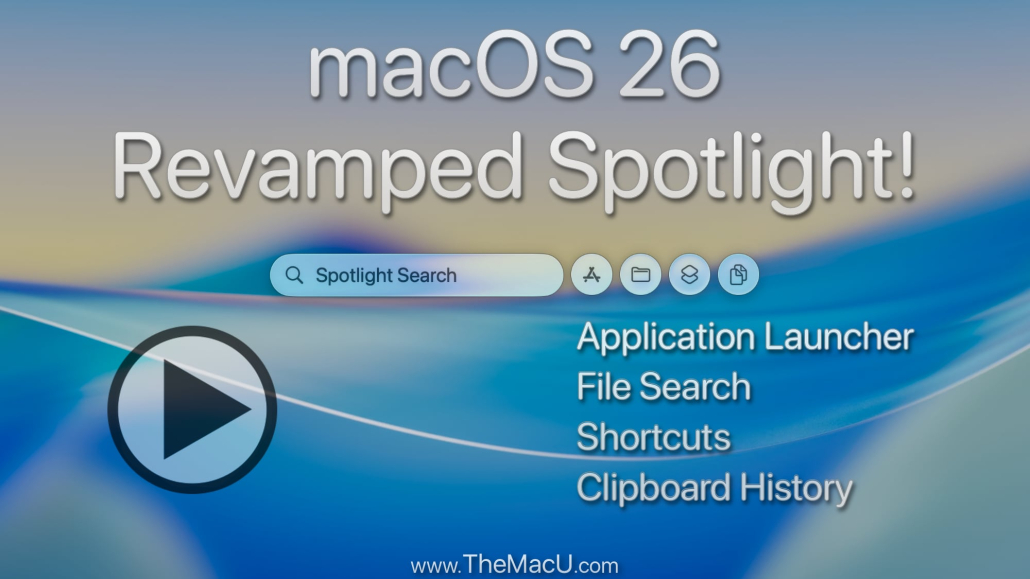
Advanced Spotlight Search Tips

Now that you’ve got the basics, let’s uncover some advanced search tips. These can truly shift your Mac usage from beginner to pro.

Using Natural Language Queries

Spotlight shines with natural language queries. Instead of typing “weather New York,” try “What’s the weather like in New York today?” It understands the context and delivers precise results. This feature turns your Mac into a more intuitive tool.

You’ll appreciate how Spotlight handles this with ease. It’s almost like talking to a friend who knows exactly what you need. This natural approach makes searching less of a task and more of an interaction.

Leveraging File Type Filters

Spotlight can sift through different file types, saving you the hassle of endless scrolling. Type “kind:pdf” followed by your search term to find PDFs only. You can do the same with images, music, or even apps.

This is particularly useful when you’re dealing with large volumes of data. Instead of searching blindly, you can zero in on the exact file type you need. It’s a game-changer for maintaining productivity.

Boosting Mac Productivity with Spotlight

With a better understanding of Spotlight’s capabilities, let’s see how it can significantly boost your productivity. These tips will integrate Spotlight into your daily workflow seamlessly.

Creating Spotlight Shortcuts

Did you know you can create custom shortcuts for Spotlight searches? Use System Preferences > Keyboard > Shortcuts to customize your keys. Set up shortcuts for frequent searches or apps, and you’ll be amazed at how much time you save.

Shortcuts reduce repetitive tasks to a simple keystroke. This small tweak can lead to big productivity gains, making your Mac work smarter, not harder.

Integrating Spotlight with Siri Commands

Pairing Spotlight with Siri opens even more doors. You can use voice commands to start a Spotlight search, making it hands-free. Imagine saying, “Hey Siri, search for last week’s report,” and having it pulled up instantly.

This combination of voice and search makes your device more adaptive to your needs. It’s perfect for those moments when you’re multitasking or away from your keyboard.

Call to Action

Are you ready to dive even deeper into mastering your Mac? Learn more about TheMacU’s comprehensive Apple tutorials. These guides are designed to transform your digital experience, making every moment with your Mac more productive and enjoyable.

Subscribe to TheMacU.com for more Apple tutorials and tips! 🚀

Mac, iPhone, iPad Tutorials. membership options

October 21, 2025/1 Comment
https://themacu.com/wp-content/uploads/2025/10/featured-image-1761055324.jpeg 928 2000 D S http://themacu.com/wp-content/uploads/2017/06/TMU.com-Header-logo-jpg-300x138.jpg D S2025-10-21 14:02:212025-10-23 20:12:57Mastering macOS Spotlight: Your Ultimate Guide to Efficiency
Mac, iPhone and iPad Tips!

Unlocking the Secrets: Exploring Advanced Features in the Latest macOS Update

Unlocking the Secrets: Exploring Advanced Features in the Latest macOS Update

Most people miss out on powerful tools hidden inside every macOS update. You might feel like your Mac isn’t working as hard as it could for you—there’s more beneath the surface. This post walks you through advanced macOS features that make your daily tasks smoother and more productive, so you get the most from your Mac. Ready to see what your device can really do? Check out more about the latest features here.

Mastering System Preferences

Let’s dive into the beating heart of your Mac—System Preferences. This is where you can make the magic happen with just a few tweaks. Knowing how to master these settings can completely change how your Mac works for you.

Customizing Control Center

Your Mac’s Control Center is your quick-access interface. Need to adjust brightness or connect to Wi-Fi? It’s all here. You can even add your favorite features for faster access. Start by clicking the Apple menu, then hop into System Preferences. Select Control Center, and from here, you can drag items into the menu bar or Control Center.

Imagine having your most-used settings right at your fingertips. It saves time and makes navigation smoother. Most people think the default setup is all they get, but you can mold it to fit your needs. Want to learn more about these customization options? Apple’s support guide will walk you through it.

Optimizing Battery Usage

Is your battery draining too fast? It’s time to tackle that. In System Preferences, click on Battery. You’ll see options that let you manage battery usage effectively. Switch on low power mode to extend battery life when needed.

A neat trick is scheduling battery-efficient hours—especially useful if you’re on the go. Regular updates are key too; they include enhancements that can improve battery performance. The longer you wait to optimize, the more charge slips away. Discover more here.

Enhanced Productivity Tools

Once your System Preferences are set, it’s time to explore tools that boost productivity. These tools are designed to help you work better and faster, making every task more efficient.

Advanced Multitasking Features

Multitasking on your Mac is a breeze—if you know the tricks. With tools like Mission Control, you can view all open windows at once. Simply swipe up with three fingers on the trackpad. It’s like having a bird’s-eye view of your work.

Want to use Split View? Hold down the green full-screen button on a window and drag it to one side. Then, select another app for the other half. This setup is perfect for comparing documents or keeping an eye on chat while working. These features make your Mac feel like a powerhouse. Get the full scoop with Macworld’s article.

Managing Notifications Efficiently

Notifications can be distracting. Here’s how to keep them in check. Go to System Preferences, click Notifications, and customize what you see and hear. You can silence alerts during work hours or allow only the most crucial ones.

This approach ensures that notifications help rather than hinder. Imagine focusing without constant pings—it’s a game-changer. Most people think they have to endure the noise, but you have control. For a more visual guide, check out this YouTube tutorial.

Security and Privacy Enhancements

Your Mac is a fortress, but you must know how to secure it. Let’s explore the best ways to keep your data safe and private.

Strengthening Your Mac’s Security

Security should be top of mind. In System Preferences, head to Security & Privacy. Enable the firewall and FileVault to encrypt your data. These settings act as a shield against threats.

Passwords are your first line of defense. Use strong, unique passwords for each account. Consider a password manager to keep track of them. This way, you’re not just secure—you’re smartly secure. TheMacU can guide you through these steps in detail.

Managing Privacy Settings Effectively

Privacy matters, especially online. Want to control which apps access your data? In Security & Privacy, you can manage permissions easily. Review the list and decide who gets access to your camera, microphone, and more.

Feeling overwhelmed? Start with the essentials and build up. The longer you delay setting these permissions, the more data you expose. Prioritize your privacy, and you’ll use your Mac with peace of mind.

Subscribe to TheMacU for more Mac learning! 🍏 Empower yourself with our tutorials and make the most out of your Apple devices.

October 20, 2025
https://themacu.com/wp-content/uploads/2025/10/featured-image-1760986907.jpeg 1333 2000 D S http://themacu.com/wp-content/uploads/2017/06/TMU.com-Header-logo-jpg-300x138.jpg D S2025-10-20 19:02:052025-10-23 19:12:03Unlocking the Secrets: Exploring Advanced Features in the Latest macOS Update

All Access

View our comprehensive collection of Mac, iPad, and iPhone tutorials today! We offer a range of membership options, all starting with a free trial!

Start your Free Trial!

Search Topics

Search Search

Topics

Apple Intelligence Apple Maps Apple Music camera desktop Finder High Sierra iCloud iMac iMovie iOS iOS 11 iOS 12 iOS 13 iOS 14 iOS 15 iPad iPadOS iPad Pro iPhone iPhone 11 iPhone 12 iPhone X Luminar Mac Macbook Macbook Air MacBook Pro Mac Mini macOS macOS Catalina Mail Maps Mojave Music Notes Photo Editing Photo Enhancement Photos Safari Settings Sierra tips troubleshooting tutorial

Archive

Free Lessons!

  • How to Set Up Emergency Contacts & Medical ID on iPhone
    How to Set Up Emergency Contacts & Medical ID on iPhone!May 25, 2026 - 4:03 pm
  • Apple Maps for Mac: Master Places, Pinned Locations & Custom Guides! Step by Step Tutorial.May 10, 2026 - 4:40 pm
  • Safari Profiles on iPhone & iPad — Keep Work & Personal Browsing Completely Separate!May 2, 2026 - 4:33 pm
  • How to Use the Info Panel in Apple Photos for Mac: View, Edit & Organize Your Photo DetailsApril 19, 2026 - 5:21 pm
  • Remove photos from your Main Library when they are in an Album! Apple Photos Lesson for Mac & iOS!April 11, 2026 - 5:28 pm
  • How to add subtasks in Reminders for Mac! Step by Step Tutorial.April 8, 2026 - 10:30 pm
  • Organize Reminders with Lists, Sections & Groups – Apple Reminders App Tutorial!March 29, 2026 - 4:46 pm
  • panorama photos - iPhone Camera tutorial
    How to shoot fantastic Panorama Photos with iPhone Camera. Horizontal + Vertical!March 19, 2026 - 5:21 pm
  • what are photo bursts on iphone
    What Are Photo Bursts on iPhone and Why You Should Use ThemMarch 19, 2026 - 2:18 am
  • How to use Tags to label & organize files or Folders on a Mac! macOS Tutorial.
    How to use Tags to label & organize files or Folders on a Mac!March 11, 2026 - 11:25 pm
  • How to add events & reminders in the iOS Calendar App. iPhone & iPad Tutorial!March 6, 2026 - 6:39 pm
  • How to use the look around feature in Apple Maps for Mac to tour cities and towns around the world!February 25, 2026 - 9:29 pm
  • How to operate the Flash on iPhone Camera!February 23, 2026 - 11:50 pm
  • control center customization tutorial for Mac
    How to customize Control Center in macOS 26 & Later!February 20, 2026 - 8:58 pm
  • Learn to manage the previous recipients list in the Apple Mail App for Mac!February 16, 2026 - 9:45 pm

All Access

  • Tutorials Browser
  • Account

Browse

  • All Tutorials
  • Core Tutorials
  • Productivity Tutorials
  • Photography Tutorials

Blog

  • Free Apple Watch Lessons! (4)
  • Free iOS Lessons (150)
  • Free Mac Lessons (162)
  • Mac, iPhone and iPad Tips! (37)
  • News (101)
  • Recommended Items (3)
  • Uncategorized (73)
  • Updates (95)

About & Info

  • Contact
  • About
  • Partners & Affiliates
  • Group Memberships
SwansonDigital, LLC Ltd. All Rights Reserved. TheMacU.com has not been sponsored, or otherwise approved by Apple Inc. - Enfold WordPress Theme by Kriesi
  • Link to Facebook
Scroll to top Scroll to top Scroll to top