Mac, iPhone & iPad tips · Mac
How to Use Universal Clipboard on Apple
Learn how to use universal clipboard on Mac, iPhone, and iPad, fix common setup issues, and copy and paste smoothly across Apple devices.

If you have ever copied text on your iPhone, moved to your Mac, and then wondered why Paste did nothing, you are not alone. Learning how to use universal clipboard is simple once the setup is right, but a small missing setting can make it feel unreliable.
Universal Clipboard is part of Apple’s Continuity features. It lets you copy text, images, photos, and in many cases links on one Apple device, then paste that content on another nearby device signed in to the same Apple Account. For most people, the appeal is immediate – no emailing yourself notes, no sending a message just to move a paragraph, and no extra app required.
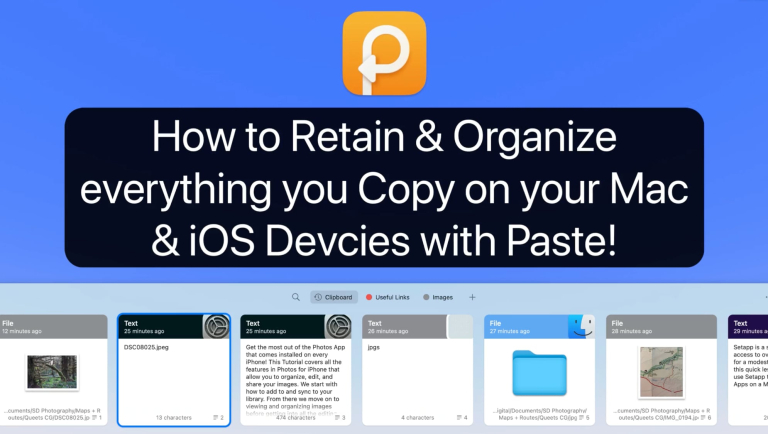
Organize everything you copy with Paste for Mac & iPhone
Watch it free, then go deeper: the macOS Core Concepts tutorial has 65 step-by-step lessons. Start your free trial →
What Universal Clipboard does
Universal Clipboard works between supported Macs, iPhones, and iPads. You copy on one device the same way you normally would. Then, on a second device, you paste as usual. If everything is configured properly, the copied item is temporarily available across your Apple devices.
That last word matters. Temporarily means this is not long-term cloud storage for copied items. It is meant for quick transitions, like copying an address from your iPhone and pasting it into Maps on your Mac, or grabbing a photo from your iPad and dropping it into an email on your Mac.
It also helps to know what Universal Clipboard is not. It is not a clipboard history manager, and it does not always behave the same way with every app or every type of content. Text is usually the most consistent. Images and photos often work well too. Very large files or app-specific content may not.
How to use Universal Clipboard step by step
To use Universal Clipboard successfully, your devices need a few basics in place. Start by checking that your Mac, iPhone, and iPad are signed in to the same Apple Account. Then make sure Wi-Fi and Bluetooth are turned on for each device. They also need to be physically near each other.
Handoff must also be enabled. On iPhone or iPad, open the Settings app, tap General, then AirPlay & Continuity, and make sure Handoff is turned on. On a Mac, open System Settings, click General, click AirDrop & Handoff, and turn on the option to allow Handoff between this Mac and your iCloud devices.
Once those settings are ready, using the feature is straightforward. On your first device, select text, a photo, or another supported item, then tap or click Copy. Move to your second device within a short time and use Paste in the app where you want that content to appear. On a Mac, that may be Command-V. On iPhone or iPad, press and hold, then tap Paste.
You may notice a slight pause before the item appears. That is normal. Your second device may need a moment to receive the copied content from the first device.
How to use universal clipboard in real situations
The easiest way to understand this feature is to see where it saves time.
If you are reading a website on your iPhone and need part of the text in a document on your Mac, copy the passage on the iPhone and paste it into Pages, Notes, or Mail on the Mac. If you took a screenshot on your iPad and want it in a Mac message, copy the image on the iPad and paste it directly into Messages or Mail.
It is also useful for short productivity tasks. You might copy a tracking number from an email on your Mac and paste it into a shopping app on your iPhone. Or copy a phone number from Safari on your iPad and paste it into Contacts on your iPhone.
This is where Apple’s ecosystem feels especially practical. You keep working on the device that makes the most sense for the task instead of forcing everything through one screen.
Common reasons Universal Clipboard does not work
When people think the feature is broken, the cause is usually one of a few setup issues.
The first is Apple Account mismatch. If your Mac is signed in to one Apple Account and your iPhone is signed in to another, Universal Clipboard will not work. Even a family member’s shared iPad can create confusion here.
The second is Handoff being disabled. Many users do not realize Universal Clipboard depends on it. You can copy all day, but if Handoff is off on one device, nothing transfers.
The third is distance or wireless settings. Bluetooth and Wi-Fi need to be on, and the devices need to be near each other. They do not have to be on the same Wi-Fi network in every case, but if either wireless connection is unstable, performance can suffer.
A fourth issue is timing. Universal Clipboard is built for short-term transfer. If you copy something, wait too long, then try to paste on another device later, the item may no longer be available.
Finally, software version matters. If one device is running a much older operating system, compatibility can become inconsistent. Keeping your devices updated often resolves strange behavior.
Troubleshooting when paste does nothing
If you are trying to figure out how to use universal clipboard and it still is not working, go in a simple order.
First, test with plain text. Copy a short sentence from Notes on your iPhone and try pasting it into Notes on your Mac. This removes some of the variables that come with photos, websites, or third-party apps.
If that fails, check Handoff on both devices again. Then verify that Wi-Fi and Bluetooth are turned on. After that, confirm both devices are signed in to the same Apple Account.
If everything looks correct, restart both devices. This sounds basic, but Continuity features often recover quickly after a restart. On a Mac, you can also toggle Handoff off and back on in System Settings. On iPhone or iPad, do the same in Settings.
Another helpful step is to unlock both devices and keep them awake while testing. If one device is asleep, locked, or disconnected, transfer may stall.
If you still have trouble, test with a different app. Some apps handle pasted content more predictably than others. Notes is a good place to test because it usually supports plain text and images well.
A few limitations worth knowing
Universal Clipboard is convenient, but it helps to have the right expectations. It is best for quick handoffs, not for managing a large workflow of copied items across the day. If you need clipboard history, that is a different type of tool.
It also depends on Apple’s ecosystem. This is excellent if you use a Mac, iPhone, and iPad together, but it will not help when you need to move copied content to a Windows PC or Android phone.
And while the feature often feels automatic, there are moments when it can be a little inconsistent, especially with larger images or content copied from certain apps. That does not make it poor – it just means the simplest use cases are usually the best ones.
The best habits for smoother use
Once Universal Clipboard is working, a few habits make it more reliable. Copy only what you need and paste it soon after. Keep your devices updated. Use built-in Apple apps like Notes, Mail, Safari, and Pages when you are testing or learning the feature, because they tend to give you clearer results.
It is also helpful to think of Universal Clipboard as a bridge, not a storage system. The faster you move from copy to paste, the better the experience tends to be.
For Apple users who want to get more out of the devices they already own, this is one of those small features that can quietly remove friction from the day. It is not flashy, but once you trust it, you start using it constantly.
If you have never set it up before, take five minutes and test it with a short note between your iPhone and Mac. Small wins like that are often what make your Apple devices start feeling easier, faster, and more connected.
Keep watching
More free video lessons on this topic

All Access membership
Watch every macOS Core Concepts lesson, plus every other tutorial
Every plan starts with a free trial. Cancel any time during the trial and you won't be charged.
Monthly
Auto recurring5-day free trial
- Every Mac, iPhone & iPad tutorial
- New tutorials as they're released
- Watch on any device
- No ads
- Email support
Yearly
Auto recurring7-day free trial · just $2.50 a month
- Every Mac, iPhone & iPad tutorial
- New tutorials as they're released
- Watch on any device
- No ads
- Email support
Lifetime
Single payment7-day free trial · pay once, keep it for good
- Everything in Yearly
- Every future macOS & iOS update tutorial
- Never pay again
Secure checkout. Log in on any Mac, iPhone or iPad with the same account.