

How to Use Spotlight Search on Mac
You do not need to remember where a file lives, which folder an app is in, or which menu hides a setting. Once you learn how to use Spotlight search on Mac, your Mac starts feeling much faster because you stop hunting and start going straight to what you need.
Spotlight is Apple’s built-in search tool, but calling it just a search box undersells it. It can open apps, find documents, preview results, perform calculations, convert units, surface emails and messages, and even help you get to system settings faster. For many Mac users, it becomes one of the most-used features on the computer because it removes small bits of friction all day long.
Why use Spotlight search on Mac?
The biggest benefit is speed. If you are clicking through Finder folders, Launchpad pages, or System Settings sidebars, you are spending more time than necessary on routine tasks. Spotlight shortens that process to a few keystrokes.
It also reduces the mental load of remembering where things are stored. You may know you saved a PDF last week, but not whether it was in Downloads, Desktop, or Documents. You may know the name of an app, but not where it sits in the Applications folder. Spotlight lets you search by what you know, instead of forcing you to remember the full path.
That matters even more for users who feel comfortable with their Mac in some areas but still lose time with everyday navigation. Spotlight is one of those features that rewards you immediately. Learn it once, and it improves dozens of tasks without requiring a major change to how you work.
How to open Spotlight on Mac
The fastest way is to press Command-Space. A search field appears near the top of the screen, and you can begin typing right away.
You can also click the Spotlight icon in the menu bar if you prefer using the pointer. On newer versions of macOS, the appearance may vary slightly, but the behavior is the same. Type your search, review the results, then press Return to open the selected item.
If keyboard shortcuts are not yet part of your routine, this is a good one to build. Command-Space is simple, easy to remember, and much faster than moving your hand back and forth to the mouse or trackpad.
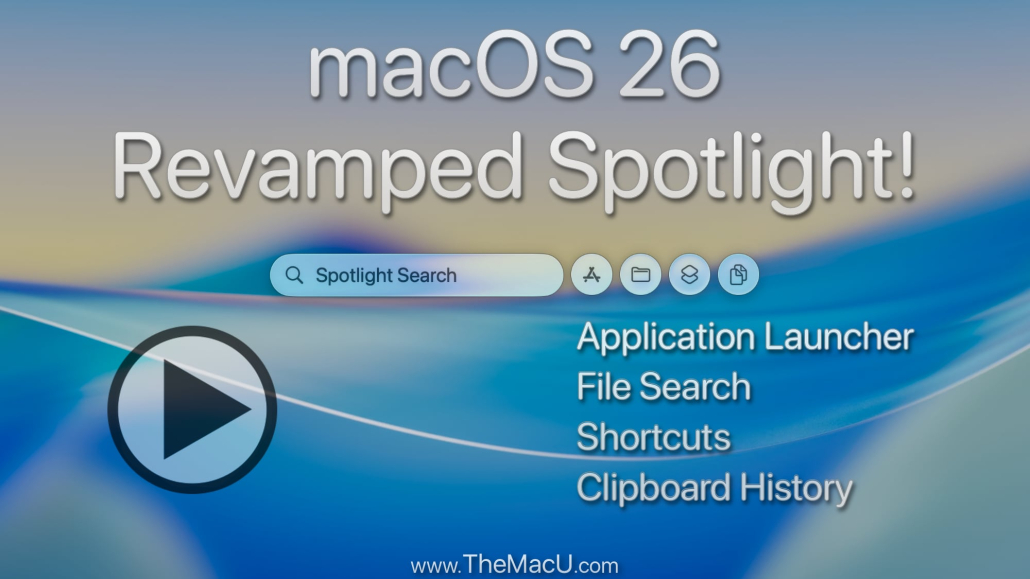
What you can find with Spotlight
The most common use of Spotlight is finding files and launching apps, but it goes further than that.
If you type the name of an app like Calendar, Pages, or Photos, Spotlight usually places it near the top of the results. Press Return, and it opens. This is often quicker than browsing the Applications folder or using Launchpad, especially if you keep many apps installed.
For documents, Spotlight searches filenames, and in many cases, the contents inside the file as well. That is useful when you remember a phrase from a note, PDF, or document but not the exact file name. Type a few words you know appear in the file, and Spotlight may surface it.
It can also show emails, messages, contacts, photos, folders, and web suggestions, depending on your settings and the type of content indexed on your Mac. The practical takeaway is simple: if your Mac knows about it, Spotlight can often help you reach it.
How to use Spotlight search on Mac more effectively
The best way to use Spotlight well is to search with intent. Start with a specific app name, file name, contact, or phrase rather than a broad word. A search for budget meeting notes will usually be more useful than just notes.
As you type, Spotlight narrows the results. You do not always need to finish the full word. In many cases, a few letters are enough. If the result you want rises to the top, press Return and move on.
You can also use the arrow keys to move through the result list. This is helpful when the top result is close, but not exactly what you want. Keyboard navigation keeps the process fast and avoids breaking your flow.
In some versions of macOS, pressing Command and then double-clicking a result can reveal its location in Finder. That is useful when you want to open the enclosing folder instead of the item itself.
Spotlight for quick calculations and conversions
One of the most overlooked features in Spotlight is its ability to act like a lightweight calculator and converter. If you type a math problem such as 245*18 or 1265/5, Spotlight shows the answer immediately.
The same goes for unit conversions. Type 10 miles in km, 72 degrees f in c, or 25 usd in eur, and Spotlight can return a quick result. You do not need to open Calculator or search the web for simple conversions.
This is especially helpful during planning, budgeting, travel prep, or everyday problem-solving. It saves a surprising amount of time because these are the kinds of tiny tasks that interrupt focus when they require extra steps.
Use Spotlight to reach settings faster
System Settings can be one of the more frustrating parts of macOS because features are organized into sections that are not always obvious. Spotlight gives you a shortcut.
Instead of opening System Settings and browsing manually, type the setting you want. Search for Bluetooth, Keyboard, Wi-Fi, Display, or Notifications, and Spotlight may take you directly to the related area. If not, it will often still get you very close.
This is one of the clearest examples of why Spotlight is so practical. You do not have to learn the structure of every macOS menu in order to work efficiently. You just need to know what you are looking for.
When Spotlight does not find what you expect
Spotlight is useful, but it is not perfect. If results seem incomplete or outdated, the issue is often indexing. Spotlight relies on an index of your Mac’s contents, and sometimes that index needs time to catch up or may exclude certain locations.
You may also run into limits based on privacy settings, search settings, or the app involved. Some results are affected by whether content is stored locally, in iCloud, or inside an app that manages data in a particular way. So if Spotlight misses something once, it does not always mean the file is gone.
Another trade-off is result variety. If you search for a common word, Spotlight may show apps, documents, contacts, and web suggestions together. That can feel cluttered if your search term is too broad. In those moments, a more specific phrase usually improves the results quickly.
Adjust Spotlight settings for better results
If you want more control, open System Settings and search for Spotlight. There, you can review which categories appear in results and whether certain types of suggestions are included.
This matters because not every user wants the same mix. Some people want documents, apps, and settings only. Others like seeing conversions, contacts, and broader suggestions as well. A small amount of setup can make Spotlight feel much more focused.
You can also review privacy options if there are folders or drives you do not want indexed. That can be helpful on shared computers or when you want search results to stay limited to your most relevant work.
Spotlight vs. Finder search
Spotlight and Finder search overlap, but they are not identical. Spotlight is better for getting somewhere quickly. Finder search is better when you need to manage files in context, sort results, or work within a specific folder.
For example, if you want to open a file right now, Spotlight is often the fastest choice. If you want to locate several versions of a file, compare modified dates, or narrow results within a folder, Finder may be the better tool.
It does not have to be one or the other. Many experienced Mac users use Spotlight first to get close, then switch to Finder when they need more file-level control.
Build Spotlight into your daily workflow
The easiest way to make Spotlight useful is to start small. Use it to open two or three apps you rely on every day. Then use it to find one type of file you often misplace, such as PDFs, screenshots, or spreadsheets.
Once that becomes familiar, add quick calculations, conversions, and settings searches. Over time, Spotlight stops feeling like a special feature and starts becoming your default way to move around the Mac.
That is where the real value shows up. You are not just saving a few seconds on a search. You are removing repeated friction from tasks you already do every day.
At TheMacU, we see this pattern often with Apple features that look simple on the surface. The users who benefit most are not necessarily doing advanced work. They are learning a better method for everyday tasks, then repeating it until it becomes second nature.
If Spotlight has felt like an occasional convenience, treat it as a core navigation tool for a week. Press Command-Space before you reach for the mouse, and let your Mac meet you halfway.


