Mac, iPhone & iPad tips · iPhone & iPad
Why Are iPhone Photos Blurry? Fixes That Work
Why are iPhone photos blurry? Learn the most common causes, how to fix them fast, and which iPhone camera settings matter most.

You open the Photos app, tap on a picture you were sure looked great, and then the disappointment hits. The subject is soft, the edges are smeared, or the whole image looks slightly out of focus. If you have been asking, why are iPhone photos blurry, the good news is that the cause is usually simple – and fixable.
Most blurry iPhone photos come from one of three places: the camera moved, the subject moved, or the iPhone focused on the wrong thing. After that, there are a few less obvious possibilities, like a dirty lens, lens switching, low light, or settings that make the image appear softer than expected. The fastest way to solve the problem is to identify which type of blur you are seeing.
Set focus & exposure in the iPhone Camera
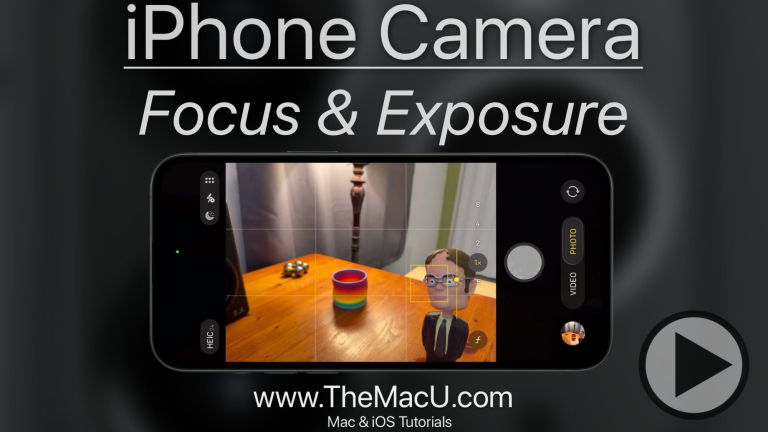
Watch it free, then go deeper: the iPhone Camera tutorial has 23 step-by-step lessons. Start your free trial →
Why are iPhone photos blurry in the first place?
Blurry photos are not all the same. That matters, because the fix depends on what the camera was dealing with at the moment you took the shot.
If everything in the image looks smeared in one direction, that usually points to motion blur. Your hands may have shifted while pressing the shutter, or the iPhone may have needed a slower shutter speed because the scene was dark. If one part of the image is sharp but the subject is not, the camera probably focused somewhere else. And if the image looks hazy all over, the issue may be the lens itself rather than the camera settings.
The iPhone camera is designed to make a lot of decisions automatically. Most of the time, that is helpful. But in difficult lighting, close-up shots, or busy scenes, automation can make a reasonable choice that is not the one you wanted.
Start with the easiest fix: clean the lens
This sounds almost too obvious, but it solves more camera complaints than most people expect. A fingerprint, pocket lint, lotion, or a thin film of dust can make photos look soft, cloudy, or streaky.
Use a clean microfiber cloth and gently wipe the rear camera lenses. If you have an iPhone with multiple lenses, clean all of them. It is also worth checking whether your case is partially blocking the camera or whether a camera protector is reducing image quality. Some lens covers add glare or softness, especially in bright light.
Take one test photo after cleaning. If the image looks noticeably sharper, you found the problem.
Focus is often the real issue
The iPhone usually chooses focus well, but not perfectly. In scenes with several people, objects in the foreground, or strong contrast, it may lock onto the wrong area.
Before taking the photo, tap the subject on the screen. That tells the iPhone where you want focus and exposure to be prioritized. If your subject is not moving much, hold your finger for a moment until AE/AF Lock appears. That keeps the camera from refocusing at the last second.
This is especially useful for portraits, food, pets, flowers, and any shot where the subject is not in the exact center. It is a small step, but it gives you much more control.
When close-up photos look blurry
Close-up shots can be tricky because each lens has a minimum focusing distance. If you move too close, the iPhone simply cannot focus clearly, no matter how steady you are.
If a photo of a document, object, or flower looks blurry up close, move the iPhone slightly farther back and let the camera focus again. Then crop the image later if needed. On some iPhone models, the camera may switch lenses automatically when you get close to a subject. That can change the look of the photo and sometimes make it seem less sharp than expected.
Low light makes blur much more likely
When the scene is dark, the camera needs more time to capture enough light. That longer exposure makes even a small movement more visible. What feels like a steady hand can still create blur.
If your blurry photos mostly happen indoors, at restaurants, at night, or in dim rooms, low light is probably the main reason. In those cases, try to steady the iPhone with both hands, brace your arms against your body, or rest the phone on a table or other stable surface.
You can also improve the lighting rather than fighting the camera. Move closer to a lamp or window, turn on another light, or position the subject where more light falls on their face. Better light gives the iPhone more flexibility to use a faster shutter speed.
Night mode helps, but only if you stay still
Night mode can produce surprisingly good photos, but it depends on stability. When the Night mode indicator appears, the iPhone is capturing light over a longer period. If you or your subject move during that time, the result can still be blurry.
Watch the Night mode timer and hold the phone as still as possible until the capture finishes. If the subject is moving, Night mode may not be the best option. It depends on whether you want a brighter image or a sharper moment.
Subject movement is different from camera movement
Sometimes your hands are steady, but the person, child, or pet you are photographing is not. The photo can still come out blurry because the subject moved during exposure.
This is common with indoor family photos, candid shots, and anything involving motion. The fix is not always a setting change. Often it is timing and light. Shoot when the subject pauses, move to a brighter area, or take several photos in quick succession so you can choose the sharpest one.
Live Photos can also affect how you evaluate a shot. The still image chosen as the key photo may not be the sharpest frame. Open the Live Photo, edit it, and scrub through the frames to see whether a clearer moment is available.
Zoom can make photos look softer
If you are using digital zoom, especially in lower light, image quality can drop quickly. The iPhone may still produce a usable picture, but it will often look less crisp than a photo taken without zoom.
Optical zoom from a dedicated telephoto lens is different, but even then, results depend on light. In dim conditions, some iPhone models may rely on cropping from another lens rather than using the telephoto lens fully, which can affect sharpness.
If possible, move closer instead of pinching to zoom. That usually gives you a cleaner, sharper result.
A setting or processing choice may be fooling you
Not every “blurry” photo is truly out of focus. Sometimes it is a result of processing, viewing, or depth effects.
Portrait mode is a good example. If the depth effect is applied imperfectly, hair, glasses, or edges can look soft or strangely blurred. That does not always mean the lens missed focus. It may mean the background blur effect was not ideal for that subject.
You may also notice a photo looks soft immediately after opening it, then sharpens a second later. That can happen when the iPhone is loading the full-resolution version from iCloud or applying image processing. If the photo stays blurry after a moment, then it is time to investigate further.
What to check if only some photos are blurry
Patterns tell you a lot. If only selfies are blurry, clean the front camera and test it in good light. If only close-ups are blurry, you are probably too near the subject. If only zoomed photos are blurry, zoom is the likely cause. If nearly every photo is blurry, then look at the lens, case, focus habits, and lighting first.
It is also worth restarting the iPhone and making sure iOS is up to date. Camera issues caused by software are less common than focus or lighting problems, but they do happen. If the camera app behaves oddly, freezes, or struggles to focus repeatedly, a restart is a sensible step.
Why are iPhone photos blurry even after trying the basics?
If you have cleaned the lens, tapped to focus, improved the lighting, and tested without zoom, but photos still look consistently blurry, there may be a hardware issue. The camera module could be damaged, misaligned, or affected by vibration.
This sometimes happens after a drop, impact, or exposure to nonstandard accessories that interfere with stabilization. If the camera makes unusual movements, cannot lock focus, or stays blurry across multiple apps, the problem may not be something you can fix with technique alone.
A quick test helps here. Take several photos outdoors in bright daylight, with no zoom, after tapping to focus on a still subject. If those images are still soft across the frame, hardware becomes more likely.
A simple routine for sharper iPhone photos
When you want more reliable results, use the same sequence each time. Clean the lens, frame the shot, tap the subject to focus, hold the iPhone steady, and take an extra photo or two. In lower light, stabilize yourself before pressing the shutter. For close-ups, back up slightly. For moving subjects, give the camera more light and capture multiple frames.
That routine is simple, but it removes most of the guesswork. It also helps you separate user technique from a real camera problem.
The good news is that blurry photos usually are not a sign that anything is wrong with your iPhone. More often, they are the result of a specific shooting condition that the camera handled imperfectly. Once you know what to look for, you can correct it quickly and get back to taking photos that look the way you expected.
Keep watching
More free video lessons on this topic


All Access membership
Watch every iPhone Camera lesson, plus every other tutorial
Every plan starts with a free trial. Cancel any time during the trial and you won't be charged.
Monthly
Auto recurring5-day free trial
- Every Mac, iPhone & iPad tutorial
- New tutorials as they're released
- Watch on any device
- No ads
- Email support
Yearly
Auto recurring7-day free trial · just $2.50 a month
- Every Mac, iPhone & iPad tutorial
- New tutorials as they're released
- Watch on any device
- No ads
- Email support
Lifetime
Single payment7-day free trial · pay once, keep it for good
- Everything in Yearly
- Every future macOS & iOS update tutorial
- Never pay again
Secure checkout. Log in on any Mac, iPhone or iPad with the same account.