
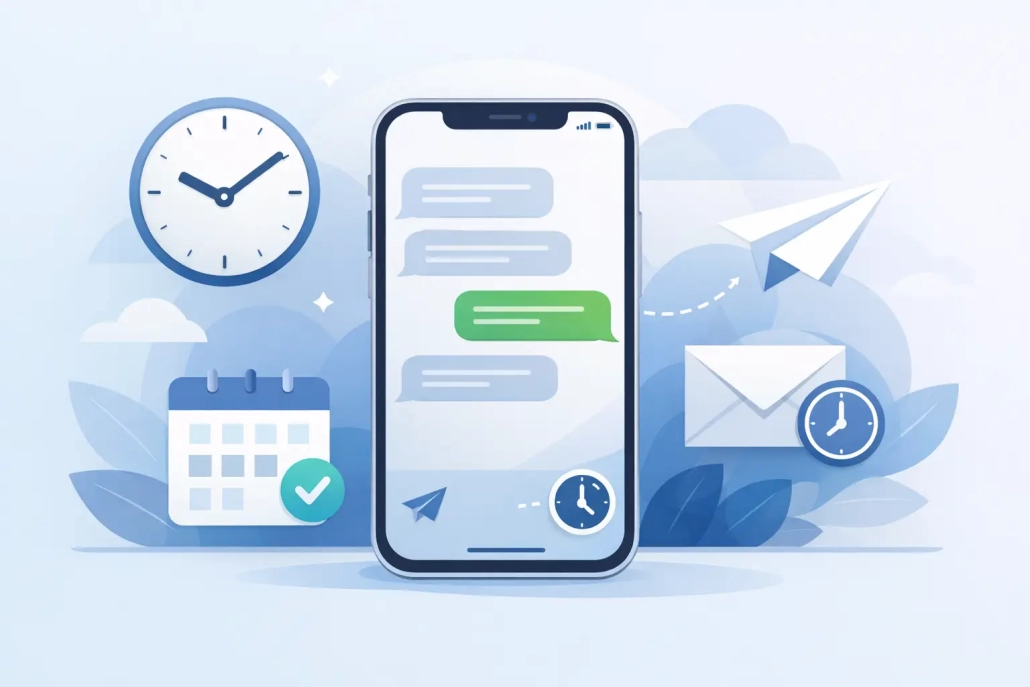
How to Schedule Messages on iPhone
If you have ever remembered a birthday text at 11:30 p.m. or needed to send a work message first thing in the morning without trusting yourself to remember, you have probably searched for how to schedule messages iPhone users can rely on. The tricky part is that the answer depends on which app you use, which version of iOS you have, and whether you want a true scheduled send or a close workaround.
Apple has made this easier than it used to be, but there is still some confusion because the iPhone does not handle every message type the same way. iMessage, SMS, and third-party messaging apps each work a little differently. Once you know where the feature lives and what its limits are, it becomes much more straightforward.
How to schedule messages on iPhone in Messages
If your iPhone supports Apple’s newer Send Later feature in the Messages app, this is the simplest method. Open Messages and start a new conversation or open an existing one. Type your message, then look for the plus button near the text field. Tap it, choose Send Later, and then pick the date and time you want the message to send.
After that, the message appears in the conversation with the scheduled time attached. You can usually edit the text, change the delivery time, or delete it before it sends. This is the closest thing to a built-in answer for anyone asking how to schedule messages on iPhone.
There are a few practical details worth knowing. Your iPhone generally needs to be able to complete the send when the scheduled time arrives, which means the device should be powered on and connected. If there is a network issue or another temporary problem, the message may send later than expected. That is not unusual, and it is one reason scheduled messages are helpful but not something to use for urgent, time-sensitive communication.
If you do not see Send Later
Not every iPhone will show the same Messages features. If you do not see Send Later, the most common reasons are your iOS version, your device compatibility, or the kind of message you are trying to send.
First, make sure your iPhone is updated to the latest version of iOS available for your device. Apple often places newer messaging features inside system updates, and missing even one major version can change what you see on screen. Go to Settings, tap General, then Software Update to check.
Second, pay attention to whether you are sending an iMessage or a standard text message. Apple’s built-in tools sometimes behave differently depending on the recipient and carrier. A blue bubble and a green bubble are not always handled the same way.
Third, the feature may be available but hidden behind the plus menu in Messages rather than sitting in plain view. Many users expect a long-press on the Send button, but Apple often groups actions in the app drawer instead.
How to schedule messages iPhone users can send with Shortcuts
If your iPhone does not have Send Later, or if you want more automation, the Shortcuts app can help. This method is useful, but it comes with an important limitation: depending on your iOS version and settings, some automations may require confirmation before the message actually sends.
Open the Shortcuts app and tap Automation. Create a new personal automation, then choose Time of Day. Set the time, date frequency, and whether it repeats daily, weekly, or monthly. Tap Next, then choose the action to send a message.
From there, enter the message text and recipient. If your version of iOS allows it, turn off the Ask Before Running option so the automation can happen with less manual involvement. Save the automation and let it run at the scheduled time.
This approach works well for recurring reminders, routine check-ins, or messages you send on a pattern. It is less ideal for one-time personal texts because setting up an automation takes longer than using a built-in scheduling feature. It is also not always a true hands-off solution, since Apple sometimes limits fully automatic message sending for privacy and security reasons.
The trade-off between Send Later and Shortcuts
For most people, Send Later inside Messages is the better option because it is faster, easier to review, and tied directly to the conversation. Shortcuts is more flexible, especially if you like automating repeated tasks, but it can feel more technical and occasionally less predictable.
That trade-off matters. If your goal is simply to remember to text someone tomorrow at 9:00 a.m., use the easiest built-in method available. If your goal is to create a repeating workflow, such as sending a weekly update or reminding a family member every Friday, Shortcuts may be worth the extra setup.
What about third-party apps?
Some users look for third-party apps when searching how to schedule messages iPhone users can depend on. In practice, these apps are often limited because Apple restricts direct access to core messaging behavior. An app may remind you to send a message, prepare a message for you, or ask for confirmation at the scheduled time rather than sending it fully on its own.
That does not make them useless. For some people, a well-timed reminder is enough. But it is important to understand the difference between a true scheduled send and a prompted send. If your expectation is full automation, many third-party options will not behave the way you hope.
Best uses for scheduled messages on iPhone
Scheduled messages are especially helpful when timing matters but urgency does not. Birthday greetings, appointment reminders, follow-ups after meetings, and messages to people in another time zone are all good examples. You can write the message while you are thinking about it and let your iPhone handle the timing.
This also helps with professionalism. If you remember a client message late at night, you can draft it now and send it during normal business hours. That lets you stay organized without creating pressure for the recipient to reply outside the workday.
For personal use, it is a simple way to be more thoughtful. A scheduled message can help you remember important moments without relying on memory alone.
Common problems and how to fix them
If a scheduled message does not send, start with the basics. Check your network connection, confirm that the date and time on your iPhone are set correctly, and make sure the device is powered on. For iMessage, you should also confirm that Messages is enabled in Settings and that you are signed in properly.
If you used Shortcuts, review the automation settings. Ask Before Running is a common reason an automation pauses instead of completing automatically. It is also worth checking whether Focus modes, Low Power Mode, or other restrictions might interfere with timing.
If Send Later is missing entirely, update iOS first. That one step resolves a surprising number of feature questions. Apple’s interface changes over time, and a current tutorial matters more than an old workaround. This is one reason structured Apple-specific learning, like the training approach used at TheMacU, can save a lot of trial and error.
A few practical habits that make scheduled messages more reliable
Before you schedule anything important, read the message as if you were about to send it immediately. It is easy to set the time and forget to double-check names, dates, or tone. A scheduled message is still your message, and it reflects the same level of care as one sent manually.
It also helps to avoid scheduling messages too far in advance unless the content is unlikely to change. Plans shift. Relationships shift. Even the wording that sounds right today may not feel right next week. For that reason, shorter scheduling windows are usually more practical.
Finally, use scheduled messages as a convenience, not a substitute for judgment. They are excellent for routine communication, but if a message is sensitive, urgent, or likely to need context, sending it live is usually better.
The simplest answer
If you want the shortest possible answer to how to schedule messages on iPhone, start in the Messages app and look for Send Later through the plus button. If it is not there, update iOS and then consider Shortcuts for automation or reminders as a fallback.
Once you know which method your iPhone supports, the process becomes easy to repeat. And that is really the goal – less guesswork, less frustration, and better timing with the messages you were already planning to send.


