Mac, iPhone & iPad tips · iPhone & iPad
iPhone Battery Draining Fast? How to Fix It
Why your iPhone battery drains fast, especially after an iOS update, and the settings and checks that get your all-day battery life back.
If your iPhone battery is draining faster than it used to, there is usually a simple reason behind it. Most of the time it is one of three things: your iPhone is still finishing background work after a software update, one app or setting is using more power than it should, or the battery itself has aged and holds less charge than when it was new.
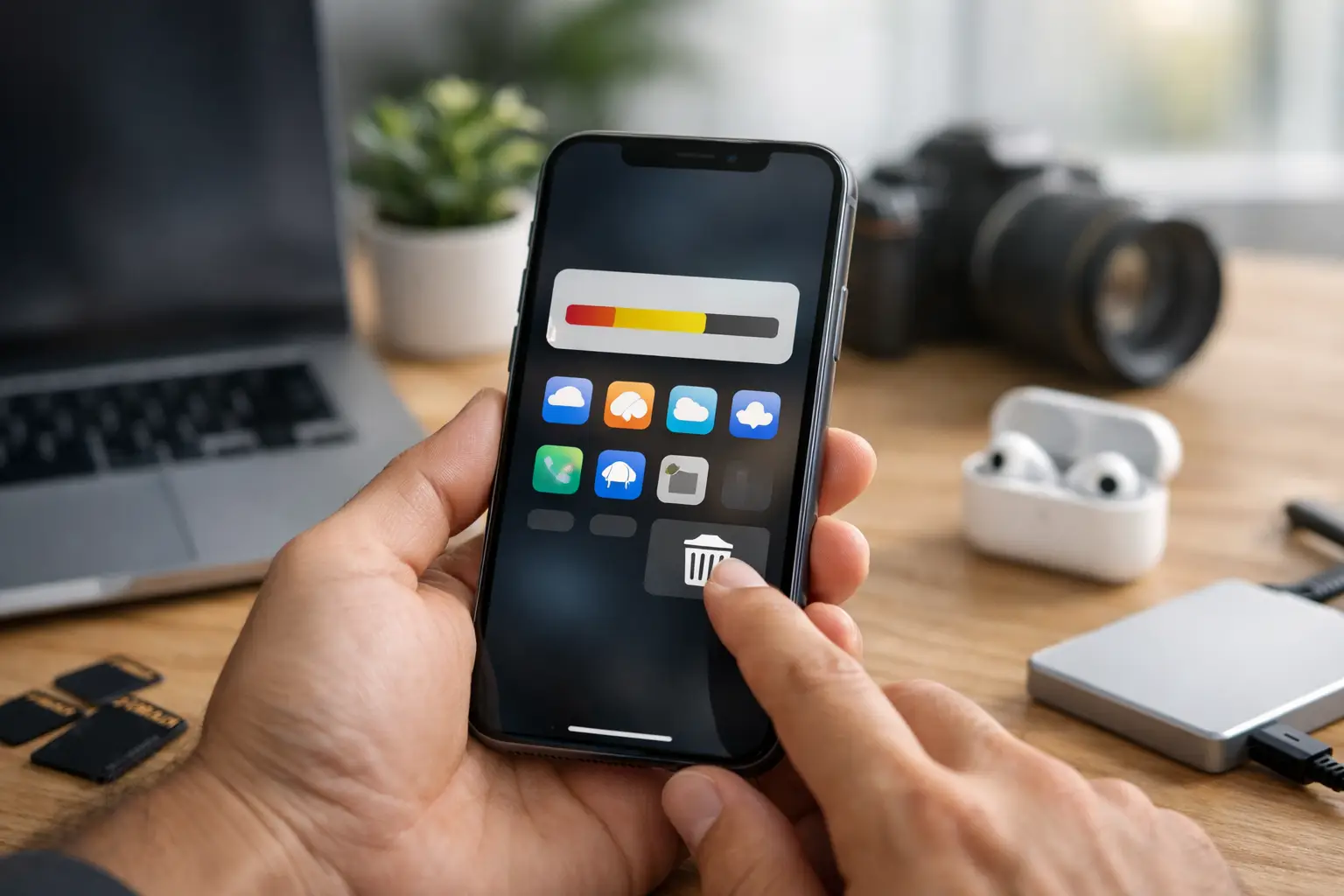
The good news is that your iPhone tells you which of these is happening. The Battery screen in Settings shows which apps use the most power, and the Battery Health section shows how much capacity your battery has left. With those two screens and a few setting changes, most people can get a full day of use back.
This guide walks through what to check first, the settings that make the biggest difference, and when it is time to think about a battery replacement.
Live Activities on iPhone

Watch it free, then go deeper: the iOS Core Concepts tutorial has 34 step-by-step lessons. Start your free trial →
Just Updated to iOS 27? Give It a Few Days
If the battery drain started right after you installed a major update such as iOS 27, don’t panic. After a big update, your iPhone does a lot of work in the background. It rebuilds the search index so Spotlight can find your messages, photos and files, it re-analyzes your photo library, it updates apps, and on supported models it downloads and prepares the data that Apple Intelligence and Siri use. That extra work uses power and can make the phone feel warm.
Apple notes that this kind of drain is normal and temporary after an update. Here is what helps it finish faster:
- Charge overnight on Wi-Fi. Much of the background work happens while the iPhone is plugged in, locked and connected to Wi-Fi.
- Update your apps. Developers often release updates after a major iOS release. Open the App Store, tap your profile picture and choose Update All.
- Wait a few days before judging. If the battery is still draining unusually fast after about a week, move on to the checks below, because the update probably isn’t the cause anymore.
Curious about what else changed in the latest release? Our iOS Core Concepts tutorial covers the settings and everyday features every iPhone owner should know, and you can watch our free lesson on how to use the new Siri AI app in iOS 27.
Find Out What Is Using Your Battery
Before you start changing settings, look at the data. Your iPhone keeps a record of battery use for the last 24 hours and the last 10 days.
- Open Settings and tap Battery.
- Look at the chart for your battery level over time. Steep drops show when the battery was used most.
- Scroll down to see the list of apps and how much of the battery each one used.
- Tap an app, or switch between the 24-hour and 10-day views, to see how much time the app spent on screen compared with running in the background.
Pay special attention to apps that show a lot of background activity. An app you barely open that still uses a big share of your battery is a good place to start. You can limit what that app does in the background, update it, or delete and reinstall it if it seems stuck.
The Battery screen may also show suggestions, such as turning on Auto-Brightness or lowering screen brightness. These are based on how you actually use your phone, so they are worth a look.
Settings That Save the Most Battery
You don’t need to turn everything off to get better battery life. These are the changes that tend to make the biggest difference for everyday users.
Use Low Power Mode
Low Power Mode reduces background activity such as mail fetching and some visual effects so your battery lasts longer. Turn it on in Settings > Battery, or add the Low Power Mode button to Control Center so you can switch it on with one tap. Your iPhone also offers to turn it on when the battery reaches 20 percent, and it turns itself off automatically once the iPhone charges back up past 80 percent.
Try Adaptive Power on newer iPhones
On iPhone 15 Pro and later models, iOS includes a feature called Adaptive Power. It watches how you use your iPhone and makes small performance adjustments when your usage is higher than normal, such as when you are recording a lot of video or playing a game. It can also turn on Low Power Mode automatically when the battery gets to 20 percent. You will find it in Settings > Battery > Power Mode. It is on by default on iPhone 17 and later models, including iPhone Air, but you may need to switch it on yourself on iPhone 15 Pro and iPhone 16 models.
Turn down Background App Refresh
Background App Refresh lets apps check for new content even when you aren’t using them. That is handy for some apps, but you probably don’t need it for all of them.
- Open Settings > General > Background App Refresh.
- Turn off the switch next to apps that don’t need to stay up to date in the background, such as games or shopping apps.
- If you want, tap Background App Refresh at the top and choose Wi-Fi so apps only refresh when you are on Wi-Fi.
Review Location Services
GPS is one of the more power-hungry parts of your iPhone. Go to Settings > Privacy & Security > Location Services and look through the list. For most apps, While Using the App is all you need. Change any app set to Always unless it truly needs your location in the background, like a navigation or family safety app.
Manage your screen
The display is usually the biggest single user of power. Keep Auto-Brightness on (it is in Settings > Accessibility > Display & Text Size), and use Dark Mode if you like the look, since it can help on iPhones with OLED screens. If your iPhone has the Always On display, you can turn it off in Settings > Display & Brightness if you would rather save the power.
Check Live Activities and widgets
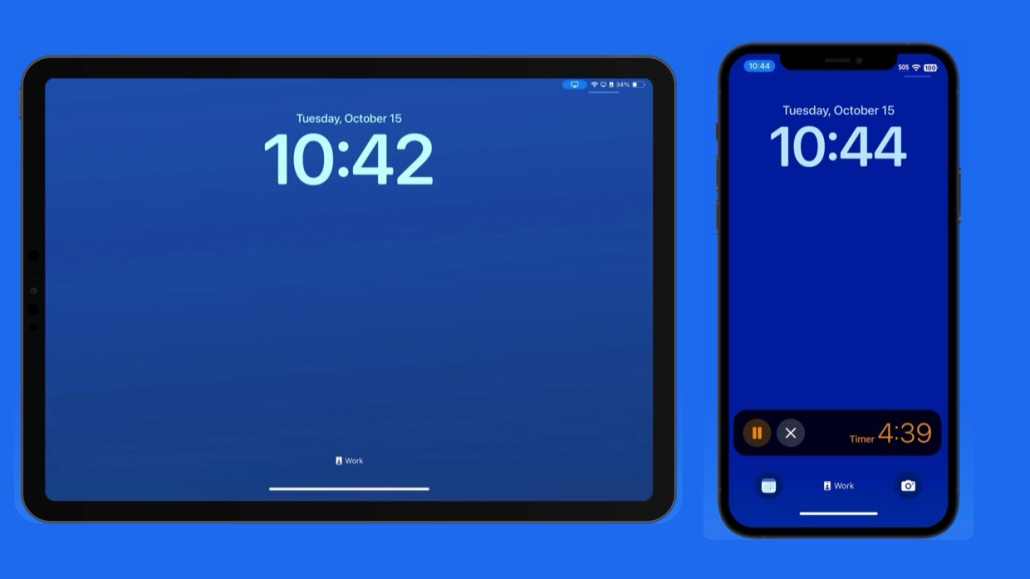
Live Activities keep things like sports scores, deliveries and ride-share trips updating on your Lock Screen and in the Dynamic Island. They are useful, but lots of them running all day add up. Our free lesson on Live Activities on iPhone shows what they are and how to control which apps can use them.
Check Your Battery Health
All rechargeable batteries slowly lose capacity as they age. If your iPhone is a few years old, shorter battery life may simply be a sign of a worn battery, not a settings problem.
- Open Settings > Battery.
- Tap Battery Health.
- Look at Maximum Capacity. This compares your battery’s capacity today with when it was new.
Apple designs iPhone batteries to keep about 80 percent of their original capacity after a set number of full charge cycles: 500 cycles for iPhone 14 and earlier, and 1,000 cycles for iPhone 15 and later. If your Maximum Capacity is well below 80 percent, or the screen says service is recommended, a battery replacement will likely give you a bigger improvement than any setting change. We also have an older free lesson that explains the Battery Health setting and what its numbers mean.
Charging Habits That Help Your Battery Last
How you charge your iPhone affects how long the battery stays healthy. A few simple habits help:
| Habit | Why it helps |
|---|---|
| Leave Optimized Battery Charging on | Your iPhone learns your routine and waits to finish charging past 80 percent until shortly before you usually unplug. |
| Use a charge limit (iPhone 15 and later) | You can choose to stop charging at a set level between 80 and 100 percent, in 5 percent steps, which reduces wear over time. |
| Avoid heat | Apple recommends using your iPhone between 0° and 35° C (32° to 95° F). High heat can permanently reduce battery capacity. |
| Take off thick cases when charging if it gets hot | Some cases trap heat while the iPhone charges. |
You will find these charging options in the Battery section of Settings. If you set a charge limit, don’t worry if you occasionally see your iPhone charge to 100 percent. Apple does this now and then to keep the battery percentage reading accurate.
When Nothing Seems to Help
If you have waited out the update, checked your apps and adjusted your settings, but the battery still drains quickly, try these steps in order:
- Restart your iPhone. A simple restart clears out apps or processes that are stuck running in the background.
- Force restart if needed. Press and quickly release the volume up button, press and quickly release the volume down button, then press and hold the side button until the Apple logo appears.
- Install the latest update. Go to Settings > General > Software Update. Apple often fixes battery bugs in smaller updates after a major release.
- Contact Apple Support. Apple can run diagnostics on your battery and tell you whether it needs service. You can also read Apple’s support article on what to do if your iPhone battery drains too quickly.
Black Friday at TheMacU: Get to know every setting on your iPhone with our full video tutorials. Through Tuesday, December 1, All Access is $9.99 a year instead of $30, or $79 once for Lifetime. See the Black Friday deals.
Frequently Asked Questions
Why does my iPhone battery drain so fast after an update?
After a major update, your iPhone re-indexes your data, updates apps and prepares new features in the background. That extra work uses power for a few days. Charging overnight on Wi-Fi helps it finish, and battery life usually returns to normal within about a week.
Does closing apps save battery on iPhone?
Not usually. iOS pauses apps you aren’t using, and reopening an app from scratch can use more power than switching back to it. Only close an app if it is frozen or misbehaving. Limiting Background App Refresh and Location Services is far more effective.
Is it bad to leave Low Power Mode on all the time?
No, it won’t harm your iPhone. Some things, like mail fetching and certain background tasks, happen less often, so you may notice slower updates in some apps. Many people turn it on only when they need extra battery life.
When should I replace my iPhone battery?
Consider a replacement when Maximum Capacity in Battery Health drops well below 80 percent, when your iPhone shows a service message, or when the phone can no longer get through a normal day even after you adjust your settings.
Keep watching
More free video lessons on this topic


All Access membership
Watch every iOS Core Concepts lesson, plus every other tutorial
Every plan starts with a free trial. Cancel any time during the trial and you won't be charged.
Monthly
Auto recurring5-day free trial
- Every Mac, iPhone & iPad tutorial
- New tutorials as they're released
- Watch on any device
- No ads
- Email support
Yearly
Auto recurring7-day free trial · just $2.50 a month
- Every Mac, iPhone & iPad tutorial
- New tutorials as they're released
- Watch on any device
- No ads
- Email support
Lifetime
Single payment7-day free trial · pay once, keep it for good
- Everything in Yearly
- Every future macOS & iOS update tutorial
- Never pay again
Secure checkout. Log in on any Mac, iPhone or iPad with the same account.