Mac, iPhone & iPad tips · iPhone & iPad
AirPods Not Connecting? How to Fix and Reset Them
AirPods won't connect? Try these fixes in order, from quick checks and re-pairing to a full reset, plus fixes for one AirPod not working.

If your AirPods won’t connect, the fix is usually quick. Put both AirPods back in the charging case, close the lid for about 15 seconds, then open it and try again. If that doesn’t work, put them back in pairing mode and pair them again. Resetting them is the last step, and it fixes nearly everything else.
This guide goes through each fix in order, starting with the easiest. It covers iPhone, iPad and Mac, AirPods that connect to the wrong device, and the frustrating case where only one AirPod plays sound. It also shows you the two different reset methods. Which one you use depends on whether your AirPods case has a setup button.
AirPods Tutorial – Audio Controls

Watch it free, then go deeper: the AirPods tutorial has 9 step-by-step lessons. Start your free trial →
Start With the Quick Checks
Most connection problems come from something simple. Check these before you reset anything:
- Charge both AirPods. Put both earbuds in the case and make sure they are charging. If the case battery is empty, the AirPods may not wake up or show up at all. Charge the case for a while and try again.
- Turn on Bluetooth. On iPhone or iPad, go to Settings > Bluetooth. On a Mac, choose Apple menu > System Settings > Bluetooth.
- Update your device. Apple’s first suggestion is to install the latest version of iOS, iPadOS or macOS. AirPods often need current software to work properly, especially newer models.
- Stay close. Keep the AirPods near the device you’re connecting to. Walls, distance and lots of other wireless gear nearby can weaken a Bluetooth connection.
- Clean the case and the earbuds. Dirt or lint on the charging contacts can stop an AirPod from charging, and an AirPod that isn’t charged won’t connect. Use a soft, dry, lint-free cloth.
Pick Your AirPods From Control Center
Sometimes the AirPods are paired just fine, but your iPhone or Mac is still sending sound to its own speaker or to another device. You can switch the audio by hand:
- Take the AirPods out of the case and put them in your ears.
- Open Control Center on your iPhone, iPad or Mac.
- Tap or click the AirPlay button (the audio output icon) in the music controls.
- Choose your AirPods from the list. Then play something with the volume turned up to test it.
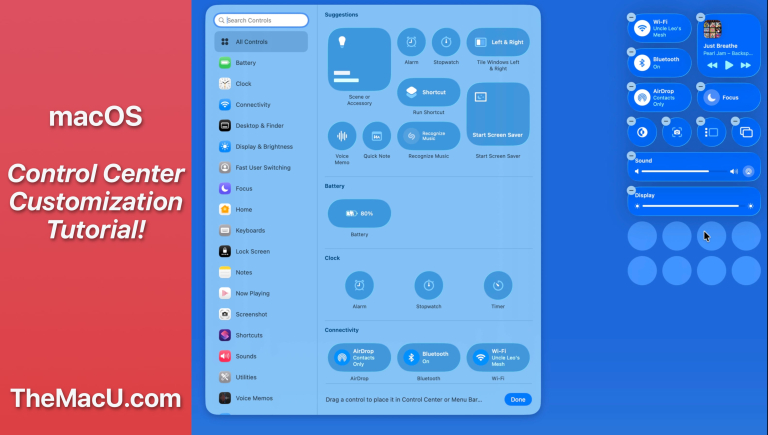
If your AirPods show up and play sound, you’re done. If they don’t show up, or they show up but won’t connect, keep going. Want to make the audio controls easier to reach on a Mac? This free lesson shows you how to customize Control Center on your Mac.
Reconnect Your AirPods by Pairing Again
If your device can’t find the AirPods, put them back in pairing mode. Here are Apple’s steps for an iPhone or iPad:
- Put both AirPods in the charging case and close the lid.
- Wait about 15 seconds, then open the lid.
- Put the AirPods in pairing mode:
- AirPods with a setup button (the small button on the back of the case): press and hold the button until the status light flashes white.
- AirPods 4, AirPods Pro 3 and newer models without a button: double-tap the front of the case until the status light flashes white.
- Hold the open case with the AirPods inside next to your iPhone or iPad.
- Follow the steps on the screen.
On a Mac, put the AirPods in pairing mode the same way. Then open System Settings > Bluetooth and connect to the AirPods when they show up in the list of nearby devices.
Using AirPods With a Non-Apple Device
AirPods also work as regular Bluetooth headphones with Android phones, Windows PCs and other devices. Put them in pairing mode as described above. Then open that device’s Bluetooth settings and choose the AirPods from the list. Some extras, like automatic switching, only work with Apple devices signed in to your Apple Account.
How to Reset AirPods When Nothing Else Works
A reset clears the AirPods’ pairing information and returns them to factory settings. Apple suggests it when your AirPods won’t connect or won’t charge properly. Afterward, you’ll need to set them up again on your devices.
AirPods and AirPods Pro With a Setup Button
This covers the first three generations of AirPods and the first two generations of AirPods Pro:
- Put the AirPods in the charging case, close the lid and wait 30 seconds.
- On your iPhone or iPad, go to Settings > Bluetooth. If your AirPods appear under My Devices, tap the More Info button next to them. Then tap Forget This Device and tap it again to confirm.
- Open the lid of the case.
- Press and hold the setup button on the back of the case for about 15 seconds.
- When the status light flashes amber and then white, follow the steps on the screen to reconnect.
AirPods 4, AirPods Pro 3 and Newer Models
These cases have no setup button. You reset them by tapping the front of the case:
- Put the AirPods in the case, close the lid and wait 30 seconds.
- Forget the AirPods in Settings > Bluetooth, just like in step 2 above.
- Open the lid.
- Double-tap the front of the case while the status light is on.
- Double-tap again when the light flashes white.
- Double-tap a third time when the light starts flashing faster.
- When the light flashes amber and then white, follow the steps on the screen.
If the light never flashes white, close the lid for 20 seconds, open it, and do the button hold or double-tap steps again. A reset can take a couple of tries, so stay patient.
| Your AirPods | Pairing mode | Reset |
|---|---|---|
| AirPods (1st–3rd generation), AirPods Pro (1st and 2nd generation) | Hold the setup button until the light flashes white | Hold the setup button about 15 seconds until amber, then white |
| AirPods 4, AirPods Pro 3 and newer button-free models | Double-tap the front of the case until the light flashes white | Double-tap three times as the light changes, until amber, then white |
AirPods Connecting to the Wrong Device?
If you own more than one Apple device, your AirPods may jump to your iPad or Mac when you meant to use them with your iPhone. This is automatic switching. It moves your AirPods to whichever device you’re using, based on what’s playing and incoming calls. It’s handy, but it can feel like a connection problem.
You can change how this works on each device:
- With your AirPods connected, open Settings on your iPhone or iPad and tap your AirPods’ name near the top. You can also go to Settings > Bluetooth and tap the More Info button next to them.
- Tap Connect to This iPhone (or iPad).
- Choose When Last Connected to This iPhone if you only want them to connect when you last used them with that device. Choose Automatically to turn switching back on.
On a Mac, open System Settings > Bluetooth, click the More Info button next to your AirPods, and look for the Connect to This Mac option. Set this on each device where you want to change how switching works.
Only One AirPod Working?
If sound only plays in one ear, try these fixes in order:
- Check the audio balance. On iPhone or iPad, go to Settings > Accessibility > Audio & Visual (it may be labeled Audio/Visual) and make sure the Balance slider sits in the middle. While you’re there, make sure Mono Audio is set the way you want.
- Charge and clean. Put both AirPods in the case and confirm the silent one is charging. Gently clean its speaker mesh and charging contacts with a dry, soft brush or cloth.
- Restart them. Close both AirPods in the case for at least 10 seconds, then try again.
- Reset. If one side still doesn’t play, reset the AirPods using the steps above.
Once both sides are working again, it’s worth learning the controls built into the stems and your iPhone. This free video lesson on AirPods audio controls goes through them.
Keep Your AirPods Up to Date
AirPods get firmware updates that fix bugs and improve connections. They install automatically while your AirPods are charging near a paired device. To see which firmware you have, connect your AirPods, open Settings, tap your AirPods’ name, and scroll down to the About section.
If you’ve tried everything here and your AirPods still won’t connect or charge, contact Apple Support or book a visit to an Apple Store. The problem could be with the hardware. To get more out of your AirPods, from noise control to sharing audio, the full AirPods video tutorial on TheMacU covers it step by step.
Frequently Asked Questions
Why won’t my AirPods connect even though they’re charged?
Your device may be sending audio somewhere else, or the pairing information may be out of date. Pick the AirPods from the AirPlay button in Control Center first. If they don’t appear, put them in pairing mode and connect again. If that fails, reset them.
Does resetting AirPods delete anything important?
A reset removes the AirPods from your devices and returns their settings to factory defaults. You’ll need to set them up again and adjust any custom settings, like controls or automatic switching, but nothing on your iPhone, iPad or Mac is deleted.
What do the amber and white lights on the AirPods case mean?
A flashing white light means the AirPods are ready to pair. During a reset, a flashing amber light followed by flashing white means the reset worked and you can set them up again.
Can I stop my AirPods from switching to my Mac or iPad?
Yes. On each device, open your AirPods’ settings and change Connect to This iPhone (or Mac or iPad) to When Last Connected. They’ll then connect to that device only if it was the last one you used them with.
Keep watching
More free video lessons on this topic

All Access membership
Watch every AirPods lesson, plus every other tutorial
Every plan starts with a free trial. Cancel any time during the trial and you won't be charged.
Monthly
Auto recurring5-day free trial
- Every Mac, iPhone & iPad tutorial
- New tutorials as they're released
- Watch on any device
- No ads
- Email support
Yearly
Auto recurring7-day free trial · just $2.50 a month
- Every Mac, iPhone & iPad tutorial
- New tutorials as they're released
- Watch on any device
- No ads
- Email support
Lifetime
Single payment7-day free trial · pay once, keep it for good
- Everything in Yearly
- Every future macOS & iOS update tutorial
- Never pay again
Secure checkout. Log in on any Mac, iPhone or iPad with the same account.