The Ultimate Guide to Fixing iCloud Contact Sync Issues
Why Backing Up Your iPhone Contacts Matters More Than You Think
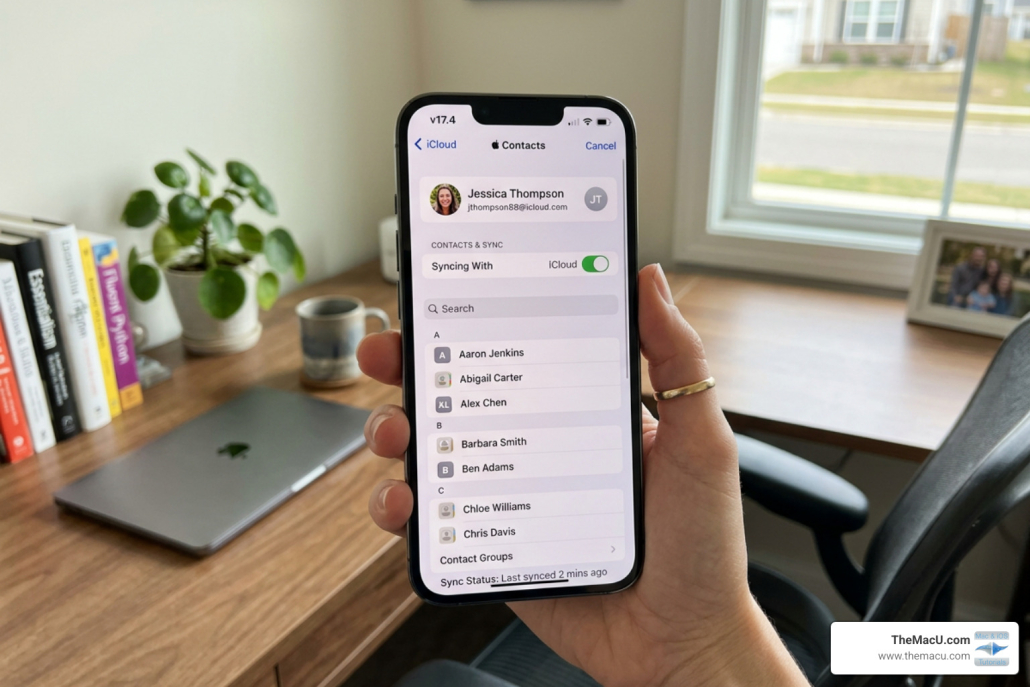
iPhone contacts iCloud backup is one of the simplest ways to make sure you never lose the phone numbers, emails, and addresses you’ve saved over the years.
Here’s the quick answer on how to back up your iPhone contacts with iCloud:
- Open Settings on your iPhone
- Tap your name at the top (your Apple Account)
- Tap iCloud
- Tap See All next to “Saved to iCloud”
- Toggle Contacts to green (on)
- Tap Merge if prompted
That’s it. Your contacts will now sync to iCloud automatically.
Think about how much of your life is stored in your contacts list, including your doctor, your kids’ schools, and your closest friends. Losing all of that in an instant is more common than most people realize — Consumer Reports found that over 2 million phones were stolen in a single year. And that doesn’t even count phones that get dropped, damaged, or simply stop working.
Most people only think about backing up their contacts after something goes wrong. The good news is that iCloud makes it easy to protect that data before disaster strikes.
I’m Drew, founder of TheMacU.com and an Apple educator with years of experience helping users navigate exactly these kinds of iCloud and iOS challenges — including iphone contacts icloud backup setup and recovery. In the sections ahead, I’ll walk you through everything you need to know, step by step.
Learn much more in our full iCloud Tutorial!
Understanding How iPhone Contacts iCloud Backup Works
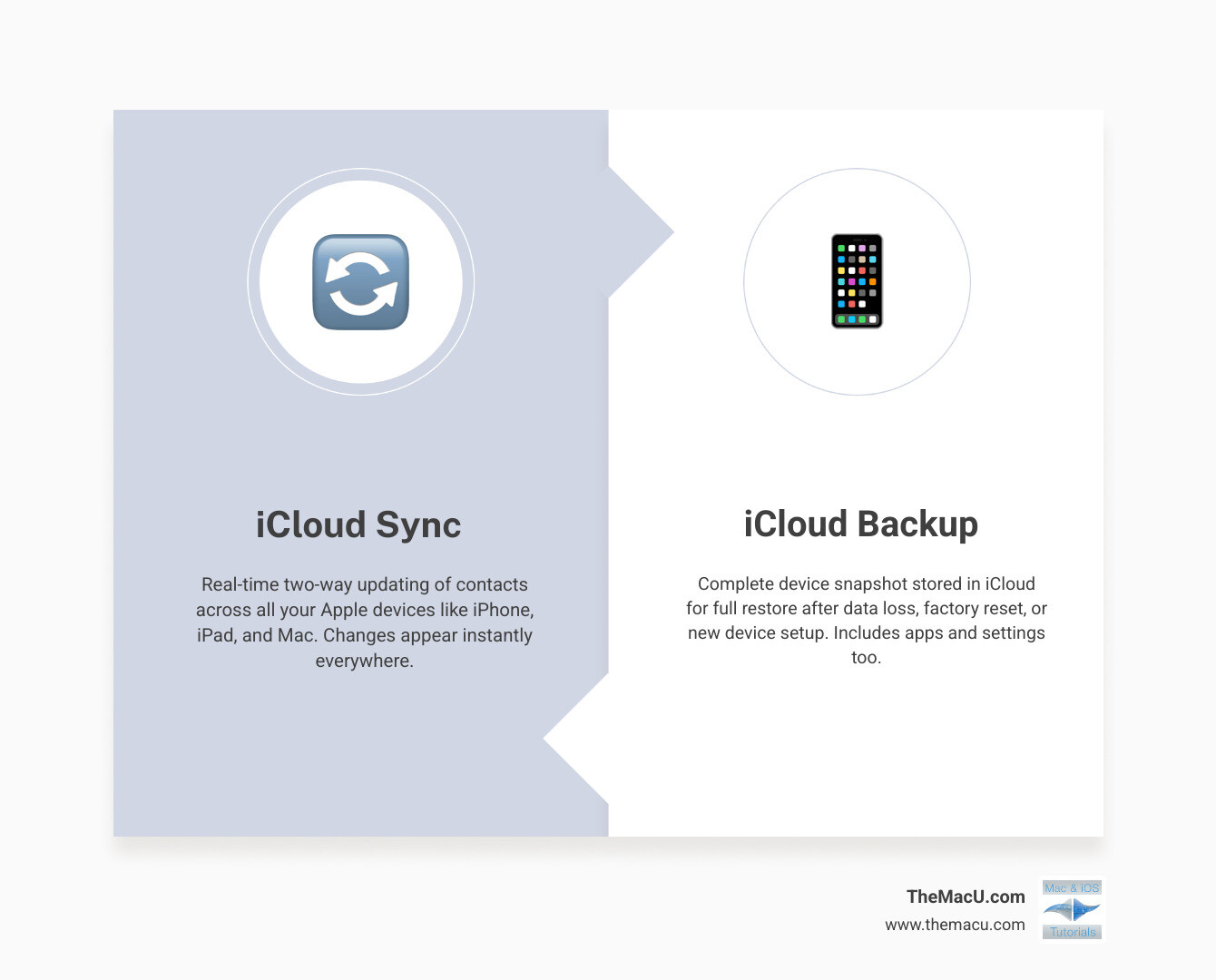
Before we dive into the “how-to,” we need to understand exactly what is happening behind the scenes. Many users get confused between “iCloud Sync” and “iCloud Backup,” but knowing the difference is key to keeping your data safe.
What is iCloud?
At its core, iCloud is Apple’s cloud-based storage solution. It acts as a digital bridge between all your devices—your iPhone, iPad, Mac, and even Windows PCs. When we talk about an iphone contacts icloud backup, we are usually referring to a process where your contact data is stored safely on Apple’s servers.
Sync vs. Backup: The Vital Distinction
This is where most people get tripped up.
- iCloud Sync: When you turn on the “Contacts” toggle in your iCloud settings, your contacts are constantly “syncing.” This means if you add a phone number on your iPhone, it instantly appears on your iPad. If you delete a contact on your Mac, it disappears from your iPhone. Your contacts live “in the cloud” rather than just on your device.
- iCloud Backup: This is a snapshot of your entire phone (settings, app data, home screen layout) taken usually once a day when your phone is plugged in and on Wi-Fi.
Important Note: If you have “Contacts” toggled ON in your iCloud settings, they are not included in your nightly full device backup. Why? Because they are already being handled by the sync service. They are already safe in the cloud! To learn more about how this ecosystem fits together, check out our guide to Learn iCloud for Mac, iPad, and iPhone.
Storage Limits and iCloud+
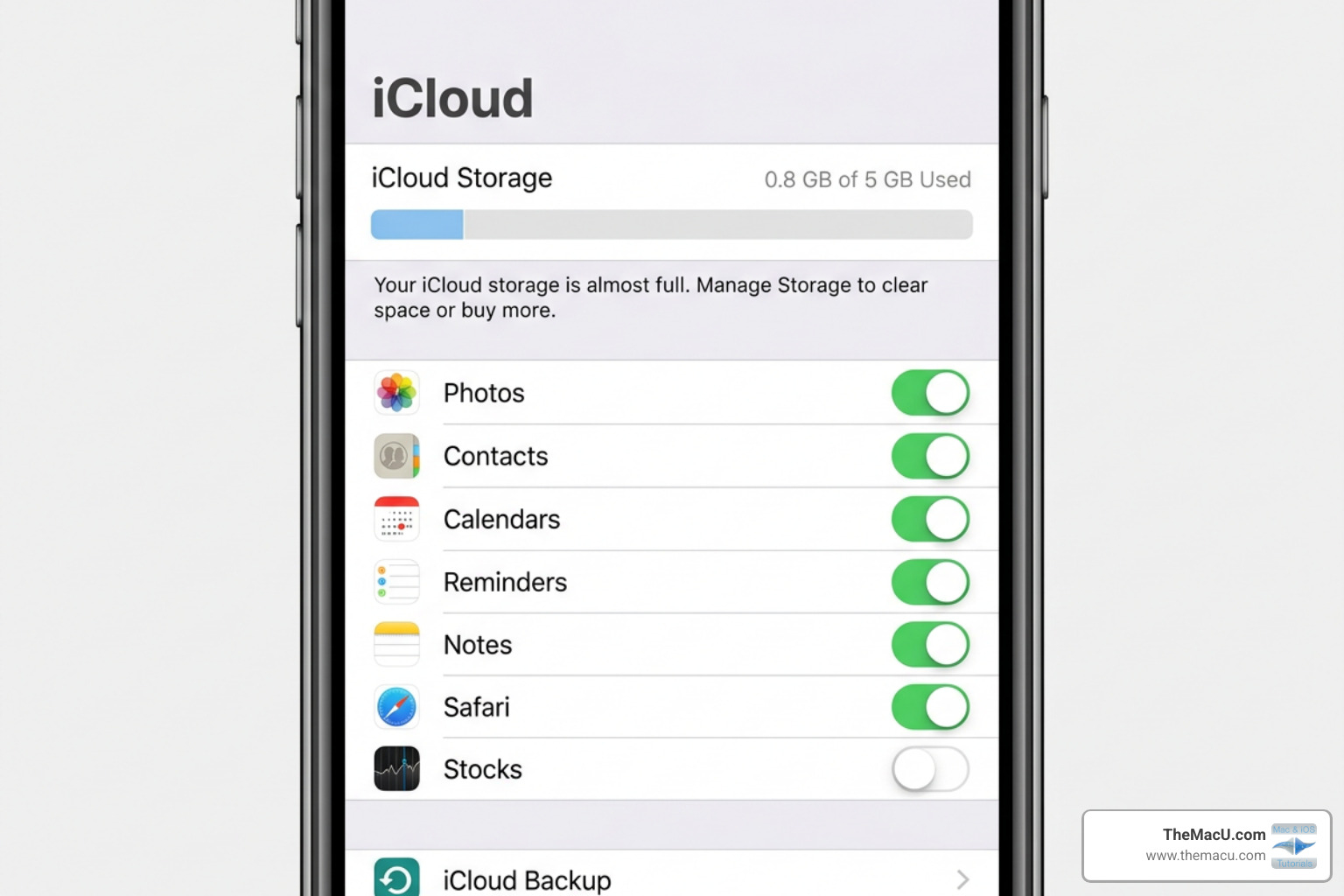
Apple provides every user with 5GB of free storage. While contacts themselves are tiny text files and don’t take up much space, your photos and videos certainly do. If your 5GB is full, your iphone contacts icloud backup might fail because there’s no room for the data to move.
If you find yourself hitting that wall, you might need an iCloud+ subscription. This paid tier offers more storage (starting at 50GB) and extra privacy features.
How to Enable and Manage Your iPhone Contacts iCloud Backup
Setting up your backup is a “set it and forget it” task, but you have to do it correctly the first time to avoid duplicates or lost data. We always recommend starting with a clean slate by ensuring you are signed in to your Apple Account (formerly Apple ID) on all your devices.
Setting Up iPhone Contacts iCloud Backup on iOS
To get your contacts moving to the cloud, follow these detailed steps on your iPhone or iPad:
- Navigate to Settings: Tap the gear icon on your home screen.
- Access Apple Account: Tap your name at the very top of the list.
- Select iCloud: This opens your cloud management dashboard.
- Show All Apps: Under the “Apps Using iCloud” or “Saved to iCloud” section, tap “See All.”
- Toggle Contacts: Find “Contacts” and switch the toggle to the green “On” position.
- The Merge Prompt: This is the most important part. If your iPhone asks if you want to “Merge” or “Cancel,” always choose Merge. This takes the contacts currently living on your phone’s internal memory and uploads them to iCloud without deleting anything.
Once this is done, you can verify your backup by logging into iCloud.com on a computer. If you see your names and numbers there, your iphone contacts icloud backup is successful. For more help, you can also refer to the Set up and use iCloud Contacts – Apple Support page. For a deeper dive into managing these entries, our Learn Contacts for Mac, iPhone, and iPad tutorial offers hands-on guidance.
Syncing Contacts on Mac and Windows
To truly benefit from the Apple ecosystem, you should enable sync on your computer as well.
- On a Mac: Go to the Apple Menu > System Settings (or System Preferences) > Apple ID > iCloud. Ensure the box next to “Contacts” is checked.
- On Windows: Download the iCloud for Windows app. Sign in with your Apple Account and check the box for “Contacts and Calendars.” This will sync your iPhone contacts with Outlook.
By having your contacts on multiple devices, you create a safety net. If you lose your phone, you can still find your boss’s email address on your laptop. You can see how this works in action in our Contacts for Mac and iOS Tutorial.
Restoring and Exporting Your Contact Data
Sometimes, “syncing” can be a double-edged sword. If you accidentally delete a group of contacts on your phone, iCloud will faithfully delete them from your iPad and Mac too. Don’t panic! Apple has a built-in “time machine” for your contacts.
How to Restore iPhone Contacts iCloud Backup
If you’ve lost data, you can restore an earlier version of your contact list from the web.
- Go to icloud.com/contacts on a computer or tablet.
- Sign in with your Apple Account.
- Click on Data Recovery (this is typically found in the bottom-left corner of the screen or within your account settings).
- Select Restore Contacts.
- You will see a list of “archives” created automatically by Apple. Find a date from before you deleted the contacts and click Restore.
Wait! Before you do this, understand that this will replace the contacts currently on all your devices with the version from that specific date. iCloud will archive your current version first, so you can always go back if you change your mind. Also, note that recently deleted contacts might take up to 24 hours to appear in the archive list. For official steps, see the Restore contacts stored in iCloud on iCloud.com – Apple Support guide.
Exporting Contacts for External Safekeeping
If you don’t trust the cloud or want a hard copy of your data, you can export your contacts as a “vCard” (.vcf) file. This is a universal format that can be imported into Gmail, Outlook, or another phone.
- Using the Lists Feature: On iOS 16 and later, you can open the Contacts app, tap “Lists,” then long-press a list and tap “Export.”
- Using iCloud.com: Select the contacts you want (or “Select All”), click the Share icon, and choose Export vCard.
We recommend doing this once every few months and emailing the file to yourself as a secondary iphone contacts icloud backup. For more details, see the Export contacts on iPhone – Apple Support guide. To learn how to organize these lists properly before exporting, see our guide on How to Create and Manage Lists in Apple Contacts.
| Feature | iCloud Restore | Manual vCard Export |
|---|---|---|
| Best For | Recovering accidentally deleted data | Moving data to a non-Apple service |
| Ease of Use | Automatic archives | Manual process |
| Device Sync | Updates all devices at once | Only updates where you import the file |
| Format | Internal Apple database | .vcf (Universal) |
Troubleshooting Common Sync and Backup Issues
Even the best systems have hiccups. If you notice that a new contact you added on your iPhone isn’t showing up on your Mac, or if you’re seeing duplicate names everywhere, it’s time to troubleshoot.
Resolving iPhone Contacts iCloud Backup Failures
If your sync has stopped, check these four things first:
- Wi-Fi Connection: iCloud won’t sync large amounts of data over a weak cellular connection. Ensure you’re on a stable Wi-Fi network.
- Storage Space: If your iCloud storage is full, the sync will freeze. You’ll usually see a “Storage Full” warning in your settings.
- Apple ID Consistency: Make sure every device is signed into the exact same email address for iCloud.
- Software Updates: Sometimes a bug in an older version of iOS prevents syncing. Update your devices to the latest software.
For a more personalized troubleshooting experience, you can try the iPhone Help Assistant, or check our iCloud Tutorial Update for the latest fixes.
Dealing with Duplicates
Duplicates often happen when you sync with both iCloud and another service (like Gmail or Outlook) simultaneously. If you have the same person in both accounts, they will appear twice.
On a Mac, the Contacts app has a built-in tool: go to Card > Look for Duplicates. On an iPhone, the Contacts app will often show a “Duplicates Found” banner at the top of your list. For a deeper look at cleaning this up, read our article on Two Ways to Remove Duplicate Entries from the Contacts App.
Managing Communication Limits and Family Sharing
If you use Family Sharing, iCloud contacts become a tool for safety. Through “Screen Time,” parents can set “Communication Limits.” This allows you to choose exactly who your child can talk to during specific hours. For this to work, the child’s contacts must be synced to iCloud. You can find out more about this in the Sync contacts across devices – Apple Support documentation.
Frequently Asked Questions about iPhone Backups
Does iCloud automatically back up my contacts?
Yes, but with a caveat. iCloud syncs your contacts automatically in the background as long as you are connected to the internet and have the “Contacts” toggle turned on in your settings. It is not a “once a week” thing; it happens almost instantly whenever you make a change.
How do I back up contacts without using iCloud?
If you prefer to stay out of the cloud, you have several options:
- Finder (Mac) or iTunes (Windows): Connect your iPhone to your computer via USB. In Finder, select your device, go to the “Info” tab, and check “Sync contacts.” This creates a local backup on your hard drive.
- Google Contacts: You can add a Gmail account to your iPhone (Settings > Mail > Accounts) and toggle “Contacts” on. Google offers 15GB of free storage, which is more generous than Apple’s 5GB.
- Third-Party Apps: There are many apps on the App Store designed to export your contacts to Excel or CSV files.
What specific information does iCloud save?
Your iphone contacts icloud backup is surprisingly comprehensive. It saves:
- First and last names
- Multiple phone numbers (Home, Work, Mobile)
- Email addresses
- Physical mailing addresses
- Birthdays and anniversaries
- Custom labels and notes
- Profile pictures/Contact posters
Conclusion
At the end of the day, your contacts are more than just numbers—they are your connection to your world. Setting up a proper iphone contacts icloud backup is the best insurance policy you can have against the unexpected loss of your device.
We’ve covered a lot today, from the basic setup to advanced restoration techniques. Remember to check your storage levels regularly, merge your contacts when prompted, and don’t be afraid to export a manual backup occasionally for peace of mind.
If you want to become a true master of your Apple devices, we invite you to join us at TheMacU.com. Our structured, self-paced video tutorials are designed to help you get the most out of your technology with zero stress. Start by learning how to Master your workflow with our Contacts, Calendar & Reminders Tutorials and see how much easier your digital life can be!