
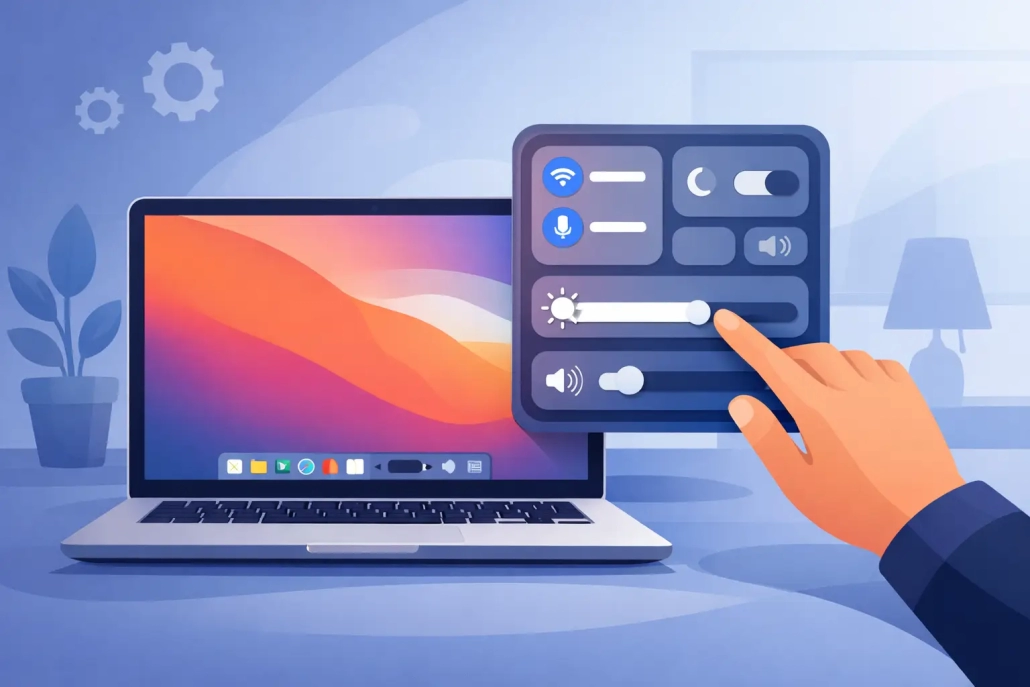
How to Customize Mac Control Center
If you open Control Center on your Mac and feel like the right controls are always one click too far away, you are not imagining it. Learning how to customize Mac Control Center is one of the quickest ways to make your Mac feel easier to use, especially if you rely on the same settings throughout the day.
On a Mac, Control Center is designed to give you fast access to common system controls like Wi-Fi, Bluetooth, Display, Sound, Focus, and more. But the default setup is only a starting point. You can decide which controls stay in Control Center, which ones also appear in the menu bar, and which shortcuts deserve a permanent spot at the top of your screen.
That distinction matters. Control Center is the panel you open when you click its icon in the menu bar. The menu bar is the row of icons and menus across the top of the screen. Some items can live in both places, while others can only appear in one. Once you understand that, the customization options make a lot more sense.
Where to customize Mac Control Center
If you want to customize Mac Control Center, start in System Settings. Click the Apple menu, choose System Settings, then scroll down the sidebar and select Control Center.
In older versions of macOS, especially Monterey, the path may be slightly different because the interface was built around System Preferences instead of System Settings. The names are similar, but the layout is not. If your Mac looks different from screenshots you have seen online, that usually comes down to your macOS version, not a problem with your Mac.
Inside the Control Center settings, you will see sections for modules that are built into macOS, along with other menu bar items. This is where Apple lets you choose whether a feature appears in Control Center, in the menu bar, or both when available.

What you can change in Control Center
Apple does not let you redesign Control Center from scratch the way you might on an iPhone or iPad. You cannot freely reorder every tile or create completely custom groups. That is one of the main trade-offs to understand upfront.
What you can do is decide how visible each supported control should be. For many people, that is enough. If your goal is speed, the real win is putting the right tools one click away rather than trying to make the panel look a certain way.
Common controls you may be able to manage include Wi-Fi, Bluetooth, AirDrop, Focus, Stage Manager, Screen Mirroring, Display, Sound, and Now Playing. Depending on your Mac model and macOS version, you may also see options for Accessibility Shortcuts, Battery, Hearing, Fast User Switching, Music Recognition, and Keyboard Brightness.
Some items are fixed in Control Center and cannot be removed entirely. Others can be added to the menu bar for faster access. Apple keeps the most essential system controls fairly locked down, which helps maintain consistency but limits flexibility.
How to choose what belongs in the menu bar
For most Mac users, the best Control Center setup starts with a simple question: what do you adjust often enough that opening a panel every time feels unnecessary?
That is where menu bar choices matter. In Control Center settings, many items include an option such as Show in Menu Bar. Turn that on for the controls you use repeatedly.
A good example is Sound. If you switch between speakers, AirPods, or an external audio interface, adding Sound to the menu bar can save time every day. The same goes for Display if you often toggle brightness, True Tone, or screen mirroring settings. Battery is another useful candidate, especially on a MacBook, because it can show status more clearly at a glance.
On the other hand, not everything deserves a permanent icon. If your menu bar is already crowded, adding too many controls can make it harder to find the ones that matter. Wi-Fi and Bluetooth are useful, but if you rarely change them, leaving them inside Control Center may keep the top of your screen cleaner.
The best setup usually reflects actual habits, not every available option.
A practical way to customize Mac Control Center
If you are not sure where to begin, use your Mac normally for a day or two and notice what you reach for. That pattern tells you more than the list of settings does.
If you frequently connect accessories, keep Bluetooth visible. If you present to a display or use AirPlay, make Screen Mirroring easier to reach. If you work in changing environments, add Display or Sound. If distractions are a problem, Focus deserves better placement.
This approach is especially helpful for users who feel overwhelmed by settings menus. Instead of trying to optimize everything at once, you are only promoting the controls that already matter in your real workflow.
A methodical setup often works best:
- Keep your most-used controls in the menu bar.
- Leave occasional tools inside Control Center.
- Ignore items you almost never touch.
- Revisit the setup after a week and adjust.
That final step is worth doing. A setup that seems helpful at first may turn out to be cluttered in practice.
Control Center modules worth paying attention to
Sound
Sound is one of the most useful controls to surface. It gives you fast access to output devices and volume, which is especially helpful if you move between built-in speakers, headphones, monitors, and conference gear.
If you only ever use one audio output, this may not need menu bar space. But if your Mac is part of a desk setup, Sound usually earns its place.
Display
Display controls can be surprisingly valuable. They are useful for brightness changes, screen mirroring, and display-related adjustments that would otherwise send you into System Settings.
For laptop users, this is often more practical than it first appears. Brightness and display mode changes are small tasks, but they happen often.
Focus
Focus is easy to overlook until you start using it consistently. If you work, study, or simply want fewer interruptions, quick access makes a difference.
Keeping Focus visible in the menu bar makes it more likely you will actually use it before a meeting or during a block of concentrated work.
Battery
On a MacBook, Battery is a strong candidate for menu bar visibility. You do not need to guess how much charge you have left, and you can quickly check power-related details.
Desktop Mac users will not get the same benefit here, so this one depends entirely on your hardware.
What you cannot customize
When people search for how to customize Mac Control Center, they sometimes expect iPhone-level freedom. On the Mac, Apple keeps tighter control.
You generally cannot drag tiles into a totally new order inside the panel. You also cannot add just any app or arbitrary shortcut to Control Center. This is a system-level area, not a general-purpose launcher.
If your main goal is launching apps or scripts, Control Center is probably the wrong tool. The Dock, menu bar utilities, Spotlight, Shortcuts, and keyboard shortcuts are often better solutions.
That is not a flaw so much as a design choice. Control Center is meant for system controls first.
If your Mac looks different from the instructions
macOS changes the layout of settings more often than many people expect. Ventura and later versions use the newer System Settings design, while Monterey and earlier versions may organize these controls differently.
There is also some variation based on your Mac. A MacBook Air and a Mac Studio will not show exactly the same options, because features like Battery are hardware-dependent. If you do not see a specific control, check your macOS version and your Mac model before assuming something is missing.
This is one reason guided Apple training can be so helpful. A structured lesson can show what to click, what should appear on screen, and what differences to expect across versions without the usual trial and error.
A better way to think about Control Center
The most effective customization is not about adding more. It is about removing friction.
If a control helps you make a decision quickly, put it where you can see it. If it only distracts you, hide it when possible. If a setting is useful but rare, let it stay inside Control Center. That balance usually leads to a Mac that feels calmer and faster at the same time.
Many users try to optimize their Mac by hunting for advanced tweaks. Often, the better result comes from small interface decisions like this one. A cleaner menu bar, easier access to audio and display settings, and fewer unnecessary clicks can make the Mac feel more intuitive every day.
As you customize your setup, give yourself permission to keep it simple. The best Control Center is not the one with the most options on display. It is the one that helps you reach the right option at the right moment with less frustration.


