Mac, iPhone & iPad tips · iPhone & iPad
iPhone Privacy Settings Guide That Makes Sense
This iphone privacy settings guide shows which iPhone controls to change, what each one does, and how to balance convenience with privacy.

Most people do not have a privacy problem on iPhone because they turned on the wrong thing. They have a privacy problem because they never got a clear, practical walkthrough of what the settings actually do. This iphone privacy settings guide is built to fix that. Instead of changing everything and hoping for the best, you can make a few informed choices, understand the trade-offs, and leave with an iPhone that feels both safer and easier to use.
Silence unknown callers on iPhone
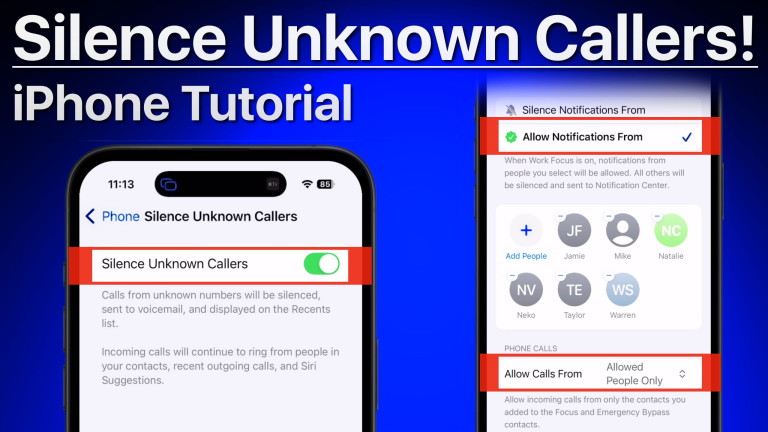
Watch it free, then go deeper: the iOS Core Concepts tutorial has 34 step-by-step lessons. Start your free trial →
Start With the Privacy & Security Menu
Open the Settings app, then scroll to Privacy & Security. This is the control center for how apps, websites, and Apple features access your data. If you only visit one area, make it this one.
A good first step is to review the permission categories one by one. Tap Location Services, Contacts, Photos, Microphone, Camera, Bluetooth, Calendars, Reminders, Motion & Fitness, and Local Network. Inside each section, you will see which apps have asked for access.
The goal is not to deny every request. Some permissions are reasonable. A maps app needs location. A video calling app needs camera and microphone. What matters is whether the permission matches the app’s job. If a flashlight app wants your contacts, that should stand out.
When reviewing permissions, think in terms of use, not fear. If you use an app once a month, it probably does not need constant access to anything. If you use it every day for a specific purpose, limited access may still be the better choice than full access.
iPhone Privacy Settings Guide for App Permissions
Location Services
Location is one of the most revealing data points on your device, so this section deserves extra attention. Go to Settings > Privacy & Security > Location Services. You can turn Location Services off entirely, but for most people that is too blunt. Maps, Find My, weather apps, camera geotagging, and some automations work better with it on.
Instead, review each app individually. In many cases, While Using the App is the best balance. It lets the app access location only when you are actively using it. Never is appropriate for apps that clearly do not need your location. Always should be used sparingly, usually only for features like background location-based reminders or trusted safety tools.
Also check Precise Location. Some apps work fine with an approximate location instead of your exact position. Weather, local news, and store finder apps often do not need your exact address.
Photos, Contacts, and Calendars
Apple now gives you more middle-ground choices, which is good for privacy and convenience. For Photos, many apps can be limited to selected photos instead of your entire library. If you only need to upload a profile picture or attach one image, selected access is usually enough.
Contacts and Calendars should also be reviewed carefully. Messaging and email apps may need access to help you find people quickly. A shopping or game app usually does not. If an app loses a useful feature after you deny access, you can always return and adjust it.
Camera and Microphone
These settings are straightforward. If an app lets you record video, scan documents, or make calls, access may make sense. If not, turn it off. Many users approve these prompts quickly and never look back, but this is one of the easiest places to reduce unnecessary access.
Tracking, Analytics, and Advertising
Go to Settings > Privacy & Security > Tracking. If you prefer less cross-app tracking, turn off Allow Apps to Request to Track. This prevents new apps from asking to track your activity across other companies’ apps and websites.
Will this stop all ads? No. You will still see advertising, but it is less likely to be tailored using cross-app behavior. For most users, this is an easy change with very little downside.
Next, scroll down to Analytics & Improvements. Here you can decide whether to share iPhone analytics, iCloud analytics, and similar usage data with Apple and developers. These options can help improve products, but they are not required for your iPhone to work well. If you prefer to share less, turn them off.
Then check Apple Advertising. Personalized Ads can be disabled if you do not want Apple using some information to serve more relevant ads in its own ecosystem.
Safety Check and Sensitive Access
One of the most useful tools in the Privacy & Security section is Safety Check. This feature is especially important if you are concerned someone else may have access to your accounts, shared data, or device permissions.
Safety Check lets you review who can see your information, which apps have access, and which devices are signed in to your Apple Account. It is practical, guided, and worth knowing about even if you never need the emergency options.
If your situation is not urgent, use Manage Sharing & Access to review things calmly. You can see shared locations, shared photos, calendar access, health sharing, and more. This is a strong example of Apple organizing a complicated privacy task into steps that are easier to follow.
Safari Privacy Settings Matter Too
A complete iphone privacy settings guide should not stop with apps. Safari plays a major role in what websites can collect.
Open Settings > Safari and look at Prevent Cross-Site Tracking and Hide IP Address. For most users, leaving Prevent Cross-Site Tracking on is a good default. It reduces how advertisers follow you across sites.
Hide IP Address adds another layer by limiting who can see your IP in certain situations. Depending on your settings and Apple services, this can improve privacy without changing how you browse.
Also review Fraudulent Website Warning. This should generally stay on. It helps warn you about known suspicious websites. Privacy is not just about limiting data collection. It is also about avoiding scams and malicious sites.
If you use Safari often, consider the privacy report features as a learning tool. They help you understand how many trackers are being blocked and remind you that web privacy is active, not passive.
Mail, Messages, and Lock Screen Privacy
Some privacy leaks are less about hacking and more about what is visible at a glance.
Start with notifications. Go to Settings > Notifications and review apps that show previews on the Lock Screen. For banking, health, messaging, or email apps, consider changing Show Previews to When Unlocked or Never. That way, your phone can still alert you without displaying sensitive content.
Face ID & Passcode is another important area. Check which features are allowed when iPhone is locked. If you want tighter control, you can limit things like Reply with Message, Wallet access, or accessories when the phone is locked.
Mail Privacy Protection is worth enabling if you use Apple’s Mail app. It helps reduce sender tracking by hiding your IP address and loading remote content privately. This does not eliminate every form of email tracking, but it is a meaningful improvement with little effort.
Security Settings That Support Privacy
Privacy and security overlap. If someone can access your device or account, your privacy settings will not help much.
First, make sure you use a strong passcode. A six-digit code is the minimum, but a custom alphanumeric code is stronger if you are comfortable using one. Face ID adds convenience, but your passcode is still the foundation.
Second, confirm that Find My iPhone is enabled. This is less about data collection and more about protecting your device if it is lost or stolen. Activation Lock also makes it harder for someone else to reuse your iPhone.
Third, turn on two-factor authentication for your Apple Account if it is not already enabled. That extra verification step is one of the simplest ways to protect your account from unauthorized sign-ins.
Finally, keep iOS up to date. Software updates often include security fixes that close real vulnerabilities. Delaying too long creates unnecessary risk, even if everything else is configured well.
What to Change First if You Feel Overwhelmed
If all of this feels like a lot, do not try to perfect everything in one sitting. Start with five areas: Location Services, Tracking, Photos access, notification previews, and Face ID & Passcode. Those changes alone can improve privacy in ways you will notice right away.
After that, review one permission category each week. This method is easier to maintain and helps you understand why each setting matters. That is usually better than making dozens of changes at once and forgetting what you changed.
There is also a practical reality here. Stronger privacy can sometimes reduce convenience. A ride share app may need location. A photo editor may need library access. The right setup depends on how you use your iPhone, which is why a methodical review beats a one-size-fits-all checklist.
If you want to feel confident using Apple devices instead of guessing your way through them, structured instruction makes a real difference. The best privacy settings are the ones you understand well enough to maintain.
A private iPhone is not one with every switch turned off. It is one that reflects your choices, your habits, and your comfort level, with fewer surprises along the way.
Keep watching
More free video lessons on this topic


All Access membership
Watch every iOS Core Concepts lesson, plus every other tutorial
Every plan starts with a free trial. Cancel any time during the trial and you won't be charged.
Monthly
Auto recurring5-day free trial
- Every Mac, iPhone & iPad tutorial
- New tutorials as they're released
- Watch on any device
- No ads
- Email support
Yearly
Auto recurring7-day free trial · just $2.50 a month
- Every Mac, iPhone & iPad tutorial
- New tutorials as they're released
- Watch on any device
- No ads
- Email support
Lifetime
Single payment7-day free trial · pay once, keep it for good
- Everything in Yearly
- Every future macOS & iOS update tutorial
- Never pay again
Secure checkout. Log in on any Mac, iPhone or iPad with the same account.