Mac, iPhone & iPad tips · Mac
Mac Security Settings Guide for Everyday Protection
This Mac security settings guide shows how to protect your account, files, privacy, and network with clear, practical steps for everyday use at home.

A Mac is designed to make security feel less intrusive than it does on many computers. That is helpful, but it can also mean important protections are left at their default settings without a second look. This Mac security settings guide walks you through the settings that make the biggest practical difference, so you can use your computer with more confidence without making it difficult to use.
Most of these options are found in the Apple menu, then System Settings. The exact wording may vary slightly by macOS version, but the categories and choices are largely the same.
How to use the Passwords app from the Mac menu bar
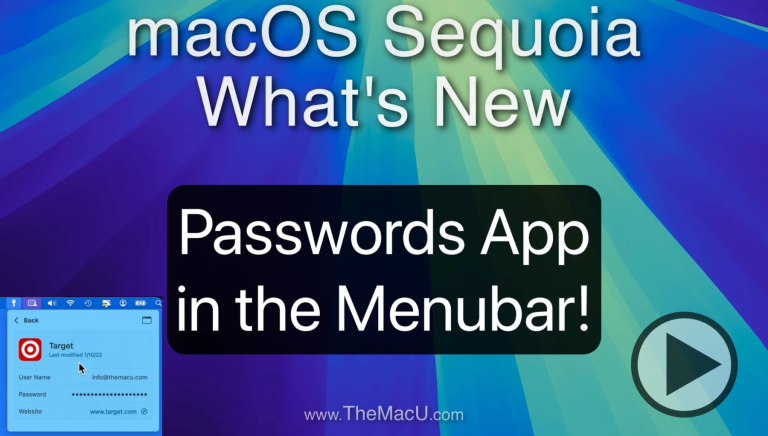
Watch it free, then go deeper: the Mac Security tutorial has 13 step-by-step lessons. Start your free trial →
Start With Your Mac Account
Your Mac account is the front door to your files, saved passwords, messages, photos, and more. A strong sign-in setup protects far more than the computer itself.
Open System Settings > Touch ID & Password or Login Password, depending on your Mac and macOS version. Use a password that is long, unique, and not reused for another account. A memorable phrase made from several unrelated words is often easier to enter and safer than a short, complicated password.
If your Mac has Touch ID, set it up for unlocking your Mac and approving password requests. Touch ID is convenient, but it does not replace your password. Your password is still required after a restart and for certain security changes, so choose one you can recall without writing it down near your computer.
Next, look at Lock Screen in System Settings. Set your display to turn off after a reasonable period of inactivity, especially if you use a laptop in shared spaces. More importantly, choose Require password after screen saver begins or display is turned off and set it to immediately. This small change prevents someone from opening your Mac while you step away for coffee or answer the door.
If other people use your Mac, create a separate standard user account for each person instead of sharing one account. Separate accounts keep personal photos, browser history, mail, and saved passwords from becoming visible to everyone who sits down at the keyboard. Reserve an administrator account for software installation and system changes. A standard account is safer for routine use because it asks for administrator approval before making major changes.
Turn On FileVault Before You Need It
FileVault encrypts the contents of your Mac’s internal drive. If a Mac is lost or stolen, encryption makes it far harder for someone to access your files by removing the drive or attempting to start the computer another way.
Go to System Settings > Privacy & Security and find FileVault. Turn it on if it is not already enabled. Your Mac may need time to finish encryption, particularly if it has a large amount of data. Keep it connected to power and let the process complete.
During setup, macOS will ask how you want to recover access if you forget your password. Read this screen carefully. You may be able to use your Apple Account to reset the password, or you may receive a recovery key. If you choose a recovery key, store it somewhere secure that is not on the Mac itself. A password manager, secure paper record, or protected family document can work well.
FileVault has one meaningful trade-off: losing both your account password and recovery method can make your files permanently inaccessible. That is the point of encryption, so take a moment to confirm your recovery choice before moving on.
Keep macOS and Apple Apps Updated
Many security problems are fixed through software updates. Delaying every update because you are busy is understandable, but it leaves known weaknesses open longer than necessary.
Choose General > Software Update and enable automatic updates. At a minimum, allow macOS to install security responses and system data files automatically. These smaller updates can address urgent threats without requiring a major macOS upgrade.
Major macOS upgrades deserve a little more consideration. If you depend on specialized work software, older printers, or professional audio and video tools, verify compatibility first. For most home users, staying within one current macOS version and installing its updates promptly is a sensible balance of security and stability.
Also update the Apple apps you use through the App Store. Outdated browsers, communication apps, and productivity tools can create risks even when macOS itself is current.
Review Privacy Permissions With Purpose
Mac apps must request permission before accessing sensitive parts of your computer, such as your camera, microphone, location, photos, contacts, and screen. These prompts are easy to approve quickly, then forget. Reviewing them periodically gives you control back.
In System Settings > Privacy & Security, work through the categories that matter most. Check Camera and Microphone first. Only video conferencing, recording, or communication apps should normally need access. If you do not recognize an app or no longer use it, turn off its permission.
Pay special attention to Screen Recording and Accessibility. These permissions can be legitimate for remote-support tools, presentation apps, and productivity utilities. They can also give an app extensive visibility or control. Do not approve them simply because an app asks. Consider what task the app performs and whether that level of access makes sense.
Full Disk Access deserves the same caution. Backup services and security software may need it, but many apps do not. When in doubt, leave a permission off. If an app cannot perform a feature you genuinely need, you can return and enable it later.
Location Services is more personal than dangerous, but it is still worth reviewing. Weather, Maps, and Find My may benefit from location access. A basic document editor usually does not. Limiting unnecessary access reduces the amount of information apps can collect about you.
Use the Built-In Defenses in This Mac Security Settings Guide
Apple includes several protections that work quietly in the background. Confirming that they are enabled takes only a few minutes.
In Privacy & Security, verify these four areas:
- Firewall: Turn it on to help block unwanted incoming network connections. This is particularly useful on hotel, airport, library, and other public Wi-Fi networks.
- Allow applications from: Keep the setting limited to the App Store and identified developers. This helps macOS warn you before you open software from an unknown source.
- XProtect and security responses: These protections are maintained by Apple and generally update automatically when automatic security updates are enabled.
- Find My Mac: Turn it on through your Apple Account settings, then iCloud > Find My Mac. It can help you locate, lock, or erase a missing Mac.
The firewall is not a substitute for good judgment online, and it does not inspect every type of outgoing connection. Still, it is an appropriate layer of protection for most people. If you use file sharing, remote login, or remote management for work or technical support, you may need to adjust firewall settings carefully rather than disabling them altogether.
Be Selective About Sharing and Remote Access
Open General > Sharing and review every service listed there. Features such as Screen Sharing, File Sharing, Remote Login, Remote Management, and Internet Sharing are useful in the right situation. They should not be left on simply because they might be useful someday.
For a personal Mac, it is common to leave most sharing services off. Turn one on when you have a clear reason, such as sharing a folder with another computer in your home or receiving remote help from a trusted professional. When you are finished, turn it off again.
If you use AirDrop, consider its receiving setting as well. Receiving from Contacts Only is a practical everyday choice. Choose Everyone for 10 Minutes only when you need to receive a file from someone who is not in your contacts. This limits unsolicited sharing requests in public places.
Protect Passwords and Your Apple Account
Your Apple Account is closely connected to your Mac security. It controls iCloud data, Find My, purchases, backups, and often your recovery options. Enable two-factor authentication if it is not already on. With two-factor authentication, knowing your password alone is not enough for someone to sign in from a new device.
Use the Passwords app on your Mac to create and save unique passwords. Reusing a favorite password across shopping, social media, email, and financial accounts is one of the most common ways a breach spreads. If one site is compromised, a unique password keeps the damage contained.
Review password security recommendations when macOS flags reused, weak, or exposed passwords. Start with email and financial accounts, because those accounts can be used to reset access to many others.
Be cautious with unexpected password prompts, pop-ups claiming your Mac is infected, and calls from someone who says they need remote access to fix a problem. Apple security tools do not require you to call a phone number in a browser pop-up. When something feels urgent or alarming, close the page and verify the situation through an app or website you open yourself.
Make Security Part of Your Routine
Security settings work best when paired with a simple habit: update your Mac, review new app permissions, and keep a current backup. Time Machine is especially valuable because security also includes recovering from accidental deletion, hardware failure, or ransomware.
You do not need to memorize every setting to keep your Mac protected. A guided review once or twice a year, plus a quick check whenever you install unfamiliar software, is enough for most people. TheMacU’s step-by-step approach can help turn settings like these from a source of uncertainty into a routine you can repeat whenever your Mac changes.
Keep watching
More free video lessons on this topic


All Access membership
Watch every Mac Security lesson, plus every other tutorial
Every plan starts with a free trial. Cancel any time during the trial and you won't be charged.
Monthly
Auto recurring5-day free trial
- Every Mac, iPhone & iPad tutorial
- New tutorials as they're released
- Watch on any device
- No ads
- Email support
Yearly
Auto recurring7-day free trial · just $2.50 a month
- Every Mac, iPhone & iPad tutorial
- New tutorials as they're released
- Watch on any device
- No ads
- Email support
Lifetime
Single payment7-day free trial · pay once, keep it for good
- Everything in Yearly
- Every future macOS & iOS update tutorial
- Never pay again
Secure checkout. Log in on any Mac, iPhone or iPad with the same account.