Mac, iPhone & iPad tips · Mac, iPhone & iPad
Master Your Apple Notes Folders Without Breaking a Sweat
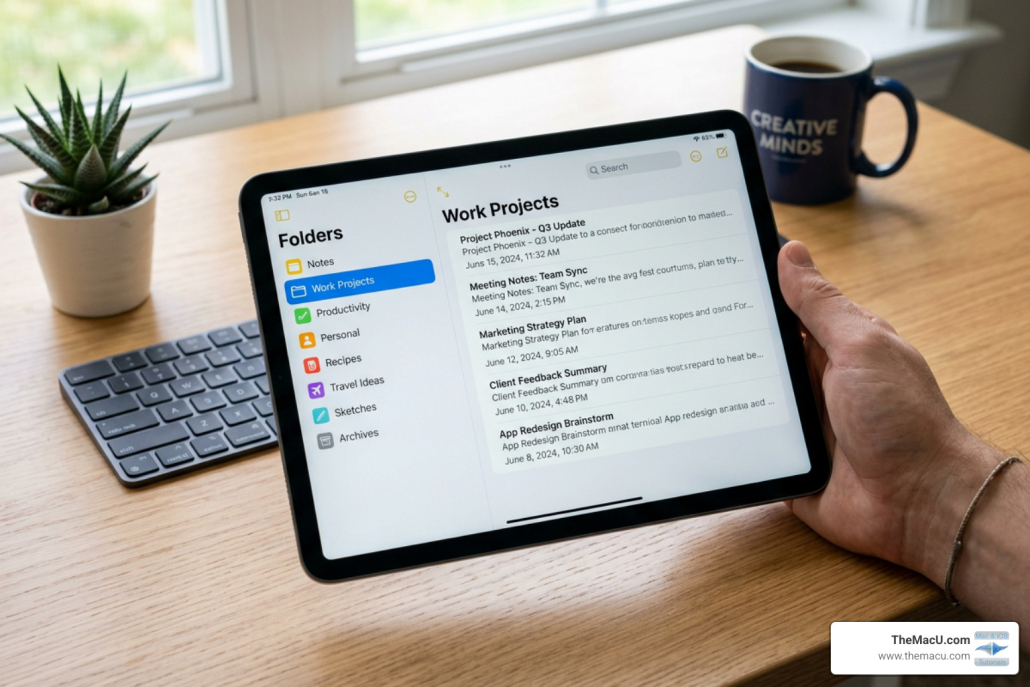
Master apple notes folders organize: Create subfolders, smart tags, sync across devices, and boost productivity effortlessly.
Use tags & Smart Folders in Notes for Mac
Watch it free, then go deeper: the Notes for Mac & iOS tutorial has 31 step-by-step lessons. Start your free trial →
Why Apple Notes Folders Organize Your Digital Life Better Than You Think
Apple notes folders organize your ideas, tasks, and reminders into a system that’s easy to navigate — and setting it up takes just a few minutes.
Here’s a quick answer to get you started:
How to organize folders in Apple Notes:
- Create a folder — Tap or click “New Folder” in the Notes sidebar and give it a name.
- Create subfolders — Drag one folder onto another to nest it inside.
- Move notes — Drag a note into any folder, or use the Move option from the note’s menu.
- Pin important notes — Touch and hold a note, then tap “Pin Note” to keep it at the top.
- Use Smart Folders — Set up automatic filters using tags, dates, or checklists.
- Recover deleted notes — Check the “Recently Deleted” folder within 30 days.
If you’ve ever scrolled through a long, messy list of notes trying to find something important, you’re not alone. Notes pile up fast. Without a clear folder structure, even a good idea can get buried and forgotten.
The good news? Apple Notes has a surprisingly powerful set of organization tools built right in — folders, subfolders, Smart Folders, tags, and pinning. Most people never use them. This guide walks you through all of them, step by step.
I’m Drew, founder of TheMacU.com, and I’ve spent years teaching Apple users how to get the most out of apps like Notes — including how to apple notes folders organize efficiently across iPhone, iPad, and Mac. Let’s build a system that actually works for you.
Understanding the Apple Notes Folder Structure
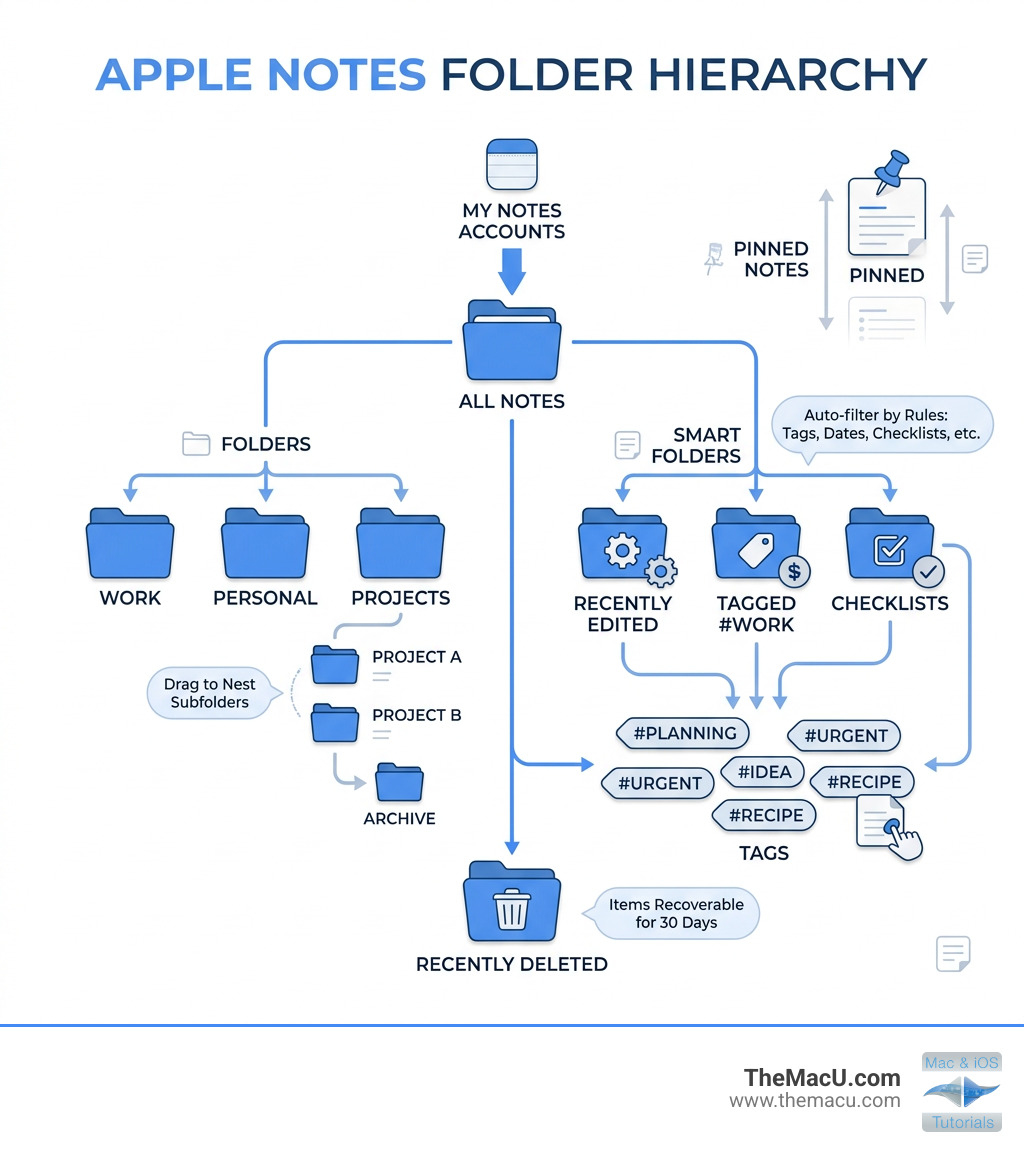
Before we start moving things around, we need to understand the “bones” of the app. When you first open the Notes app, you’ll notice several automatic system folders. These are the foundation of your organization, but they have specific rules.
The Core System Folders
- All iCloud: This is the “God view” of your notes. It shows every single note stored in your iCloud account, regardless of which folder it actually lives in. You cannot move a note “to” this folder because it’s a cumulative view, not a physical storage spot.
- Notes Folder: This is the default landing zone. If you create a new note without selecting a specific folder, it ends up here. Think of it as your “Inbox.”
- Recently Deleted: This is your safety net. When you delete a note or a folder, it isn’t gone forever—at least not immediately. It stays here for 30 days before the system permanently removes it. This gives you a month-long window to change your mind.
Navigating the Sidebar
The sidebar is where the magic happens. On a Mac, you can show or hide this by going to View > Show Folders. On an iPhone or iPad, you usually tap the back arrow in the top-left corner to see your full folder list.
A well-organized sidebar prevents “app overwhelm.” Instead of seeing 500 loose notes, you see five or six high-level categories. We often recommend keeping your sidebar lean; if you have too many top-level folders, you’re just recreating the clutter you tried to escape!
How to Apple Notes Folders Organize Across Devices
One of the best things about the Apple ecosystem is that your structure stays the same whether you’re on your phone at the grocery store or your Mac at the office. However, the buttons you press to apple notes folders organize vary slightly by device.
Creating Folders on iPhone and iPad
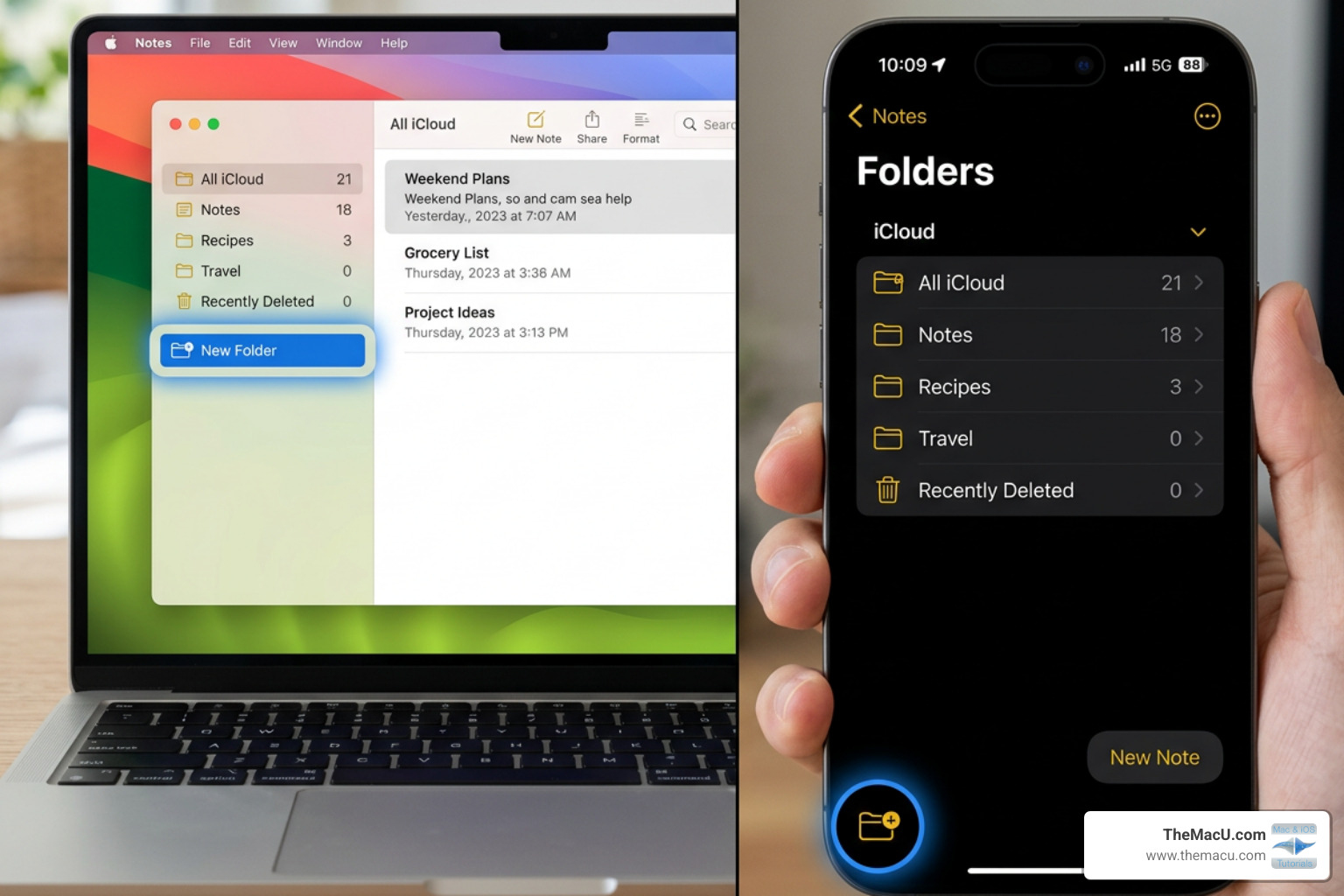
- Open the Notes app and go to the Folders list.
- Tap the New Folder icon (it looks like a folder with a plus sign) in the bottom-left or bottom-right corner.
- Choose the account (usually “iCloud”).
- Enter a name and tap Save.
Creating Folders on Mac
- Open Notes.
- Click the New Folder button at the bottom of the sidebar. Alternatively, go to File > New Folder.
- Type the name and hit Return.
Creating Folders on iCloud.com
If you’re on a Windows PC or a public computer, you can still manage your system.
- Sign in to iCloud.com/notes.
- Click New Folder at the bottom of the folder list.
- Name it and press Return.
Platform Comparison Table
| Feature | iPhone/iPad | Mac | iCloud.com |
|---|---|---|---|
| Create Subfolders | Yes (Drag & Drop) | Yes (Drag & Drop) | Yes (Drag & Drop) |
| Smart Folders | Yes | Yes | No |
| Pinning Notes | Yes (Swipe/Long Press) | Yes (Right Click) | No |
| Gallery View | Yes | Yes | No |
Advanced Organization: Subfolders and Pinning
Once you have your main folders (like “Work,” “Personal,” and “Finances”), you might find they get crowded. This is where nesting and pinning come in.
Creating a Folder Hierarchy (Subfolders)
You can nest folders inside one another to create a “tree” structure. For example, inside “Work,” you might have “Meetings” and “Projects.”
- On iOS/iPadOS: Touch and hold a folder, then drag it directly on top of another folder.
- On Mac: Simply drag a folder into another in the sidebar.
- On iCloud.com: Use the same drag-and-drop method. Organize notes in folders on iCloud.com is a great resource if you primarily use the web interface.
The Power of Pinning
Some notes are more important than others. Maybe it’s a grocery list you use every week or a project brief you’re currently working on. Pinning keeps these notes at the very top of your list, regardless of when they were last edited.
- iPhone/iPad: Swipe right on a note in the list and tap the pin icon. Or, long-press the note and select Pin Note.
- Mac: Right-click (or Control-click) the note and select Pin Note.
Pinned notes stay at the top in their own “Pinned” section, while everything else follows your standard sorting rules below them.
Using Smart Folders and Tags for Dynamic Sorting
If manual filing feels like too much work, Smart Folders are your best friend. Instead of you moving notes into folders, Smart Folders “gather” notes automatically based on rules you set.
Working with Tags
Tags are keywords preceded by a hashtag (e.g., #receipts or #ideas). You can type these anywhere in a note. Once you add a tag, it appears in the “Tags” browser at the bottom of your folder list. Clicking a tag shows every note containing that tag, even if those notes live in different folders.
Creating a Smart Folder
- Tap or click the New Folder button.
- Select Make into Smart Folder (or “Convert to Smart Folder” on some versions).
- Choose your filters. You can filter by:
- Tags: Notes with specific hashtags.
- Date Created/Edited: Notes from the last week, month, or year.
- Checklists: Notes that have unchecked items (great for to-do lists!).
- Mentions: Notes where someone has tagged you in a shared note.
Conversion Warnings
You can convert a regular folder into a Smart Folder, but be careful! When you do this, all the notes in that folder are moved to the main “Notes” folder and tagged with the old folder’s name. This process is irreversible, so make sure you truly want a dynamic folder before switching. For more details, see Use Tags and Smart Folders in Notes on your iPhone and iPad – Apple Support.
Managing and Sharing Your Folder System
Your needs will change over time, and your folder system should change with them.
Renaming and Moving
- To Rename: On iOS, long-press a folder and tap Rename. On Mac, Control-click and select Rename Folder.
- To Move: You can drag and drop folders to reorder them. Folders usually sort alphabetically, but you can use “emoji prefixes” (like 📁 Work or 🏠 Home) to force a specific order or just make them easier to spot.
Sharing Folders
You can share an entire folder with someone else. This is perfect for shared household lists or collaborative work projects.
- When you move a note into a shared folder, it inherits the permissions of that folder.
- If you move a note out of a shared folder, the other person loses access to it.
- Note: You cannot share Smart Folders, and you cannot Lock Notes if they are inside a shared folder.
iCloud Sync
Everything you do to apple notes folders organize your life will sync via iCloud. If you delete a folder on your Mac, it disappears from your iPhone. This ensures you always have the same structure regardless of which device is in your hand.
Frequently Asked Questions about Apple Notes Folders
How to apple notes folders organize by date and title?
By default, Apple Notes sorts notes by the date they were last edited. However, you can change this.
- Inside a folder, tap the More (…) button or the Folder Actions icon.
- Select Sort By.
- Choose between Title, Date Created, or Date Edited.
- You can also toggle between Newest First and Oldest First.
- In the same menu, you can switch between List View (standard) and Gallery View (which shows large visual thumbnails of your notes).
Can I apple notes folders organize into nested subfolders?
Yes! As mentioned earlier, you can create a deep hierarchy by dragging folders into one another. There isn’t a strict “limit” that most users will ever hit, but for the sake of sanity, we recommend staying within two or three levels of nesting. Any deeper and you’ll spend more time clicking through folders than actually writing notes.
What happens to notes when a folder is deleted?
When you delete a folder, all the notes inside it are moved to the Recently Deleted folder. They are not immediately erased. You have 30 days to recover them. After 30 days, Apple permanently deletes them to save space. To recover them, just go to Recently Deleted, swipe left on the note (or folder), and choose the folder icon to move it back to a safe spot.
Conclusion
Mastering how you apple notes folders organize your digital life is the secret to staying productive in the Apple ecosystem. By using a mix of standard folders for broad categories, subfolders for specific projects, and Smart Folders for automatic filtering, you can turn a mountain of digital clutter into a streamlined workspace.
At TheMacU.com, we specialize in helping you master these workflows through professionally scripted and edited video tutorials. If you want to dive deeper into the Notes app—including advanced features like scanning documents, using the Apple Pencil, or collaboration—check out our full course.
Learn Apple Notes for Mac, iPhone, and iPad
Stop searching for your notes and start using them. With a little bit of organization today, your future self will thank you!
Keep watching
More free video lessons on this topic
All Access membership
Watch every Notes for Mac & iOS lesson, plus every other tutorial
Every plan starts with a free trial. Cancel any time during the trial and you won't be charged.
Monthly
Auto recurring5-day free trial
- Every Mac, iPhone & iPad tutorial
- New tutorials as they're released
- Watch on any device
- No ads
- Email support
Yearly
Auto recurring7-day free trial · just $2.50 a month
- Every Mac, iPhone & iPad tutorial
- New tutorials as they're released
- Watch on any device
- No ads
- Email support
Lifetime
Single payment7-day free trial · pay once, keep it for good
- Everything in Yearly
- Every future macOS & iOS update tutorial
- Never pay again
Secure checkout. Log in on any Mac, iPhone or iPad with the same account.
Related guides