• All Access Login
  • Contact
TheMacU.com
  • Home
  • Free Lessons
  • Full Tutorials
    • Core Tutorials
      • macOS 27 Golden Gate What’s New
      • macOS Core Concepts
      • iOS 27 What’s New
      • iOS Core Concepts
      • iPadOS Overview
      • iCloud for Mac, iPad & iPhone
      • Apple Intelligence
      • Mac Utilities
      • Mac Backup
      • Mac Security
      • CleanMyMac X
      • Markup for iOS
      • iOS 26 What’s New
      • iOS 18 What’s New
      • macOS 26 Tahoe What’s New
      • macOS Sequoia What’s New
    • Productivity Tutorials
      • Safari for Mac
      • Safari for iOS (iPad & iPhone)
      • Mail for Mac
      • Mail for iOS (iPad & iPhone)
      • Files for iOS
      • Contacts for Mac & iOS
      • Calendar for Mac & iOS
      • Reminders for Mac & iOS
      • Apple Maps for iOS & Mac
      • Notes for Mac & iOS
      • FindMy for iOS & Mac
      • Freeform for iOS & Mac
      • Health App Overview
      • Pages for Mac
      • Numbers for Mac
      • Keynote for Mac
      • Pages for iOS
    • Photography Tutorials
      • Photos for Mac
      • Photos for iPad
      • Photos for iPhone
      • iPhone Camera
      • iMovie for Mac
      • iMovie for iOS (iPad & iPhone)
      • Pixelmator Pro Essentials
      • Preview for Mac
    • Media & Entertainment Tutorials
      • Music App for Mac
      • Music App for iOS (iPhone & iPad)
      • Apple Music Service
      • AirPods Tutorial
      • Apple Podcasts
      • Apple News
      • Apple Books
  • Testimonials
  • Memberships & Pricing
  • Click to open the search input field Click to open the search input field Search
  • Menu Menu
Mac, iPhone and iPad Tips!

Mac, iPhone & iPad tips · Mac

Mastering macOS Spotlight: Your Ultimate Guide to Efficiency

Master macOS Spotlight to boost productivity: use Command+Space, customize preferences, apply natural language and file filters, create shortcuts, and integrate with Siri for efficient Mac workflows.
By D S · Updated October 23, 2025 · 3 min read

Watch the free lessonSee the full tutorial
Mastering macOS Spotlight: Your Ultimate Guide to Efficiency
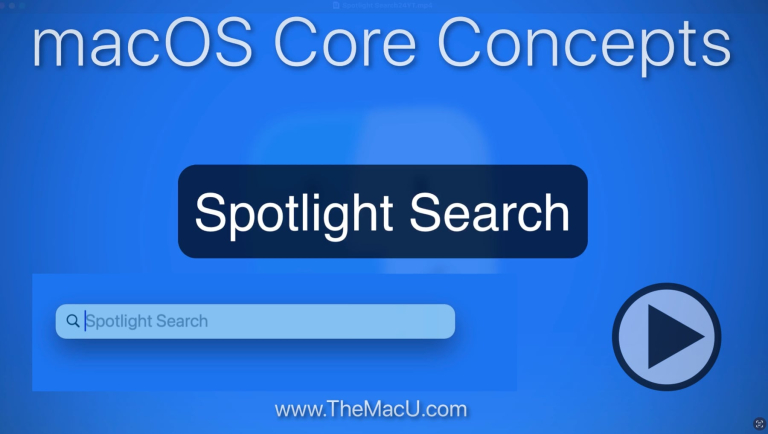
Free video lesson

How to use the new Spotlight on Mac (4 different tools)
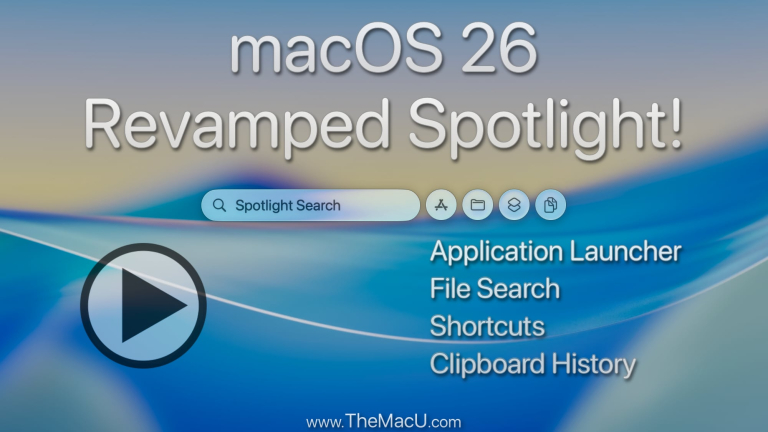
How to use the new Spotlight on Mac (4 different tools)

Watch it free, then go deeper: the macOS Core Concepts tutorial has 65 step-by-step lessons. Start your free trial →

Mastering macOS Spotlight: Your Ultimate Guide to Efficiency

Most Mac users barely scratch the surface of what macOS Spotlight can do. You might be typing search terms without realizing this tool can speed up your entire workflow. This guide will show you Spotlight search tips that transform your Mac productivity and boost your macOS efficiency from day one.

Advertisement

Spotlight Basics: Getting Started

Let’s dive into the basics of Spotlight to set a solid foundation for more advanced tips. Understanding how to access and customize Spotlight will make you more efficient with your Mac.

Accessing Spotlight Quickly

Spotlight is just a keystroke away. Press Command + Spacebar, and there you have it! This shortcut opens Spotlight instantly, saving you time. Instead of manually searching for apps or files, let Spotlight bring them to you. Once you get used to this, you’ll wonder how you ever managed without it.

Keep in mind, the more you use Spotlight, the smarter it gets. It learns from your searches and starts predicting what you need, making your interactions even faster. Imagine typing the first few letters of an app, and there it is—no scrolling required.

Customizing Spotlight Preferences

Customizing Spotlight can tailor your search results to your needs. Go to System Preferences > Spotlight, and you’ll find categories you can select or deselect. Perhaps you don’t want to see web results or emails; just uncheck those options. This ensures you only get the most relevant results.

By focusing on what’s important to you, Spotlight becomes a powerful ally in your digital life. For those curious about what others think, here’s a discussion on how users fine-tune their Spotlight settings for optimal use.
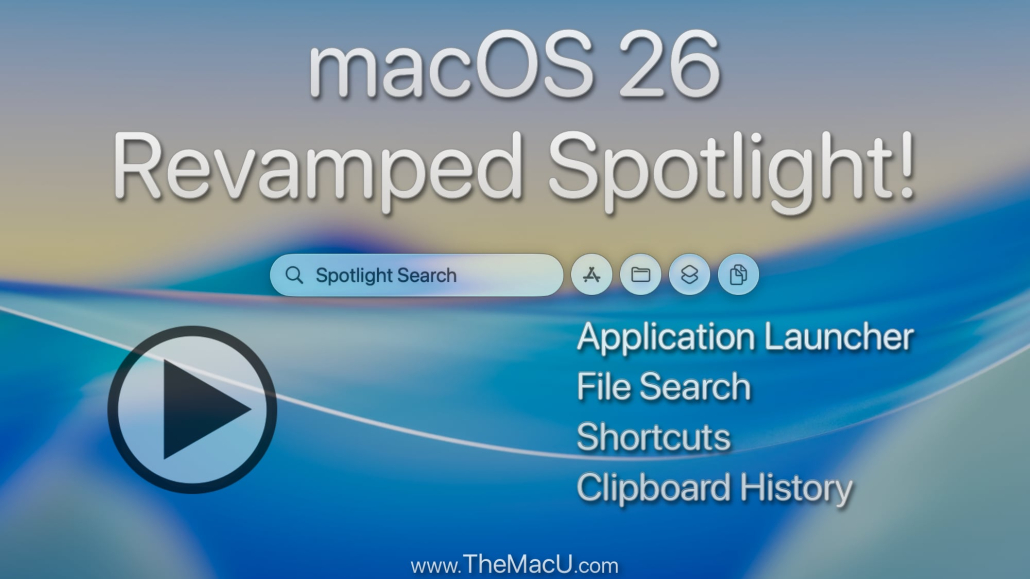
Mastering macOS Spotlight: Your Ultimate Guide to Efficiency

Learn it step by step

macOS Core Concepts 65 video lessons

How your Mac really works: the Desktop and Finder, files and folders, iCloud, and every part of System Settings.

Start your free trialSee the lessons

Advanced Spotlight Search Tips

Now that you’ve got the basics, let’s uncover some advanced search tips. These can truly shift your Mac usage from beginner to pro.

Using Natural Language Queries

Spotlight shines with natural language queries. Instead of typing “weather New York,” try “What’s the weather like in New York today?” It understands the context and delivers precise results. This feature turns your Mac into a more intuitive tool.

You’ll appreciate how Spotlight handles this with ease. It’s almost like talking to a friend who knows exactly what you need. This natural approach makes searching less of a task and more of an interaction.

Leveraging File Type Filters

Spotlight can sift through different file types, saving you the hassle of endless scrolling. Type “kind:pdf” followed by your search term to find PDFs only. You can do the same with images, music, or even apps.

This is particularly useful when you’re dealing with large volumes of data. Instead of searching blindly, you can zero in on the exact file type you need. It’s a game-changer for maintaining productivity.

Boosting Mac Productivity with Spotlight

With a better understanding of Spotlight’s capabilities, let’s see how it can significantly boost your productivity. These tips will integrate Spotlight into your daily workflow seamlessly.

Creating Spotlight Shortcuts

Did you know you can create custom shortcuts for Spotlight searches? Use System Preferences > Keyboard > Shortcuts to customize your keys. Set up shortcuts for frequent searches or apps, and you’ll be amazed at how much time you save.

Shortcuts reduce repetitive tasks to a simple keystroke. This small tweak can lead to big productivity gains, making your Mac work smarter, not harder.

Integrating Spotlight with Siri Commands

Pairing Spotlight with Siri opens even more doors. You can use voice commands to start a Spotlight search, making it hands-free. Imagine saying, “Hey Siri, search for last week’s report,” and having it pulled up instantly.

This combination of voice and search makes your device more adaptive to your needs. It’s perfect for those moments when you’re multitasking or away from your keyboard.

Call to Action

Are you ready to dive even deeper into mastering your Mac? Learn more about TheMacU’s comprehensive Apple tutorials. These guides are designed to transform your digital experience, making every moment with your Mac more productive and enjoyable.

Subscribe to TheMacU.com for more Apple tutorials and tips! 🚀
Advertisement

In this guide

  1. Mastering macOS Spotlight: Your Ultimate Guide to Efficiency
  2. Spotlight Basics: Getting Started
  3. Advanced Spotlight Search Tips
  4. Boosting Mac Productivity with Spotlight

Full video tutorial

macOS Core Concepts

65 video lessons

  • Finder Windows
  • Mission Control, Spaces & Split View
  • The App Switcher
  • Quick Look
  • Spotlight Search
Start your free trialSee every lesson →
Advertisement
Advertisement

Keep watching

More free video lessons on this topic

Free lessonHow to use Spotlight on Mac: apps, files, shortcuts & clipboard historyFree lessonHow to use Spotlight Search on Mac290+ free lessonsBrowse every free Mac, iPhone and iPad lessonSee all free lessons →

All Access membership

Watch every macOS Core Concepts lesson, plus every other tutorial

Every plan starts with a free trial. Cancel any time during the trial and you won't be charged.

Monthly

Auto recurring
$5/ month

5-day free trial

  • Every Mac, iPhone & iPad tutorial
  • New tutorials as they're released
  • Watch on any device
  • No ads
  • Email support
Start monthly trial
Best value

Yearly

Auto recurring
$30/ year

7-day free trial · just $2.50 a month

  • Every Mac, iPhone & iPad tutorial
  • New tutorials as they're released
  • Watch on any device
  • No ads
  • Email support
Start yearly trial

Lifetime

Single payment
$150one time

7-day free trial · pay once, keep it for good

  • Everything in Yearly
  • Every future macOS & iOS update tutorial
  • Never pay again
Start lifetime trial

Secure checkout. Log in on any Mac, iPhone or iPad with the same account.
Related guides

More Mac, iPhone & iPad tips

Using Shortcuts for Productivity on MacRead the guide →How to Use Mac Automations for Everyday TasksRead the guide →7 Best Apple Productivity Workflows to UseRead the guide →
October 21, 2025/1 Comment
Tags: Apple tutorials, Mac productivity, macOS efficiency, macOS Spotlight, Spotlight search tips
Share this entry
  • Share on Facebook
  • Share on X
  • Share on WhatsApp
  • Share on Pinterest
  • Share on LinkedIn
  • Share on Tumblr
  • Share on Reddit
  • Share by Mail
https://themacu.com/wp-content/uploads/2025/10/featured-image-1761055324.jpeg 928 2000 D S http://themacu.com/wp-content/uploads/2017/06/TMU.com-Header-logo-jpg-300x138.jpg D S2025-10-21 14:02:212025-10-23 20:12:57Mastering macOS Spotlight: Your Ultimate Guide to Efficiency
You might also like
Unlocking the Secrets: Exploring Advanced Features in the Latest macOS Update Unlocking the Secrets: Exploring Advanced Features in the Latest macOS Update
1 reply

Trackbacks & Pingbacks

  1. macOS Spotlight Search Guide: Ultimate 2026 Power Tips says:
    March 18, 2026 at 2:26 am

    […] Mastering these modes is the key to Mastering macOS Spotlight – your ultimate guide to efficiency. […]

Comments are closed.

All Access

View our comprehensive collection of Mac, iPad, and iPhone tutorials today! We offer a range of membership options, all starting with a free trial!

Start your Free Trial!

Search Topics

Search Search

Topics

Apple Intelligence Apple Maps Apple Music camera desktop Finder High Sierra iCloud iMac iMovie iOS iOS 11 iOS 12 iOS 13 iOS 14 iOS 15 iPad iPadOS iPad Pro iPhone iPhone 11 iPhone 12 iPhone X Luminar Mac Macbook Macbook Air MacBook Pro Mac Mini macOS macOS Catalina Mail Maps Mojave Music Notes Photo Editing Photo Enhancement Photos Safari Settings Sierra tips troubleshooting tutorial

Archive

Free Lessons!

  • Record your calls on iPhone and get a full transcript in Notes
    How to Record a Phone Call on iPhone & Get a Transcript in Notes!November 23, 2026 - 6:46 pm
  • How to Use Backblaze Online Backup for Mac!
    How to Use Backblaze Online Backup for Mac!November 6, 2026 - 8:56 pm
  • How to Erase, Format & Choose the Best File System on Mac (APFS, ExFAT, & More)
    How to Erase, Format & Choose the Best File System on Mac (APFS, ExFAT, & More)October 29, 2026 - 4:17 pm
  • How to use Tags & Smart folders in Apple Notes for Mac!
    How to use Tags & Smart folders in Apple Notes for Mac!October 16, 2026 - 5:12 pm
  • How to use Spotlight in macOS - App Launcher + File Search + Shortcuts + Clipboard History!
    How to use Spotlight in macOS – App Launcher + File Search + Shortcuts + Clipboard History!October 5, 2026 - 8:25 pm
  • How to Use the NEW "Describe a Shortcut" automation Feature in macOS 27 Golden Gate (Siri AI)
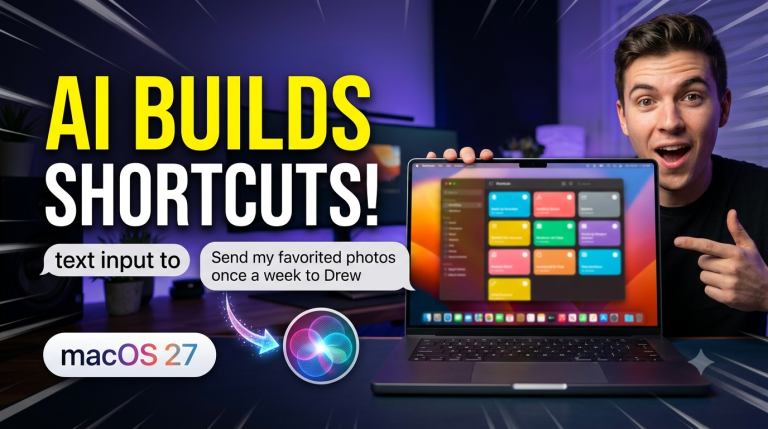
    How to Use the NEW “Describe a Shortcut” automation Feature in macOS 27 Golden Gate (Siri AI)September 21, 2026 - 11:54 pm
  • How to Use the NEW Siri AI App in iOS 27!
    How to Use the NEW Siri AI App in iOS 27!September 19, 2026 - 5:44 pm
  • How to Use macOS 27 Visual Intelligence: Siri On-Screen AI Explained!
    How to Use macOS 27 Visual Intelligence: Siri On-Screen AI Explained!September 14, 2026 - 9:03 pm
  • Notify Me - New Safari Browser feature in macOS 27! (Track Price Drops & Restocks!)
    Notify Me – New Safari Browser feature in macOS 27! (Track Price Drops & Restocks!)September 9, 2026 - 10:01 pm
  • Use Contacts with other Apps - Apple Contacts for iPhone & iPad Tutorial
    Use Contacts with other Apps – Apple Contacts for iPhone & iPad TutorialJuly 13, 2026 - 9:00 pm
  • How to Set Up Emergency Contacts & Medical ID on iPhone
    How to Set Up Emergency Contacts & Medical ID on iPhone!May 25, 2026 - 4:03 pm
  • Apple Maps for Mac: Master Places, Pinned Locations & Custom Guides! Step by Step Tutorial.
    Apple Maps for Mac: Master Places, Pinned Locations & Custom Guides! Step by Step Tutorial.May 10, 2026 - 4:40 pm
  • Safari Profiles on iPhone & iPad — Keep Work & Personal Browsing Completely Separate!
    Safari Profiles on iPhone & iPad — Keep Work & Personal Browsing Completely Separate!May 2, 2026 - 4:33 pm
  • How to Use the Info Panel in Apple Photos for Mac: View, Edit & Organize Your Photo Details
    How to Use the Info Panel in Apple Photos for Mac: View, Edit & Organize Your Photo DetailsApril 19, 2026 - 5:21 pm
  • Remove photos from your Main Library when they are in an Album! Apple Photos Lesson for Mac & iOS!
    Remove photos from your Main Library when they are in an Album! Apple Photos Lesson for Mac & iOS!April 11, 2026 - 5:28 pm

All Access

  • Tutorials Browser
  • Account

Browse

  • All Tutorials
  • Core Tutorials
  • Productivity Tutorials
  • Photography Tutorials

Blog

  • Free Apple Watch Lessons! (4)
  • Free iOS Lessons (151)
  • Free Mac Lessons (167)
  • Mac, iPhone and iPad Tips! (102)
  • News (106)
  • Recommended Items (3)
  • Uncategorized (75)
  • Updates (100)

About & Info

  • Contact
  • Promo Offer Terms
  • Partners & Affiliates
  • Group Memberships
SwansonDigital, LLC Ltd. All Rights Reserved. TheMacU.com has not been sponsored, or otherwise approved by Apple Inc. - Enfold WordPress Theme by Kriesi
  • Link to Facebook
Link to: Unlocking the Secrets: Exploring Advanced Features in the Latest macOS Update Link to: Unlocking the Secrets: Exploring Advanced Features in the Latest macOS Update Unlocking the Secrets: Exploring Advanced Features in the Latest macOS Upda...Unlocking the Secrets: Exploring Advanced Features in the Latest macOS Update Link to: Mastering Mac and iOS: Troubleshooting Tips for Common Issues Link to: Mastering Mac and iOS: Troubleshooting Tips for Common Issues Mastering Mac and iOS: Troubleshooting Tips for Common IssuesMastering Mac and iOS: Troubleshooting Tips for Common Issues
Scroll to top Scroll to top Scroll to top