
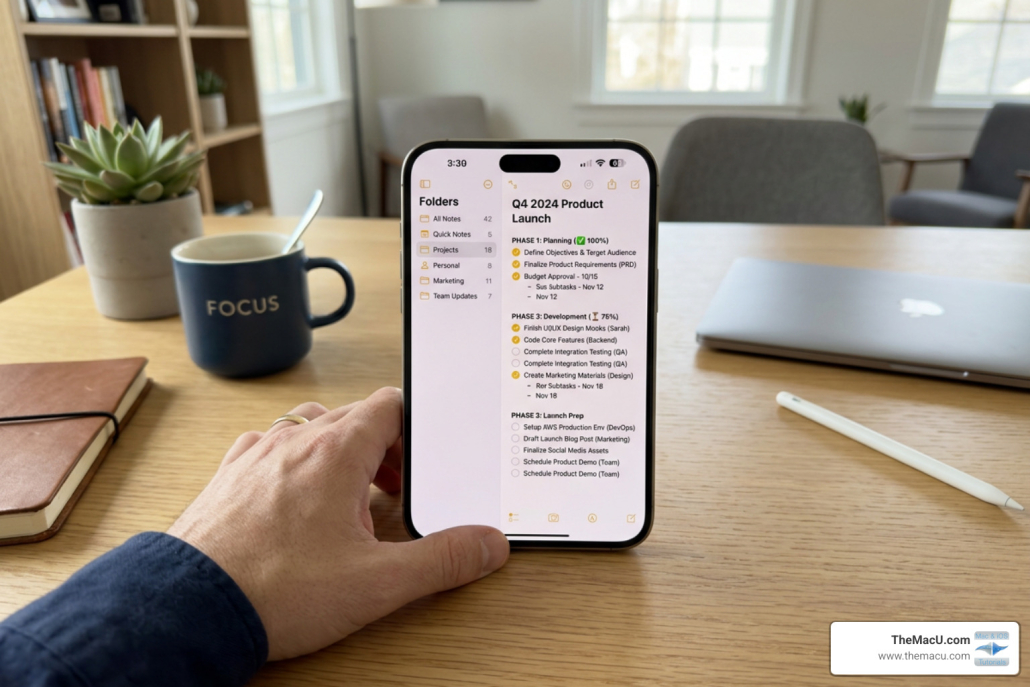
Turn Your Apple Notes Into a Project Management Powerhouse
Turn Your Apple Notes Into a Project Management Powerhouse
Apple Notes Can Run Your Projects — Here’s How to Set It Up
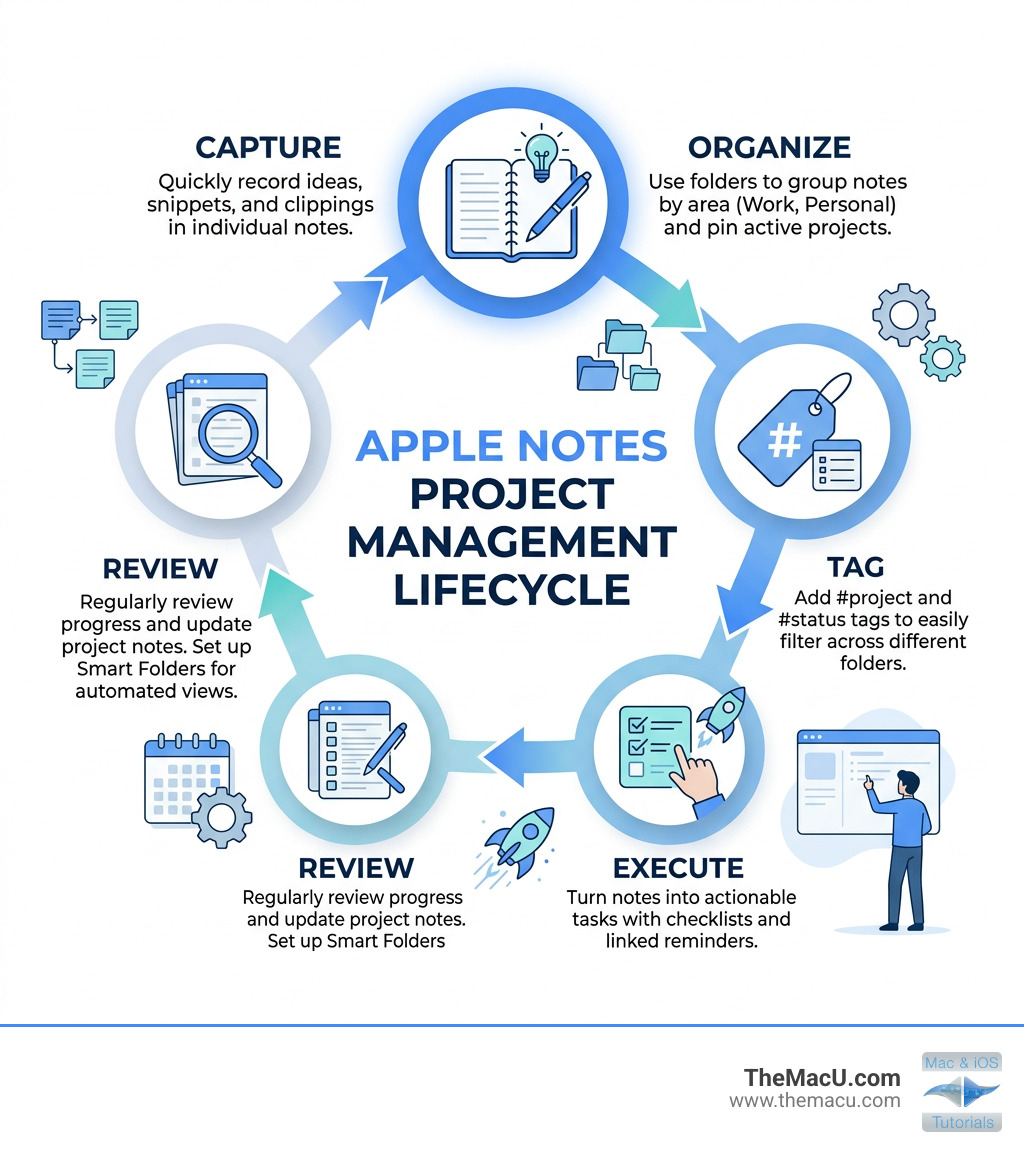
Organize projects Apple Notes style is simpler than you might think. Here’s a quick overview of how it works:
- Create one note per project — use it as your central hub for everything related to that project
- Use folders and subfolders — group projects by area (work, side hustle, personal)
- Pin active projects — keep current work at the top of your notes list
- Add tags — use
#project,#active, or topic tags to filter across folders - Set up Smart Folders — automatically collect notes by tag, checklist status, or date
- Connect to Reminders — move action items out of Notes and into a task system with deadlines
For years, many Apple users have kept Notes as a dumping ground — random ideas, grocery lists, half-finished thoughts. No structure. No way to find anything fast.
But Apple Notes is quietly more capable than most people realize. It syncs instantly across every Apple device. It’s fast, free, and always available. And with the right setup, it can replace expensive project management tools for side hustles, personal goals, and everyday work.
You don’t need Notion. You don’t need a complicated system. You just need a clear structure — and that’s exactly what this guide gives you.
I’m Drew Swanson, founder of TheMacU.com, and I’ve spent years helping Apple users discover the hidden power in the apps already on their devices — including how to organize projects Apple Notes style, from simple folder setups to advanced tagging and Smart Folders. Let’s build a system that actually works for you.
Become an All Access Member to view the full Notes Video Tutorial!
Why Use Apple Notes for Project Management?
We often hear from students at TheMacU.com who feel they need a “professional” project management tool to handle their side hustles or home renovations. They look at complex, database-driven apps and feel overwhelmed before they even start. The truth is, for most individual projects, those tools offer more friction than function.
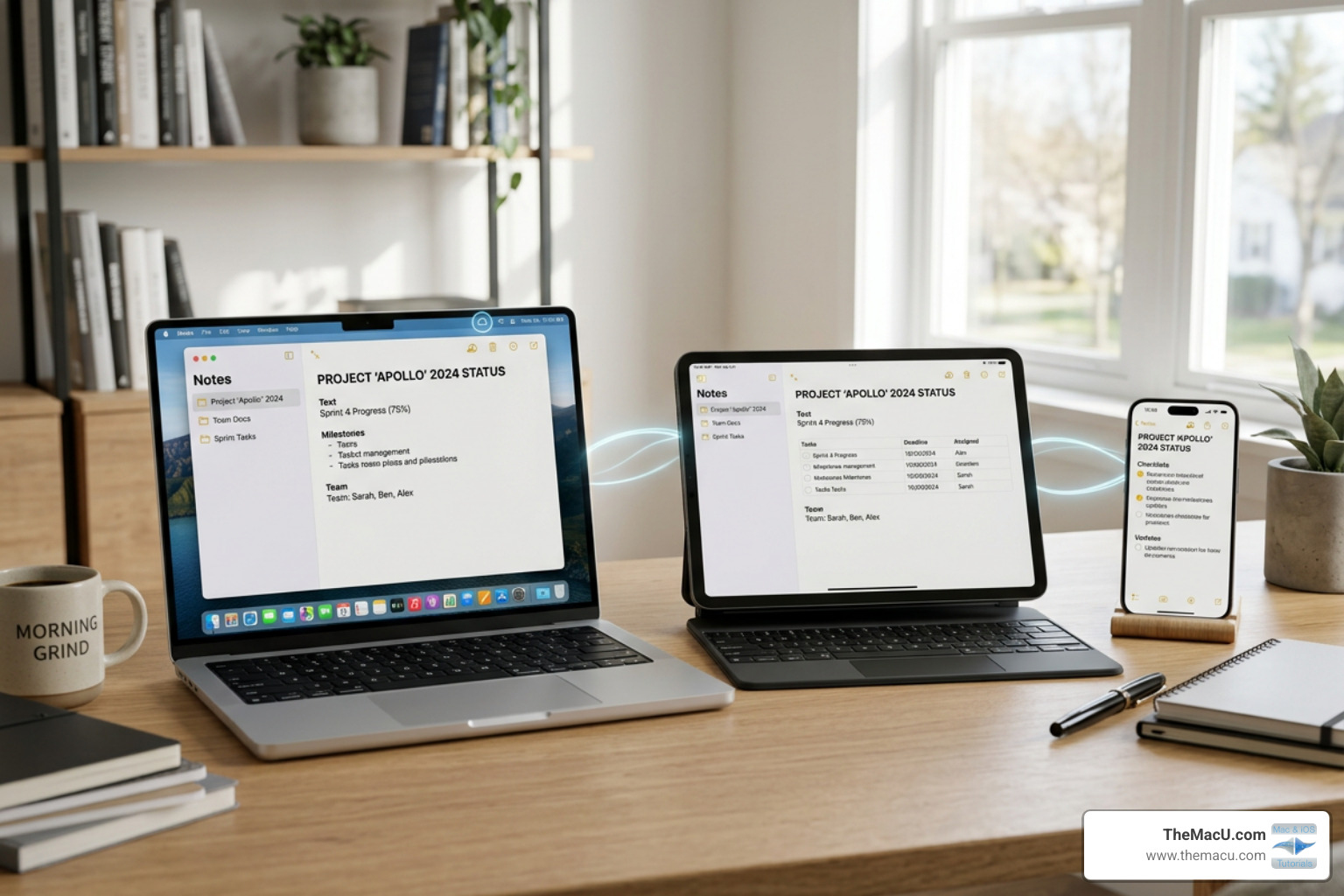
The core advantage of using Apple Notes is its frictionless integration. Because it’s baked into the operating system, it works everywhere. You can start a project plan on your Mac, snap a photo of a receipt on your iPhone that goes straight into the note, and then review your timeline on your iPad while having coffee.
Here is why we recommend it:
- Speed: There are no loading screens or complex dashboards. It opens instantly.
- Reliability: It works offline and syncs via iCloud the moment you have a connection.
- Minimalist Interface: It stays out of your way. You focus on the project, not the tool.
- Ecosystem Synergy: It talks to Safari, Mail, and Reminders effortlessly.
If you are new to the platform or want to master the basics before diving into complex setups, check out our guide to Learn Notes for Mac, iPhone, iPad.
Proven Frameworks to Organize Projects Apple Notes Style
To truly organize projects Apple Notes style, you need a framework. Without one, you’re just creating a digital junk drawer. One of the most effective methods we’ve found is a modified version of the PARA method, created by Tiago Forte.
PARA stands for:
- Projects: Things you are actively working on with a specific deadline (e.g., “Launch Summer Newsletter”).
- Areas: Ongoing responsibilities that require a standard over time (e.g., “Health,” “Finances,” “House Maintenance”).
- Resources: Topics of interest or reference material (e.g., “Gardening Tips,” “CSS Code Snippets”).
- Archives: Completed projects or areas you no longer need to track but want to keep searchable.
In Apple Notes, we implement this by creating four main folders. Under “Projects,” you might have subfolders for “Work” and “Side Hustle.” This structure ensures that every note has a home based on how actionable it is.
Implementing the One Note Per Project Rule
For many of our projects, we advocate for the “One Note Per Project” rule. Instead of having fifty tiny notes about a kitchen remodel, you create one “Master Hub” note. This acts as the “project brain.”
Inside this master note, you can use:
- Paragraph Styles: Use “Title” for the project name, “Heading” for major phases (Planning, Execution, Budget), and “Subheading” for specific details.
- Checklists: Perfect for sub-tasks that don’t need a specific deadline in Reminders. Learn how to make and utilize checklists in the Notes app for Mac to keep your project hub interactive.
- Tables: Use these for simple budget tracking or comparison shopping.
- Templates: If you frequently run similar projects, you can create template files to save time on setup.
Think of this note as a Christmas tree. It might look a little messy with all the “decorations” (attachments, links, and lists), but it keeps everything in one place so you never have to hunt for information.
Using Folders and Pinning to Organize Projects Apple Notes Effectively
While the “One Note” rule is great for simple projects, larger ones might require a dedicated folder. Apple Notes allows you to create nested folders (subfolders). You can simply drag one folder onto another to create a hierarchy.
For example:
- Side Hustle (Parent)
- Newsletter (Subfolder)
- Product Launch (Subfolder)
- Social Media Assets (Subfolder)
To keep your most important work front and center, use Pinning. When you pin a note, it stays at the very top of your list regardless of when it was last edited. We recommend pinning your “Active Project Hub” notes so they are the first thing you see when you open the app.
If you’re on the go, knowing how to organize your notes in folders on iPhone is essential for maintaining this structure.
Creating Smart Folders to Organize Projects Apple Notes Automatically
Smart Folders are the “secret sauce” for advanced users. Instead of manually moving notes into folders, a Smart Folder uses filters to find them for you.
You can create a Smart Folder based on:
- Tags: Any note with
#activeor#client-A. - Checklists: Show only notes that have unchecked items.
- Date Created/Edited: Find everything you worked on this week.
- Attachments: See all notes that contain PDFs or scans.
One of our favorite tricks is creating an “Inbox” Smart Folder. Set the criteria to “Untagged Notes Only.” This allows you to quickly capture ideas throughout the day and then process them into your PARA system later. To dive deeper into using these automated tools, see our tutorial on how to use Smart Folders in Notes on Mac.
Tags are flexible. Unlike folders, a note can only live in one folder, but it can have dozens of tags. This allows you to cross-reference a project note with tags like #urgent and #finance simultaneously. Explore more on our Tag: Notes page.
Integrating Apple Notes and Reminders for Execution
A common mistake is trying to do everything in Notes. Notes is for thinking and planning; Apple Reminders is for acting and execution.
We like to think of Notes as the “Project Brain” and Reminders as the “Project Hands.” Notes holds the research, the long-form strategy, and the meeting minutes. Reminders holds the “Call Joe at 2 PM” and “Submit Invoice by Friday” tasks.
Planning vs. Execution: The Split Workflow
| Feature | Apple Notes (Planning) | Apple Reminders (Execution) |
|---|---|---|
| Primary Use | Research, ideas, long-form text | Tasks, deadlines, alerts |
| Organization | Folders, Tags, Smart Folders | Lists, Sections, Tags |
| Triggers | Manual review | Time, Location, Messaging alerts |
| Content | Images, PDFs, tables, drawings | Short task descriptions, subtasks |
By using the Reminders app alongside Notes, you ensure that your project doesn’t just live as a static document, but as a living, breathing plan that nudges you to take action.
Connecting Notes to Actionable Tasks
The real magic happens when you link the two apps. You can create a “Next Action” in Reminders and include a link back to your project note so you have all the context you need the moment the alert pops up.
How to connect them:
- Internal Linking: In Apple Notes, you can type
>>followed by the name of another note to create an instant link. This is great for connecting a meeting note to a master project hub. Learn more about this in our Apple Notes app lesson on adding links between notes. - Share Sheet: On your iPhone or Mac, you can “Share” a note to the Reminders app. This creates a new reminder with the Note’s icon next to it. Clicking that icon takes you straight back to the note.
- Copy Link: You can right-click a note, select “Share Note,” and then “Copy Link.” Paste this link into the “Notes” field of a Reminder task.
This ensures you can manage projects with zero friction between the “thinking” phase and the “doing” phase.
Advanced Documentation and Workflow Strategies
As your project grows, you’ll need more than just text. Apple Notes handles rich media beautifully, making it a powerful research hub.
Collapsible Sections and Formatting
Long project notes can become overwhelming. To keep things clean, use Collapsible Sections. By using Heading styles, you can click the small chevron next to a title to hide the content beneath it. This allows you to “zoom out” and see your project phases without getting lost in the weeds. We have a detailed guide on how to add collapsible sections and highlights in the Mac Notes app that we highly recommend for project managers.
Document Scanning and OCR
Stop losing paper receipts or sketches. Use the “Scan Documents” feature on your iPhone to bring physical items into your project note. Apple Notes uses Optical Character Recognition (OCR), meaning you can actually search for text inside your scanned PDFs and images.
Audio Transcription
With the latest updates, you can now record audio directly into a note. This is a game-changer for meeting minutes. Use the new live audio transcription feature in Apple Notes to capture every word of a brainstorming session and have it searchable instantly.
Managing the Project Inbox and Read-Later Workflow
To keep your project folders from becoming cluttered with “maybe” ideas, you need an Inbox workflow.
- Quick Notes: On Mac (Fn + Q) or iPad (swipe from the bottom right), you can trigger a Quick Note. Use this to jot down fleeting thoughts without leaving your current app.
- Safari Integration: When you find a website relevant to your project, use the Share button to send it to Notes. It will create a beautiful preview. We suggest creating an individual note for each important link so you can add your own annotations.
- Weekly Triage: Every Monday morning, spend 10 minutes looking at your “Inbox” or untagged notes. Move them into the appropriate PARA folder or delete them if they are no longer relevant.
Our Notes app for Mac tutorial covers these workflows in-depth to help you maintain a clean system.
Frequently Asked Questions about Apple Notes Project Management
Can Apple Notes handle complex professional projects?
Apple Notes is incredibly scalable, but it has its limits. It is perfect for solo entrepreneurs, freelancers, and small team collaborations. However, if you are managing a 50-person engineering team with complex dependencies and Gantt charts, you might eventually outgrow it. For 90% of “real-world” projects, its speed and reliability outweigh the need for complex features.
How do I recover deleted project notes or folders?
We’ve all been there—the accidental “delete” tap. Fortunately, Apple Notes has a Recently Deleted folder that holds your notes for 30 days. If you’ve deleted something permanently, you may still be able to recover it via iCloud.com or from a Time Machine backup on your Mac.
Is it possible to collaborate on projects in Apple Notes?
Absolutely. You can share an entire folder (like a “Project” folder) or just a single note. You can choose between “Can make changes” or “View only.” With real-time editing, you’ll see cursors moving as your teammates add ideas, and the “Activity View” lets you see exactly who changed what while you were away.
Conclusion
The secret to a successful project isn’t the most expensive software—it’s the system you actually use. By choosing to organize projects Apple Notes style, you are choosing a system that is already in your pocket, synced to your desk, and designed to stay out of your way.
Start small. Create a “Projects” folder today, make one master note for your current biggest goal, and pin it to the top. As you get comfortable, start layering in tags, Smart Folders, and Reminders integration.
If you want to move faster and see these features in action, join us at TheMacU.com. Our structured video tutorials are designed to take you from “random jotter” to “project management powerhouse” in no time. Ready to master your tools? Learn Notes for Mac, iPhone, iPad with us today!


